This lesson will rely on you researching required VSCode shortcuts yourself: "Ctrl /" and "Shift 1" plus the usual Save, Select All, Undo etc - which you know..? See main site page if not.
I'm completely new to PHP programming, and programming in general is my nemesis...but plod on, there's a massive skills shortage! (Any wonder with the complexity of programming?!)
I like to work on projects that achieve something, not just exercises for the sake of it, as there's no sense of achievement, so Joe suggested we work on a "real world" example - an text input box with a submit button. I later asked to have it update a database table, so we did! Here's how...
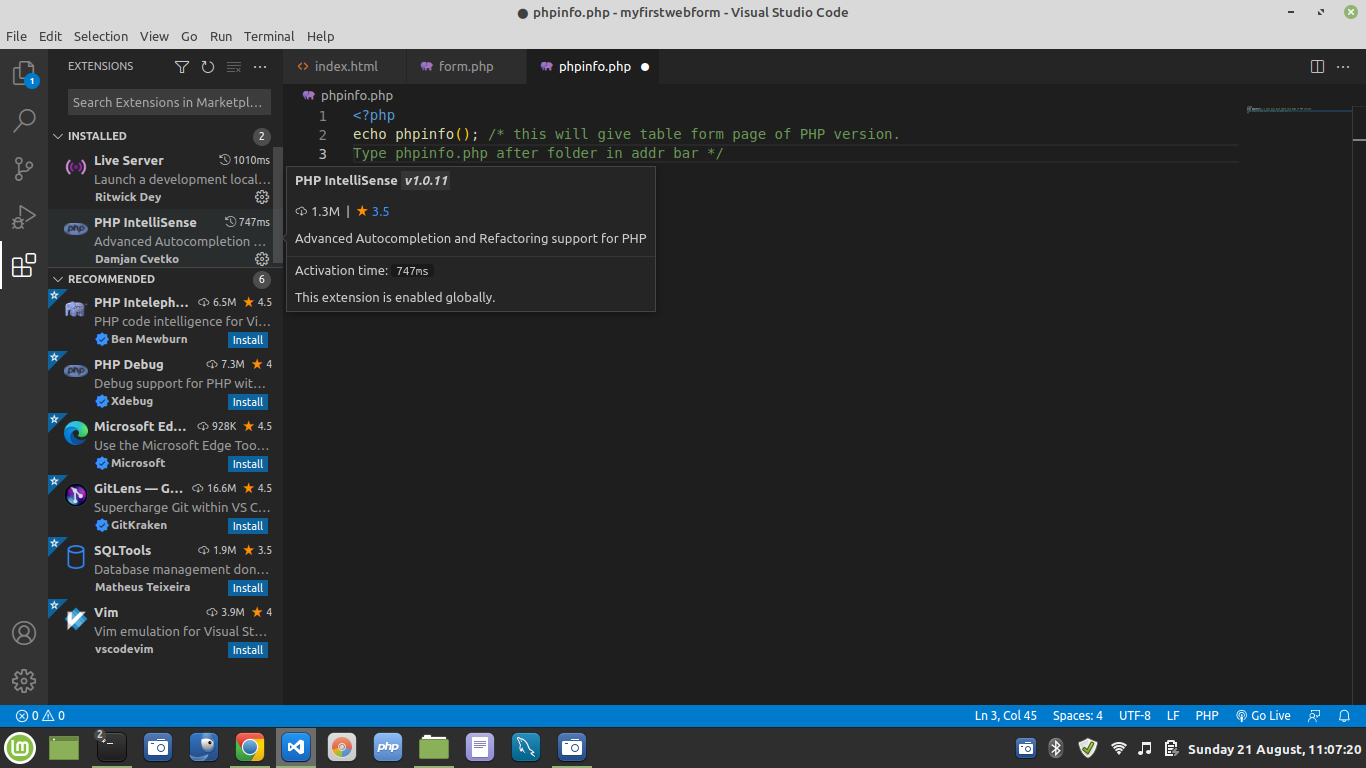
First, In VS Studio, we added the PHP extension PHP Intellisense :
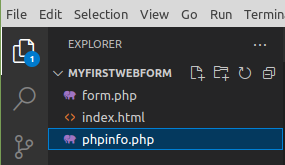
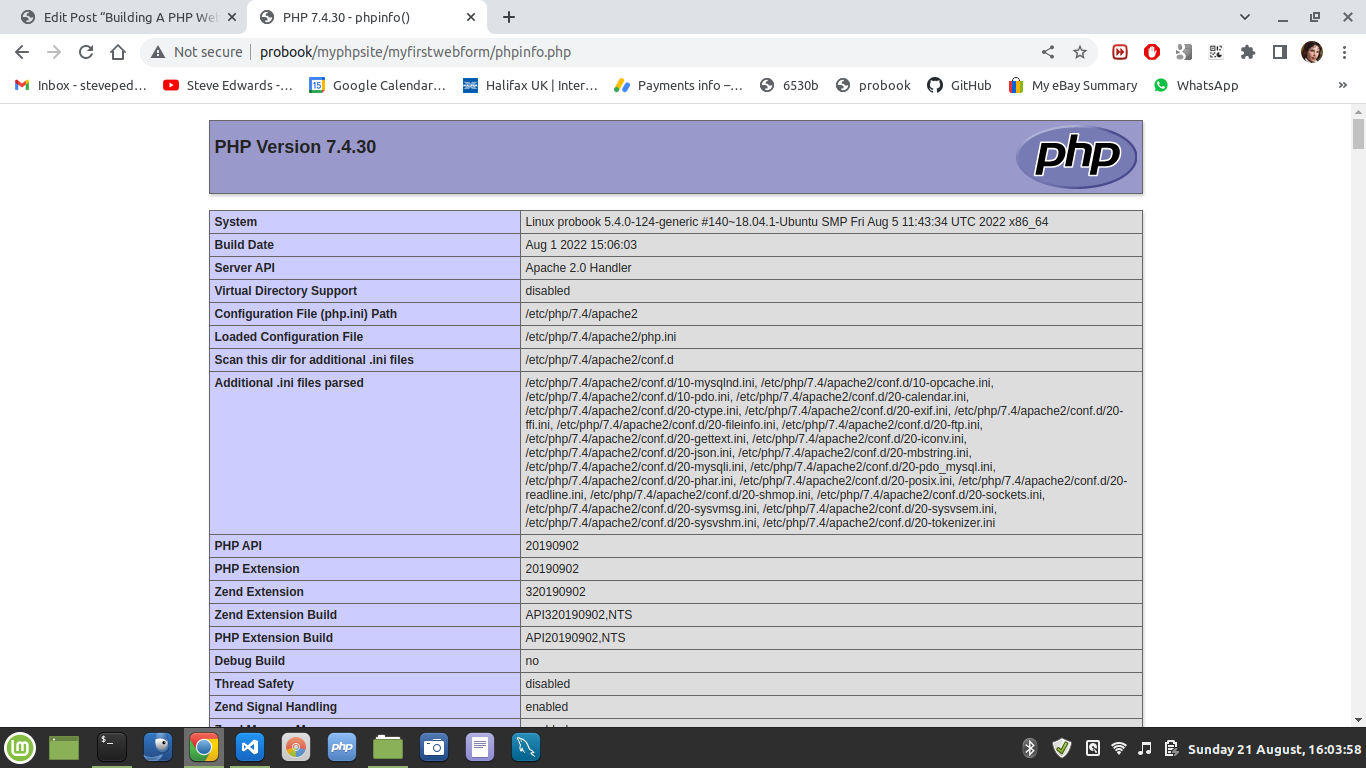
A practical first page was written into the directory /var/www/myfirstwebform/phpinfo.php using the Add Page + button:
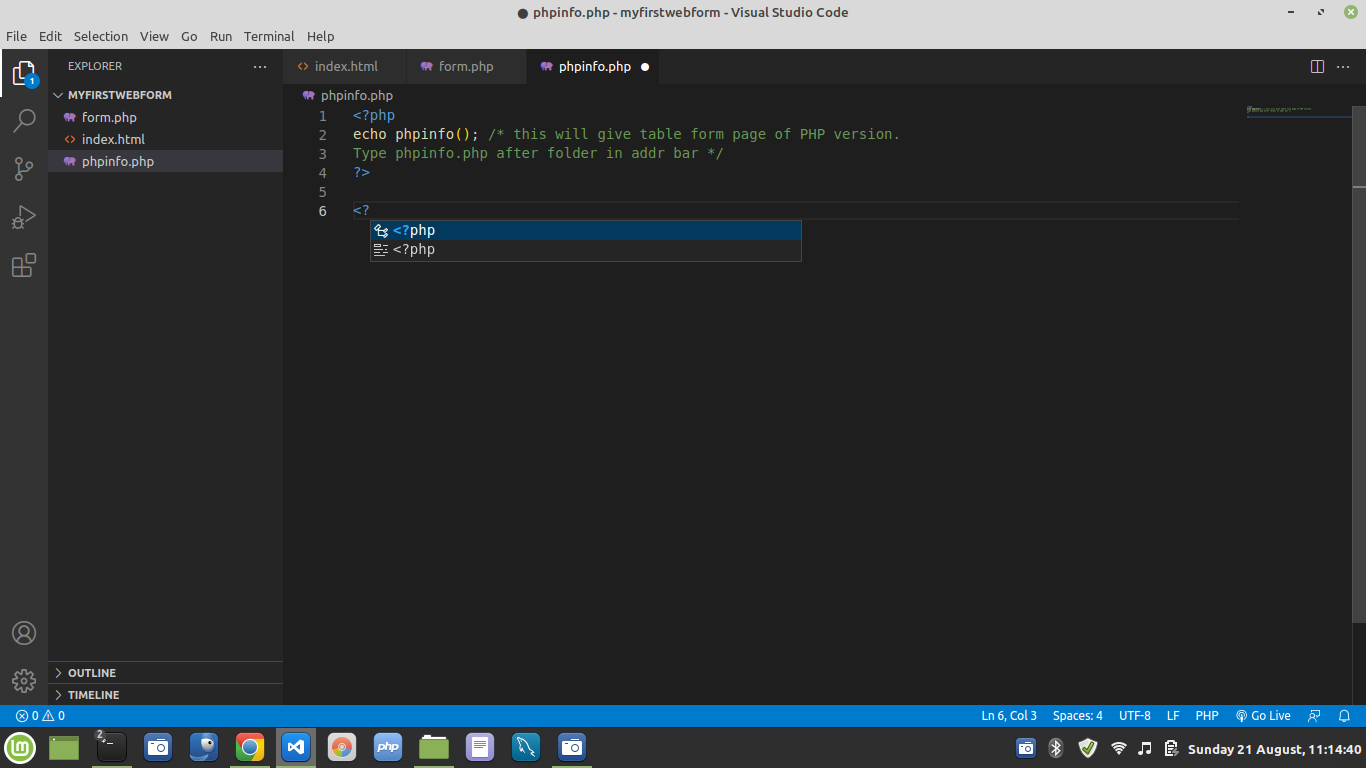
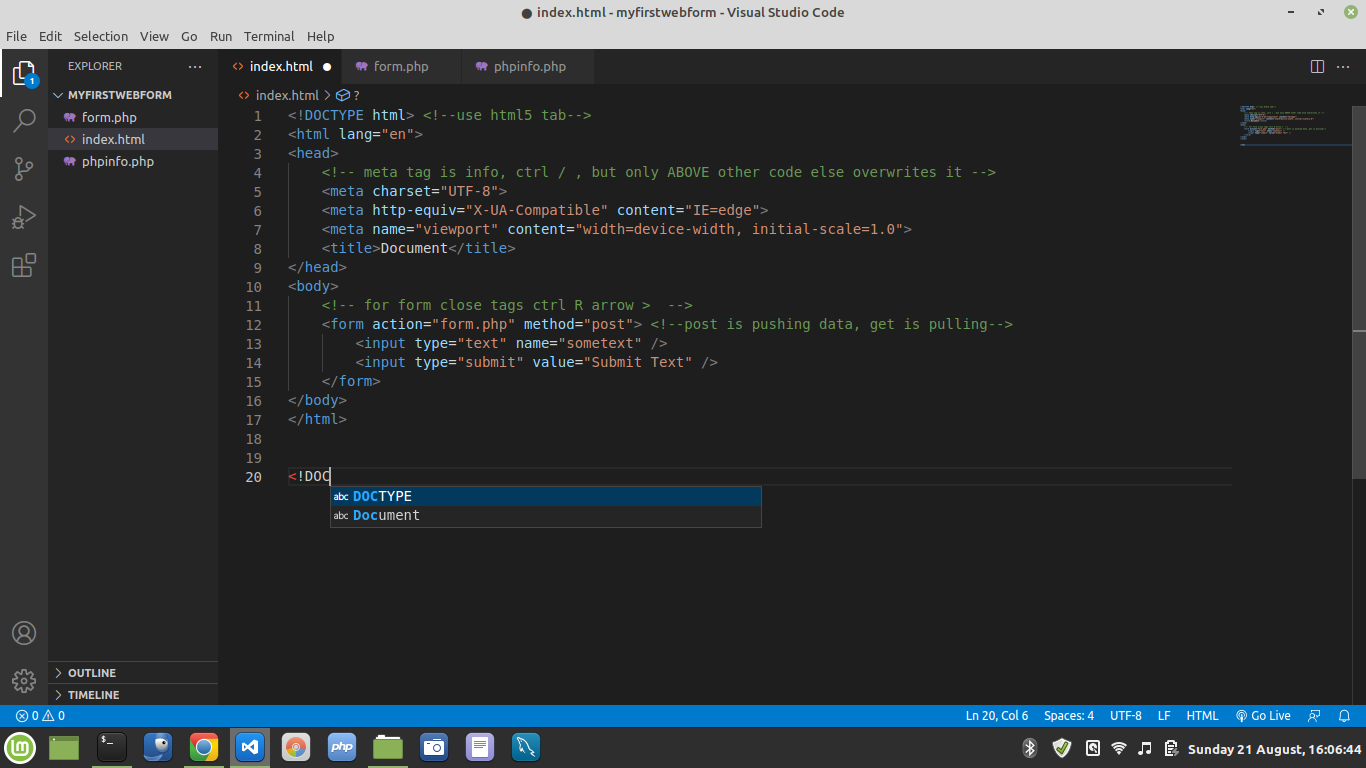
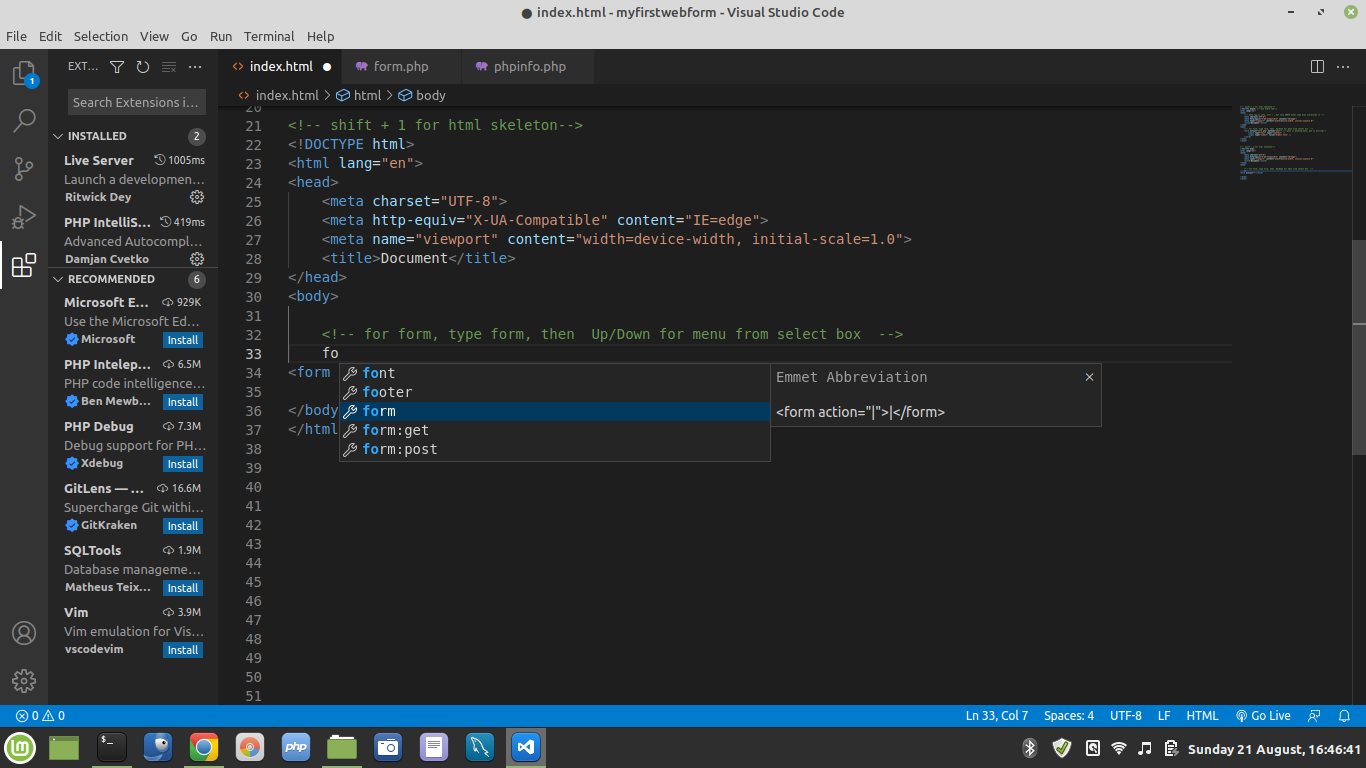
VS Studio autocomplete is used by typing first few letters of desired code, then Rtn highlighted text:
<?php
echo phpinfo(); /* this will give table form page of PHP version.
Type phpinfo.php after folder in addr bar */
?>
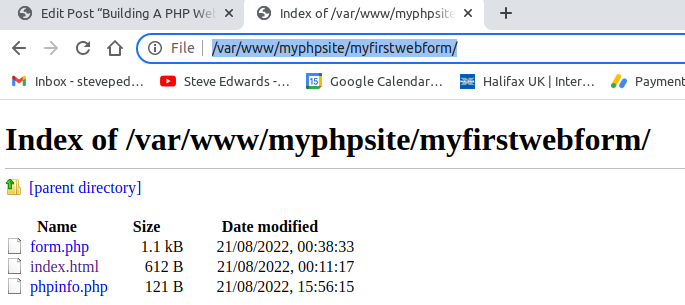
Ctrl S to save, then go to your /var/www/<yourdir> folder in your browser address bar - in my case a subdir of /var/www/myphpsite/myfirstwebform/
Type phpinfo.php in the addr bar - if you click the file, Chrome will want to download it, not run it!
Next we built the index.html in stages. A new file in VSCode again using the code completion of VSCode:
Using Ctrl /, to Autofill a comment box and type comment in the middle:
<!-- meta tag is info, ctrl / for comment fill, but only ABOVE other code else overwrites it -->
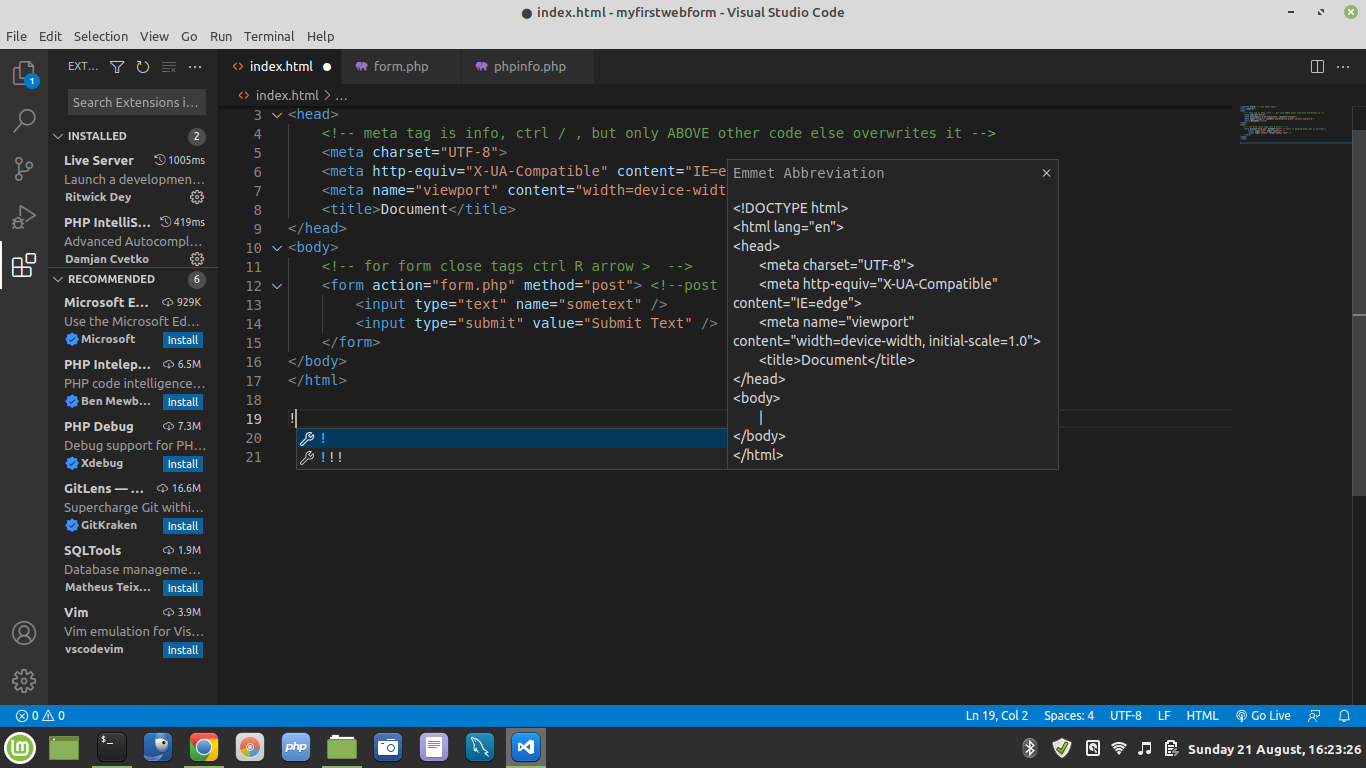
To add the html skeleton, type Shift 1.
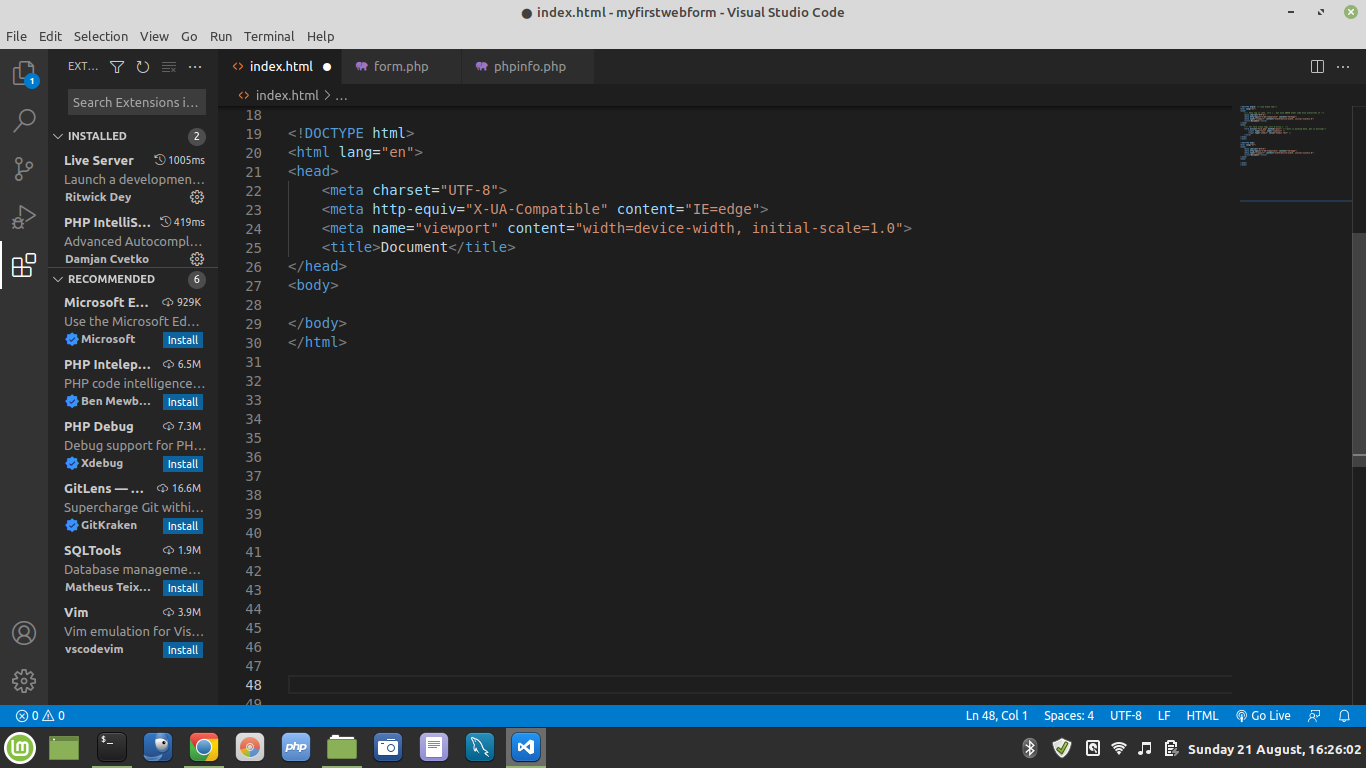
A box shows with the code, so Enter to add the code:
In the <body> section, the actions and DB table info will be placed. The DB tables will be added to the DB table later, for the webpage text input to be sent to, after the page box and button is working first:
<!-- for form, type form, then Up/Down for menu from select box -->
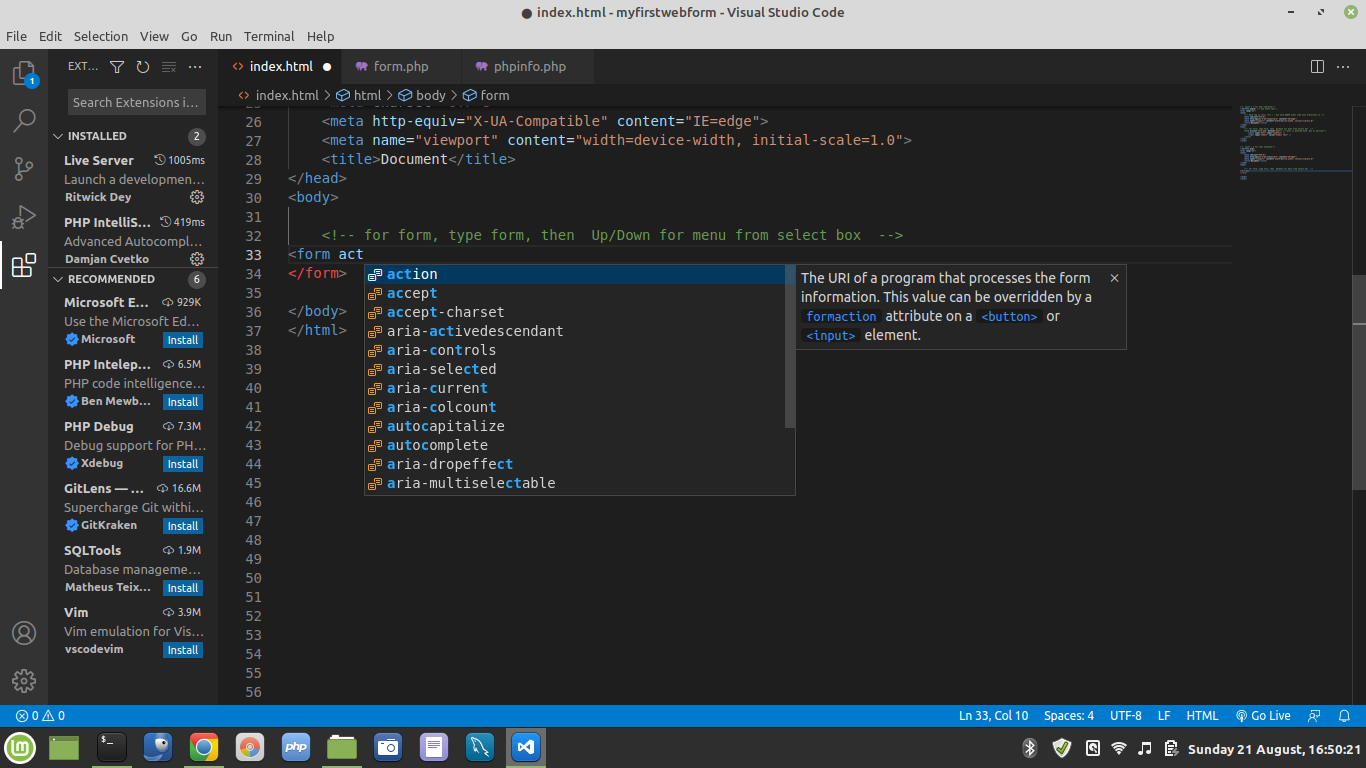
Start typing "action" after "form ", then enter when button explanation shows:
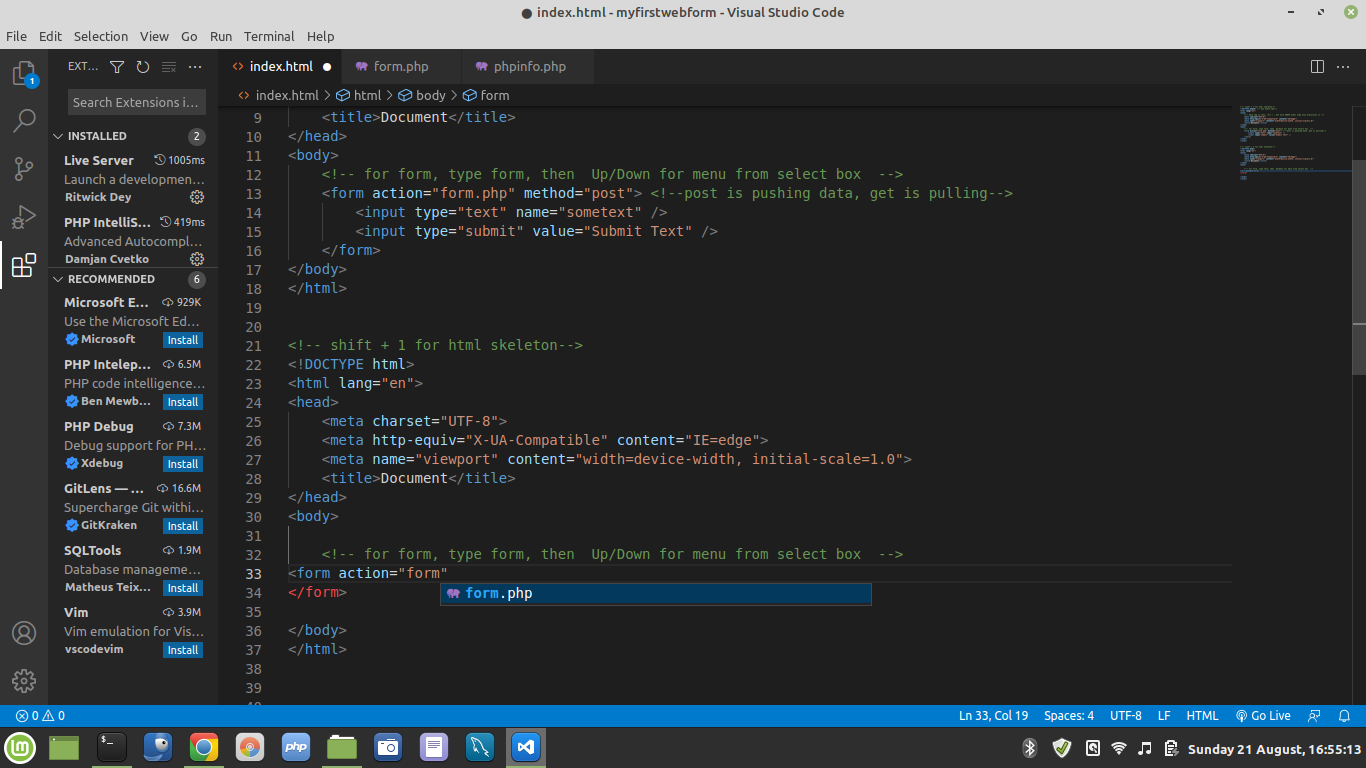
With cursor in the "action=", type "form", enter on menu:
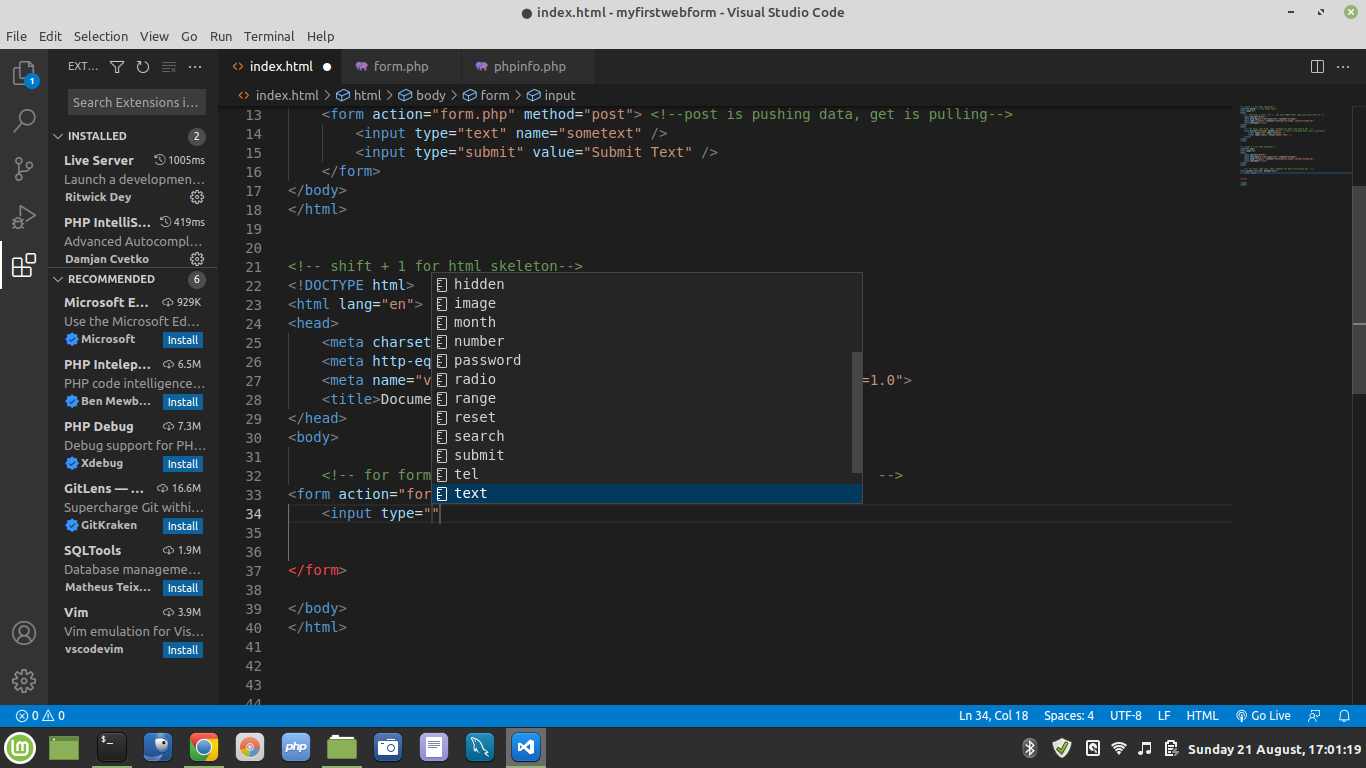
Continue with text completions as per full code below:
---
<!-- shift + 1 for html skeleton-->
<!DOCTYPE html5> <!--use html5 tab-->
<html lang="en">
<head>
<!-- meta tag is info, ctrl / , but only ABOVE other code else overwrites it -->
<!-- for form, type form, then Up/Down for menu from select box -->
<formaction="form.php"method="post"><!--post is pushing data, get is pulling-->
<inputtype="text"name="sometext"/>
<inputtype="submit"value="Submit Text"/>
</form>
</body>
</html>
---
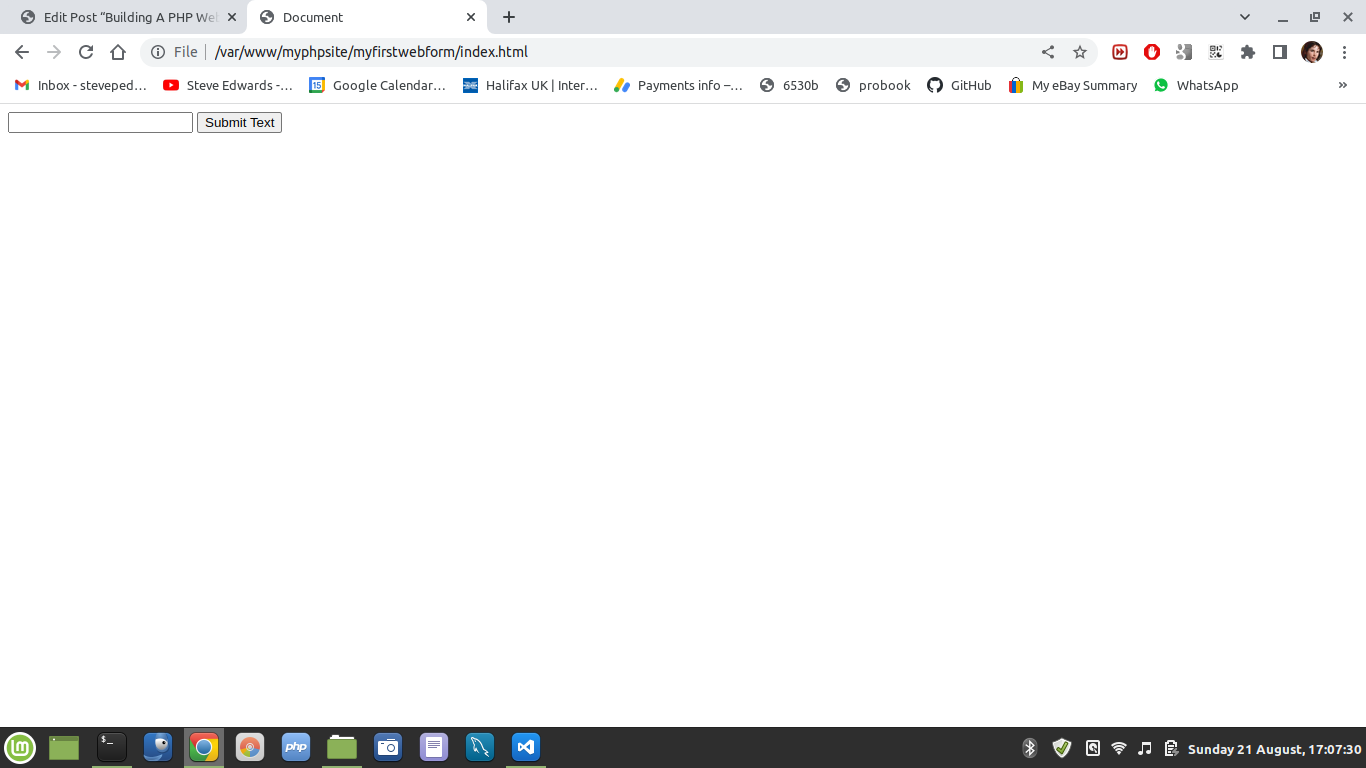
Once the form is complete, it can be tested in your browser. Type the form name as below in the address bar:
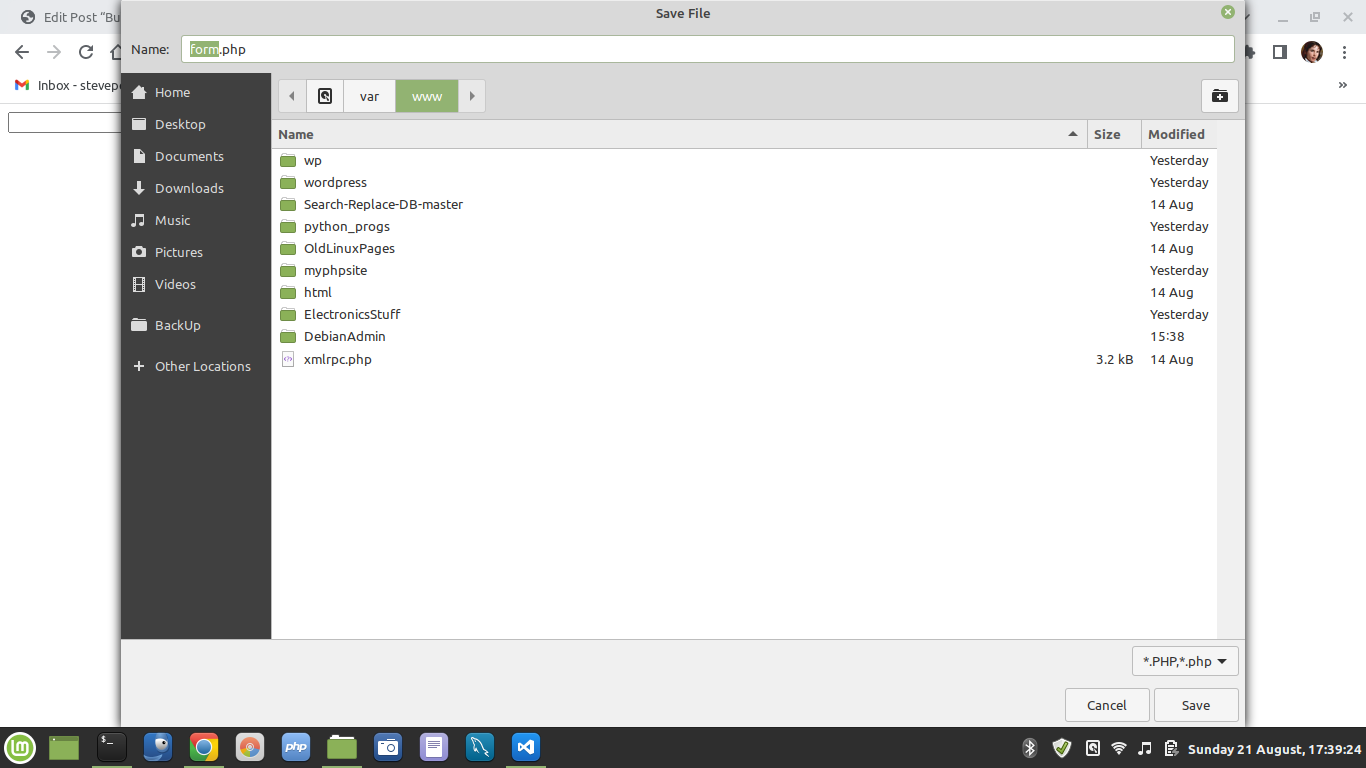
With no DB added yet, the default behaviour of the button for any added text may be to offer to download the form.php file:
Let's add a DB named after the elements in the next code file: A DB named myphpsite, with a table named "text". The code is entered into a file named form.php:
---
<?php
$sometext = $_POST['sometext']; // variable POST is php specific - single line comment
/*
multi line comment
*/
//connect to mysql
$db = new mysqli("localhost","stevee","poop","myphpsite"); // host, user, passwd, DBname
// connection error msg
if ($db->connect_errno) { // connect_errno is property of mysqli class (w3 skool bad code spaces origin)
echo"Failed to connect to MySQL: ".$db->connect_error;
exit();
}
// insert into mysql query
$sql = "INSERT INTO text (sometext) VALUES ('$sometext')" ; // DB Table = "text". Var sometext puts input varchars to column
if ($db->query($sql))
{
echo"Added to database" ;
}if($db->errno)
{
echo"failed to insert into database: $db->error" ; // can also be shown as to concat "."
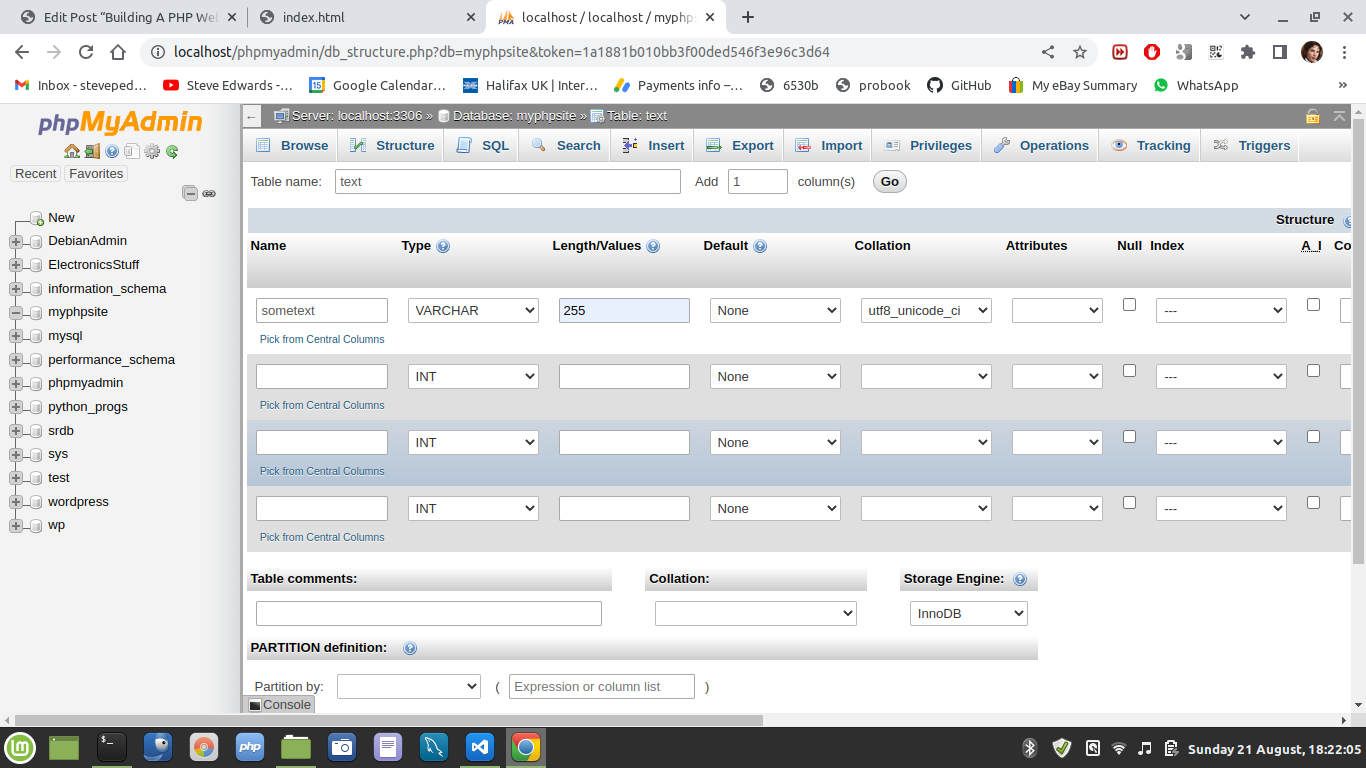
Now, a table named "text" can be created in the DB, as seen named in the code on line 19:
$sql = "INSERT INTO text (sometext) VALUES ('$sometext')" ; // DB Table = "text". Variable $sometext puts input varchars to the column of the DB table.
Just for variation, I'll use phpmyadmin.
In SQL preview you can also get the SQL code if you wish to use mysql command line to create the table:
Once created I had to reboot Mint to get it to work, just restarting with:
sudo service mysql restart
sudo service mysql apache2
did not work properly, as the page kept offering to DL the form.
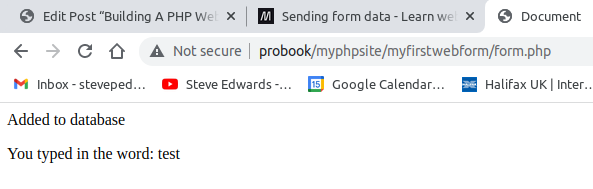
Now it accepts the text and stores it in the DB table:
Now you can try to break it or generate error, example add more than 255 characters that the VARCHAR field was set to:
Interesting..I found it could go a couple of chars over 255 before complaining. I generated 256 letter "a" 's using the command line example on the main site page and amended it to suit then put the chars in a text file to count them with wc -m:
for x in {0..255}; do printf a ; done > Desktop/256as.txt