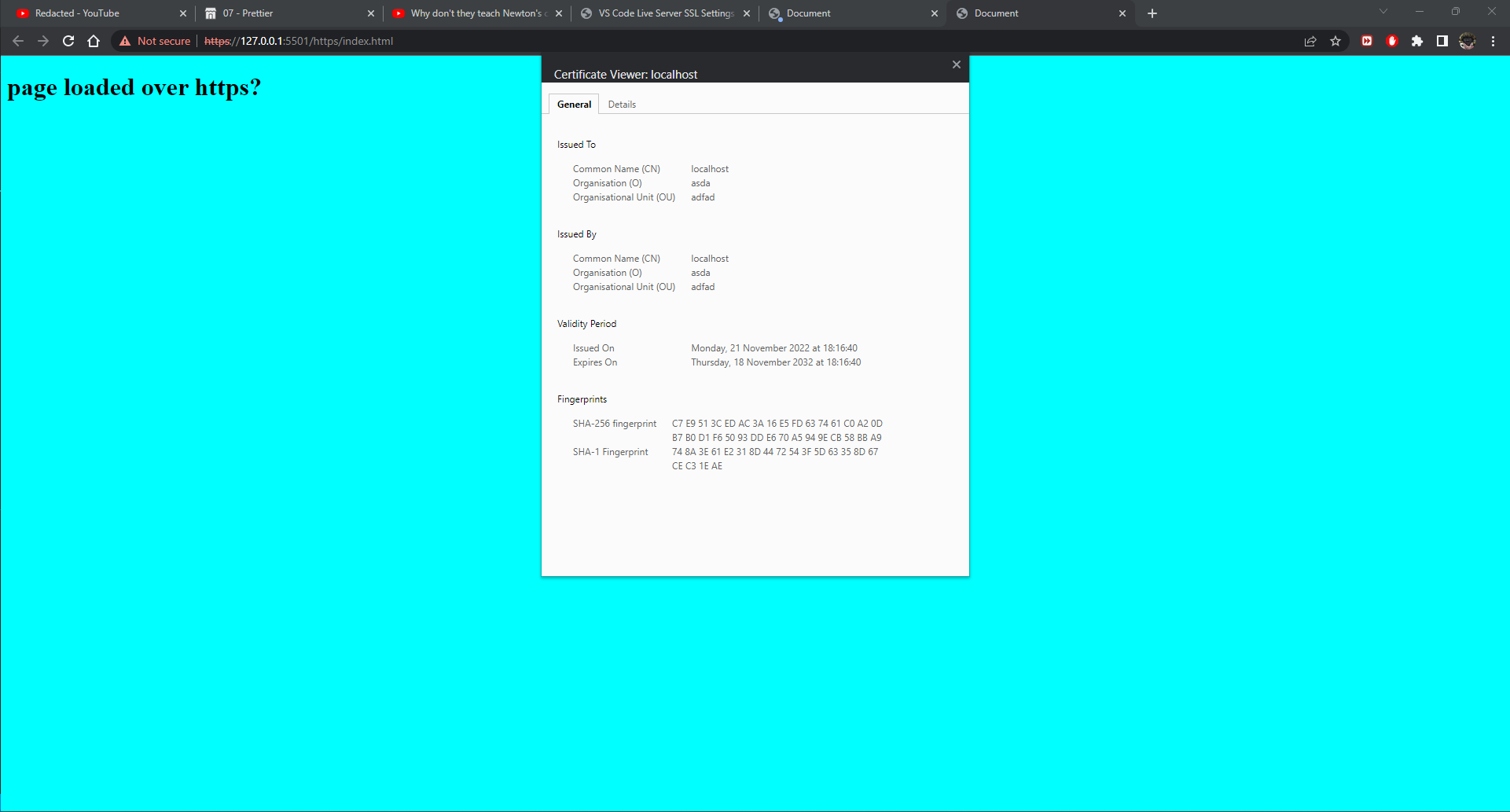
First you need to set up an SSL certificate for your VS code PC to mimic a Cert Authority locally, so on my Win11 laptop I have installed WSL Ubuntu so openssl can be run to use linux commands for the following cert setup. It doesn't matter what nonsense values you put in the certificate fields, as it's not a real certificate - except for the pass phrase you use that openssl will generate the encrypted keys.
WSL for windows can be installed from Powershell if you prefer linux.
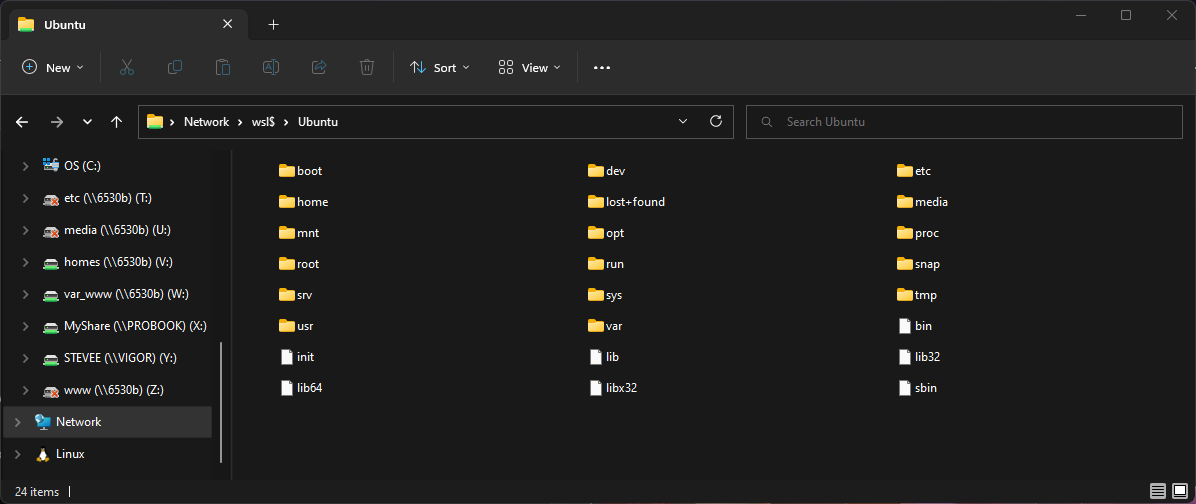
I have opened a WSL terminal in VS Code in my Source Control projects folder. I will create the cert files/keys here also.
If you are not linux comfortable then DL openssl for windows from the web and learn how to use it that way...can't help you there right now.
step 1: Install openssl/create public key:
stevee@laptop:/mnt/c/MyShare/SourceControl$ sudo apt install openssl
1. create a private key
openssl genrsa -aes256 -out localhost.key 2048
// you will be prompted to provide a password
//this will create localhost.key (call it whatever you like)
Enter PEM pass phrase:
Verifying - Enter PEM pass phrase:
stevee@localhost:~$ ls -l
-rwxrwxrwx 1 stevee stevee 1766 Nov 21 18:14 localhost.key
Step 2: make Certificate Signing Request (CSR)
stevee@localhost:~$ openssl req -new -key localhost.key -out localhost.csr
Enter pass phrase for server.key:
You are about to be asked to enter information that will be incorporated
into your certificate request.
What you are about to enter is what is called a Distinguished Name or a DN.
There are quite a few fields but you can leave some blank
For some fields there will be a default value,
If you enter '.', the field will be left blank.
-----
Country Name (2 letter code) [AU]:UK
State or Province Name (full name) [Some-State]:cornwall
Locality Name (eg, city) []:redruth
Organization Name (eg, company) [Internet Widgits Pty Ltd]:localhost
Organizational Unit Name (eg, section) []:localhost
Common Name (e.g. server FQDN or YOUR name) []:localhost
Email Address []:
Please enter the following 'extra' attributes
to be sent with your certificate request
A challenge password []: xxx
In VS Code install the Live Server Extension by Ritwick Dey:
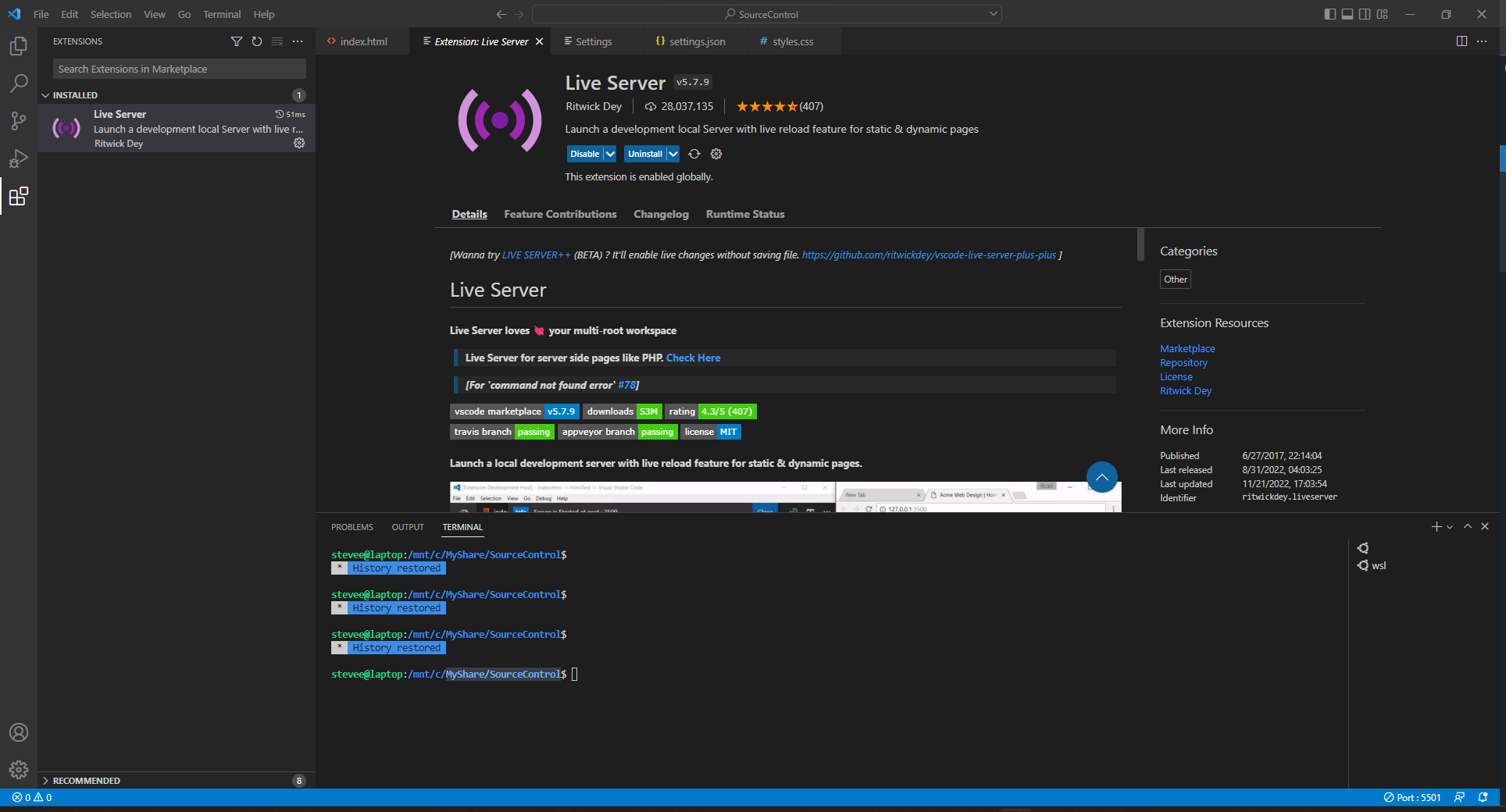
To add the user.JSON code for the SSL settings, go to File/Preferences/Settings and click the tiny, top right "open settings" icon:

Paste this code from the Live server docs site:
https://github.com/ritwickdey/vscode-live-server/blob/master/docs/settings.md
Amend to suit your folders where you placed your keys:
{
  "liveServer.settings.root" : "/",
  "liveServer.settings.port" : 5501,
    "liveServer.settings.http": {
      "enable": true,
      "cert": "C:\MyShare\SourceControl\localhost.pem",
      "key": "C:\MyShare\SourceControl\localhost.key",
      "passphrase": "urpasswd"
    }
  }
Close the Live Server if running.
Now open a project index.html file by right click, and open live server again.
You should see a browser warning as the cert is not real and not verified by an online Certificate Authority obviously, but click Advanced and proceed to site and traffic WILL be encrypted and you VS Code projects emulating being served from an real http server. Note the new port number 5501.
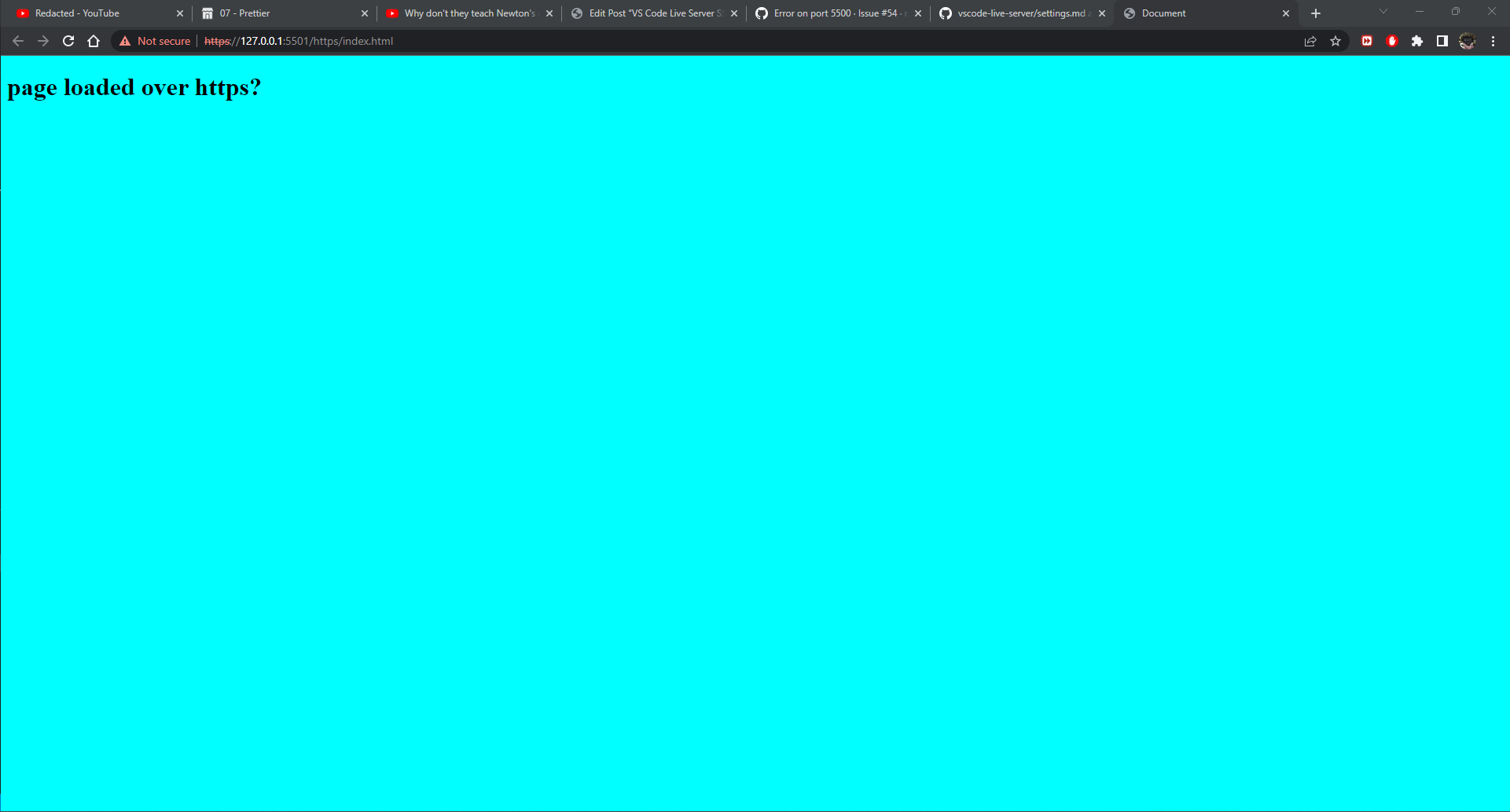
If you r click the Not Secure you can see the invalid certificate: