
As I've done so much work on my websites and WordPress recently rebuilding/fixing/designing them for uploading to the web (here! lol) and I have about 256GB of space on my Win11 laptop, I wondered if all my Posts would work flawlessly on WSL, following my How-Tos line by line, and see if they worked as on Linux Mint or if there were issues. It would also be very useful to have a 2nd working backup of my home site should my very old Linux laptop fail. I thought I'd document it and log all that happens, from first steps following this Post first:
https://stevepedwards.today/DebianAdmin/new-mint-install-want-wordpress-at-home-full-steps-i-take/
I thought I'd make this version clearer for beginners to understand better what is going on so there's more explained each step than before, and as it's WSL and Win11, I don't know what may happen myself.
Before that though - for those who know Windows but not Linux much and want to learn - how do you install WSL first? In my case it's installed already but follow the instructions.
WSL Setup
Open a Powershell prompt as Administrator and run:
wsl --install
Windows Subsystem for Linux is already installed.
The following is a list of valid distributions that can be installed.
Install using 'wsl --install -d <Distro>'.
NAME FRIENDLY NAME
Ubuntu Ubuntu
Debian Debian GNU/Linux
kali-linux Kali Linux Rolling
SLES-12 SUSE Linux Enterprise Server v12
SLES-15 SUSE Linux Enterprise Server v15
Ubuntu-18.04 Ubuntu 18.04 LTS
Ubuntu-20.04 Ubuntu 20.04 LTS
OracleLinux_8_5 Oracle Linux 8.5
OracleLinux_7_9 Oracle Linux 7.9
PS C:WINDOWSsystem32> wsl --list --verbose
NAME STATE VERSION
* Ubuntu Running 2
To access the files in the wsl2 UBUNTU distro from the WINDOWS 11 explorer:
Open windows explorer and enter wsl$ in the address bar - it's the same place as the Linux icon under the Network link:
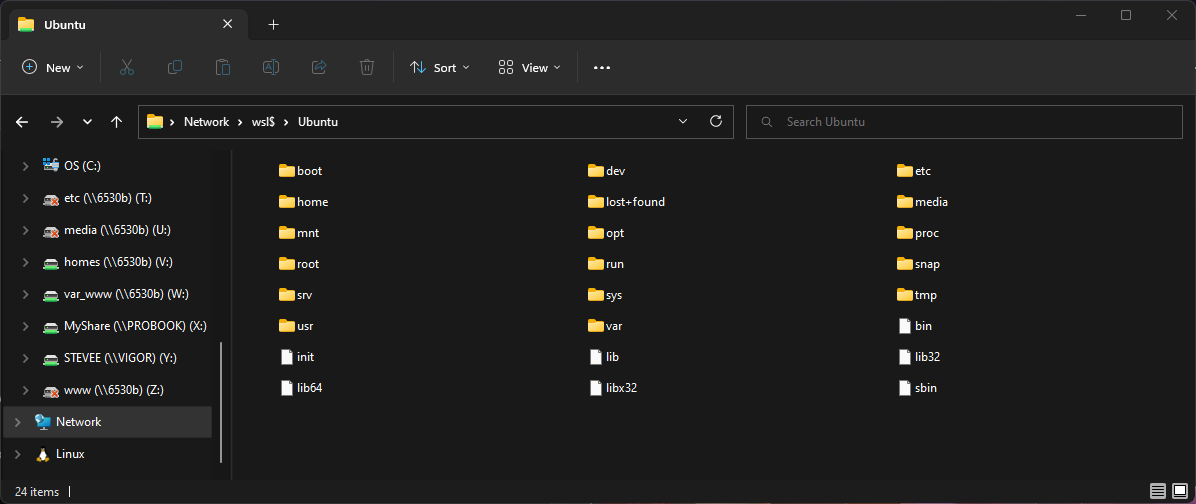
NEVER change files with Win tools in here as you can corrupt the Linux OS!! It's just for reference and orientation!!
IF you want GUI access to your Linux systems, see this link for Win10 - it doesn't work for my Win11 - it won't get past the Ubuntu login page then Win RDT drops out:
Once your Linux Distribution choice is installed, search for WSL in Windows, create a penguin shortcut to put on your Taskbar, open a terminal and feel free to update all the packages from the repositories of whatever Distro you chose, using it's command - Ubuntu in my case. Get to your home directory first for reference:
cd
stevee@laptop:~$ ls -al
total 52
drwxr-xr-x 5 stevee stevee 4096 Nov 21 23:57 .
drwxr-xr-x 3 root root 4096 Sep 22 14:32 ..
-rw------- 1 stevee stevee 8252 Nov 24 19:12 .bash_history
-rw-r--r-- 1 stevee stevee 220 Sep 22 14:32 .bash_logout
-rw-r--r-- 1 stevee stevee 3771 Sep 22 14:32 .bashrc
-rw-r--r-- 1 stevee stevee 62 Oct 17 11:11 .gitconfig
drwxr-xr-x 2 stevee stevee 4096 Sep 22 14:32 .landscape
drwxr-xr-x 3 stevee stevee 4096 Oct 16 20:19 .local
-rw-r--r-- 1 stevee stevee 0 Nov 24 15:43 .motd_shown
-rw-r--r-- 1 stevee stevee 807 Sep 22 14:32 .profile
drwx------ 2 stevee stevee 4096 Nov 24 15:43 .ssh
-rw-r--r-- 1 stevee stevee 0 Sep 22 14:45 .sudo_as_admin_successful
-rw------- 1 stevee stevee 3893 Oct 17 10:57 .viminfo
sudo apt update
30 packages can be upgraded. Run 'apt list --upgradable' to see them.
sudo apt upgrade
sudo apt autoremove
Samba Setup
Now I can start with my first steps from my Post above toward a WSL based webserver for my WordPress sites:
sudo apt-get install ssh nmap vim automake autoconf module-assistant nbtscan locate libnss-winbind winbind g++ gparted intel-microcode amd64-microcode linux-firmware mysql-server wordpress apache2 samba libapache2-mod-php php-mbstring php-curl php php-mysql
If you have a slow ADSL connection for the downloads, open another Linux terminal to continue other tasks like setting a root password:
stevee@laptop:~$ sudo passwd root
New password:
Retype new password:
passwd: password updated successfully
A samba network share password is required to access other Linux network shares later - the same password as the your user name on those other PCs to keep logins simple:
sudo smbpasswd -a stevee
New SMB password:
Retype new SMB password:
Added user stevee.
sudo vim /etc/samba/smb.conf
Uncomment the [homes] section - permissions according to what read/write access you want to allow from remote PCs:
[homes]
; comment = Home Directories
browseable = 1
read only = 0
create mask = 0775
directory mask = 0775
valid users = %S
To add extra shares, write them at the bottom of the smb.conf file in the form:
[var_www]
path = /var/www/
writeable = 1
browseable = 1
Save the file in vim with
:wq
Check it for errors:
stevee@laptop:~$ testparm
Load smb config files from /etc/samba/smb.conf
Loaded services file OK.
Weak crypto is allowed
Start Samba services:
sudo service smbd start
sudo service nmbd start
But nothing on the network is visible - windows stopped using SMB for network connections a while ago, why Linux and Windows can oly connect via mapped drives out of the box now - but the Linux laptop should be seen?:
stevee@laptop:/var/www$ sudo smbstatus
sudo: unable to resolve host laptop: System error
Samba version 4.13.17-Ubuntu
PID Username Group Machine Protocol Version Encryption Signing
APACHE2 Setup
For WP to run, not just read the wp-*php files it will require:
sudo apt install mysql-server wordpress apache2 libapache2-mod-php php-mbstring php-curl php php-mysql
As these have already been installed above, there may be nothing to do except another:
sudo apt autoremove
Configure the Apache2 files to suit your site - I only want 2 sites available whose WordPress content folders will be stored in /var/www:
sudo vi /etc/apache2/sites-enabled/000-default.conf
DocumentRoot /var/www
Alias "DebianAdmin" "/var/www/DebianAdmin"
Alias "ElectronicsStuff" "/var/www/ElectronicsStuff"
Amend this file accordingly:
sudo vi /etc/apache2/apache2.conf
# Global configuration
#
ServerName laptop
# In vim, press / then search "var/www", and change code to:
<Directory /var/www>
Options Indexes FollowSymLinks
AllowOverride All
Require all granted
</Directory>
stevee@laptop:~$ sudo service apache2 restart
* Restarting Apache httpd web server apache2
If you now enter your http site name in a browser bar you should see the insecurity compliant:
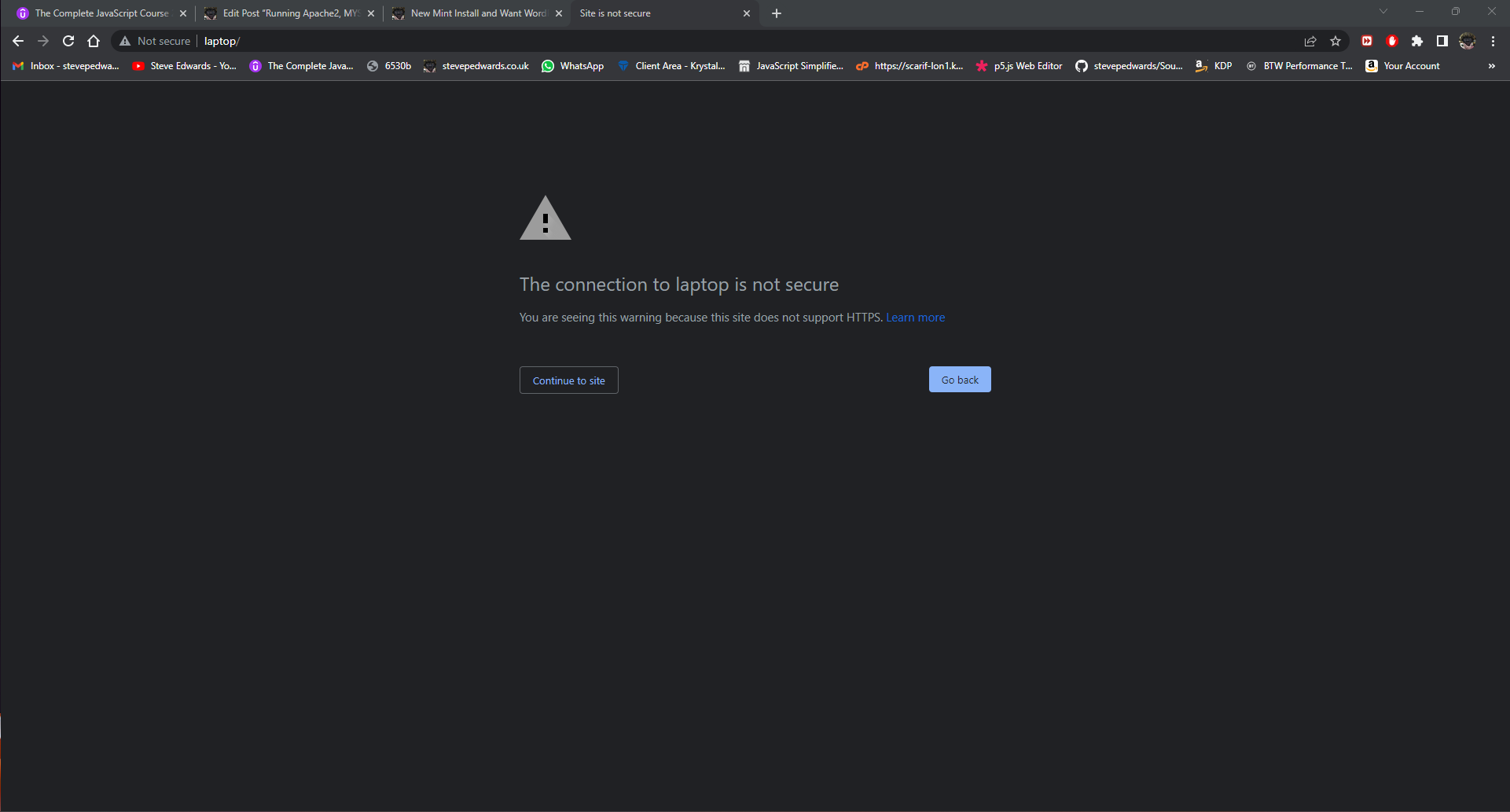
If you continue, you won't see any site files, as I haven't copied the WP contents folder or index.html to /var/www or set the permissions yet.
So my user and Apache2 has access to the web folder /var/www, set the ownership of user:group:
sudo chown stevee:www-data -R /var/www/
sudo chmod 775 -R /var/www/
ls -l /var/www/
total 4
drwxrwxr-x 2 stevee www-data 4096 Nov 24 22:55 html
Now I have to copy the WP site's content folders here from where they are already - I don't need to be root as I own both source and destination folders - about 7.4GB in total:
cp -vr /mnt/c/MyShare/www/* /var/www/
The files retain their old ownership permissions so have to be changed again for Apache2 group access.
stevee@laptop:/var/www$ ls -l /var/www/
total 4653712
-rwxr-xr-x 1 stevee stevee 2480 Nov 24 23:36 android-chrome-96x96.png
-rwxr-xr-x 1 stevee stevee 3167 Nov 24 23:36 Apache2SSLCerts.txt
-rwxr-xr-x 1 stevee stevee 1898 Nov 24 23:36 apple-touch-icon.png
Assume all wp site folders are unpacked or copied into /var/www/. Set all files to correct permissions for a local PC only (755/644) or network group access (775/664) and user:group permissions:
sudo chown stevee:www-data -R /var/www
sudo find /var/www/ -type d -exec chmod 775 -R {} +
sudo find /var/www/ -type f -exec chmod 664 -R {} +
stevee@laptop:/var/www$ ls -l /var/www/
-rw-rw-r-- 1 stevee www-data 4603540204 Nov 24 23:36 backup-11.23.2022_20-15-52_steveped.tar.gz
drwxrwxr-x 2 stevee www-data 4096 Nov 24 23:36 CTQuiz
drwxrwxr-x 6 stevee www-data 4096 Nov 24 23:40 DebianAdmin
These permissions allow network access to the site.
To be sure WP can update plugins and Themes if 775/644 doesn't allow them to change the updates/plugins folders in wp-content:
sudo find /var/www/*/wp-* -type d -exec chmod 777 -R {} ;
If this was a production site it would have to be changed back to 755/644 afterward if necessary. My web host sites don't have to be changed from default permissions 755/644, but home sites do.
MYSQL Setup
Before I import the different site's SQL database files, they need to have all references to the old site name - localhost - changed to the new server's name - "localhost" (IMPORTANTLY in this case - as I found out after doing all this Post).
Alos importantly, is to use the full https://localhost line in the database so legitimate use of the word "localhost" isn't changed to localhost in normal text etc - but only for the web links!
Note the forward slashes (/) have to be escaped with a backslash in Linux () and because this site will be upgraded to HTTPS later, I'll keep the current file's HTTPS links intact.
I use SED for this as it is fast and effective - if unforgiving of errors - like most old linux commands so be SURE you have the correct strings to search and replace before you run it!!
sed -i 's/https://stevepedwards.today/https://stevepedwards.today/g' DebianAdmin.SQL
sed -i 's/https://stevepedwards.today/https://stevepedwards.today/g' ElectronicsStuff.sql
Now I can access MYSQL, create and import the WP databases, hopefully:
stevee@laptop:/var/www$ sudo service mysql start
* Starting MySQL database server mysqld su: warning: cannot change directory to /nonexistent: No such file or directory.
Hmm, dunno what that means? Research later...
stevee@laptop:/var/www$ sudo mysql -u root -p
Enter password:
Welcome to the MySQL monitor. Commands end with ; or g.
Your MySQL connection id is 10
Server version: 8.0.31-0ubuntu0.20.04.1 (Ubuntu)
Type 'help;' or 'h' for help. Type 'c' to clear the current input statement.
mysql> show databases ;
+--------------------+
| Database |
+--------------------+
| information_schema |
| mysql |
| performance_schema |
| sys |
+--------------------+
4 rows in set (0.02 sec)
mysql> create database DebianAdmin ;
Query OK, 1 row affected (0.02 sec)
mysql> create database ElectronicsStuff ;
Query OK, 1 row affected (0.00 sec)
mysql> show databases ;
+--------------------+
| Database |
+--------------------+
| DebianAdmin |
| ElectronicsStuff |
| information_schema |
| mysql |
| performance_schema |
| sys |
+--------------------+
6 rows in set (0.00 sec)
mysql> use DebianAdmin ;
Database changed
mysql> source /var/www/DebianAdmin.SQL ;
mysql> use ElectronicsStuff ;
mysql> source /var/www/ElectronicsStuff.sql ;
mysql> show databases ;
+--------------------+
| Database |
+--------------------+
| DebianAdmin |
| ElectronicsStuff |
| information_schema |
| mysql |
| performance_schema |
| sys |
+--------------------+
6 rows in set (0.00 sec)
I have to allow access to these Dbs for my local user with my password:
mysql>
CREATE USER 'stevee'@'%' IDENTIFIED BY 'pword';
OR:
CREATE USER 'stevee'@'localhost' IDENTIFIED BY 'pword';
DROP USER 'wronguser'@'%';
GRANT ALL on *.* TO 'stevee'@'localhost' ;
mysql> SHOW GRANTS FOR 'stevee'@'localhost';
+--------------------------------------------------------------------------------------------------------------------------------+
| Grants for stevee@localhost
|
+--------------------------------------------------------------------------------------------------------------------------------+
| GRANT SELECT, INSERT, UPDATE, DELETE, CREATE, DROP, RELOAD, REFERENCES, ALTER ON *.* TO `stevee`@`localhost` WITH GRANT OPTION |
+--------------------------------------------------------------------------------------------------------------------------------+
1 row in set (0.00 sec)
The principle user name given access here is the name that goes into wp-config.php file for that database name.
sudo vi DebianAdmin/wp-config.php
// ** MySQL settings - You can get this info from your web host ** //
/** The name of the database for WordPress */
define('DB_NAME', 'DebianAdmin');
/** MySQL database username */
define('DB_USER', 'stevee');
/** MySQL database password */
define('DB_PASSWORD', 'xxx');
/** MySQL hostname */
define('DB_HOST', 'localhost');
Now check out and test user stevee can access MYSQL:
mysql> exit
Bye
stevee@laptop:/var/www$ sudo mysql -u stevee -p
[sudo] password for stevee:
Enter password:
Welcome to the MySQL monitor. Commands end with ; or g
Restart MYSQL:
stevee@laptop:/var/www$ sudo service mysql restart
* Stopping MySQL database server mysqld [ OK ]
* Starting MySQL database server mysqld su: warning: cannot change directory to /nonexistent: No such file or directory
For issue:
su: warning: cannot change directory to /nonexistent: No such file or directory
"I'd like to verify this is the problem. Here's the line from my /etc/passwd with the /nonexistent directory name: mysql:x:112:119:MySQL Server,,,:/nonexistent:/bin/false"
FIX - give mysql a valid directory, not /nonexistent:
sudo service mysql stop
sudo usermod -d /var/lib/mysql/ mysql
sudo service mysql start
Now, mysql has a valid directory as seen in:
stevee@laptop:/var/www$ grep --color mysql /etc/passwd
mysql:x:113:120:MySQL Server,,,:/var/lib/mysql/:/bin/false
To Export DBs:
stevee@laptop:/var/www$ sudo mysqldump -vu root -p DebianAdmin > /var/www/DA.sql
Check all required web services are running:
nmap localhost
Not shown: 998 closed ports
PORT STATE SERVICE
80/tcp open http
3306/tcp open mysql
Now input:
localhost/
into your browser page to see your index.html Landing Page if you have one - it works:
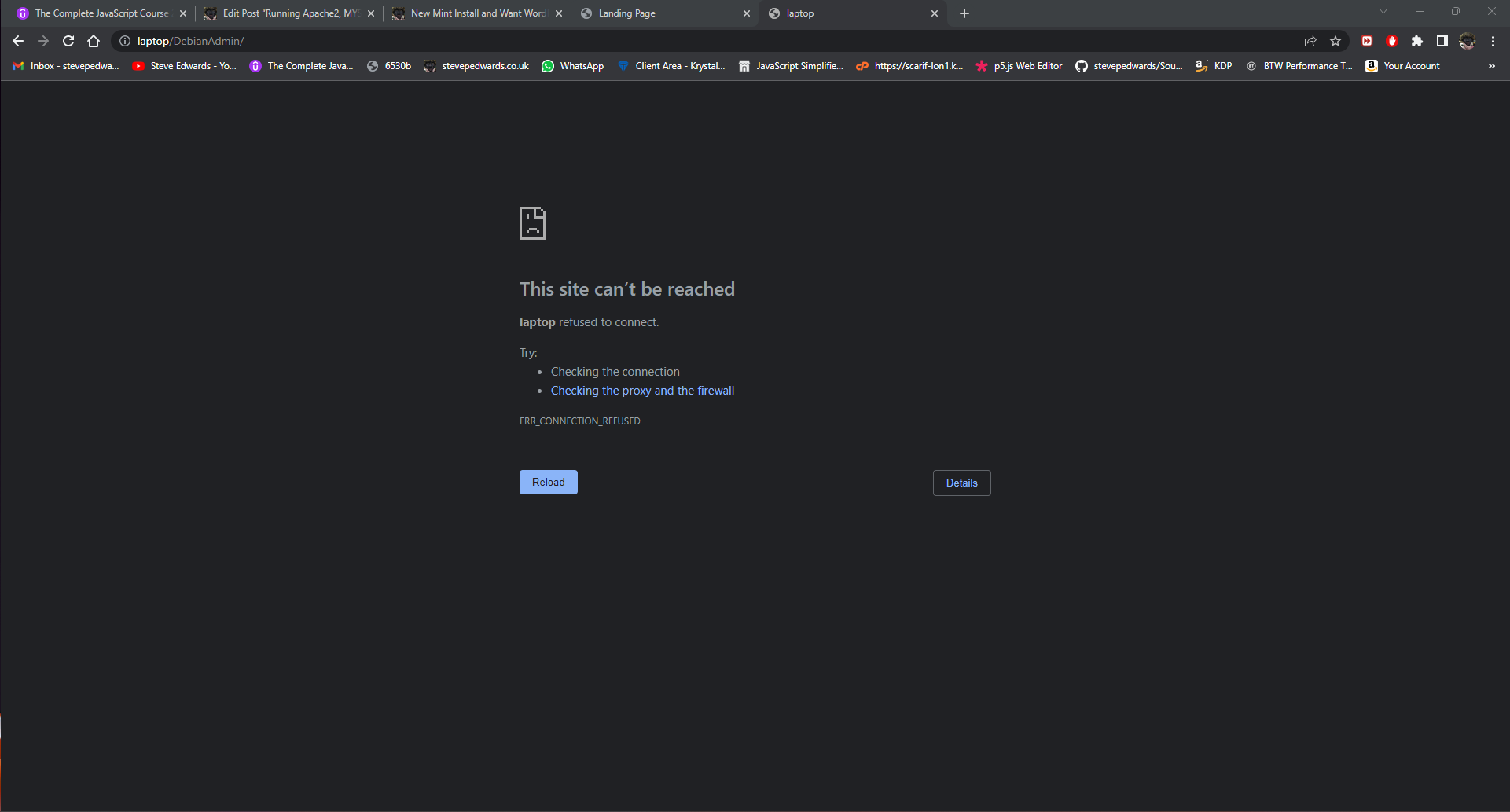
 BUT! Access to the WP sites is not working - and notice it tried the PC name, not localhost:
FOR net access from PCs, edit 127.0.0.1 bind addr to 0.0.0.0:
# Instead of skip-networking the default is now to listen only on
# localhost which is more compatible and is not less secure.
bind-address = 0.0.0.0
sudo vi /etc/mysql/mysql.conf.d/mysqld.cnf
Let's see what nmap says:
stevee@laptop:/var/www$ nmap localhost
Starting Nmap 7.80 ( https://nmap.org ) at 2022-11-25 13:20 GMT
Nmap scan report for localhost (127.0.0.1)
Host is up (0.000022s latency).
Not shown: 998 closed ports
PORT STATE SERVICE
80/tcp open http
3306/tcp open mysql
OK, so the services are running for localhost but only http for server name laptop:
stevee@laptop:/var/www$ nmap laptop
Starting Nmap 7.80 ( https://nmap.org ) at 2022-11-25 13:23 GMT
Nmap scan report for laptop (127.0.1.1)
Host is up (0.000026s latency).
rDNS record for 127.0.1.1: laptop.localdomain
Not shown: 999 closed ports
PORT STATE SERVICE
80/tcp open http
3306/tcp open mysql
That means I should have access to the WP AND Apache sites:
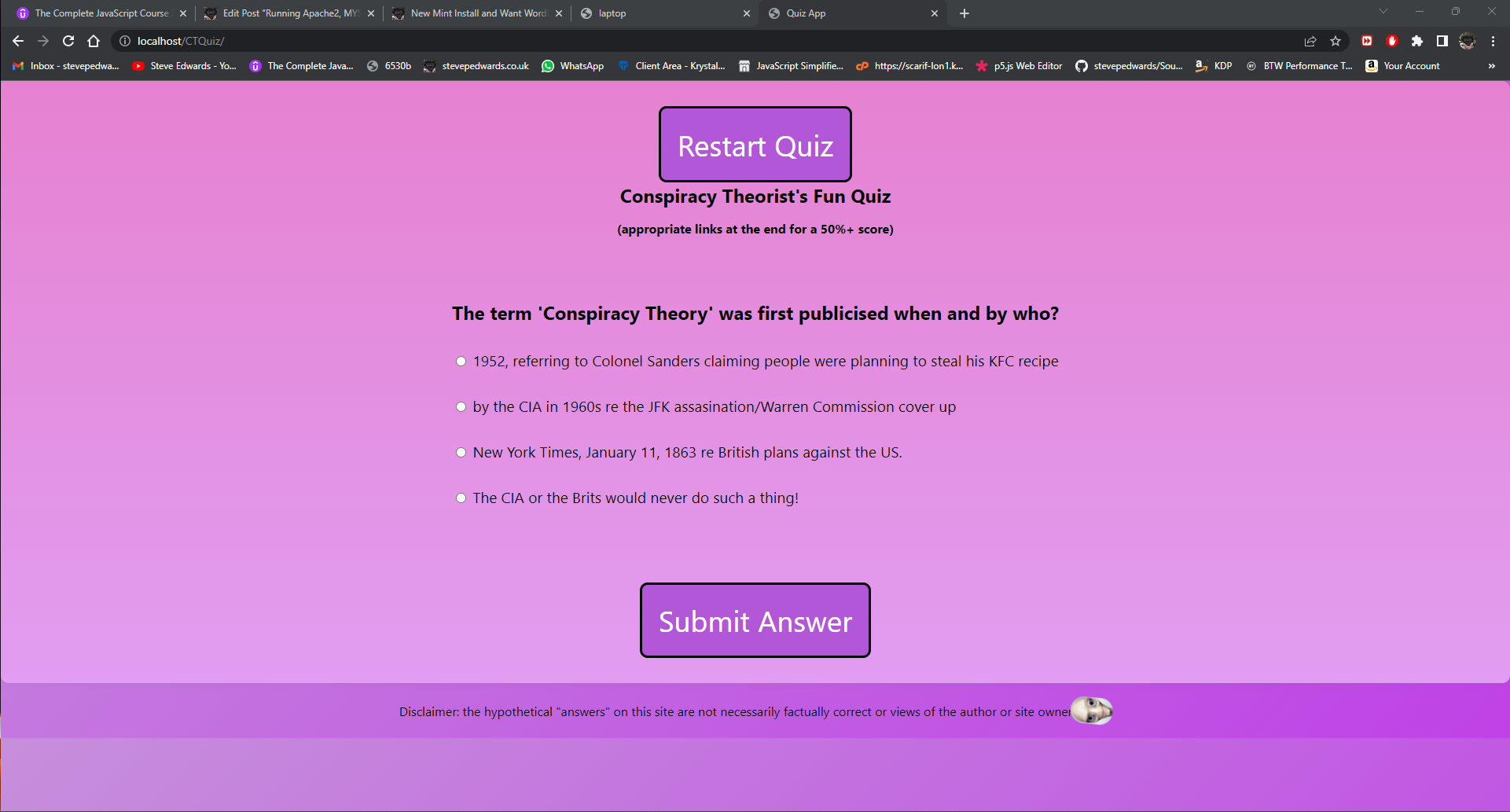
My Electronics site is partly showing so that's a WP config issue mostly, but DebianAdmin is not showing at all as it is redirecting from localhost to "laptop"- but still a WP config or Apache HTTPS re-direct issue, probably from the old Linux laptop Apache file settings:
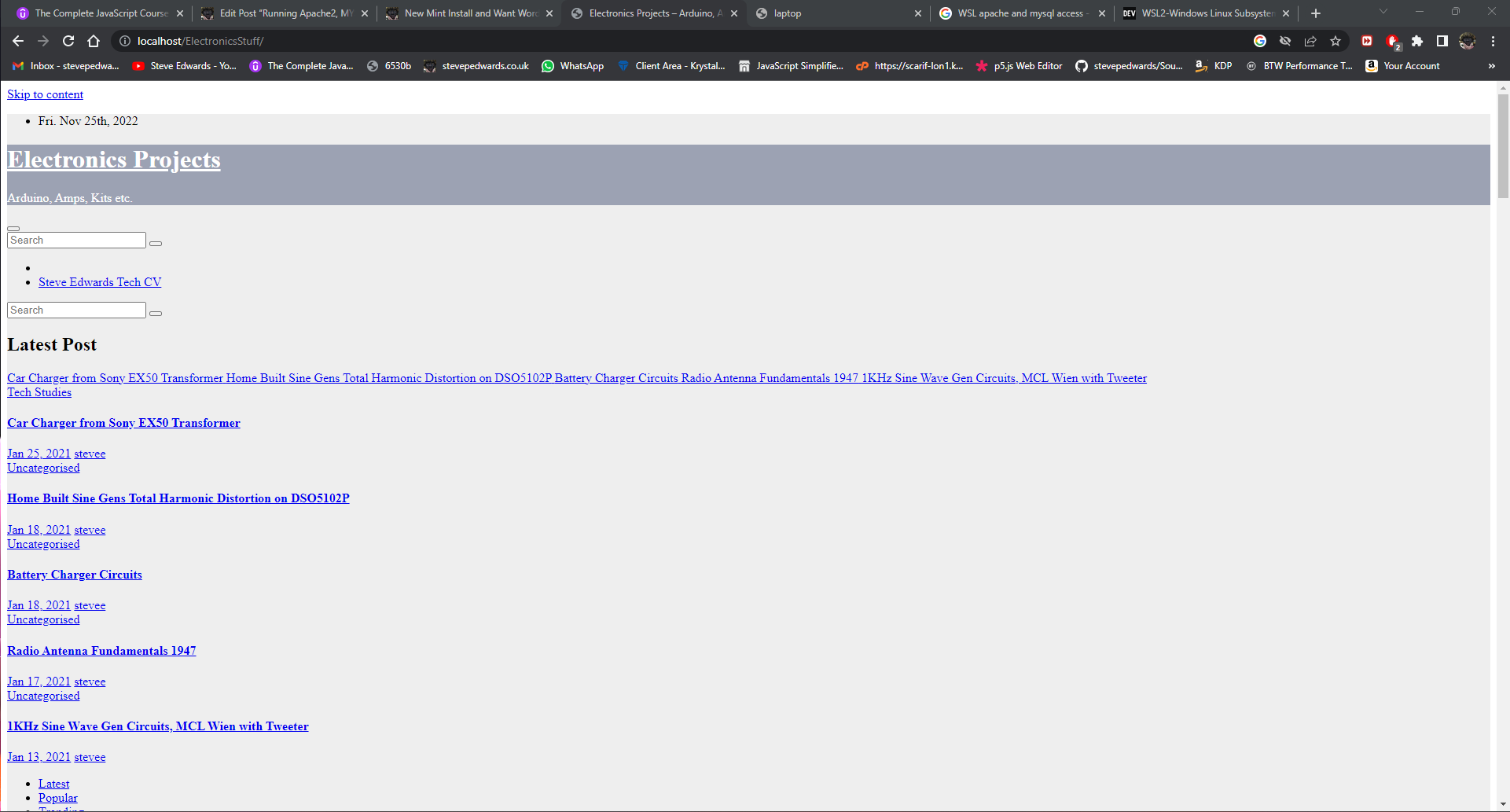
I can also get local access via IP address: https://172.31.108.16/ElectronicsStuff/
You can use Better Search Replace plugin to change any errant non http links that may affect things like YouTube vids not showing:
 I DONT have remote PC access though either by browser address name /laptop or IP address so I cannot login as it's link is via PC name.
Let's look at some network issues like firewall access to the network connections. This laptop only has a wifi card but no ethernet port.
In WSL Ubuntu, unlike Mint, ifconfig does not work until net-tools is installed:
sudo apt install net-tools
ifconfig
eth0: flags=4163<UP,BROADCAST,RUNNING,MULTICAST> mtu 1500
inet 172.31.104.71 netmask 255.255.240.0 broadcast 172.31.111.255
What weird IP addresses are these?? My router DHCP is set to 192.168.1.x addresses?
Ok, some independent /20 WSL network? Using a net calc, as my Networking skills are way overdue for a recap...like by 12 years..lol
I only have wifi on this laptop too and WSL says it's eth0?!
That's because WSL runs on a VM with a virtual network adaptor, so the name doesn't matter - it's just an IP gateway.
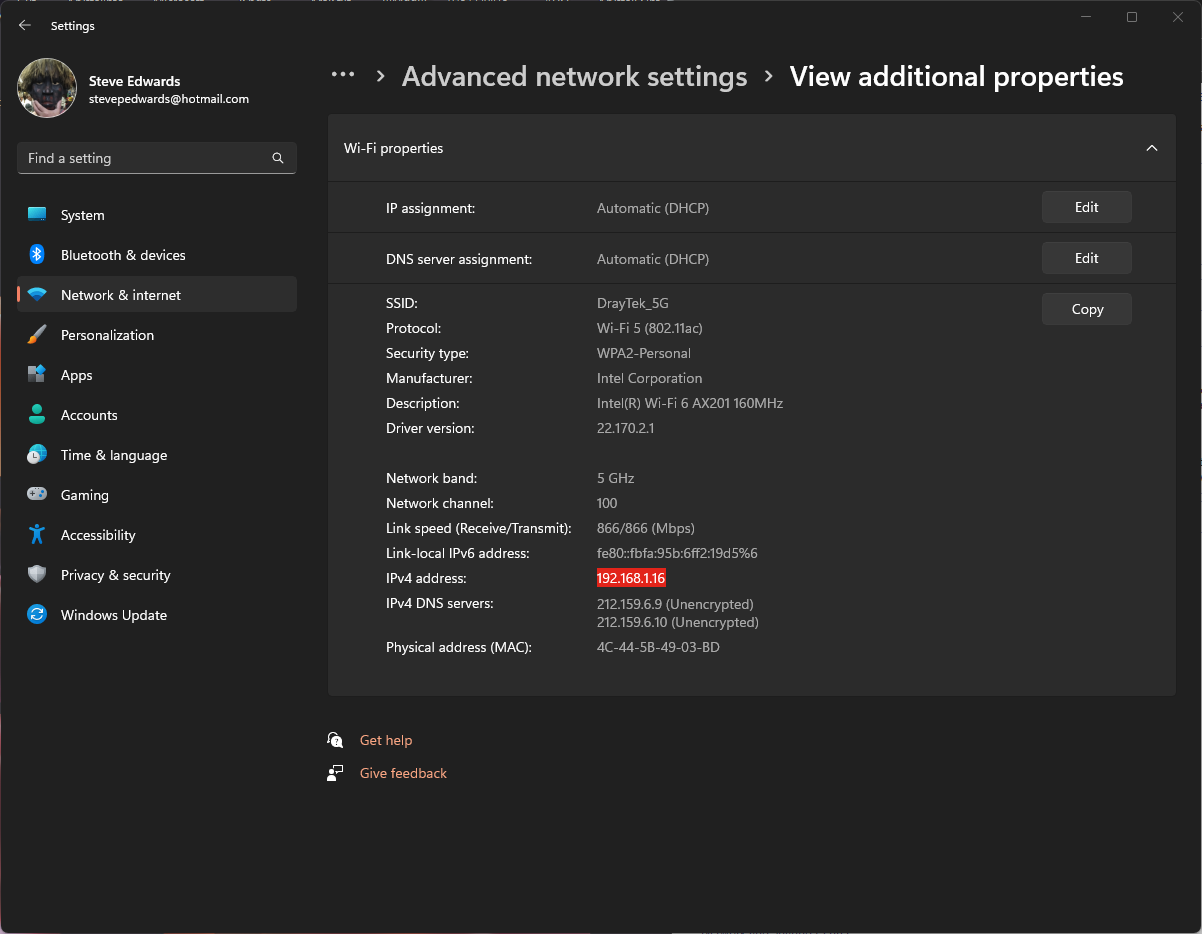
My Win11 netcard is 192.168.1.16. Is there some WSL aliasing going on here to share the wifi adaptor? What does nmap make of it all? Interesting, neither IP addresses show mysql port 3306 so STILL will not be able to connect to my WP/MYSQL websites:
stevee@laptop:/var/www$ nmap 172.31.104.71
Starting Nmap 7.80 ( https://nmap.org ) at 2022-11-25 01:16 GMT
Nmap scan report for 172.31.104.71
Host is up (0.000065s latency).
Not shown: 999 closed ports
PORT STATE SERVICE
80/tcp open http
stevee@laptop:/var/www$ nmap 192.168.1.16 -Pn
Starting Nmap 7.80 ( https://nmap.org ) at 2022-11-25 01:29 GMT
Nmap scan report for laptop (192.168.1.16)
Host is up (0.00044s latency).
Not shown: 996 filtered ports
PORT STATE SERVICE
135/tcp open msrpc
139/tcp open netbios-ssn
445/tcp open microsoft-ds
5357/tcp open wsdapi
I will need to let mysql out of the firewall at least maybe? Been a long time since I've done that shit in Windows...hmm..just for fun, lets turn it off the firewall first as the easiest thing to see what connects or not then..
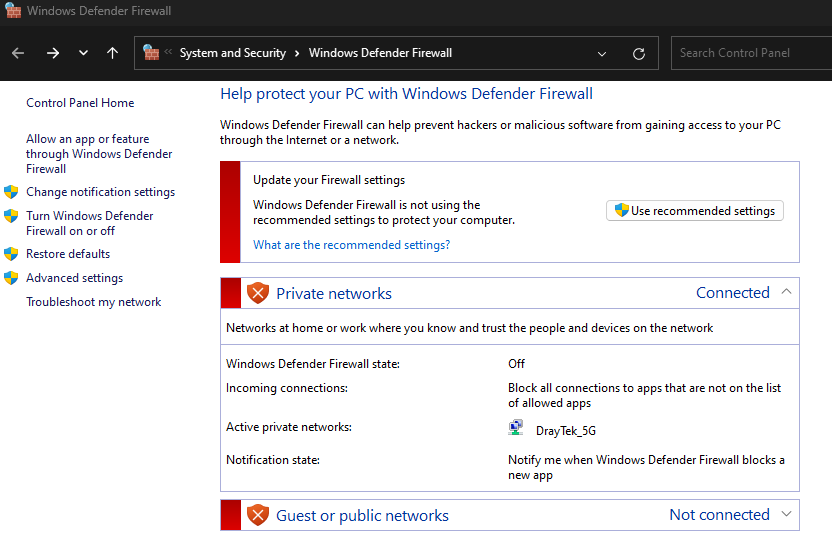
No change for nmap on:
stevee@laptop:/var/www$ nmap 172.31.108.16 -Pn
Starting Nmap 7.80 ( https://nmap.org ) at 2022-11-25 13:43 GMT
Nmap scan report for 172.31.108.16
Host is up (0.000025s latency).
Not shown: 999 closed ports
PORT STATE SERVICE
80/tcp open http
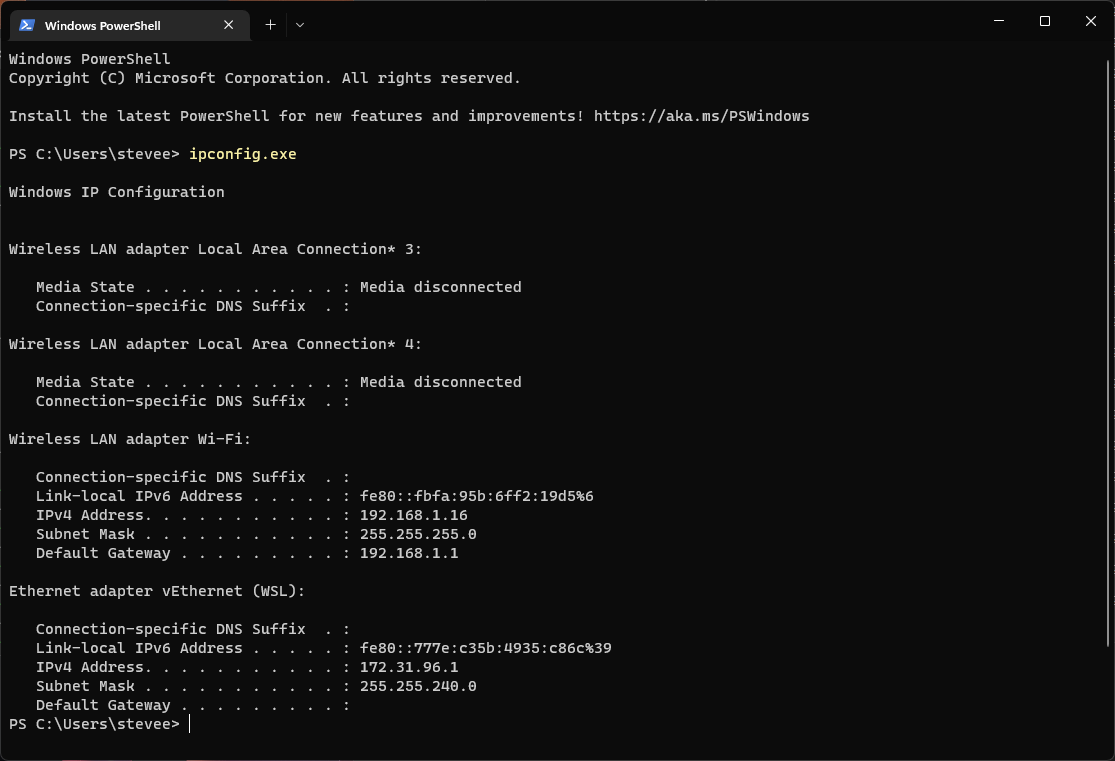
The Win11 wifi IP is:
Windows key + I to open the Settings menu.
Or, in cmd:
stevee@laptop:/var/www$ nmap 192.168.1.16 -Pn
Starting Nmap 7.80 ( https://nmap.org ) at 2022-11-25 13:46 GMT
Nmap scan report for laptop (192.168.1.16)
Host is up (0.00038s latency).
Not shown: 996 closed ports
PORT STATE SERVICE
135/tcp open msrpc
139/tcp open netbios-ssn
445/tcp open microsoft-ds
5357/tcp open wsdapi
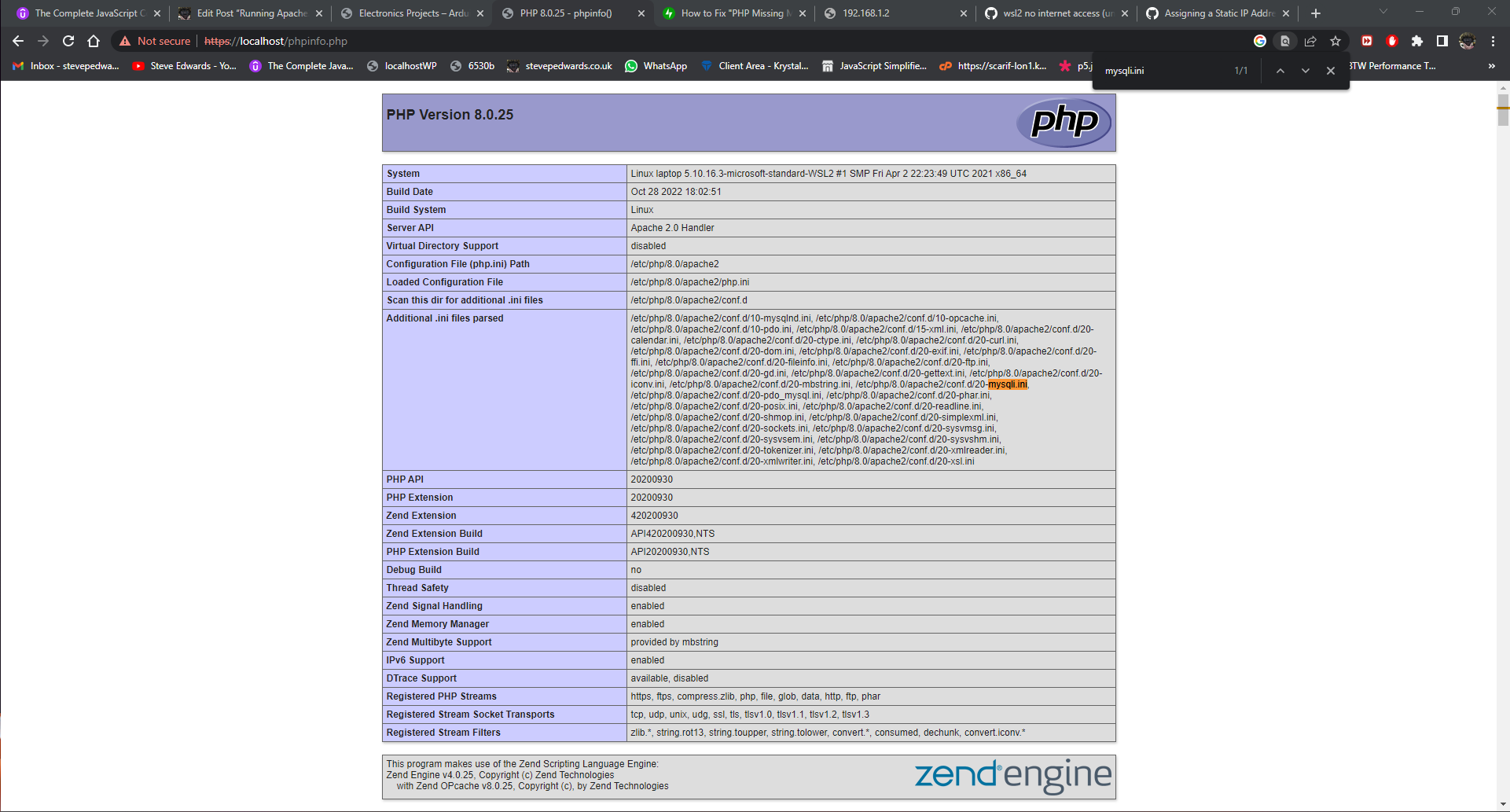
So, no external access to WSL via the local network at all on ports 80 or 3306...so I need to research how WSL works with the Win11 network, as even after opening up port 80 inbound/outbound in the Firewall:
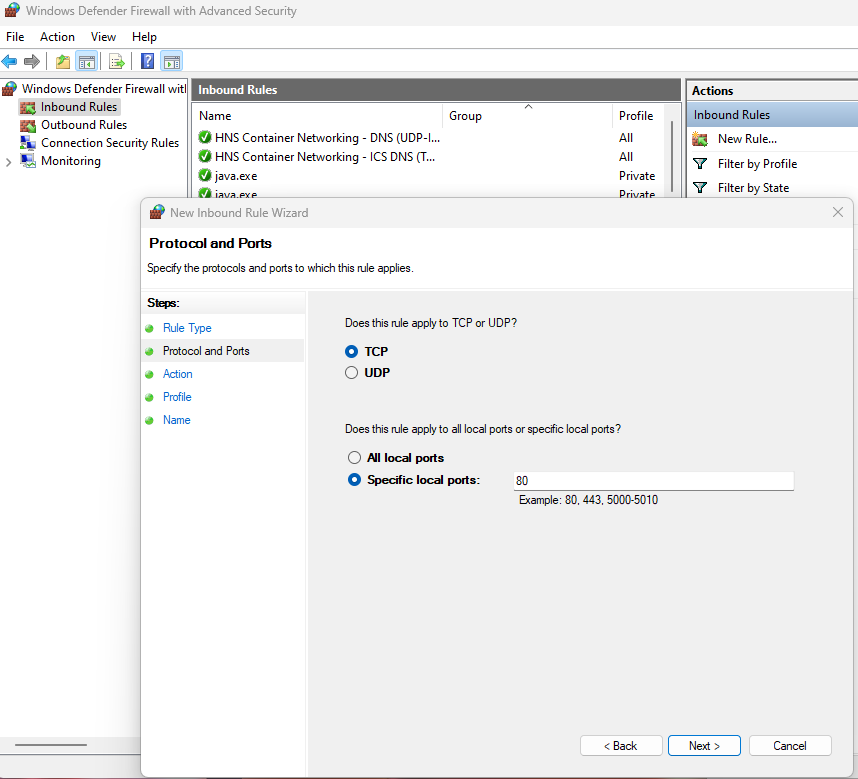
I did ports for both In and OUT Rules:

There is also the UFW firewall on Ubuntu, so disable that too:
sudo ufw disable
Firewall stopped and disabled on system startup
This still doesn't allow any different access than before:
stevee@laptop:/var/www$ nmap 192.168.1.16 -Pn
Starting Nmap 7.80 ( https://nmap.org ) at 2022-11-25 13:57 GMT
Nmap scan report for laptop (192.168.1.16)
Host is up (0.00059s latency).
Not shown: 996 filtered ports
PORT STATE SERVICE
135/tcp open msrpc
139/tcp open netbios-ssn
445/tcp open microsoft-ds
5357/tcp open wsdapi
Research time...ho hum - nothing is or was ever simple in Windows networking...
For now I'll continue with the SSL and upgrading the PHP version as this site was running on PHP8.0 on the Linux laptop as that may clear up the local re-direct and HTTPS link issues inside the WP site docs.
The PPA is maintained by Ond?ej Surý, a Debian developer who has been packaging PHP for Debian since PHP 5.
stevee@laptop:/var/www$ php -v
PHP 7.4.3 (cli) (built: Nov 2 2022 09:53:44) ( NTS )
Copyright (c) The PHP Group
Zend Engine v3.4.0, Copyright (c) Zend Technologies
with Zend OPcache v7.4.3, Copyright (c), by Zend Technologies
sudo apt-add-repository ppa:ondrej/php
sudo apt update && sudo apt upgrade
sudo apt install php8.0
sudo apt autoremove
Ah, I see it just goes to ver8.1 not 8.0.
stevee@laptop:/var/www$ php -v
PHP 8.1.12 (cli) (built: Oct 28 2022 17:39:37) (NTS)
Copyright (c) The PHP Group
Zend Engine v4.1.12, Copyright (c) Zend Technologies
with Zend OPcache v8.1.12, Copyright (c), by Zend Technologies
stevee@laptop:/var/www$ sudo a2dismod php7.4
Module php7.4 disabled.
stevee@laptop:/var/www$ sudo a2enmod php8.0
Enabling module php8.0.
To activate the new configuration, you need to run:
sudo service apache2 restart
To see WP errors, set DEBUG true in wp-config.php:
define('WP_DEBUG', true);

The bloody Chrome caching oh dear!s up testing SO much!! In Incognito mode, BOTH sites are suffering from the same missing extension issue! Damn..going backwards here.
The php-mysql extension WAS installed earlier, so I don't know why it's complaining..? But it IS missing mysqli.ini here.
Compare the PHP details of old and new sites in the browser - you can see mysqli.ini is missing from this new install in phpinfo.php:
https://stevepedwards.today/phpinfo.php; https://stevepedwards.today/phpinfo.php
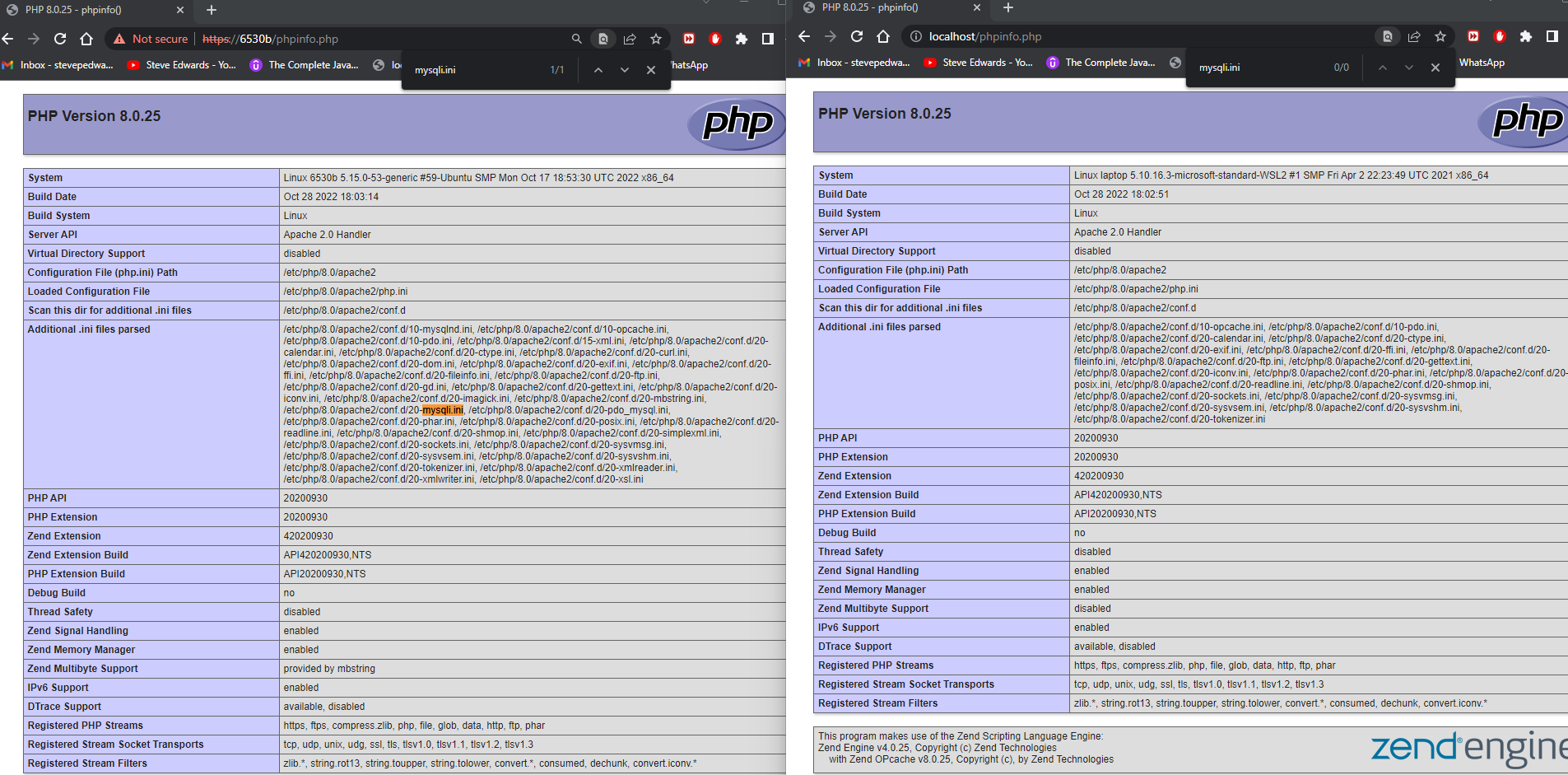
To create a phpinfo file, in your root Apache2 html directory (/var/www/ in my case) create an empty file:
vi phpinfo.php
and type or copy into it:
<?php
phpinfo();
?>
If you TAB the command:
sudo apt install php-
you will see all the php extensions available for install. Not that it helps ATM, but handy to know when the WP Site Health complains you have extension like GD missing, so you can search for them with this command and install what's missing e.g:
sudo apt install php-gd
Ah! I was trying to remember the extension command because I used it last week, but it's specific to the PHP version! It's
sudo apt-get install php8.0-mysql
Has it helped? No.
But if you get Site Health complaints like:
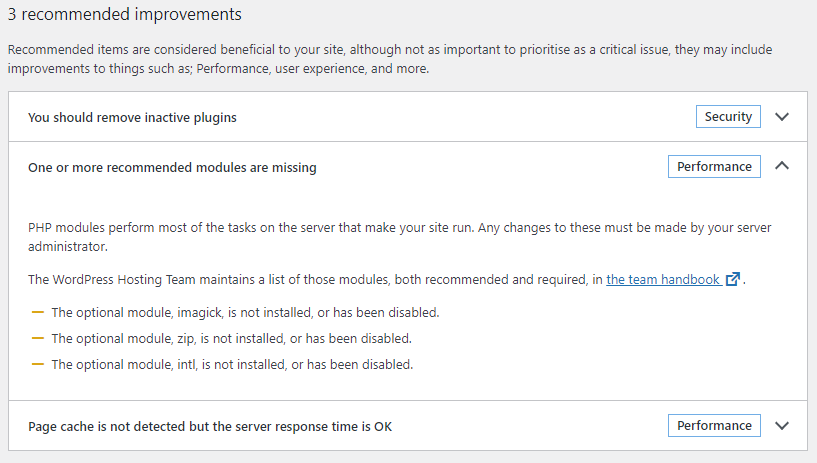
You can add these missing extensions by using the php version based command of php-mysqlXX and Tabbing to complete the extension options - especially if marked Critical with a red X, as it may be why your site isn't fully functional:
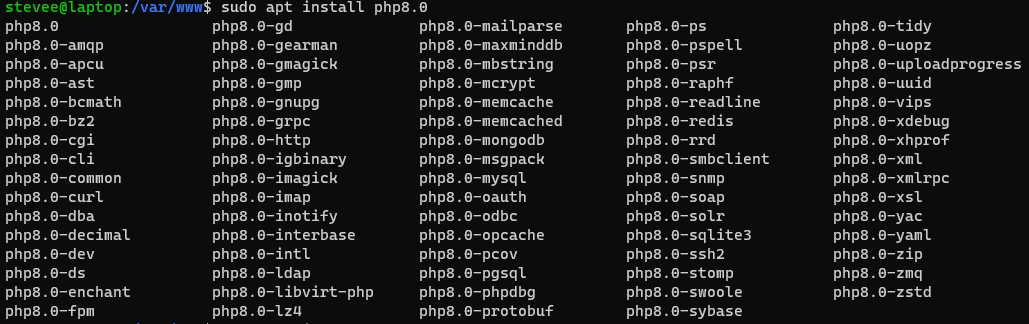
You may have to restart Apache to remove the extension warning after install, as Shift-F5 cache refresh did not work to re-read the database state.
The 8.1 version is already installed - so what version IS running exactly?
stevee@laptop:/var/www$ php -v
PHP 8.1.12 (cli) (built: Oct 28 2022 17:39:37) (NTS)
Copyright (c) The PHP Group
Zend Engine v4.1.12, Copyright (c) Zend Technologies
with Zend OPcache v8.1.12, Copyright (c), by Zend Technologies
Ok, let's downgrade to 8.0 as that was what the WP site was running fine on before export using this Post:
Install the required dependencies.
sudo apt install software-properties-common ca-certificates lsb-release apt-transport-http
Add the required PPA
sudo add-apt-repository ppa:ondrej/php
Update the Apt package manager
sudo apt update
Install PHP 8.0 and all the PHP modules for Drupal 9.
sudo apt install php8.0
sudo apt install php8.0-mysql php8.0-mbstring php8.0-xml php8.0-curl php8.0-gd
Switch PHP versions and enable PHP 8.0
Set 8.09 as the default PHP version for CLI and Apache.
Command Line PHP:
sudo update-alternatives --config php
Select php8.0 from the list with the available options:
There are 2 choices for the alternative php (providing /usr/bin/php).
Selection Path Priority Status
------------------------------------------------------------
0 /usr/bin/php8.1 81 auto mode
* 1 /usr/bin/php8.0 80 manual mode
2 /usr/bin/php8.1 81 manual mode
Press <enter> to keep the current choice[*], or type selection number:
Disable PHP 8.1
sudo a2dismod php8.1
sudo service apache2 restart
Enable PHP 8.0
sudo a2enmod php8.0
sudo service apache2 restart
Verify PHP Version
php -v
PHP 8.0.18 (cli) (built: May 1 2022 04:42:09) ( NTS )
Copyright (c) The PHP Group
Zend Engine v4.0.18, Copyright (c) Zend Technologies
with Zend OPcache v8.0.18, Copyright (c), by Zend Technologies
For verifying the PHP version Apache uses, specify the configururation .ini file.
php -c /etc/php/apache2/php.ini -v
Yes! Now there is WP site access:
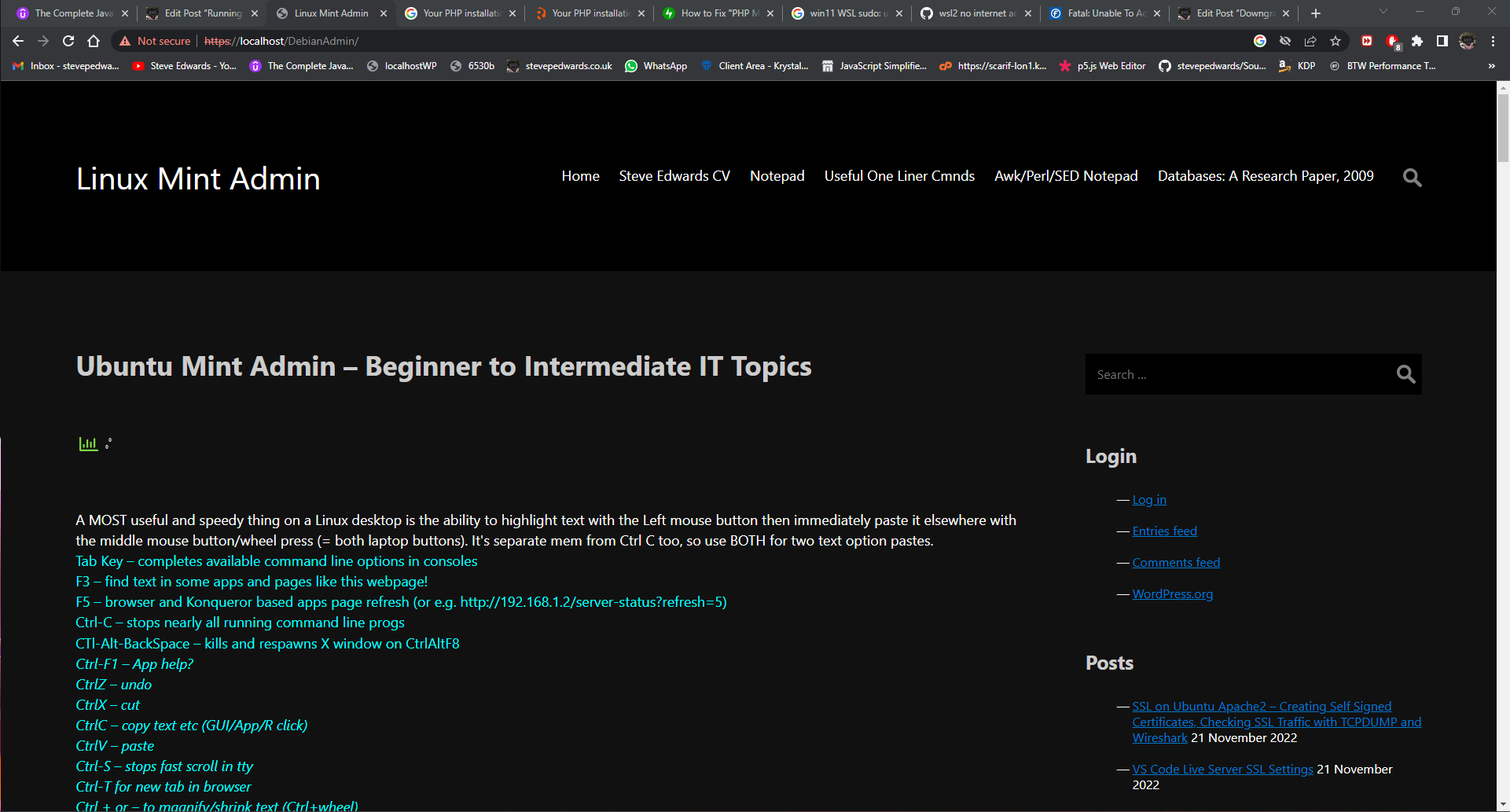
ElectronicsStuff still not displaying properly but that IS a WP config issue:
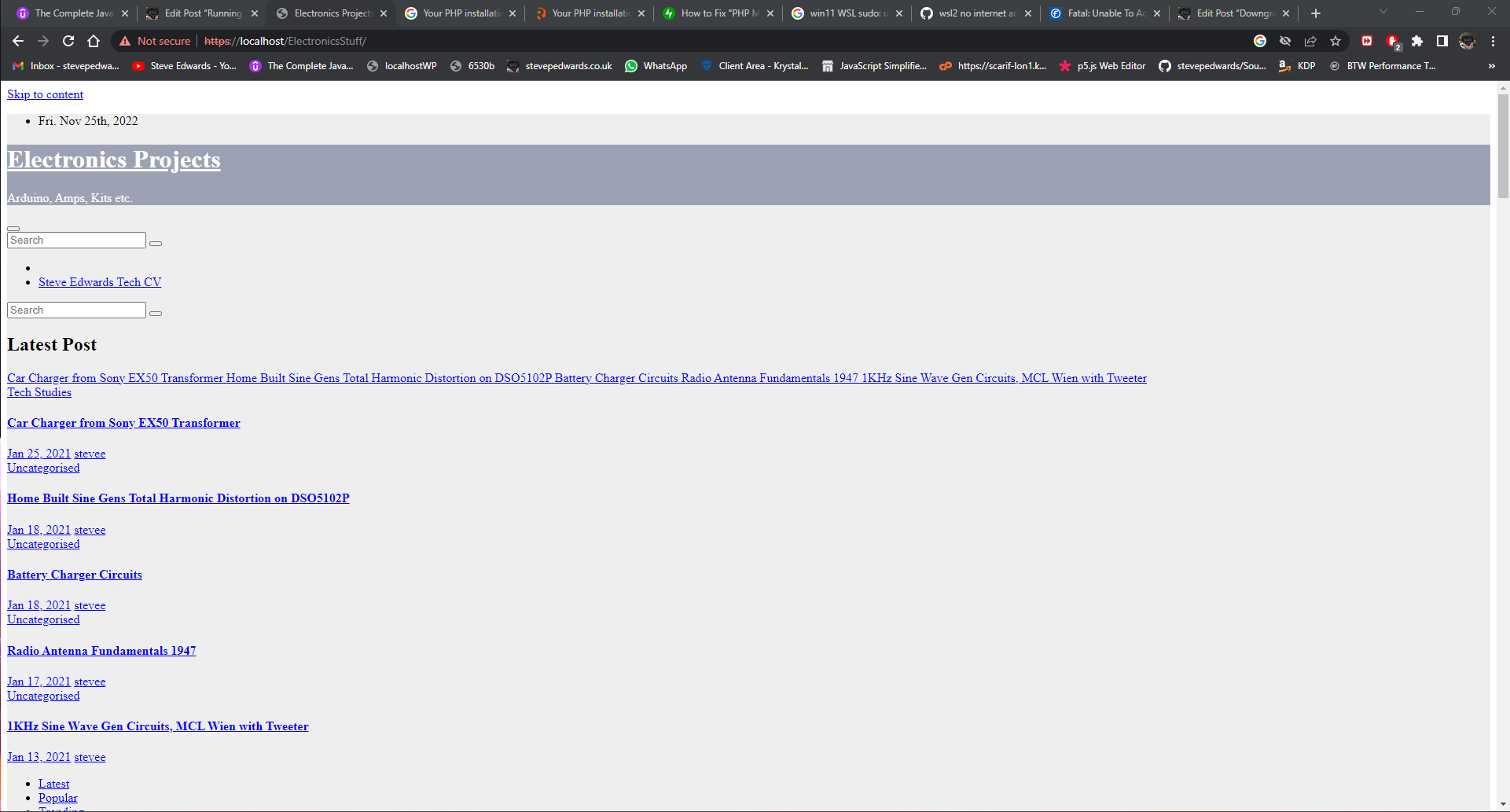
Also, the errant extension now shows in phpinfo.php:
I'll move on to the network stuff.
I need better name resolution to see other PCs on the net from this WSL install if possible, as I can't ping localhost PC by name - see if this old Linux/Win net name method works? - add wins to:
sudo vi /etc/nsswitch.conf
hosts: wins files dns
sudo winbindd
Also add the PC name to the hosts file to see if that helps name resolution - though I think the WSL IP changes periodically or at each session?:
127.0.0.1 localhost laptop
127.0.1.1 laptop.localdomain laptop
192.168.1.16 laptop
192.168.1.11 localhost
172.31.108.16 laptop
stevee@laptop:/var/www$ nmap localhost
Starting Nmap 7.80 ( https://nmap.org ) at 2022-11-25 17:31 GMT
Nmap scan report for localhost (192.168.1.11)
Host is up (0.89s latency).
Not shown: 993 closed ports
PORT STATE SERVICE
21/tcp open ftp
22/tcp open ssh
80/tcp open http
139/tcp open netbios-ssn
443/tcp open http
445/tcp open microsoft-ds
3306/tcp open mysql
OK, some name resolution is working now.
Hmmm, doesn't find other Win PC's on the whole local net by name or IP - but now it has seen the router and my Linux PC which have open SSL ports 443 for HTTPS.
stevee@laptop:/var/www$ nmap 192.168.1.0/24
Starting Nmap 7.80 ( https://nmap.org ) at 2022-11-25 16:41 GMT
Nmap scan report for 192.168.1.1
Host is up (0.0027s latency).
Not shown: 994 filtered ports
PORT STATE SERVICE
21/tcp open ftp
22/tcp open ssh
23/tcp open telnet
80/tcp open http
443/tcp open http
445/tcp open microsoft-ds
Nmap scan report for 192.168.1.11
Host is up (0.0020s latency).
Not shown: 993 closed ports
PORT STATE SERVICE
21/tcp open ftp
22/tcp open ssh
80/tcp open http
139/tcp open netbios-ssn
443/tcp open http
445/tcp open microsoft-ds
3306/tcp open mysql
Nmap done: 256 IP addresses (2 hosts up) scanned in 8.02 seconds
As these .sql files came from an SSL secure PC, I'll press on with self signed Certs from this Post here:
Step 1: This step before amending /etc/apache2/sites-available/default-ssl.conf:
stevee@laptop:/var/www$ sudo a2enmod ssl
sudo: unable to resolve host laptop: System error
Considering dependency setenvif for ssl:
Module setenvif already enabled
Considering dependency mime for ssl:
Module mime already enabled
Considering dependency socache_shmcb for ssl:
Enabling module socache_shmcb.
Enabling module ssl.
See /usr/share/doc/apache2/README.Debian.gz on how to configure SSL and create self-signed certificates.
To activate the new configuration, you need to run:
service apache2 restart
Step 2 – Creating the SSL Certificate - you can insert junk text inhere except for the server name, as it's not a real cert, or checked by a cert auth:
stevee@laptop:/var/www$ sudo openssl req -x509 -nodes -days 365 -newkey rsa:2048 -keyout /etc/ssl/private/apache-selfsigned.key -out /etc/ssl/certs/apache-selfsigned.crt
sudo: unable to resolve host laptop: System error
Generating a RSA private key
........................................+++++
............................+++++
writing new private key to '/etc/ssl/private/apache-selfsigned.key'
-----
You are about to be asked to enter information that will be incorporated
into your certificate request.
What you are about to enter is what is called a Distinguished Name or a DN.
There are quite a few fields but you can leave some blank
For some fields there will be a default value,
If you enter '.', the field will be left blank.
-----
Country Name (2 letter code) [AU]:UK
State or Province Name (full name) [Some-State]:sdf
Locality Name (eg, city) []:sdf
Organization Name (eg, company) [Internet Widgits Pty Ltd]:sdf
Organizational Unit Name (eg, section) []:sdf
Common Name (e.g. server FQDN or YOUR name) []:laptop
Email Address []:asdf@sdf
ls /etc/ssl/certs/apache-selfsigned.crt -l
-rw-r--r-- 1 root root 1359 Nov 25 19:21 /etc/ssl/certs/apache-selfsigned.crt
Step 3 – Configuring Apache to Use SSL - create a local server named conf file:
cd /etc/apache2/sites-available
stevee@laptop:/etc/apache2/sites-available$ ls
000-default.conf default-ssl.conf
Make an empty conf file for your new SSL site with your server name:
stevee@localhost:/etc/apache2/sites-available$ sudo touch laptop.conf
stevee@laptop:/etc/apache2/sites-available$ ls
000-default.conf laptop.conf default-ssl.conf
stevee@laptop:/etc/apache2/sites-available$ sudo a2ensite
sudo: unable to resolve host laptop: System error
Your choices are: 000-default default-ssl laptop
Which site(s) do you want to enable (wildcards ok)?
laptop
Enabling site laptop.
To activate the new configuration, you need to run:
sudo service apache2 reload
Add the following red settings to your empty site file to suit your site and folders where you created the certificates :
sudo vi /etc/apache2/sites-available/laptop.conf
<IfModule mod_ssl.c>
<VirtualHost *:443>
ServerAdmin webmaster@localhost
ServerName laptop
DocumentRoot /var/www
SSLEngine on
SSLCertificateFile /etc/ssl/certs/apache-selfsigned.crt
SSLCertificateKeyFile /etc/ssl/private/apache-selfsigned.key
</VirtualHost>
stevee@laptop:/etc/apache2/sites-available$ sudo apache2ctl configtest
sudo: unable to resolve host laptop: System error
Syntax OK
Step 4 — Redirecting HTTP to HTTPS
sudo vi /etc/apache2/sites-enabled/000-default.conf
<VirtualHost *:80>
ServerAdmin webmaster@localhost
ServerName localhost
DocumentRoot /var/www
Redirect / https://stevepedwards.today/
Alias "DebianAdmin" "/var/www/DebianAdmin"
Alias "ElectronicsStuff" "/var/www/ElectronicsStuff"
stevee@laptop:/etc/apache2/sites-available$ sudo service apache2 start
sudo: unable to resolve host laptop: System error
* Starting Apache httpd web server apache2
The change to the hosts file now resolves for nmap:
stevee@laptop:/etc/apache2/sites-available$ nmap localhost
Starting Nmap 7.80 ( https://nmap.org ) at 2022-11-25 20:06 GMT
Nmap scan report for localhost (127.0.0.1)
Host is up (0.000026s latency).
Not shown: 995 closed ports
PORT STATE SERVICE
80/tcp open http
139/tcp open netbios-ssn
443/tcp open http
445/tcp open microsoft-ds
3306/tcp open mysql
In principle the WP sites should be accessible via SSL if not for the WP Extension problem.
For now - that's as good as it gets until I've researched how to to resolve the sudo: unable to resolve host laptop: System error and allow net access to WSL from my local net - whether it's config or firewall or just typical of Windows to NOT allow full functionality of Linux without MANY hoops to junp - especially as it's hosted on their terms. Nothing is ever straight forward!
Found this - I also unblocked the inbound connections too:
How do I allow WSL through my firewall?
This way you will allow connections from WSL while still having the firewall protect your computer from external threats.
- Go to Firewall Settings and click on Advanced Settings.
- Click Windows Defender Firewall Properties.
- Select Public Profile tab.
- Click Customize Protected network connections.
- Unclick vEthernet (WSL)
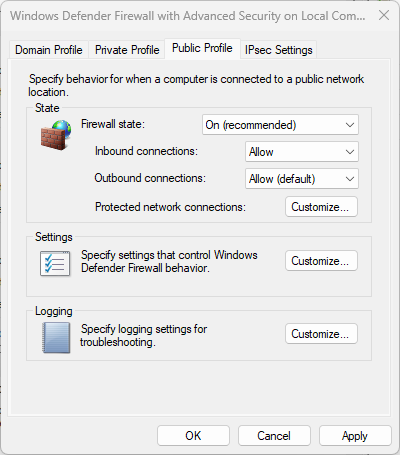
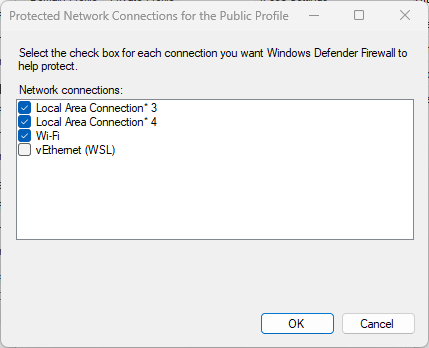
After a reboot I have name resolution for host laptop and all required WP site services showing:
stevee@laptop:/var/www$ nmap laptop
Starting Nmap 7.80 ( https://nmap.org ) at 2022-11-25 22:37 GMT
Nmap scan report for laptop (127.0.1.1)
Host is up (0.000032s latency).
rDNS record for 127.0.1.1: laptop.localdomain
Not shown: 997 closed ports
PORT STATE SERVICE
80/tcp open http
443/tcp open http
3306/tcp open mysql
So that hasn't worked for local net access, but this laptop only has wifi so I'll unclick wifi also on the Public Profile - this was all reset after the reboot anyway! I decided to unclick Public, Private and Domain profiles for wifi and WSL. Can I connect from a net PC now??? No! Getting really oh dear!ed off with the Windows bulshit factor now...
A static IP will have to be assigned to the WSL virtual netcard to stop the change every reboot:
-
Assign a new IP address to the virtual NIC in WSL2
Assign the virtual ethernet NIC an additional IP address
192.168.1.2:sudo ip addr add 192.168.1.2/24 broadcast 192.168.2.255 dev eth0 label eth0:1To remove in the future:
sudo ip addr del 192.168.1.201/24 dev eth0:1
stevee@laptop:/var/www$ ifconfig
eth0: flags=4163<UP,BROADCAST,RUNNING,MULTICAST> mtu 1500
inet 172.31.105.158 netmask 255.255.240.0 broadcast 172.31.111.255nma
inet6 fe80::215:5dff:fe35:4e75 prefixlen 64 scopeid 0x20<link>
ether 00:15:5d:35:4e:75 txqueuelen 1000 (Ethernet)
RX packets 1676 bytes 1452320 (1.4 MB)
RX errors 0 dropped 0 overruns 0 frame 0
TX packets 1033 bytes 118230 (118.2 KB)
TX errors 0 dropped 0 overruns 0 carrier 0 collisions 0
eth0:1: flags=4163<UP,BROADCAST,RUNNING,MULTICAST> mtu 1500
inet 192.168.1.2 netmask 255.255.255.0 broadcast 192.168.2.255
ether 00:15:5d:35:4e:75 txqueuelen 1000 (Ethernet)
This shows the required services for WP also:
stevee@laptop:/var/www$ nmap 192.168.1.2
Starting Nmap 7.80 ( https://nmap.org ) at 2022-11-25 22:59 GMT
Nmap scan report for 192.168.1.2
Host is up (0.000029s latency).
Not shown: 997 closed ports
PORT STATE SERVICE
80/tcp open http
443/tcp open http
3306/tcp open mysql
Still can't get past Windows pissing firewall though! Arseholes!! At least WSL ufw has stayed disabled:
stevee@laptop:/var/www$ sudo ufw status
Status: inactive
On reboot the /etc/hosts file is regenerated - it says:
# This file was automatically generated by WSL. To stop automatic generation of this file, add the following entry to /etc/wsl.conf:
# [network]
# generateHosts = false
127.0.0.1 localhost
127.0.1.1 laptop.localdomain laptop
So, I added:
sudo vi /etc/wsl.conf
# [network]
# generateHosts = false
127.0.0.1 localhost
127.0.1.1 laptop.localdomain laptop
192.168.1.2 laptop
STILL cannot access sites at 192.168.1.2...
-
Set up Windows firewall allow rule (once only)
The
vEthernet (WSL)network device uses thePublicWindows network profile, where all traffic is blocked by default. We need to allow traffic from the new192.168.1.0/24subnet to access the host Windows machine from WSL2.- Open Windows Defender Firewall with Advanced Security
- In Inbound rules, add a new Inbound Rule
- Select "Custom Rule"
- Select "All programs"
- Select "Any" Protocol Type
- Scope to remote IP addresses
192.168.1.0/24 - Select "Allow the connection"
- Select only "Public" for the rule to apply
- Name
WSL2or similar
- In Inbound rules, remove any existing block rules for applications that WSL2 needs to access, as these will take precedence over the allow rule. These are usually created by Windows when you first run an application (the UAC modal warning asking you about firewall rules sets these up).
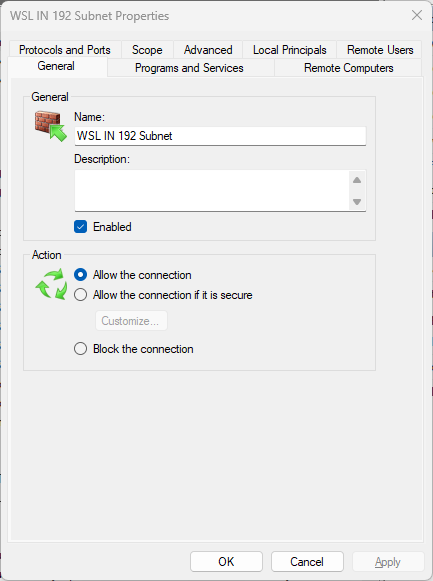
And people wonder why I would NEVER go back into Networking! Still doesn't work - everything that Windows does and always did is always SO unnecessarily complicated and time wasting.The summary so far is: You cannot easily get your WSL to act as a local network server except for localhost for MANY complex reasons - bridging (stops wsl access to internet so updates), firewall rules (WSL IP/port settings get changed on reboot), local dchp server cannot set up an IP different to the Win PC mac address..etc...etc...
Can't be fkin bothered with the bulshit..got better things to do - as historically usual for most things Windows ever did...but credit where it is due - Win11 is an absolutely amazing OS - unlike 8-10 shit