
Regular expression metacharacters usage consist of the following:
^ $ . [ ] { } - ? * + ( ) | \
These cannot be read about using the man pages for each symbol except the [ -test” chars e.g:
man ^
No manual entry for ^
These metacharacters can be read and expanded by the shell as special characters, or -escaped” by prefixing with the backslash -\” or quoted in -” to prevent expansion.
For the first example to show the difference between a literal or unescaped metacharacter, starting with probably the most commonly used metacharacter – the *;
Using the find command for example, an erroneous usage search attempt for any files that match ANY other character at the start of the file name:
find Videos/ -name *
find: paths must precede expression: chapter1.txt
Usage: find [-H] [-L] [-P] [-Olevel] [-D help|tree|search|stat|rates|opt|exec] [path...] [expression]
This fails with stderror output as the shell attempts to expand the * to output all the files in the current directory (ABOVE Videos) so fails as a search path order conflict.
But, if the asterisk is quoted, all files in the Video dir are listed, as they all start with a character of some sort.
find Videos/ -name '*'
Videos/Martial Law 9-11- Rise Of The Police State.mp4
Videos/What Happened on the Moon.mp4
Videos/The Untold Secrets of NASA - Unbelievable Mars - Space Documentary(2015).mp4
Videos/Peter Joseph's 'Where are we going'.mp4…..etc.
So, escaping does the same:
find Videos/ -name \*
so gives the same result as above – all files in Videos are found and listed.
If the asterisk is prefixed or appended by another character, then it is not escaped so it can do the job it is intended for. To find all files starting with a "0”
find Videos/ -name 0*
Videos/027 Richard Dolan Montreal - ModernKnowledge @ CapricornRadioTV.mp4
What if you want to find all files starting with any number? You can use a range defined as:
find Videos/ -name '[0-9]*'
Videos/9-11- Decade of Deception (Full Film NEW 2015).mp4
Videos/027 Richard Dolan Montreal - ModernKnowledge @ CapricornRadioTV.mp4
but, the equivalent numbers alone also show files beginning with a 0 or a 9:
find Videos/ -name '[09]*'
Videos/9-11- Decade of Deception (Full Film NEW 2015).mp4
Videos/027 Richard Dolan Montreal - ModernKnowledge @ CapricornRadioTV.mp4
The lesson here is: Don't assume your command structure is correct globally on the basis of 1 result set! It just happens that this directory happens only to have files beginning with a 0 and a 9 so give the same result as 2 very different search conditions!
So, in English, you understand [0-9] as -find any file starting with a 0 OR a 1 OR a 2...9.”
To do the opposite – find all files NOT beginning with numbers:
find Videos/ -name '[!0-9]*'
Videos/Martial Law 9-11- Rise Of The Police State.mp4
Videos/What Happened on the Moon.mp4
Videos/The Untold Secrets of NASA - Unbelievable Mars - Space Documentary(2015).mp4
Videos/Peter Joseph's 'Where are we going'.mp4…..etc.
Note the shebang ! Has to be INSIDE the brackets as outside is interpreted by find as being the start of a file name, not a logical NOT parameter:
find Videos/ -name '![0-9]*'
(no files found as none begin with a -!”)
For NOT in a find command context, it would be a space delimited operator, separated from and before the file name option, to find all files NOT beginning with a number:
find Videos/ ! -name '[0-9]*'
Videos/Martial Law 9-11- Rise Of The Police State.mp4
Videos/What Happened on the Moon.mp4
Videos/The Untold Secrets of NASA - Unbelievable Mars - Space Documentary(2015).mp4
Videos/Peter Joseph's 'Where are we going'.mp4…..etc.
What about file name order relating to case and given by a range?
It's complex due to the POSIX or other ASCII standard your PC is set to, AND how find lists it's results depending on inode order also. This is why you get some seemingly weird results for alphabetical listings.
First – so I know how many files I have totally in Videos:
find Videos/ -name '*' | wc -l
137
Will Shott's TLCL.pdf gives examples for grep on p273 that show ranges the likes of:
find Videos/ -name '[ABCDEFGHIJKLMNOPQRSTUVWXZY]*' | wc -l
131
So I know I am not seeing ALL files, as 2 begin with numbers,
find Videos/ -name '[0-9]*' | wc -l
2
and 3 with lowercase e.g.
find Videos/ -name '[abcdefghijklmnopqrstuvwxyz]*' | wc -l
3
This does not account for all 137 files, so check these can be found using a number range [0-9], a lowercase range [a-z] and an uppercase range [A-Z] together to be sure as:
find Videos/ -name '[ABCDEFGHIJKLMNOPQRSTUVWXZYabcdefghijklmnopqrstuvwxyz]*' | wc -l
134
then:
find Videos/ -name '[ABCDEFGHIJKLMNOPQRSTUVWXZYabcdefghijklmnopqrstuvwxyz0123456789]*' | wc -l
136
BUT that's NOT exactly correct – I'm missing 1 file!?
How can I find it??
Use the NOT shebang ! with the find option...? Aha! A file that begins with a quote " ' ”
find Videos/ ! -name '[0123456789abcdefghijklmnopqrstuvwxyzABCDEFGHIJKLMNOPQRSTUVWXZY]*'
Videos/'Why in the World are They Spraying' Documentary HD (multiple language subtitles).mp4
I found that file by elimination logic in the find command, but how would you escape the quote character to find that file – assuming you knew it existed? It cannot be escaped in the range box – it is seen as a delimiter itself so expects input!
find Videos/ ! -name '[\'0123456789abcdefghijklmnopqrstuvwxyzABCDEFGHIJKLMNOPQRSTUVWXZY]*'
>
Going back to basics as at the start above using the \ escape does it:
find Videos/ -name \'*
Videos/'Why in the World are They Spraying' Documentary HD (multiple language subtitles).mp4
Because the ASCII range of keys is keymap dependent, but POSIX lists the historcal map numerically as Shott states:
-Back when Unix was first developed, it only knew about ASCII characters, and this fea-
ture reflects that fact. In ASCII, the first 32 characters (numbers 0-31) are control codes
(things like tabs, backspaces, and carriage returns). The next 32 (32-63) contain printable
characters, including most punctuation characters and the numerals zero through nine.
The next 32 (numbers 64-95) contain the uppercase letters and a few more punctuation
symbols. The final 31 (numbers 96-127) contain the lowercase letters and yet more punc-
tuation symbols. Based on this arrangement, systems using ASCII used a collation order
that looked like this:
ABCDEFGHIJKLMNOPQRSTUVWXYZabcdefghijklmnopqrstuvwxyz
This differs from proper dictionary order, which is like this:
aAbBcCdDeEfFgGhHiIjJkKlLmMnNoOpPqQrRsStTuUvVwWxXyYzZ...To support this ability, the POSIX standards introduced a concept called a locale, which
could be adjusted to select the character set needed for a particular location. We can see
the language setting of our system using this command:
[me@linuxbox ~]$ echo $LANG
en_US.UTF-8
With this setting, POSIX compliant applications will use a dictionary collation order
rather than ASCII order. This explains the behavior of the commands above. A character
range of [A-Z] when interpreted in dictionary order includes all of the alphabetic char-
acters except the lowercase -a”, hence our results…To partially work around this problem, the POSIX standard includes a number of character classes which provide useful ranges of characters.”
I have only 1 file that starts with a lowercase -a”:
find Videos/ -name a*
Videos/antigravity hutchison effect.mp4
So, if my $LANG variable is POSIX compliant:
$LANG
en_GB.UTF-8: command not found
I should NOT find that one file with Shott's [A-Z] – and I don't – only the string "anti"
find Videos/ -name '[A-Z]*' | grep anti
Videos/ILLUMINATI SECRETS - The New Atlantis - FEATURE FILM.mp4
find Videos/ -name '[A-Z]*' | wc -l
131
find Videos/ -name '[a-Z]*' | wc -l
134
Knowing this, AND that the find command also sorts in a combo of inode order, it can be understood why there is apparent illogical alphabetical listing order; RRC; in the output, such as part of all the files here:
find Videos/ -name '*'
Videos/Richplanet 2016 UK Tour - PART 2 OF 3.mp4
Videos/RP EP26 PT1.mp4
Videos/Crop Circles- The Hidden Truth - Part 4.mp4
Table 19-2: POSIX Character Classes
Character Class Description
[:alnum:] The alphanumeric characters. In ASCII, equivalent to:
[A-Za-z0-9]
[:word:] The same as [:alnum:], with the addition of the underscore
(_) character.
[:alpha:] The alphabetic characters. In ASCII, equivalent to:
[A-Za-z]
[:blank:] Includes the space and tab characters.
[:cntrl:] The ASCII control codes. Includes the ASCII characters 0
through 31 and 127.
[:digit:] The numerals zero through nine.
[:graph:] The visible characters. In ASCII, it includes characters 33
through 126.
[:lower:] The lowercase letters.
[:punct:] The punctuation characters. In ASCII, equivalent to:
[-!"#$%&'()*+,./:;<=>?@[\\\]_`{|}~]
[:print:] The printable characters. All the characters in [:graph:]
plus the space character.
[:space:] The whitespace characters including space, tab, carriage
return, newline, vertical tab, and form feed. In ASCII,
equivalent to:
[ \t\r\n\v\f]
[:upper:] The uppercase characters.
[:xdigit:] Characters used to express hexadecimal numbers. In ASCII,
equivalent to:
[0-9A-Fa-f]
Remember, however, that this is not an example of a regular expression, rather it is the
shell performing pathname expansion….POSIX Basic Vs. Extended Regular Expressions
Just when we thought this couldn’t get any more confusing, we discover that POSIX also
splits regular expression implementations into two kinds: basic regular expressions
(BRE) and extended regular expressions (ERE). The features we have covered so far are
supported by any application that is POSIX compliant and implements BRE. Our grep
program is one such program.
What’s the difference between BRE and ERE? It’s a matter of metacharacters. With BRE,
the following metacharacters are recognized:
^ $ . [ ] *
All other characters are considered literals. With ERE, the following metacharacters (and
their associated functions) are added:
( ) { } ? + |
However (and this is the fun part), the -(”, -)”, -{”, and -}” characters are treated as
metacharacters in BRE if they are escaped with a backslash, whereas with ERE, preced-
ing any metacharacter with a backslash causes it to be treated as a literal. Any weirdness
that comes along will be covered in the discussions that follow.”
ls /usr/sbin/[[:upper:]]*
/usr/sbin/ModemManager /usr/sbin/VBoxControl
/usr/sbin/NetworkManager /usr/sbin/VBoxService
Find can be used similarly. Find all files starting with a lower case letter:
find Videos/ -name '[[:lower:]]*'
Videos/screencasts
Videos/hutchison effect wiki never before seen footage 3 25 2011.mp4
Videos/antigravity hutchison effect.mp4
Find all files NOT beginning with letters:
find Videos/ ! -name '[[:alpha:]]*'
Videos/'Why in the World are They Spraying' Documentary HD (multiple language subtitles).mp4
Videos/9-11- Decade of Deception (Full Film NEW 2015).mp4
Videos/027 Richard Dolan Montreal - ModernKnowledge @ CapricornRadioTV.mp4
Same as [0-9] above:
find Videos/ -name '[[:digit:]]*'
Videos/9-11- Decade of Deception (Full Film NEW 2015).mp4
Videos/027 Richard Dolan Montreal - ModernKnowledge @ CapricornRadioTV.mp4
Note complexity is required to NOT find either letters OR numbers = my "quote" started file name:
find Videos/ ! -name '[[:alpha:]]*' ! -name '[[:digit:]]*'
Videos/'Why in the World are They Spraying' Documentary HD (multiple language subtitles).mp4
This can be simplified to a NOT alphanumeric range:
find Videos/ ! -name '[0-9a-Z]*'
find Videos/ -name '[!0-9a-Z]*'
Videos/'Why in the World are They Spraying' Documentary HD (multiple language subtitles).mp4
Find all files without white space anywhere in the name:
find Videos/ ! -name '*[[:blank:]]*'
Videos/
Videos/Irrefutable.mp4
Videos/RichDLoydPye.mp4
Videos/screencasts
A really handy addition to the above for Linux systems is to rename all white spaced files without white space, say, for an MP3 collection, that show horrible looking Album/Track names on the command line often; using the -exec addition seen already in Cool Commands Posts:
BEFORE:
ls /Storebird/MP3/Candy\ Dulfer\ -\ Sax-A-Go-Go\ \(74321_111812\)/Candy\ Dulfer\ \ \ -\ 2\ Funky.mp3
run it for directories first:
find /Storebird/MP3/ -type d -name '*[[:blank:]]*' -exec rename "s/ //g" {} +;
AFTER:
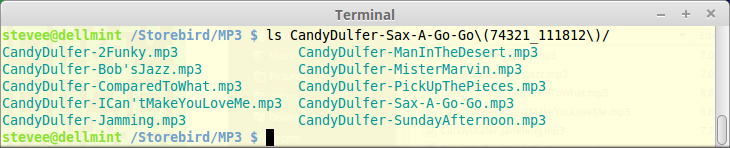
ls /Storebird/MP3/CandyDulfer-Sax-A-Go-Go\(74321_111812\)/
Re-run it for files:
find /Storebird/MP3/ -type f -name '*[[:blank:]]*' -exec rename "s/ //g" {} +;
ls /Storebird/MP3/CandyDulfer-Sax-A-Go-Go\(74321_111812\)/CandyDulfer-2Funky.mp3
You could then edit and append these two lines to a simple shell script or alias to run on any directory you cd into e.g.:
find -type d -name "*[[:blank:]]*" -exec rename "s/ //g" {} +;
find -type f -name "*[[:blank:]]*" -exec rename "s/ //g" {} +;
vi ~/rmspaces.sh

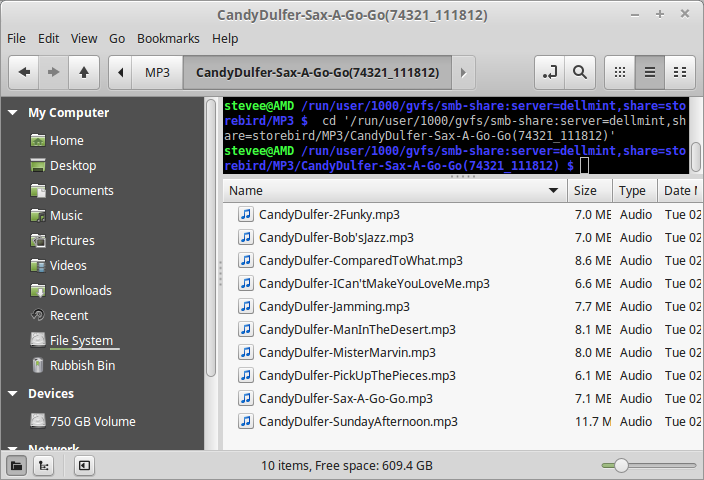
term file searches are now tidy:
To find and/or remove any files beginning with undesirable chars like my "quote" file that may start with any of
[-!"#$%&'()*+,./:;<=>?@[\\\]_`{|}~]
find Videos/ -name '[[:punct:]]*'
Videos/'Why in the World are They Spraying' Documentary HD (multiple language subtitles).mp4
That MP3 dir could have all those "Windows" legacy backslashes found too eh..?
find -type d -name '*[[:punct:]]*'
Be safe and do the search check only FIRST before any rename! Make sure it does what you want it to!
I'll quote Shott completely for this last important example:
-Finding Ugly Filenames With find
The find command supports a test based on a regular expression. There is an important
consideration to keep in mind when using regular expressions in find versus grep.
Whereas grep will print a line when the line contains a string that matches an expres-
sion, find requires that the pathname exactly match the regular expression. In the fol-
lowing example, we will use find with a regular expression to find every pathname that
contains any character that is not a member of the following set:
[-_./0-9a-zA-Z]
Such a scan would reveal path names that contain embedded spaces and other potentially
offensive characters:
find . -regex '.*[^-_./0-9a-zA-Z].*'
Due to the requirement for an exact match of the entire pathname, we use .* at both ends
of the expression to match zero or more instances of any character. In the middle of the
expression, we use a negated bracket expression containing our set of acceptable path-
name characters.”
It's easier for me to show the opposite, nicely named files in Videos, using that handy command, but negated:
find Videos/ ! -regex '.*[^-_./0-9a-zA-Z].*'
Videos/
Videos/Irrefutable.mp4
Videos/RichDLoydPye.mp4
Videos/screencasts
The point to take from that example is that find supports specific regex and iregex options – see the man page.
-regex pattern
File name matches regular expression pattern. This is a match
on the whole path, not a search. For example, to match a file
named `./fubar3', you can use the regular expression `.*bar.' or
`.*b.*3', but not `f.*r3'. The regular expressions understood
by find are by default Emacs Regular Expressions, but this can
be changed with the -regextype option.
That finds the weird file names in the mp3 folder for sure:
stevee@dellmint /Quadra/MP3 $ find . -regex '.*[^-_./0-9a-zA-Z].*'
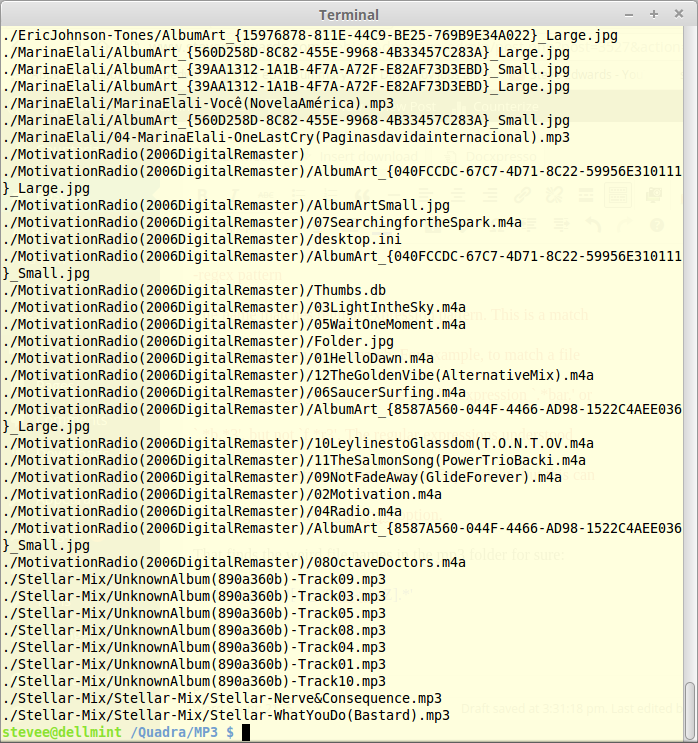
There are many album names with numbers enclosed in brackets () that can be found using:
find CandyD* -regex '.*[()]*'
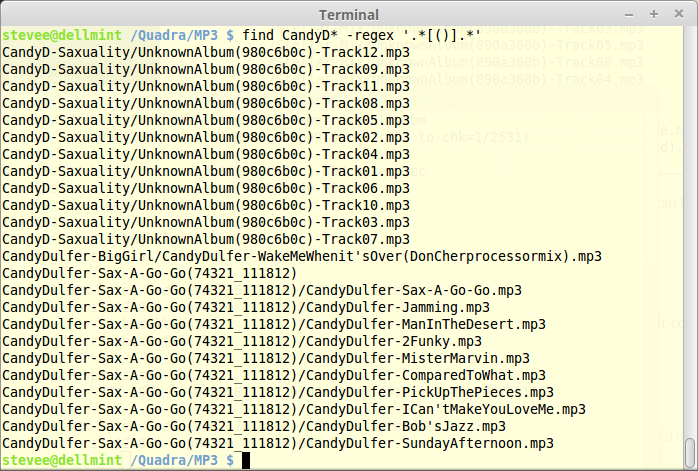
It's one thing to find them, but another to remove these brackets with their contents...