
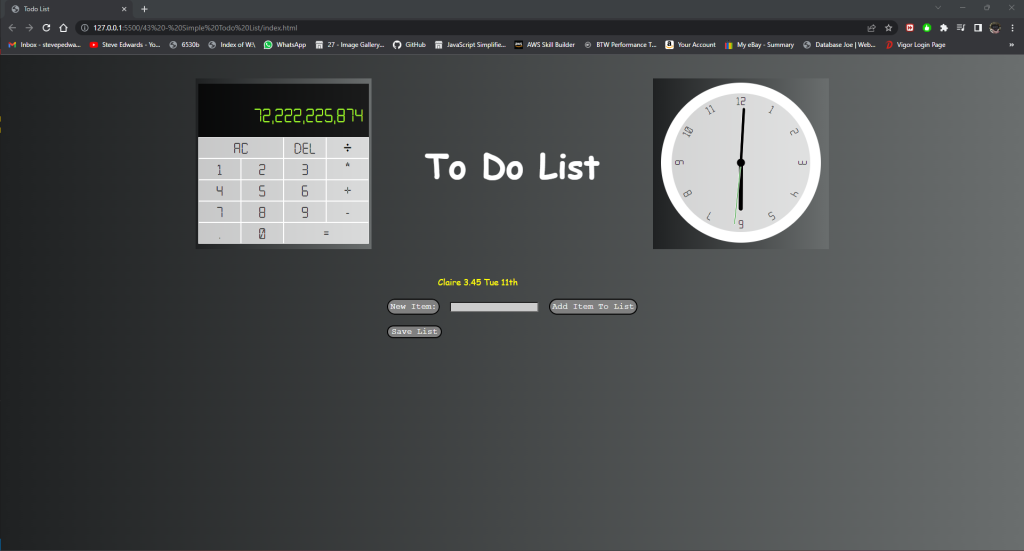
This Portfolio Project was built on exercises in Kyle Cook's WEBDev JS and CSS courses:
https://www.youtube.com/c/WebDevSimplified
He also has a Calculator and Clock project, with code, that was used and modified a little to fit inside the main page using Iframes.
The basic Todo List HTML and CSS from Kyle's courses - (without the complete JS for saving the list permanently to a JSON array file of K:V pairs, that was written for me (as I've just started learning JS, HTML and CSS) by Joe Moore of www.databasejoe.com ) - is:
<!DOCTYPE html>
<html lang="en">
<head>
<title>Simple List</title>
<link rel="stylesheet" href="styles.css">
<script src="script.js" defer></script>
</head>
<body>
<div id="list">

</div>

<form id="new-item-form">
<label for="item-input">New Item</label>
<input type="text" id="item-input">
<button type="submit">Add Item</button>
</form>
</body>
</html>
// 1. Select all elements
const form = document.querySelector("#new-item-form")
const list = document.querySelector("#list")
const input = document.querySelector("#item-input")

// 2. When I submit the form add a new element
form.addEventListener("submit", e => {
  e.preventDefault()

  // 1. Create a new item
  const item = document.createElement("div")
  item.innerText = input.value
  item.classList.add("list-item")

  // 2. Add that item to the list
  list.appendChild(item)

  // 3. Clear input
  input.value = ""

  // 4. Setup event listener to delete item when clicked
  item.addEventListener("click", () => {
    item.remove()
  })
})
.list-item {
  cursor: pointer;
  width: min-content;
}

.list-item:hover {
  color: red;
  text-decoration: line-through;
}
My additions for saving the List and colorising the page, with the Iframes :
index.html:
<!DOCTYPE html>
<html lang="en">
<head>
  <meta charset="utf-8">
  <title>Todo List</title>
  <script type="text/javascript"></script>
  <link rel="stylesheet" href="todo.css">
<script defer="" src="todo.js"></script>
</head>
  <body>

    <section class="section-one">
      <div id="frame"><iframe id="scaled-frame" src="Calc/calc.html"></iframe></div>
      <h1 class="h1">To Do List</h1>
      <div><iframe id="scaled-frame" src="Clock/clock.html"></iframe></div>
    </section>

    <section class="section-two">
      <form id="new-item-form">
        <div id="list"></div>
        <label class="new-item" for="item-input">New Item:</label>
        <input id="item-input" type="text">
        <button class="btn" id="list-item" type="submit">Add Item To List</button>
        <button id="save" type="button">Save List</button>
      </form>
    </section>

  </body>
</html>
CSS:
* {
  box-sizing: border-box;
}

body {
  font-family: cursive;
  color: white;
  background: linear-gradient(to right, rgb(31, 33, 34) , rgb(106, 110, 110));
}

.section-one {
    display: flex;
    justify-content: center;
    align-items: center;
}

/* iframes for calc and clock*/
.frame {
  width: 480px;
  height: 500px;
  padding: 0;
  overflow: hidden;
}

/* iframes for calc and clock*/
#scaled-frame {
  width: 330px;
  height: 320px;
  border: 0px;
}

/* ToDo text */
.h1 {
  font-size: 4rem;
  justify-content: center;
  padding: 100px;
}

/* input form and list add/save buttons */
.section-two {
  font-family: 'Courier New';
  display: flex;
  justify-content: center;
  align-items: center;
}

#item-input {
  background-color: #CCC;
  font-family: 'Courier New';
  padding: 0;
}

.new-item {
  font-family: 'Courier New';
  border: 2px solid black;
  margin: 20px;
  padding: 4px;
  font-size: 1.0rem;
  color: white;
  margin: 10px;
  background-color: grey;
  border-radius: 1000px;
}

.new-item:hover {
  cursor: pointer;
  background-color: #171717;
}


.list-item {
  font-family: cursive;
  margin-bottom: 10px;
  margin-top: 10px;
  margin-left: 105px;
  color: yellow;
  justify-content: center;
  width: max-content;
}

.list-item:hover {
  color: red;
  text-decoration: line-through;
  cursor: pointer;
}

.btn {
  font-family: 'Courier New';
  font-size: 1.0rem;
  color: white;
  padding: 4px;
  margin: 10px;
  background-color: grey;
  border-radius: 1000px;
}

.btn:hover {
  cursor: pointer;
  background-color: #171717;
}

#save {
  font-family: 'Courier New', Courier, monospace;
  font-size: 1.0rem;
  display: flex;
  margin-top: 20px;
  border-radius: 10000px;
  font-size: 1.0rem;
  color: white;
  margin: 10px;
  background-color: grey;
  border-radius: 1000px;
}

#save:hover {
  cursor: pointer;
  background-color: #171717;
}
original messy JS:
// Program Plan:
// 1: Select All Elements
const form = document.querySelector("#new-item-form");
const input = document.querySelector("#item-input");
const list = document.querySelector("#list");
const items = [];
const saveLink = document.getElementById("save");
saveLink.addEventListener("click", () => {
  const jsonObj = { items: items };
  const jsonString = JSON.stringify(jsonObj);
  saveFileAsDialog(jsonString, "items.json");
});

// 2: When I submit form, add new item to the list
fetchItemsFromArray();
form.addEventListener("submit", (e) => {
  e.preventDefault();

  console.log(input.value);

  // 1: Create new item
  writeToItemsJsonFile(input.value);

  // const item = document.createElement("div");
  // item.innerText = input.value;
  // item.classList.add("list-item");
  // // console.log(item) Once checked working, remove log.

  // // 2: Add item to list:
  // //   Check it works and shows in browser:
  // list.appendChild(item);

  // 3: Clear input after item added by setting input to empty string:
  input.value = "";

  // 4: Setup event listener to delete clicked item:
});

function writeToItemsJsonFile(value) {
  console.log("This is writing to file" + value);
  // append to items array
  items.push(value);
  const jsonObj = { items: items };
  const jsonString = JSON.stringify(jsonObj);

  saveFileAsDialog(jsonString, "items.json");

  //write to live document page
  const el = document.createElement("div");
  el.innerText = value;
  el.classList.add("list-item");
  // console.log(item) Once checked working, remove log.

  // 2: Add item to list:
  //   Check it works and shows in browser:
  list.appendChild(el);
}

function saveFileAsDialog(data, filename) {
  // data is the string type, that contains the contents of the file.
  // filename is the default file name, some browsers allow the user to change this during the save dialog.

  // Note that we use octet/stream as the mimetype
  // this is to prevent some browsers from displaying the
  // contents in another browser tab instead of downloading the file
  var blob = new Blob([data], { type: "octet/stream" });

  //BLOB = Binary Large Object
  if (window.navigator.msSaveBlob) {
    window.navigator.msSaveBlob(blob, filename);
  } else {
    //Everything else
    var url = window.URL.createObjectURL(blob);
    var a = document.createElement("a");
    document.body.appendChild(a);
    a.href = url;
    a.download = filename;

    setTimeout(() => {
      //setTimeout hack is required for older versions of Safari

      a.click();

      //Cleanup
      window.URL.revokeObjectURL(url);
      document.body.removeChild(a);
    }, 1);
  }
}

function fetchItemsFromArray() {
  console.log("fetch items array");
  fetch("items.json")
    .then((response) => response.json())
    .then((json) => itemsloop(json));
}

function itemsloop(json) {
  json.items.forEach((item) => htmlStyle(item));
}

function htmlStyle(item) {
  createJsonObject(item);

  const el = document.createElement("div");
  el.innerText = item;
  el.classList.add("list-item");
  // console.log(item) Once checked working, remove log.

  // 2: Add item to list:
  //   Check it works and shows in browser:
  list.appendChild(el);

  el.addEventListener("click", (e) => {
    el.remove(); // Remove from DOM list

    // Remove item from array
    const itemToRemove = e.target.innerHTML;
    items.pop(itemToRemove);
  });
}

function createJsonObject(itemToAdd) {
  items.push(itemToAdd);
}
The 70's calculator font is "calculator.ttf" from the web.