
Programmers need to write their web apps for secure server hosting practically universally now, so you should also be writing them in VS Code/other IDE with a Live Server set up for SSL as in the last Post, but if you also write at home and host on a local apache2 server or similar, it should also be using SSL too so you know your creation works on SSL(TLS)/HTTPS/port 443 platforms, rather than be surprised when first loaded to a secure web host...
Is my SSL connection encrypted if the locally created certificate isn't trusted?
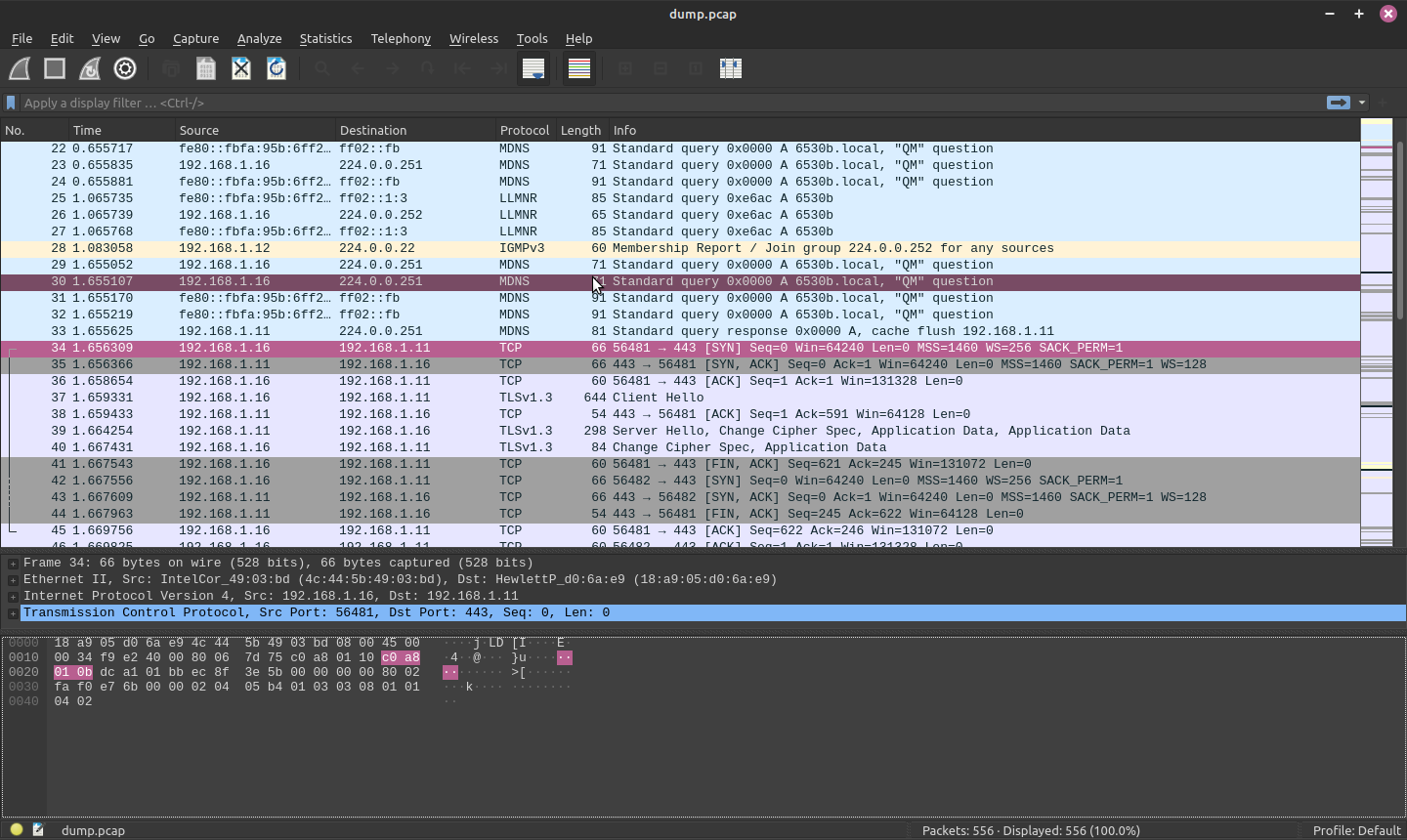
Yes - you can see the pink packet in Wireshark on port 443 - so how do you install a certificate on linux Apache2? Read on..:
SSL consists of two major parts:
the encryption of the data
the validation that you are actually talking to the expected server
If you get the warning about an untrusted certificate than the encryption will still work, but you cannot be sure that you are talking to the expected server. This means a man in the middle attack might be possible where an active attacker will decrypt, sniff, and re-encrypt the traffic. That is instead of this:
Browser <----------- encrypted -----------------------> Bank
you get this:
Browser <-- encrypted --> Attacker <--- encrypted ----> Bank
In this case the attacker can sniff all data (passwords etc) and even modify the data and the client will not notice it. The connections are still encrypted, but not end-to-end (browser-to-server) but browser-to-attacker and again attacker-to-server.
Usually you should not override the warning by the browser because chances are high that there is a man in the middle attack going on. Only in the case where you know that the certificate is the expected one (verify fingerprint, not just the subject of the certificate) you can override the warning.
Note that there are cases of legal man in the middle attacks, i.e. SSL interception done by antivirus proxies or by middleboxes (firewalls) so that these can analyse the encrypted traffic. In this case your computer is either automatically configured to trust these certificates or you need to explicitly import the proxy-CA which signed the new certificates. If you are having such kind of problem while using your own computer inside the company please ask the network administrator how you should proceed and don't simply accept the certificates.
Step 1: This step before amending /etc/apache2/sites-available/default-ssl.conf:
sudo a2enmod ssl
Step 2 – Creating the SSL Certificate
sudo openssl req -x509 -nodes -days 365 -newkey rsa:2048 -keyout /etc/ssl/private/apache-selfsigned.key -out /etc/ssl/certs/apache-selfsigned.crt
Common Name (eg, your name or your server's hostname) []:localhost
ls /etc/ssl/certs/apache-selfsigned.crt
/etc/ssl/certs/apache-selfsigned.crt
Step 3 – Configuring Apache to Use SSL - create a local server named conf file:
cd /etc/apache2/sites-available
stevee@localhost:/etc/apache2/sites-available$ ls
000-default.conf default-ssl
make a conf file for your new SSL site for your server name:
stevee@localhost:/etc/apache2/sites-available$ sudo touch localhost.conf
stevee@localhost:/etc/apache2/sites-available$ ls
000-default.conf localhost.conf default-ssl
stevee@localhost:/var/www$ sudo a2ensite
Your choices are: 000-default localhost default-ssl
Which site(s) do you want to enable (wildcards ok)?
localhost
Enabling site localhost.
To activate the new configuration, you need to run:
systemctl reload apache2
Add the following red settings to your empty site file to suit your site and folders where you created the certificates :
sudo vi /etc/apache2/sites-available/localhost.conf
<IfModule mod_ssl.c>
<VirtualHost *:443>
ServerAdmin webmaster@localhost
ServerName localhost
DocumentRoot /var/www
SSLEngine on
SSLCertificateFile /etc/ssl/certs/apache-selfsigned.crt
SSLCertificateKeyFile /etc/ssl/private/apache-selfsigned.key
</VirtualHost>
sudo apache2ctl configtest
Syntax OK
sudo systemctl reload apache2
Step 4 — Redirecting HTTP to HTTPS
sudo vi /etc/apache2/sites-enabled/000-default.conf
<VirtualHost *:80>
#ServerName www.example.com
ServerName localhost
DocumentRoot /var/www
Redirect / https://stevepedwards.today/
Save the file in vim with
:wq
sudo apachectl configtest
Syntax OK
sudo systemctl reload apache2
Now you can browse to your home site and change the address bar prefix to https:// OR hit Shift-F5 to make your page cache refresh to get the new SSL site.
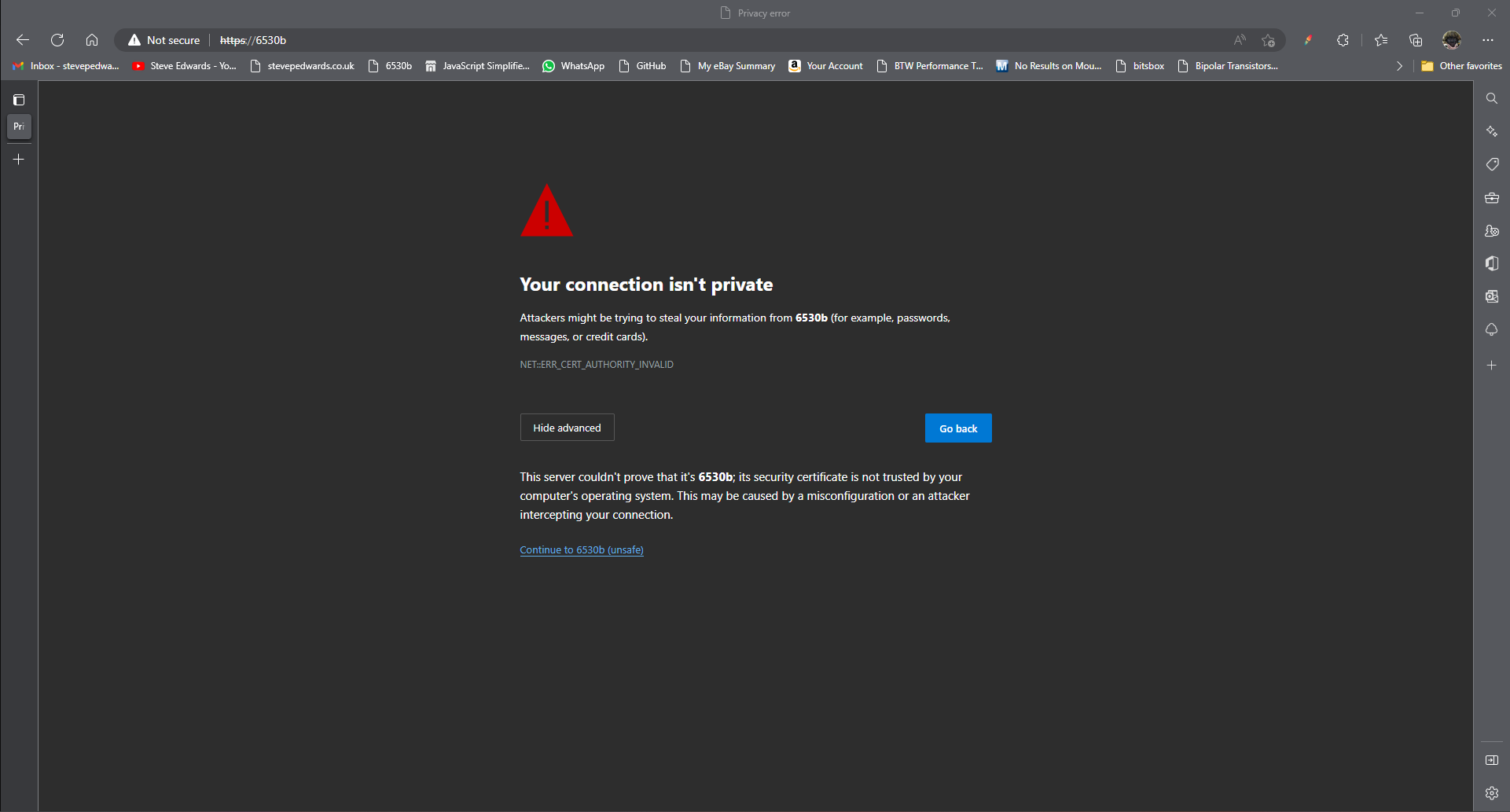
As the certificate is self-signed so unverified, the browser will complain:
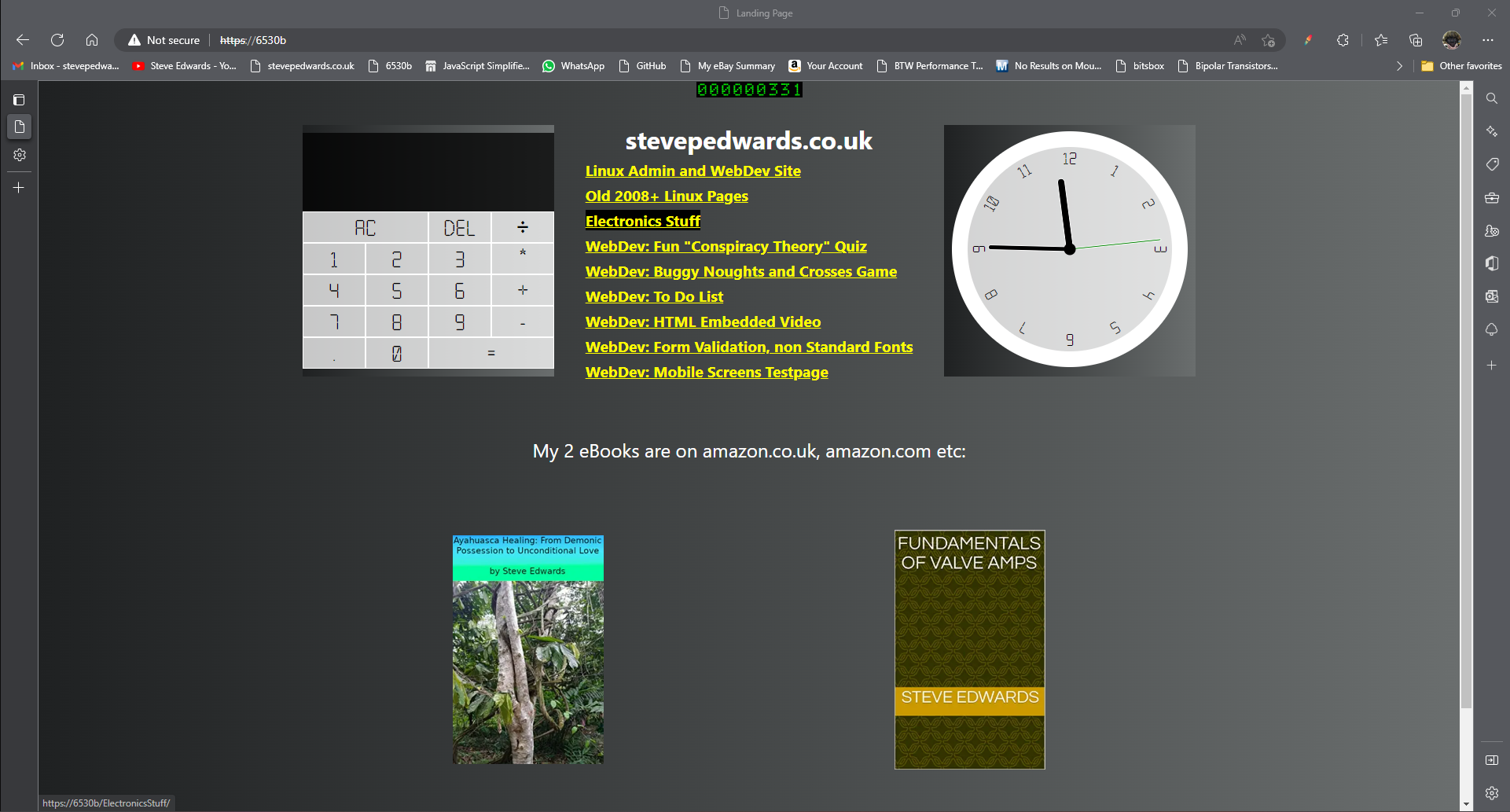
Continue on and you will get to your site but with the HTTPS struck through - but as seen in wireshark - the traffic IS still encrypted on port 443 using TLS:
To capture and read the packets using tcpdump and wireshark:
sudo apt install wireshark tcpdump
tcpdump can only write to files of particular suffix - a dump.txt file for example will give a Permission Denied.
dump.pcap works fine.
Capture a small file of SSL traffic by being ready to click to your non HTTPS site once you start tcpdump running - stop the capture with Ctrl-C - as this checks that the re-direct from http port 80 to SSL port 443 works AND the site traffic captured is encrypted:
sudo tcpdump -i ens5 -w dump.pcap
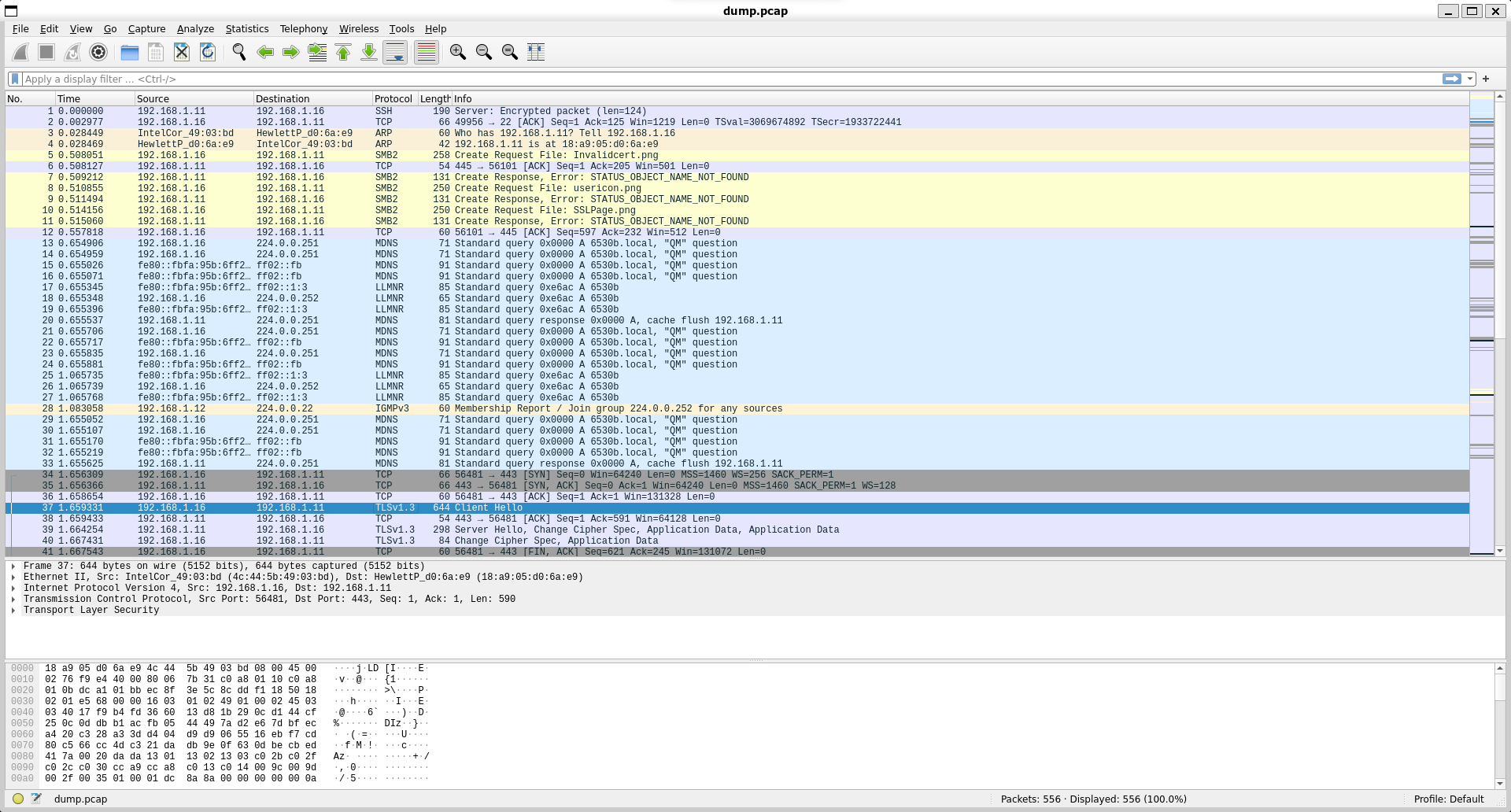
Now you can read it back on the local server where Wireshark is installed to give the screen view at the start of the Post - it needs an xserver, so you cannot see output over remote SSH without further tech wizardry to run a GUI app over SSH:
ssh -X stevee@192.168.1.11
once logged in, cd to the dumpfile folder on the Apache server, and in it's full 27 inch, Win11, remote monitor glory you see Transport Layer Security version 1.3 used for the encryption:
wireshark -r dump.pcap
The "HTTPS struck through" and "Not Secure" message in the browser bar (or similar warnings like "Your connection is not private") is entirely due to the certificate being self-signed.
Here's why this happens:
- Trust Chain: When your browser connects to an HTTPS website, it receives a certificate from the server. The browser then tries to verify this certificate by checking if it's been signed by a trusted Certificate Authority (CA). All major browsers (Chrome, Firefox, Edge, Safari) come with a pre-installed list of widely recognized and trusted CAs (like DigiCert, Let's Encrypt, GlobalSign, etc.).
- Self-Signed Means Untrusted: A self-signed certificate is one that you (or your server, in this case, Apache) created and signed yourself, rather than getting it from a recognized CA. Since your browser doesn't recognize your "signing authority" as a trusted CA, it flags the connection as "Not Secure" because it cannot verify the identity of the server. It doesn't mean the encryption isn't working; it just means the browser can't confirm who you are.