
I have exported my home DBs from linux mysql, zipped them up and uploaded both the site WP content/uploads folder and the DB sql files. To export a sql file from an active DB I use:
stevee@localhost:/var/www$ mysqldump -u stevee -p ElectronicsStuff > ElectronicsStuff.SQL
The site content folder is zipped also:
stevee@localhost:/var/www$ zip ElectronicsStuff.zip ElectronicsStuff -r
The are uploaded to the host site FTP dir, or wherever you like, from the File Manager section of cPanel:
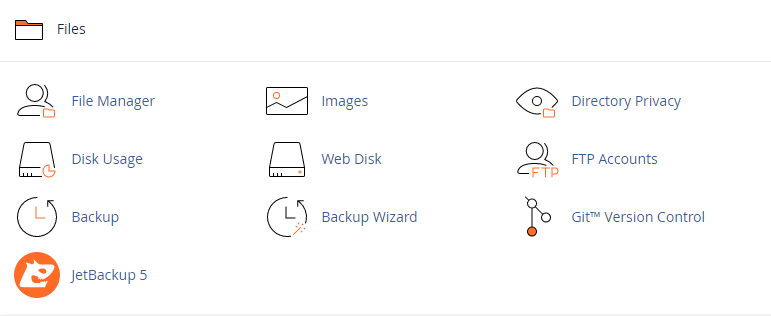
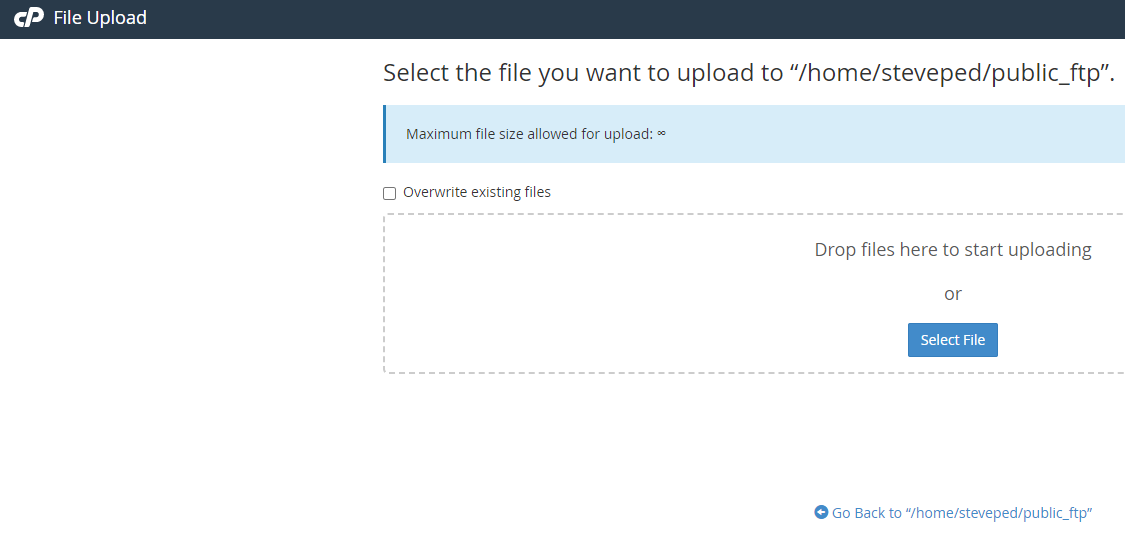
Before creating any NEW DBs on your site, if you have any sites running already - back them up FIRST in case of mistakes!
So, first you need first to have a host package that allows SSH unless your local DBs are small enough to be imported via PHPMYADMIN - the Ruby package for my host at https://krystal.uk/ - as the base package Amethyst does not allow SSH, as I found out the hard way. Why SSH? Becuase PHPMYADMIN does not allow large file uploads without messing with PHP files, and it's easier to drop and create databases in MYSQL in case of errors - which there will be when finding your way around the cryptic structure of cPanel to get the right order of setting things up so you can import everything you need into a WordPress installation of cPanel so the system can recognise and setup the databases correctly so you can then import your home DB SQL files into MYSQL, and then upload and import your home site content of your Uploads folder into the host site's wp-content folder once the WP site has been created online.
It took me many goes to get the order right for this whole process, which is why I'm documenting it!
So, create the WordPress site DB and user from the Softaculous WordPress section - make sure you have the same prefix set to the same one that is currently in your home DB.
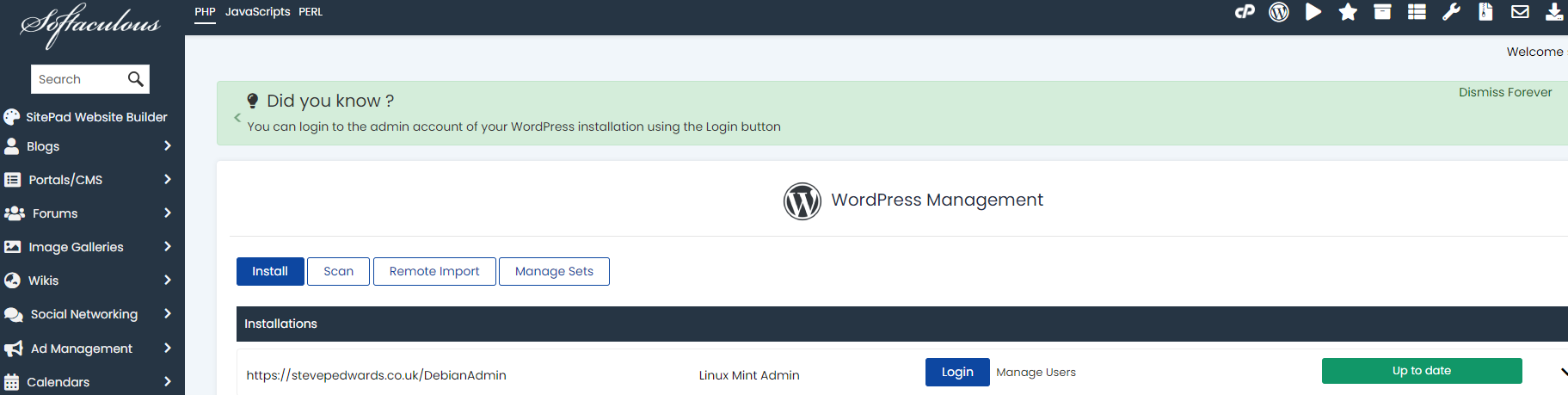
Expand the Advanced section to change the DB prefix details of your current home DBs wp-config.php file - e.g: $table_prefix = 'wp_xubg_';
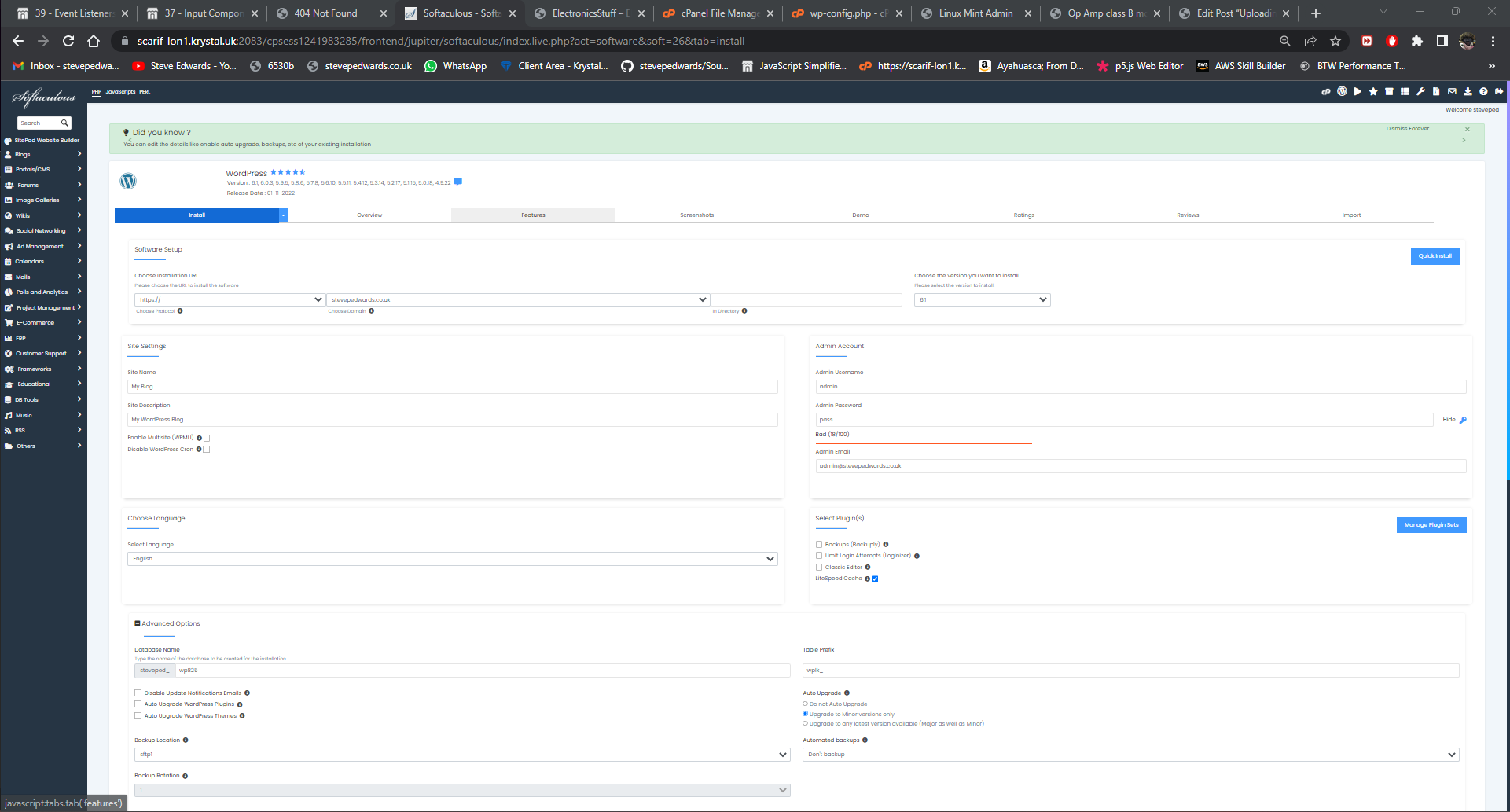
You can modify you DB names, add users, change passwords and privileges in the DB section of cPanel, then you can add these new details to the wp-config.php file of the WP folder for this new install. You should have access to the site via the links in the Softaculous section, as a base WP Blog page, in its default state before you import your local DBs into the MYSQL DB via SSH later:
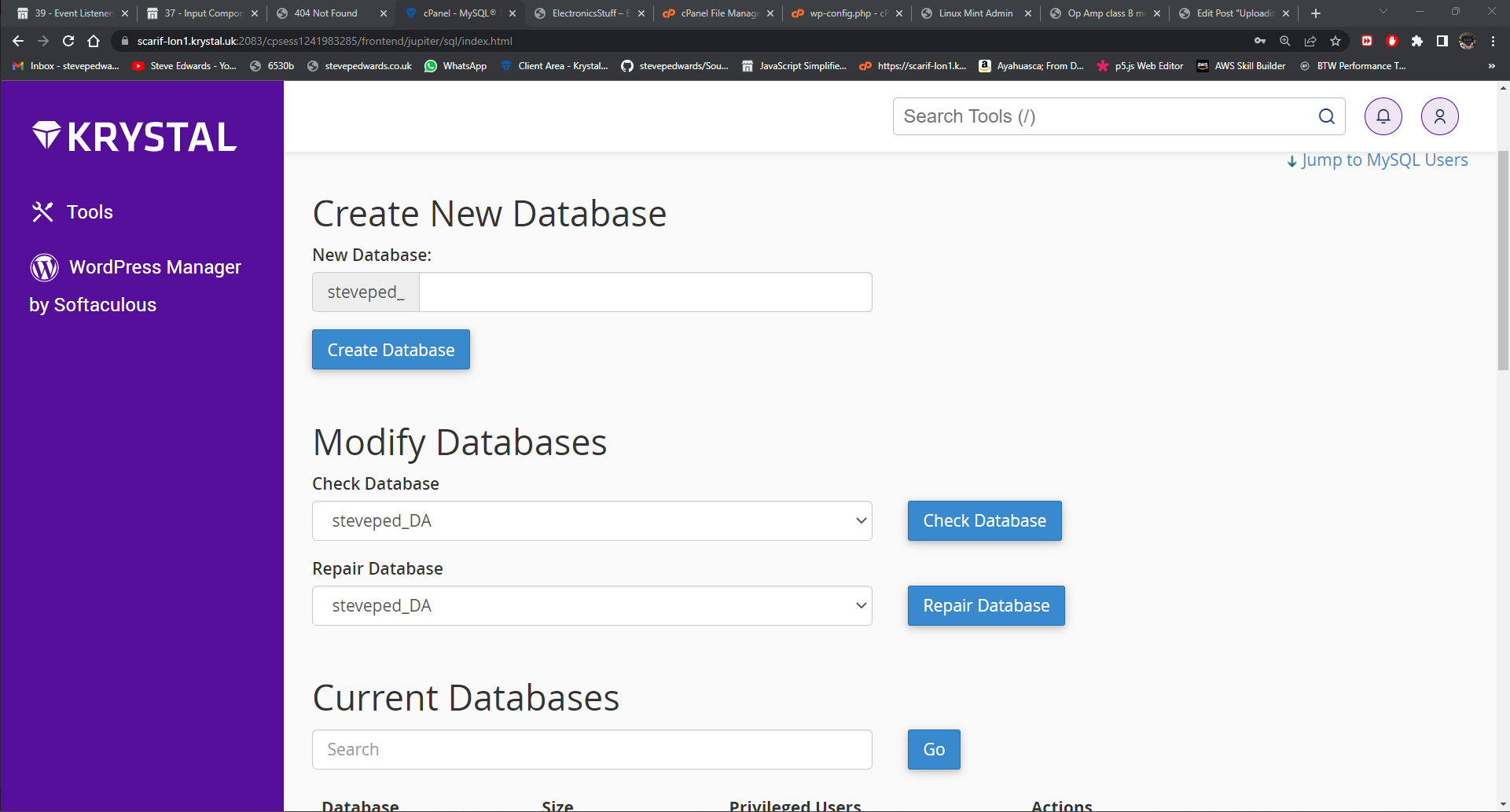
First you have to add any current users to your new WP site if you already have a site running - it may be easier to also create the same user you are going to use online in your home database before you mysqldump the home DB out, so that whem it is imported, you already have the site administrator account already created with the same login details as you set in the Softaculous section. Softaculous creates a user password for you that gets stored in the wp-config.php file thath has to be changed so that your home user can access the website version - else you may be locked out of your site with a WP White Screen of Death with no error message unless you set:
define('WP_DEBUG', true);
in wp-config.php.
You can add a new user or an already existing user to your new WP database in cPanel/Dtabase section - as you need to add DB privileges here also so that user can access the DBs from SSH/MYSQL:
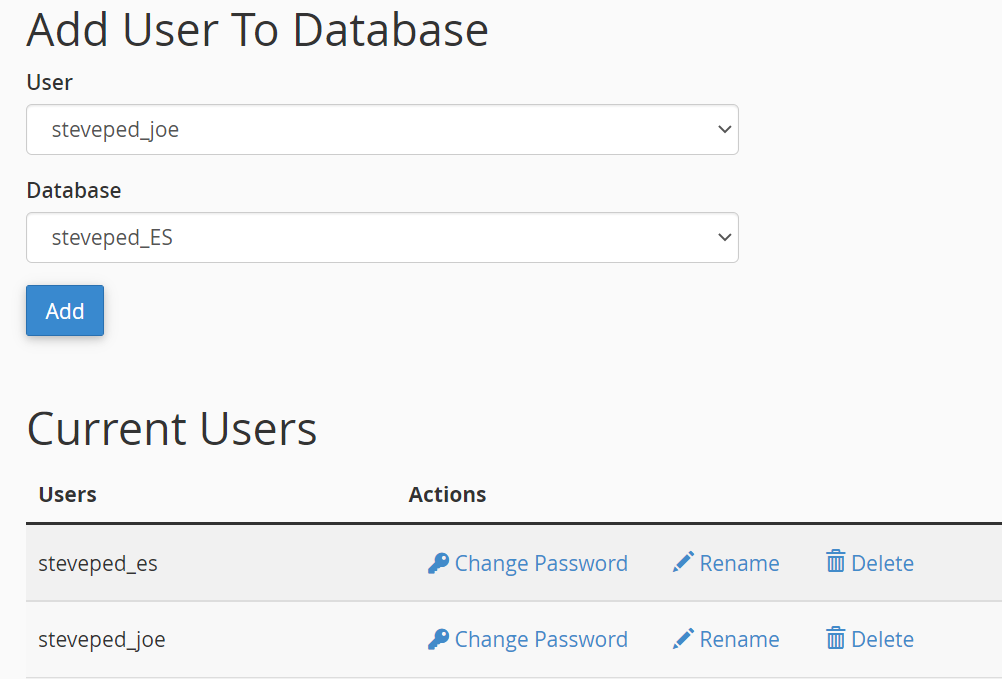
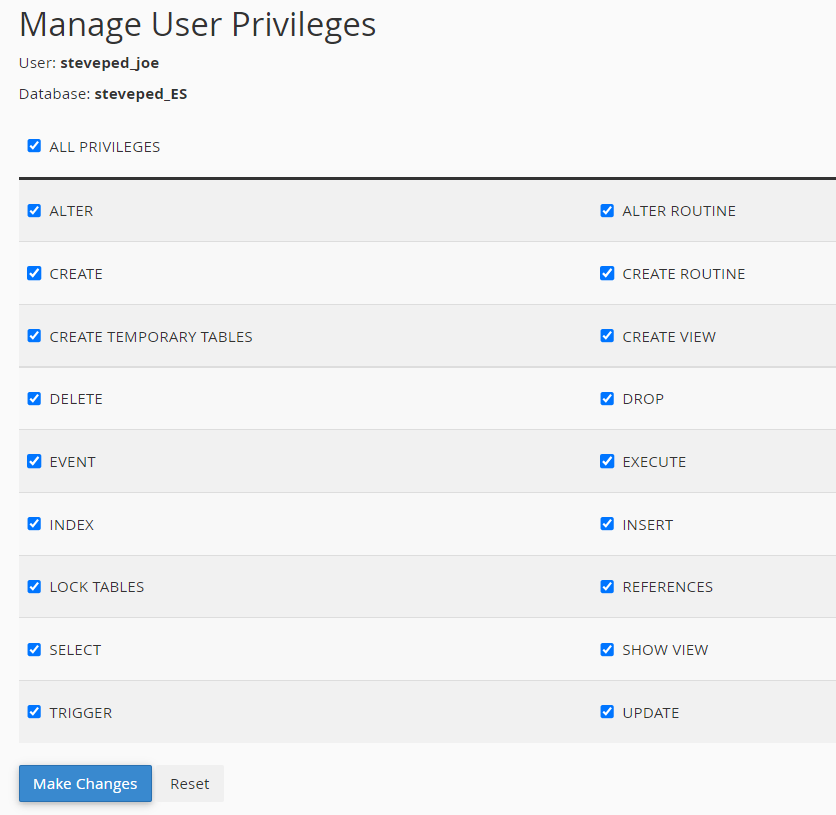
Once your new user details are added into the wp-config.php file and the user given ALL privileges, you can SSH into your site and view the DBs via MYSQL command line (I use WSL Ubuntu in Windows 11 here, but Putty or other SSH method will do):
stevee@laptop:/mnt/c/Windows/System32$ ssh -p 722 user@localhost
After remote SSH login, using the mysql access command:
mysql -u stevee -p
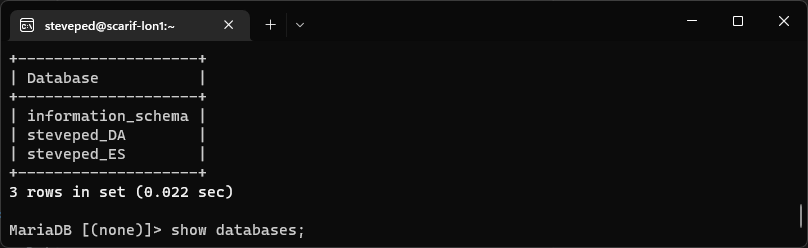
Before you import a sql file into MYSQL, make sure you change from your current active DB to your newly created one so you don't overwrite any others! My new DB is for my ElectronicsStuff data, so:
use steveped_ES ;
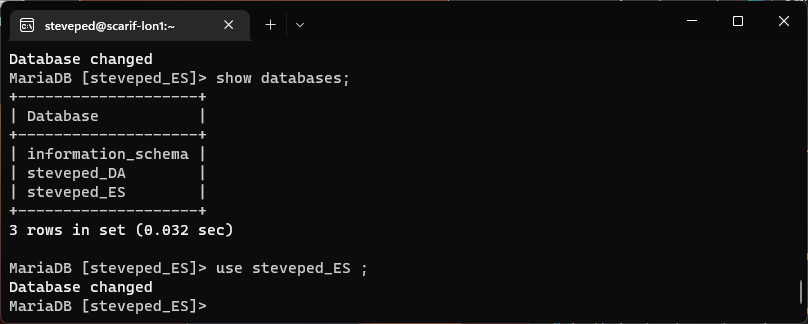
Now I can import the already uploaded and extracted DB.sql files from the public_ftp folder where I stored them:
source /public_ftp/ElectronicsStuff.SQL ;
You don't have root privileges to restart mysql after the import, so I assume there are auto checks running on the host VMs to always restart DBs after any changes? Normally, at home, if you have sudo privileges:
service mysql restart
Now the remote WP database has had you home SQL file imported, you can try to access your site. If you cannot, due to WP White Screen, Database connection errors etc. check that you have the correct login details in your site's wp-config file. There is a usually an example file created with a new WP install to refer to:
The key sections to fill change if neccesary, to your details are in red:
define( 'DB_NAME', 'database_name_here' );

/** Database username */
define( 'DB_USER', 'username_here' );

/** Database password */
define( 'DB_PASSWORD', 'password_here' );

/** Database hostname */
define( 'DB_HOST', 'localhost' );

/** Database charset to use in creating database tables. */
define( 'DB_CHARSET', 'utf8' );

/** The database collate type. Don't change this if in doubt. */
define( 'DB_COLLATE', '' );

/**
 * WordPress database table prefix.
 *
 * You can have multiple installations in one database if you give each
 * a unique prefix. Only numbers, letters, and underscores please!
 */
$table_prefix = 'wp_';
If all has gone well, your site should be web visible and you should be able to login to your site's admin page:
https://stevepedwards.today/ElectronicsStuff/wp-admin/
I had SO many attempts before I became familiar enough with the process that my site worked AND I could log in to Admin.
Good luck!