
Here are 10 random scenarios for your practice.
? Remote VM L1 Support Scenarios
- High CPU/Slow Performance: A user reports that their VM is running extremely slowly and is almost unusable. They mention that opening any application takes several minutes. Initial checks reveal that the VM's CPU utilization is pegged at 99-100%, even when idle. The user confirms they are only running standard productivity applications. An L1 tech would need to check the Task Manager or top/htop for rogue processes consuming excessive CPU, investigate recent updates, and potentially attempt to end non-essential processes or escalate if a system-level process is the culprit.
Me: you may want to Snap the CPU view in TaskMgr:
r-click Taskbar – Task Manager:
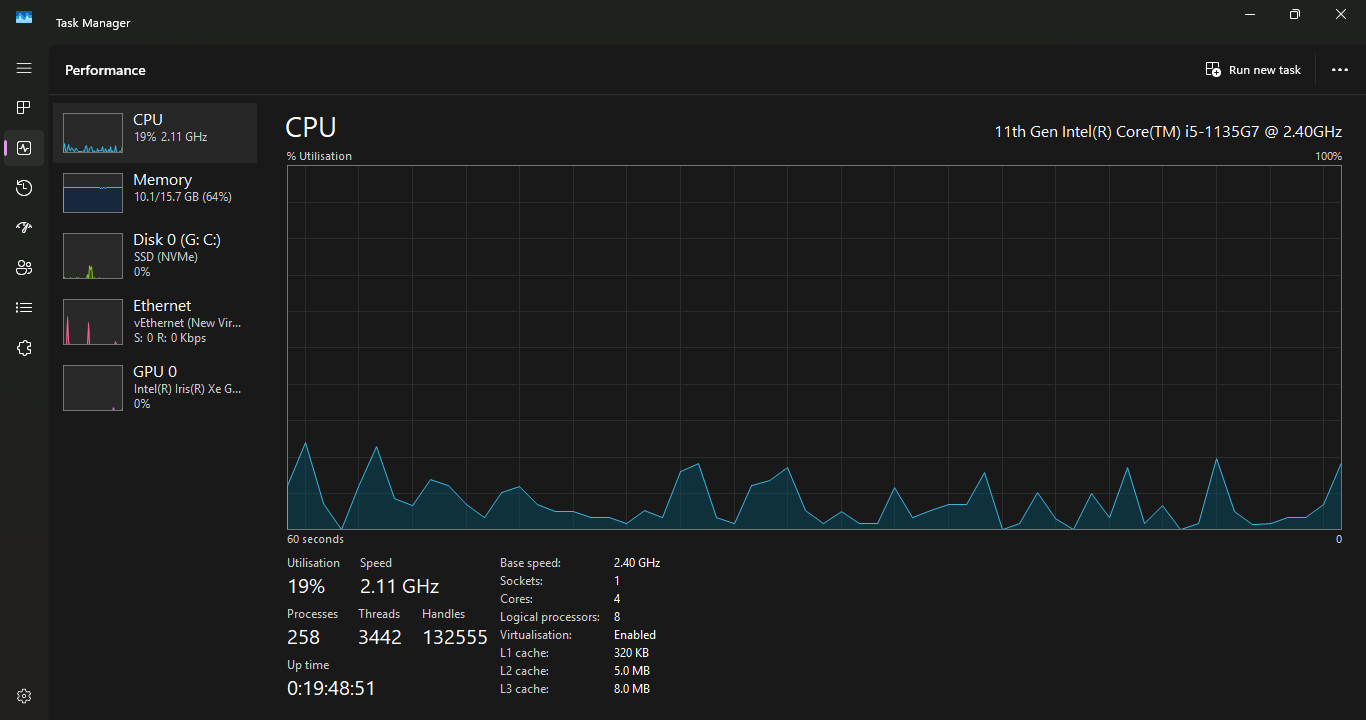
Find the process using the CPU maxxed out:
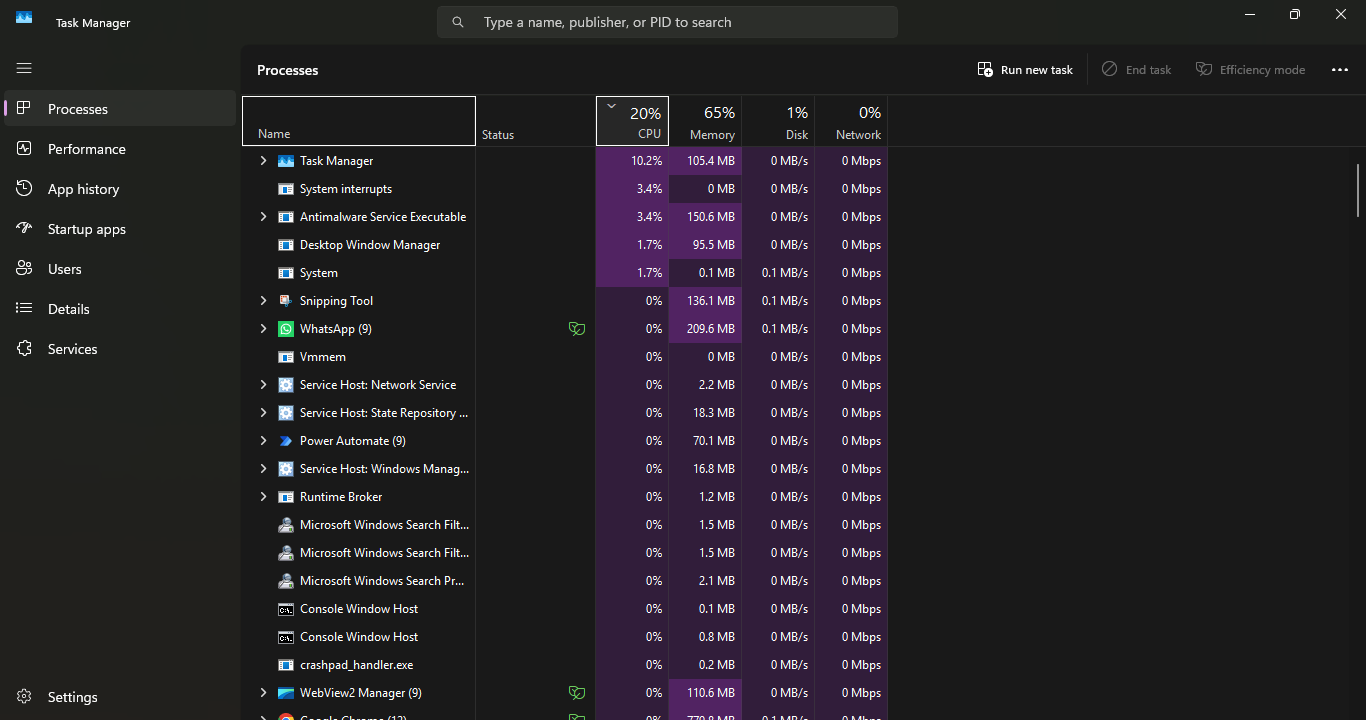
RClick the process and End Task
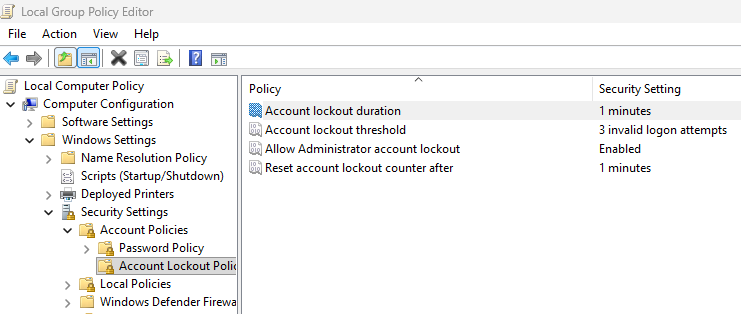
- Locked User Account (Login Failure): A user submits a ticket stating they cannot log into their VM. They are certain they are using the correct password, but after several attempts, they receive a message that their account is temporarily locked. The user is logged in via a temporary guest account or a separate administrative session. The L1 tech must use an administrative tool (like Active Directory Users and Computers or the local computer management console) to locate the user's account and unlock it, then advise the user to try again with their known password.
Setup the test environment for a Standard User, by changing the local GPO for account lockout from 10mins to 1 min, and number of failed password entries from 10 to 3:
Get the username details and be SURE you find the right user in Domain/Local Users in real world!
Setup a new user for practice : Open (r click Start button) or Search Computer Management
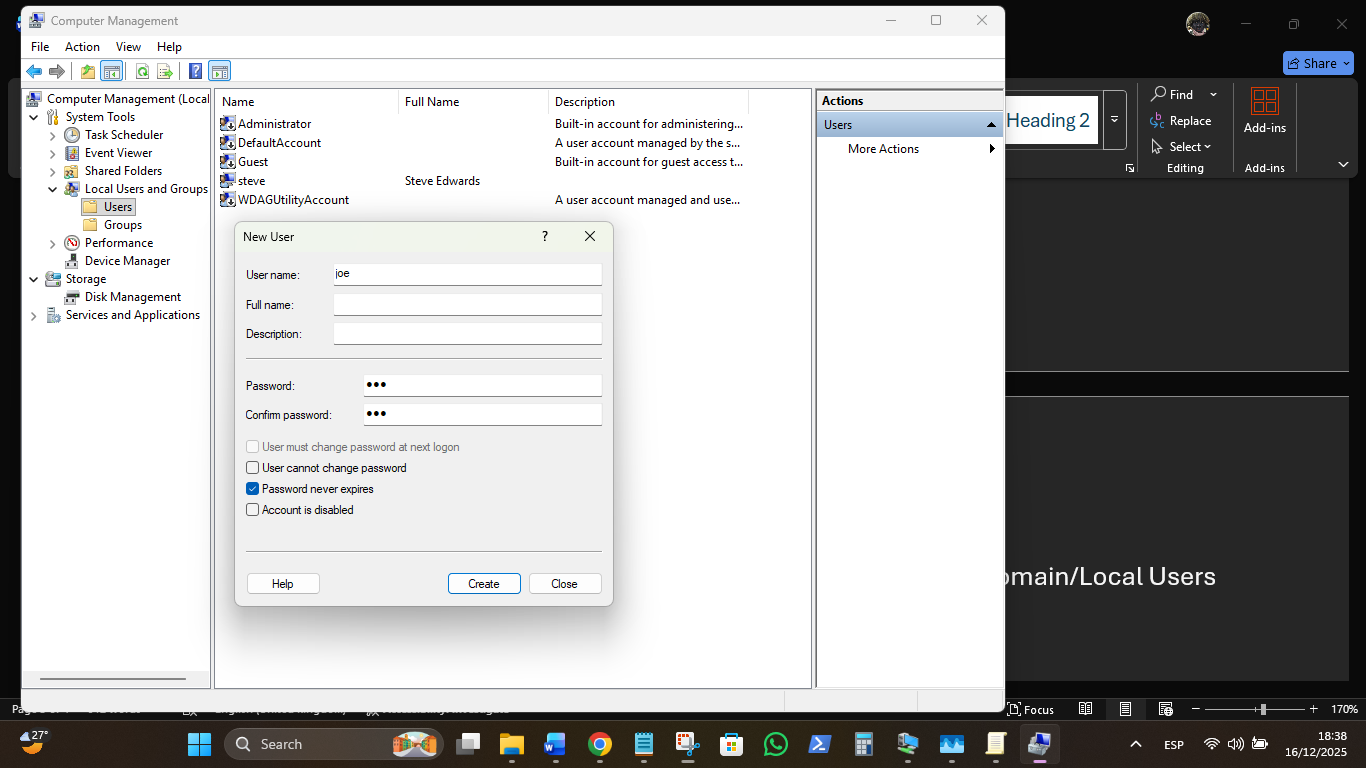
Now logout (Lock) of your local User/Admin account and login as the new user first to create the user Profile, Desktop and Path environment etc.
Change the lockout attempts to 3 from 10 in User Mgmnt:
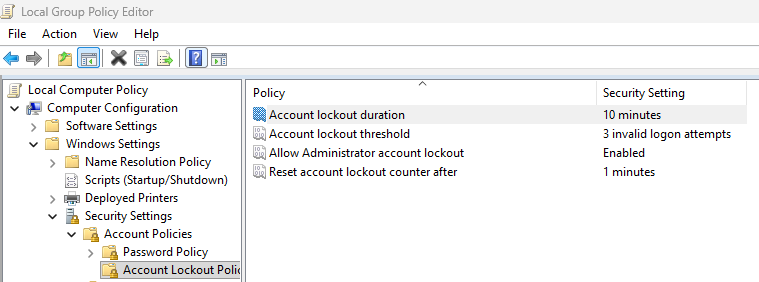
Activate the Policy change:
PS C:\WINDOWS\system32> .\gpupdate.exe /force
Updating policy...
Computer Policy update has completed successfully.
Run the bad password to get locked out. NB! Resetting the password does NOT reset the lockout timer! AI was full of shit, as usual…
There is a reset option at the login prompt for a USB save…BUT create a password recovery disk does not seem to work in Win11 – it´s there, but does not open, on host and VM ???
# Disable the user account
net user joe /active:no
# Re-enable the user account
net user joe /active:yes
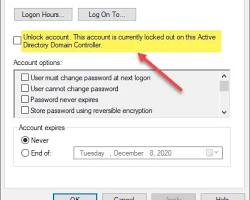
In a Domain server the Properties tab will show the status of an account
- Printer Mapping Failure: A user needs to print an urgent document, but their usual network printer is missing from the list of available printers inside the VM. They confirm they can still access network shared drives and the internet. The L1 tech needs to check if the printer service is running, verify the printer driver installation, or attempt to manually remap the network printer using its IP address or network path.
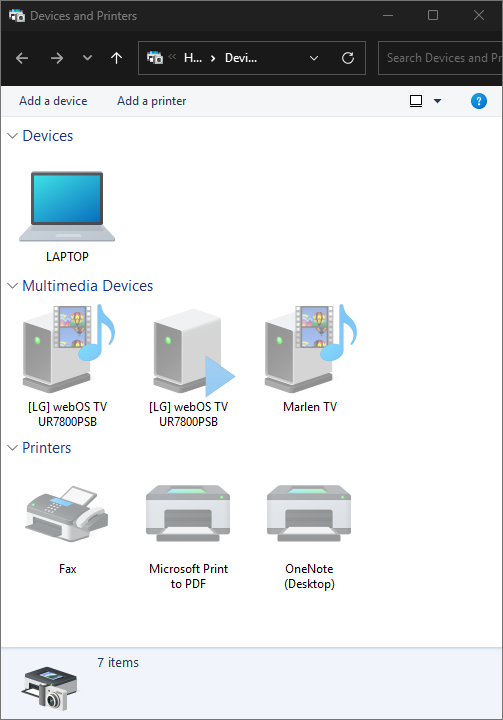
If the Print Spooler Service is not running then all printers will disappear:
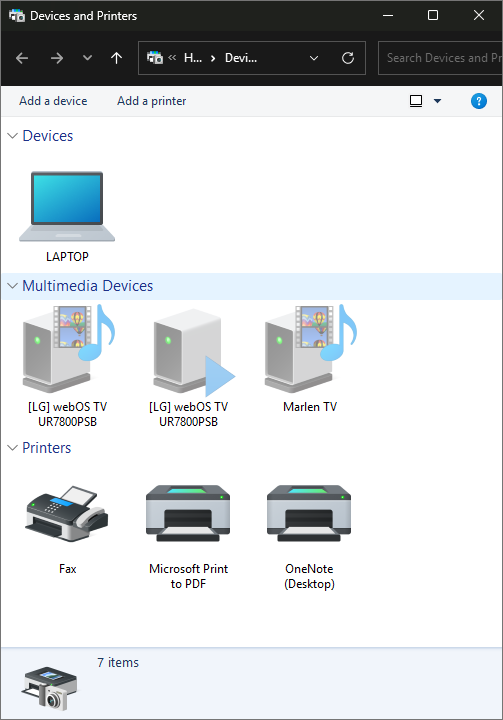
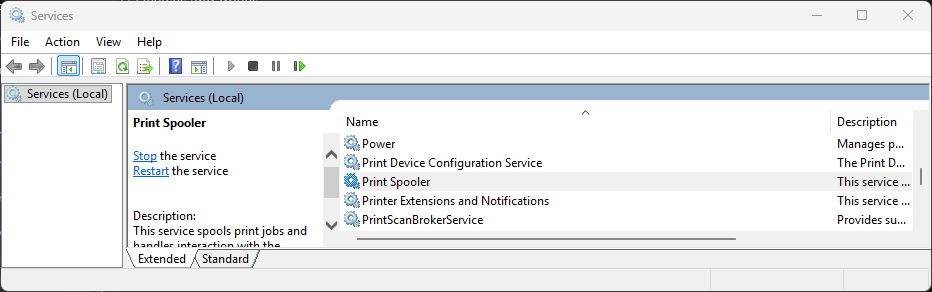
When the print service is stopped, the devices are greyed out:
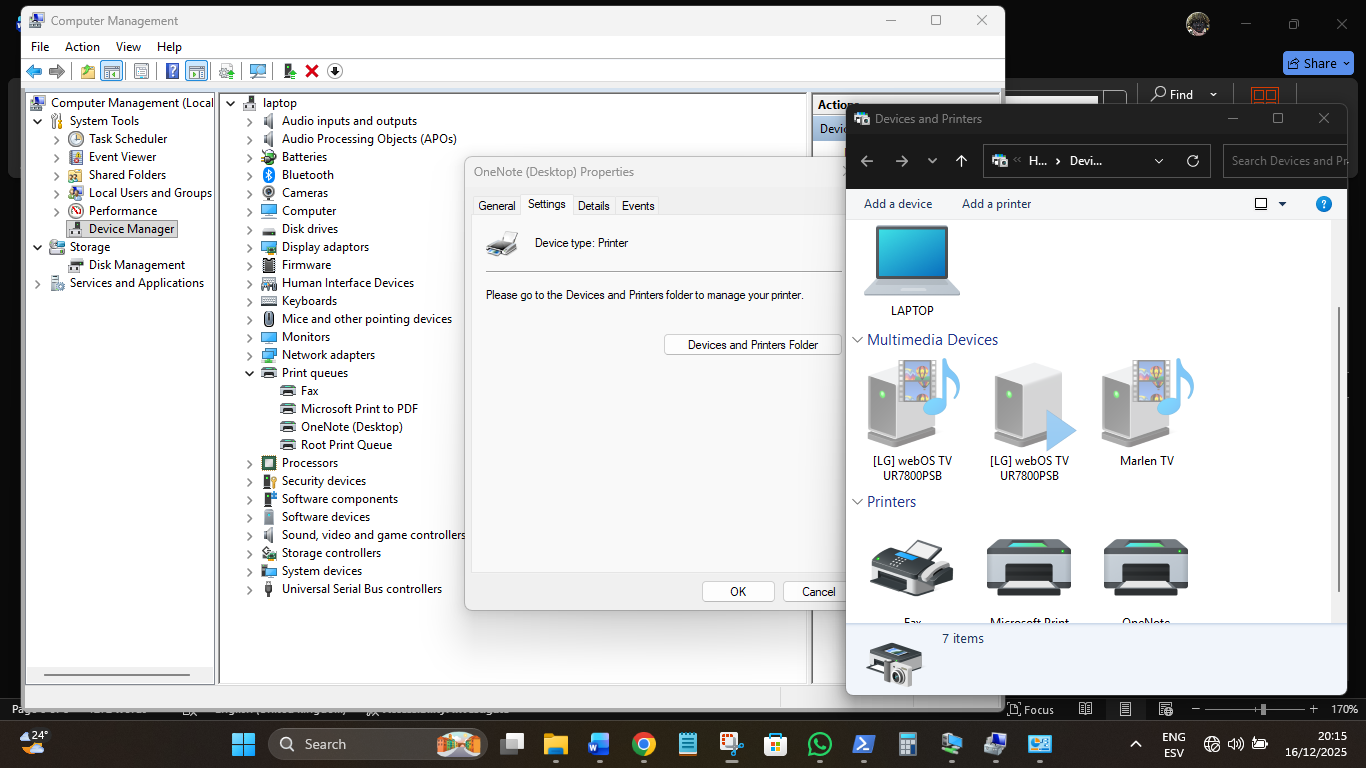
Checking the drivers in Computer Manager also gives the Devices View:
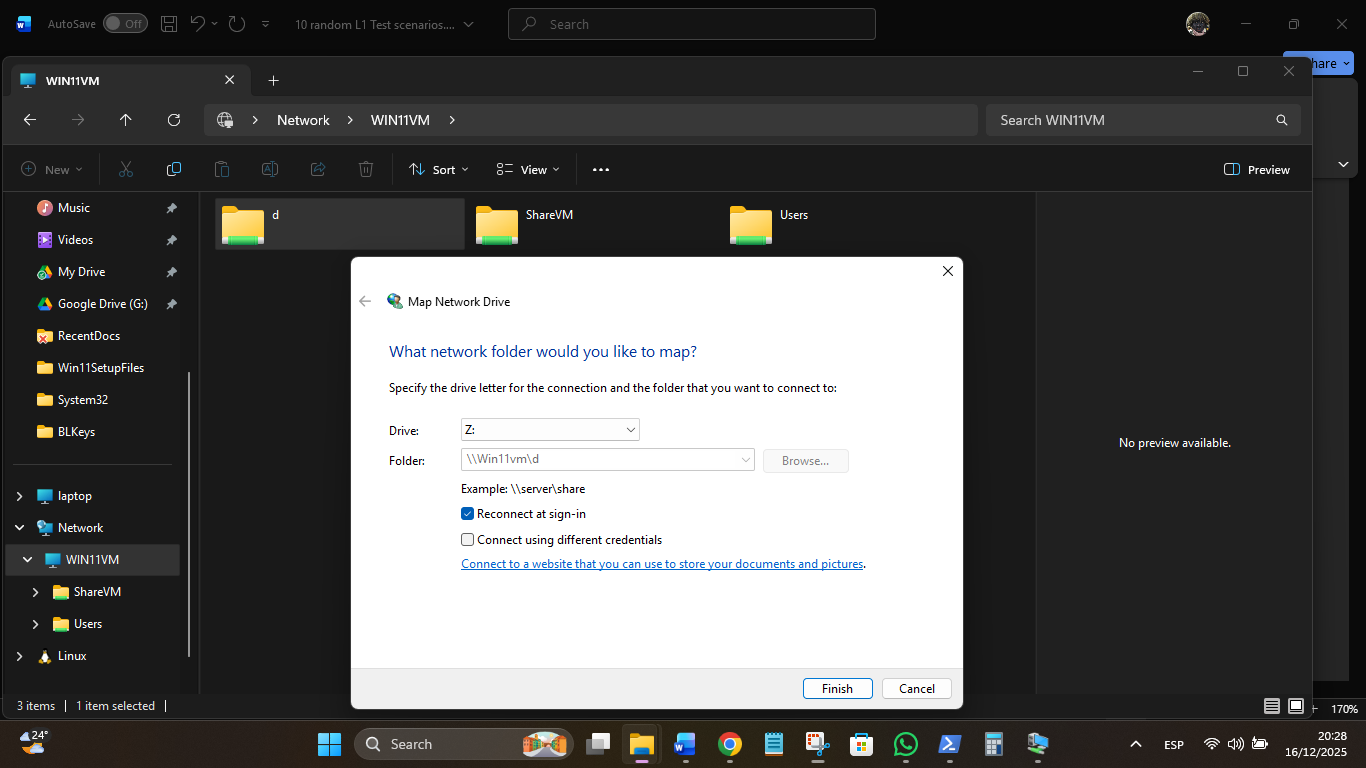
Without a real printer, I can´t check IP details or remap a path, but could simulate it with the VM Shared D drive and map to to a local drive with right click:
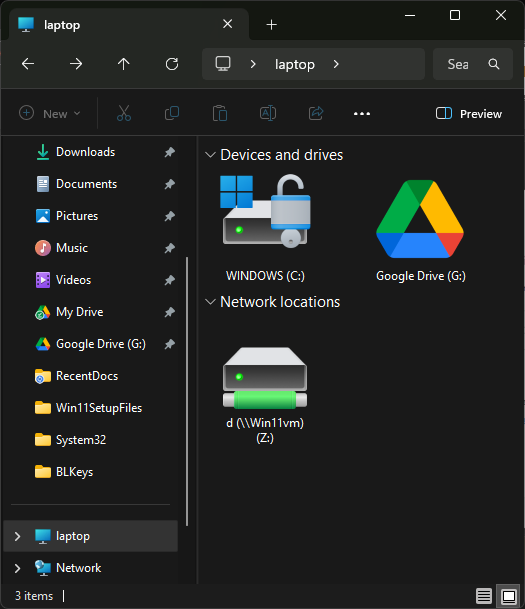
Laptop now has a mapped Z: drive to the DVD D: drive of the networked VM:
- Full System Disk Space: The user receives a constant "Low Disk Space" warning, and they can no longer save files. They report that the VM's main C: drive is red and almost full. The L1 tech must use the built-in Disk Cleanup utility, check the Recycle Bin, examine the size of the Downloads folder, and investigate the size of system-level logs or temporary files for deletion or movement, or escalate if a major application is misconfigured.
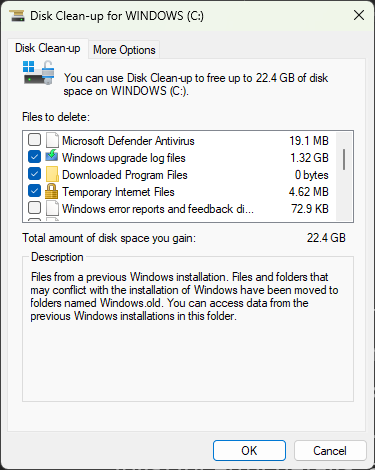
Search “Disk Cleanup” or Run > “cleanmgr”
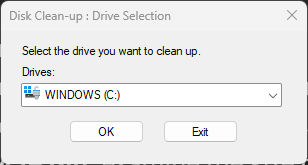
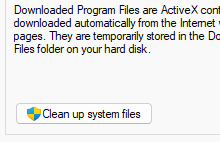
Here is the Windows.old folder fix – the System files button! Windows.old cannot be removed be user cmd line options it is so secured! It’s 15GB too, so needs removal! This option removes it!
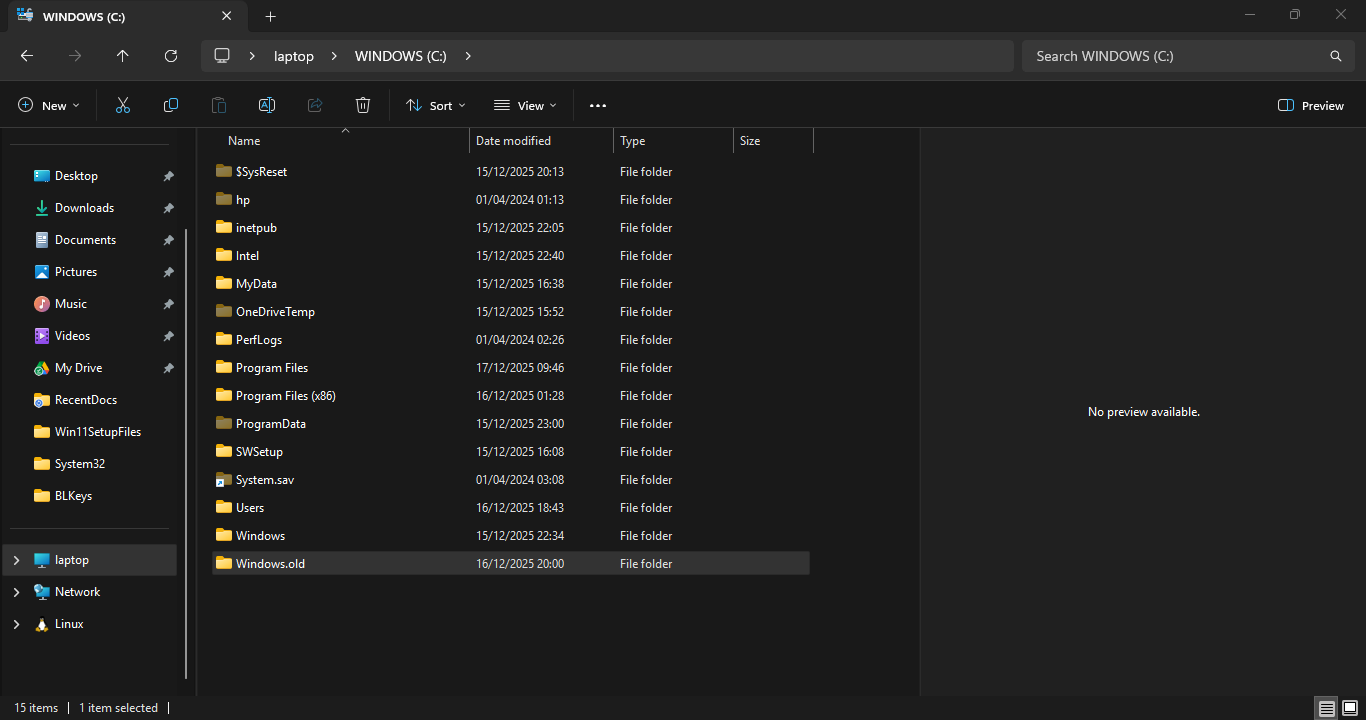
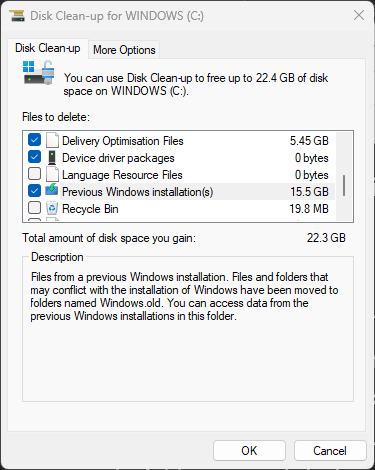
Click "Clean up system files" (this requires a brief elevation or admin prompt, but it's a built-in Windows tool).
Re the Defender option: It is a classic "feature vs. risk" trade-off. In a professional environment, an L1 tech should almost never manually delete security files, but the option to manage or exclude them exists for very specific technical reasons.
Don’t check the AV box!
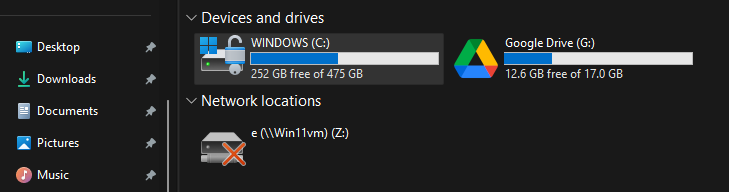
Before:
After clean:
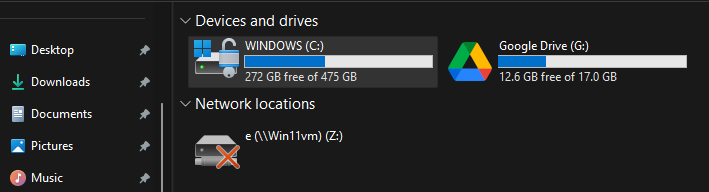
20GB freed up! Old win folder gone:

- Application Crashing on Launch: A specific, essential business application (e.g., a Customer Relationship Management tool) crashes immediately upon launch without any error message, while all other applications work fine. The user states it was working yesterday. The L1 tech should investigate by clearing the application's local cache, checking the Application Event Log (or system logs) for error details, and potentially attempt a quick repair or reinstallation of that single application.
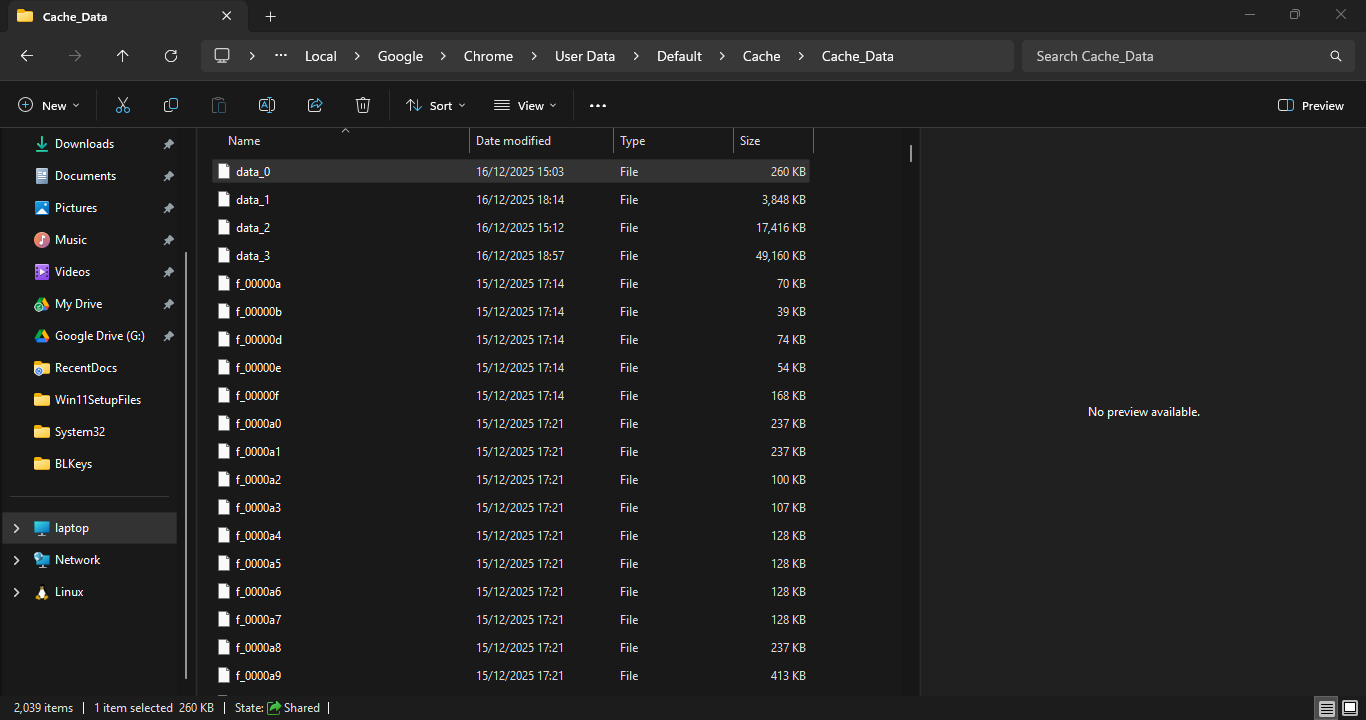
Not easy to simulate…but a full cache folder deletion could be done for say, Chrome:
C:\Users\steve\AppData\Local\Google\Chrome\User Data\Default\Cache\Cache_Data
- Missing Desktop/Start Menu Items (Profile Corruption): The user logs in and finds that their desktop is completely empty, their personalized start menu icons are gone, and their saved documents and settings seem to be missing. This often indicates a temporary user profile was loaded. The L1 tech needs to verify the current profile path and potentially use the System Properties or Registry Editor to fix the profile path to the correct non-temporary location, or escalate for advanced profile troubleshooting.
Quickest way to see a temp user account is look in here for near duplicates:
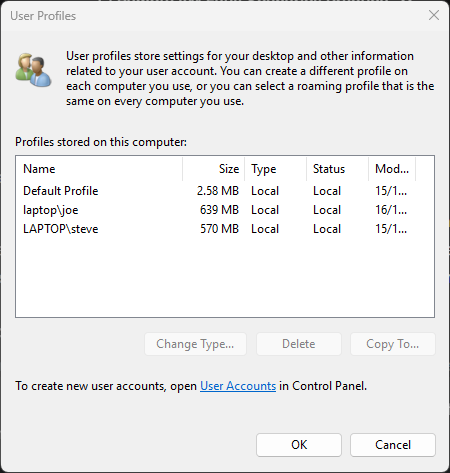
AI: “The Temporary Profile Naming Convention
When a user's original profile fails to load (due to corruption, permission issues, or a locked file), Windows creates a new, temporary profile for the session.
- Original Folder: The user's correct profile folder on the disk is typically C:\Users\joe.
- Temporary Folder: The temporary profile folder is named using one of the following conventions:
- C:\Users\TEMP
- C:\Users\TEMP.DomainName
- C:\Users\joe.LOCAL (or joe.DomainName)
- C:\Users\joe.000, joe.001, etc., if the original profile is still present and the user logs in a second time with a temporary profile.”
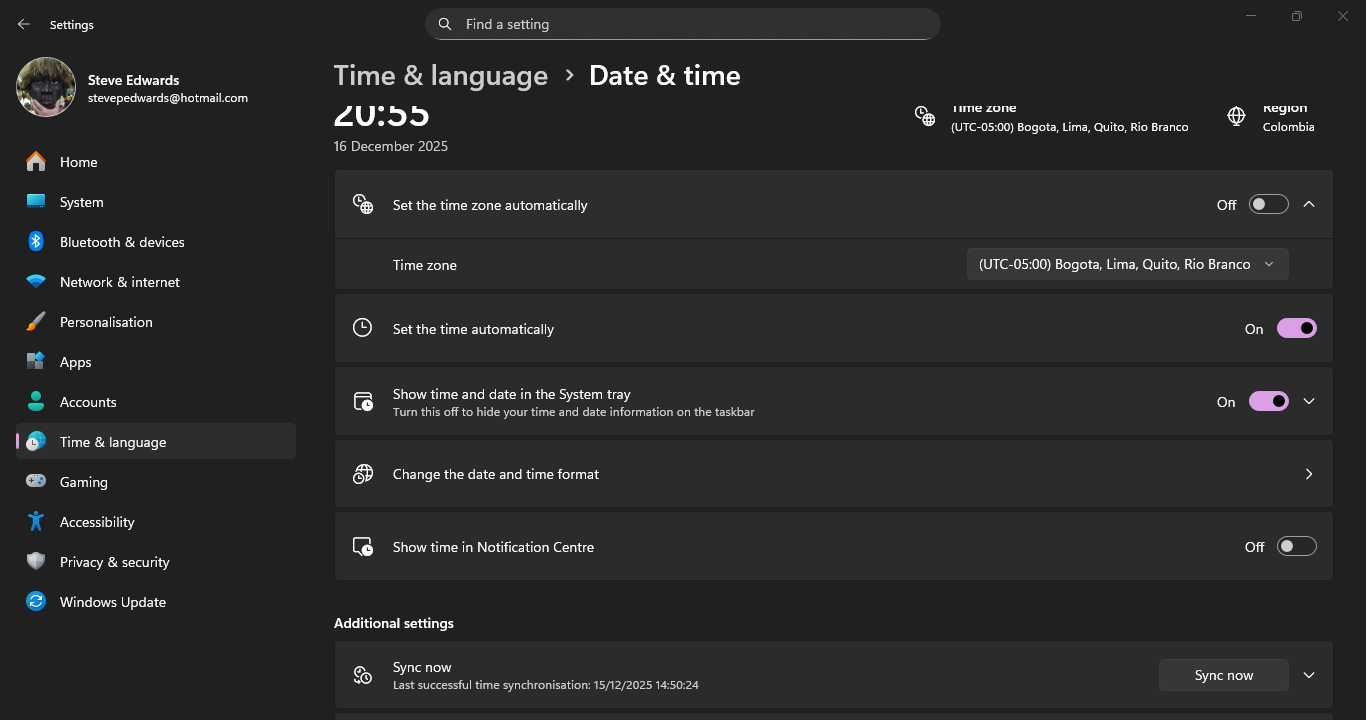
- Date and Time Skew: A user reports that secure websites (HTTPS) are giving certificate warnings and they cannot access them. They notice the time displayed in the taskbar is several hours or days off the correct time. The L1 tech must check the VM's time zone settings and ensure the system is correctly synchronizing with the configured NTP server or manually adjust the date and time. This is a very common VM issue, particularly after a snapshot rollback.
Search “Time”: Check the settings and do a sync in:
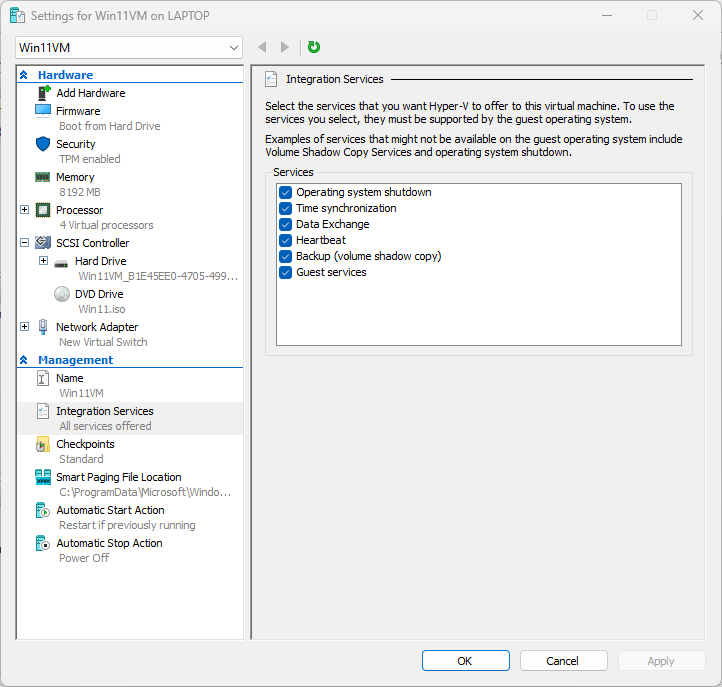
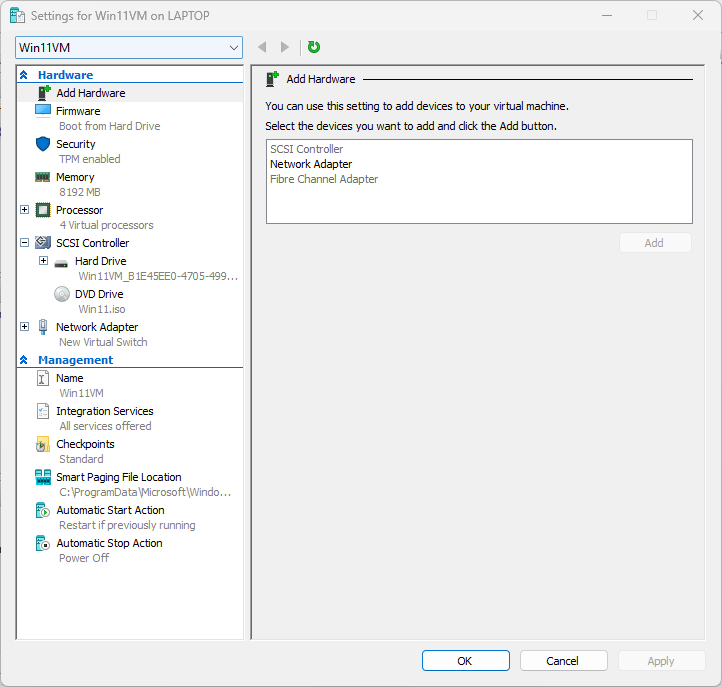
- Peripheral Device Not Detected (USB Passthrough): A user has plugged a specialized USB device (e.g., a scanner or card reader) into their local machine, but it is not appearing inside the remote VM. This is a common USB Passthrough/Redirection issue in VM environments. The L1 tech should check if the VM integration services/tools are running
- check the Device Manager for unknown devices, (maybe the USB driver is missing, bad)
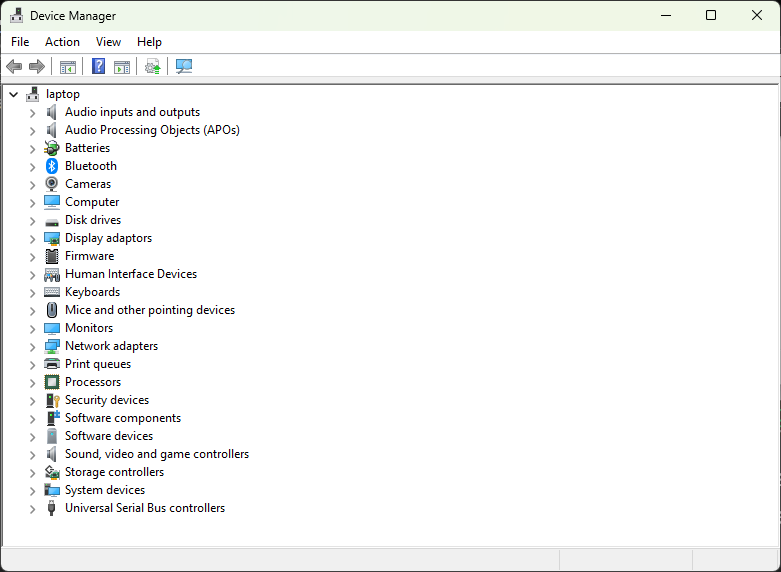
and verify if the VM client software has correctly captured and redirected the USB device from the host. E.g. no USB present as here:
The Role of Integration Services
Integration Services (or Integration Components) are a suite of specialized drivers and services installed inside the Virtual Machine (Guest OS) that allow it to communicate efficiently and effectively with the Hyper-V Host (Parent OS).
The key function is to replace slow, generic, emulated hardware drivers with fast, synthetic drivers that communicate directly via the VMBus (a high-speed channel between the host and guest).
Conclusion for an L1 Test: If Integration Services are disabled or broken, key user-experience devices and performance-critical I/O (like network and disk) will be so slow or non-functional that the VM is essentially unusable. Missing mouse responsiveness is often the first and most obvious clue.
In summary: When a laptop boasts "VM Specs," it means it has a CPU with VT-x/AMD-V enabled (the engine) and, when running a capable hypervisor (like Hyper-V, VMware, or VirtualBox with extensions), it utilizes VMBus/VM Tools (the high-speed internal wiring) to give you that seamless, fast experience.
- Service Stopped (Required for Functionality): A ticket arrives stating that a core system function (e.g., receiving email or accessing an internal database) is not working. An investigation reveals that a required Windows Service (e.g., the Spooler, a specific database service, or a licensing service) has unexpectedly stopped running. The L1 tech needs to open the Services console, attempt to restart the necessary service, and ensure its startup type is set to Automatic.
- Application Update Required/Blocked: A critical, security-sensitive application (like a web browser or collaboration tool) is displaying a message that it is out of date and is blocking the user from accessing resources until an update is applied. The user does not have permissions to run the update themselves. The L1 tech must use their elevated credentials to manually trigger and perform the required application update or push the request to a system administrator who controls the patch management system.
Scenario 12: ? Locked and Unmountable Shared Drive
A ticket comes in from a user who is trying to access a critical shared network drive that holds all their project files. The drive is mapped as G: on their VM.
The user reports two issues:
- When they try to open the G: drive via File Explorer, they receive an error message: "The network location cannot be reached. For information about network troubleshooting, see Windows Help."
- They also notice that the G: drive now has a red 'X' icon over it in File Explorer.
The user confirms that they can still access the internet and another, less critical, shared drive (H:) just fine. They have tried logging out and back in but the error persists.
Your Task as the L1 Tech: Investigate why this specific shared drive is unreachable and has a red 'X', and determine the appropriate fix or escalation.
What is the first step you would take to diagnose the cause of the red 'X' and the "network location cannot be reached" error for the G: drive?
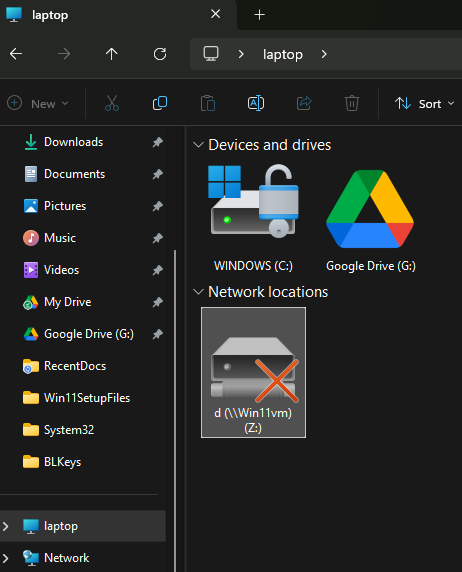
I have simulated a break for the Z: drive by changing the drive letter from D to E on the VM so trying to connect from the host now shows;
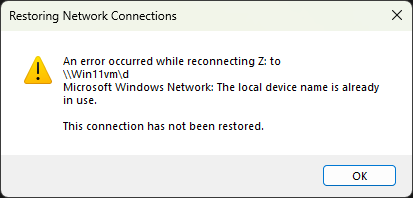
The old path tells you to check the VM resource letter, it should be D. This should apply to any shared drive resource, as mapped drives can only map to a drive letter, not a directory or file.
Read the box for the old path. As you may not have access to the remote resource to change the drive letter back, you just remap a new local drive to the new share letter (Assuming it was reshared so visible on the Network!!):
net use Z: /delete
PS C:\Users\steve> net use Z: \\Win11vm\e
The command completed successfully.
Certainly! Here are five more scenarios for your L1 VM Support test practice, focusing on common networking, hardware, and access issues.
? L1 VM Support Test Scenarios (5 More)
Scenario 13: ? VM Network Performance Issue
A user reports that their VM is running painfully slow, specifically when accessing network resources like shared drives or internal web applications. They report their host PC runs fast, and they can browse the external internet quickly from the VM, but internal network file transfers are timing out or running at dial-up speeds.
- Symptom: Slow network performance only for internal/local network resources accessed from the VM.
- Initial Check: The user confirms the network cable is securely plugged into the host PC.
Your Task: What is the most likely cause of this specific type of network slowness in a VM environment, and what is the first diagnostic step to confirm it?
You can ping the same online IP address like 8.8.8.8 and see the ping time differences from the host and from the VM.
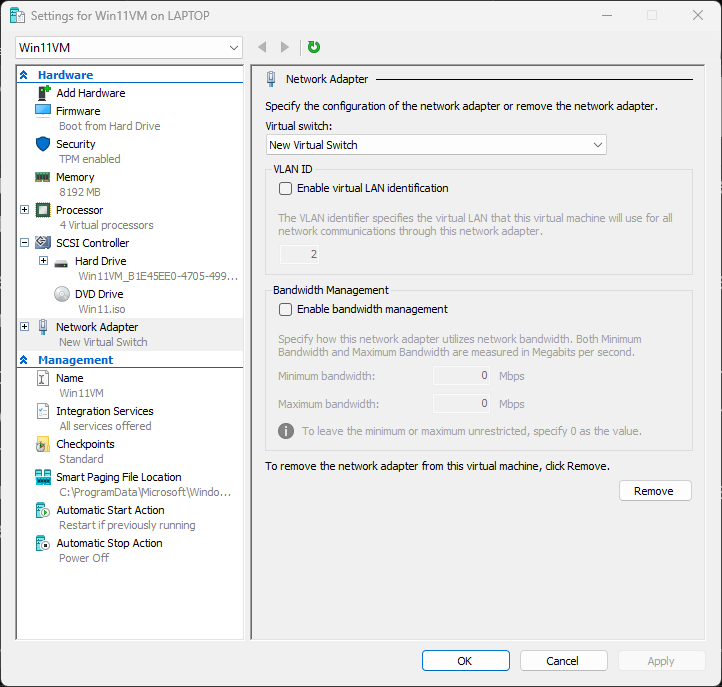
The host connection speed is fast, and the VM connection is slow, so there can be nothing wrong with the host network connection, the problem is the translation between host and VM, such as a VM adaptor misconfiguration or the integration service not running.
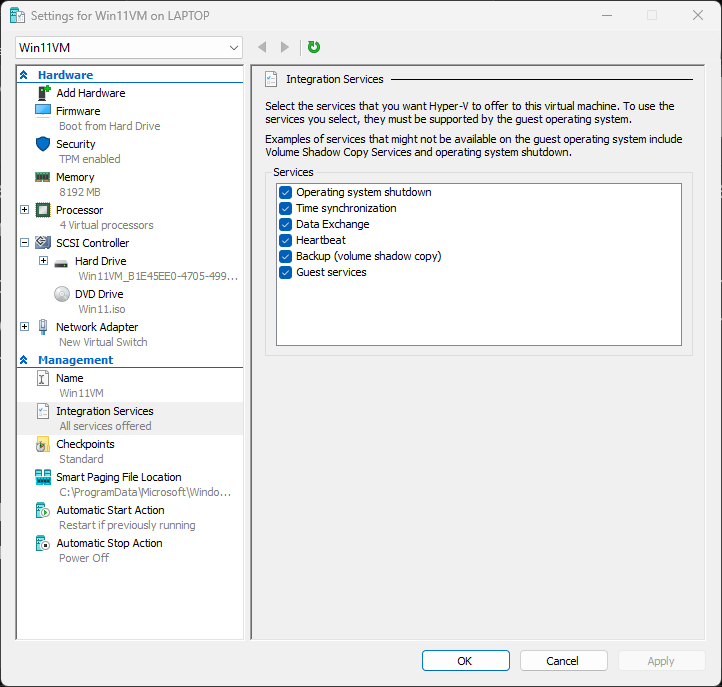
(I just noticed a bandwidth throttling option in the adaptor settings too!), So, 2 possibilities there. What else have I missed?
Ah, if a virtual LAN was set for the VM, it could be having problems with it´s packet encapsulation process causing traffic delays?
The Missing Possibilities (The L2/L3 Layer)
You've covered the common L1/L2 software issues. Here are two possibilities that sometimes require L3-level escalation or deep configuration checks, particularly when dealing with Virtual Network Switches:
1. Hardware Offloading Issues (The Host-Guest Interaction)
Modern network cards (NICs) on the host use features called Hardware Offloading (like Large Send Offload or Virtual Machine Queue (VMQ)) to let the NIC hardware, not the host CPU, handle some tasks (like segmenting large data packets).
- The Problem: Sometimes, the way the VM's network adapter and the Host's physical NIC communicate using these offloading features can become unstable or misaligned, especially after a host OS update.
- The Symptom: This usually leads to severe, intermittent slowness and dropped packets inside the VM.
- The Fix: An L2 tech might need to temporarily disable VMQ or Large Send Offload (LSO) on the host NIC properties via PowerShell or Device Manager to see if the problem disappears.
2. Virtual Switch Configuration Corruption
The Virtual Switch on the host (e.g., in Hyper-V Manager) is the central point connecting all VMs. While rare, the configuration file for the virtual switch itself can become corrupted, especially if the switch was improperly bound to the host NIC.
- The Symptom: All VMs connected to that specific switch experience poor performance, even if the host is fine.
- The Fix: An L3 technician might need to delete the Virtual Switch and recreate it, binding it cleanly to the host's physical network adapter. This is highly disruptive and requires prior documentation of all VM connections.
Scenario 14: ? User Locked Out After Password Reset
A user submits an emergency ticket saying they changed their domain password this morning on their host PC, and now they cannot log in to their VM. They receive the error: "The security database on the server does not have a computer account for this workstation trust relationship."
- Symptom: Domain login failure on the VM immediately following a password change on the host.
- Initial Check: User confirms the password is correct, and they can still log into their host PC with the new password.
Your Task: Explain the root cause of this error in a domain environment and provide the single command-line fix an L1 technician would use to resolve the trust relationship.
Scenario 15: ?? VM Screen Resolution Locked
A user reports that they are unable to change the screen resolution of their VM. It is stuck at a low setting (e.g., 1024x768), and the "Screen Resolution" settings menu does not show any higher options. They also notice the mouse cursor is choppy and difficult to control.
- Symptom: Resolution locked at low setting; mouse performance is poor.
- Initial Check: User confirmed they have updated the VM's graphics driver via Windows Update, but it made no difference.
Your Task: Based on the symptoms (mouse and video quality), what is the most probable cause of this issue, and what is the immediate fix?
Scenario 16: ? VM Hard Drive Space Full
The user's VM crashes and restarts frequently. When they manage to log in, they see a persistent warning: "Low Disk Space on Local Disk (C:)." The VM's C: drive reports 0 bytes free and is preventing the operating system from functioning correctly.
- Symptom: VM crashes, slow performance, 0 bytes free on the C: drive.
- Constraint: You cannot delete the entire Windows.old folder (like we discussed earlier).
Your Task: Provide the fastest, non-destructive, and most effective L1 procedure to quickly clear several gigabytes of space on a critically full VM drive without requiring a complex command line.
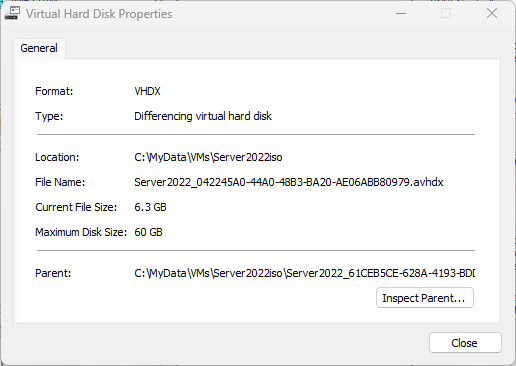
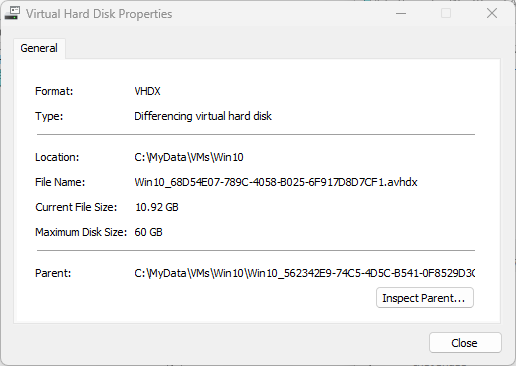
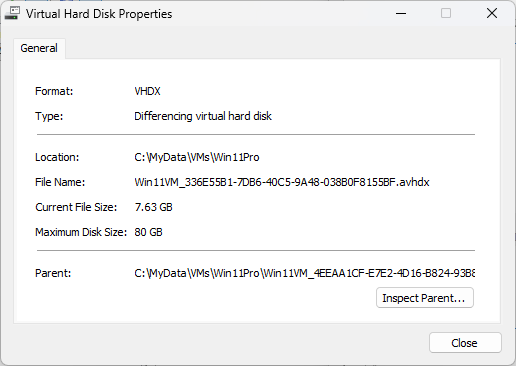
In the VM you can see the preset disk size of a VM and current file size by clicking Settings, Hard Drive, and Inspect button:
You can expand a VM disk .vhdx using HyperV Edit Disk option:
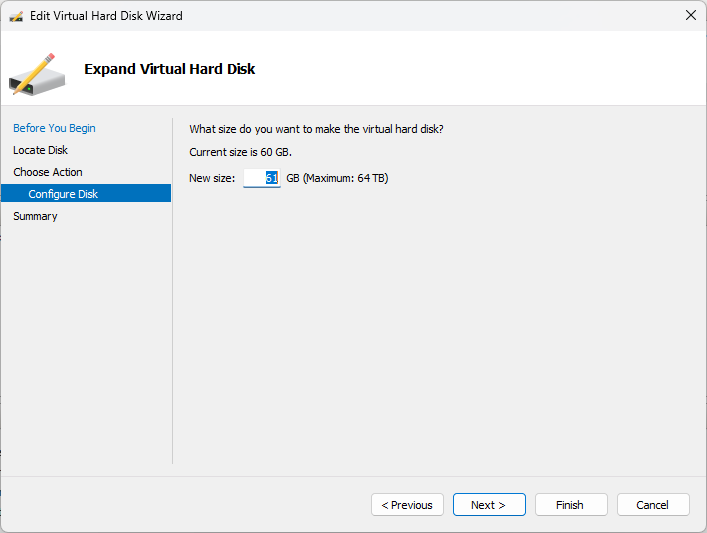
This was classic example of AI bullshit “facts” to resolve full VM drive, by adding space, then reformatting the unallocated space as if a VM drive has fixed partitions like a real physical drive…why you need tech knowledge to check if AI is waffling shit or if it is credible…it happens a LOT! Why AI wont ever replace certain IT techs or programmers. It’s actually dangerous to trust in its current form! Beware!
Scenario 17: ?? BIOS/Firmware Access Denied
A user needs to enable a feature within their VM's operating system (e.g., specific CPU performance settings) that requires a restart into the system's BIOS/Firmware settings. However, when they try the typical key press (F2, DEL, etc.) during boot, it either fails or boots straight into the OS.
- Symptom: Unable to access the VM's BIOS/Firmware settings during startup.
- Initial Check: User confirms they are pressing the correct key.
Your Task: Explain why the traditional key press method fails on a modern VM and provide the specific, reliable method an L1 technician would use to force the VM to boot into its BIOS/Firmware configuration screen.
Win11 VMs can boot into the Win Startup repair screen in Settings, Advanced Startup button:
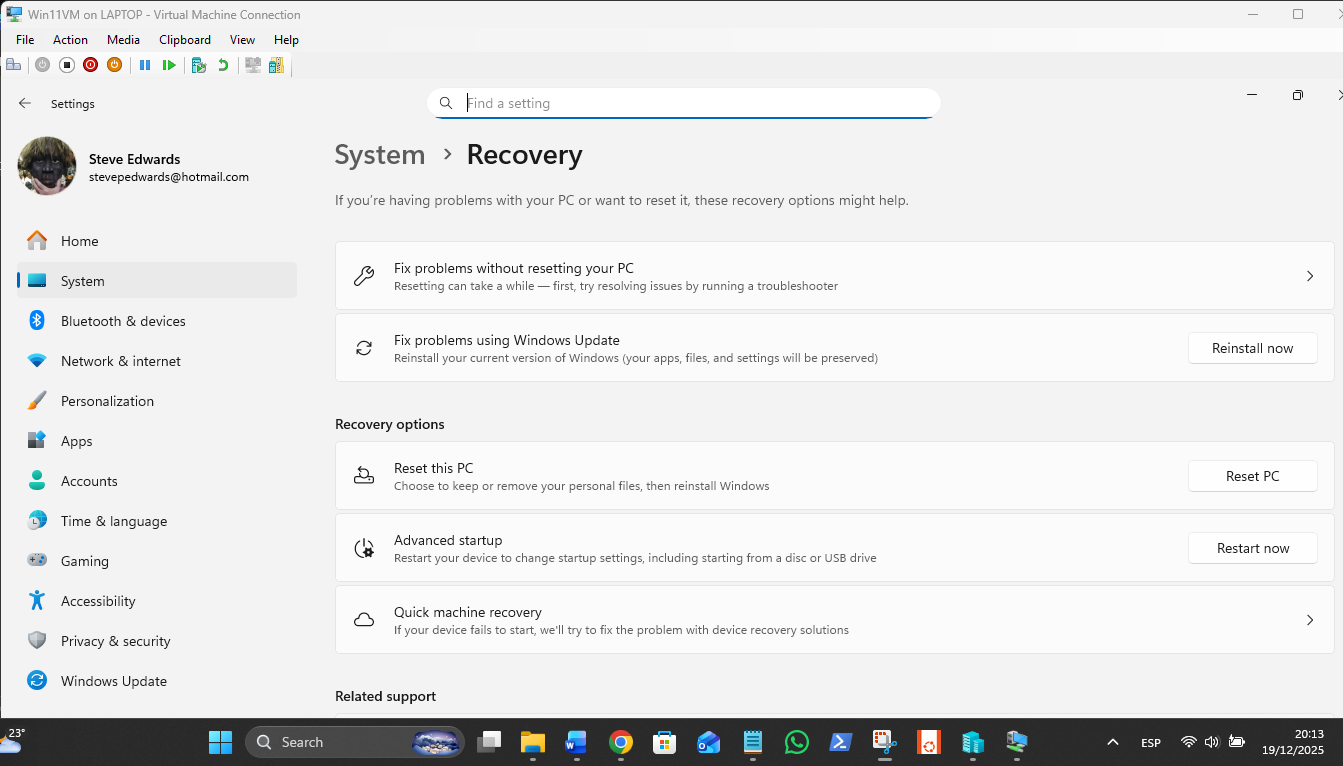
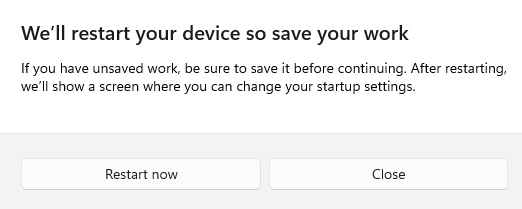
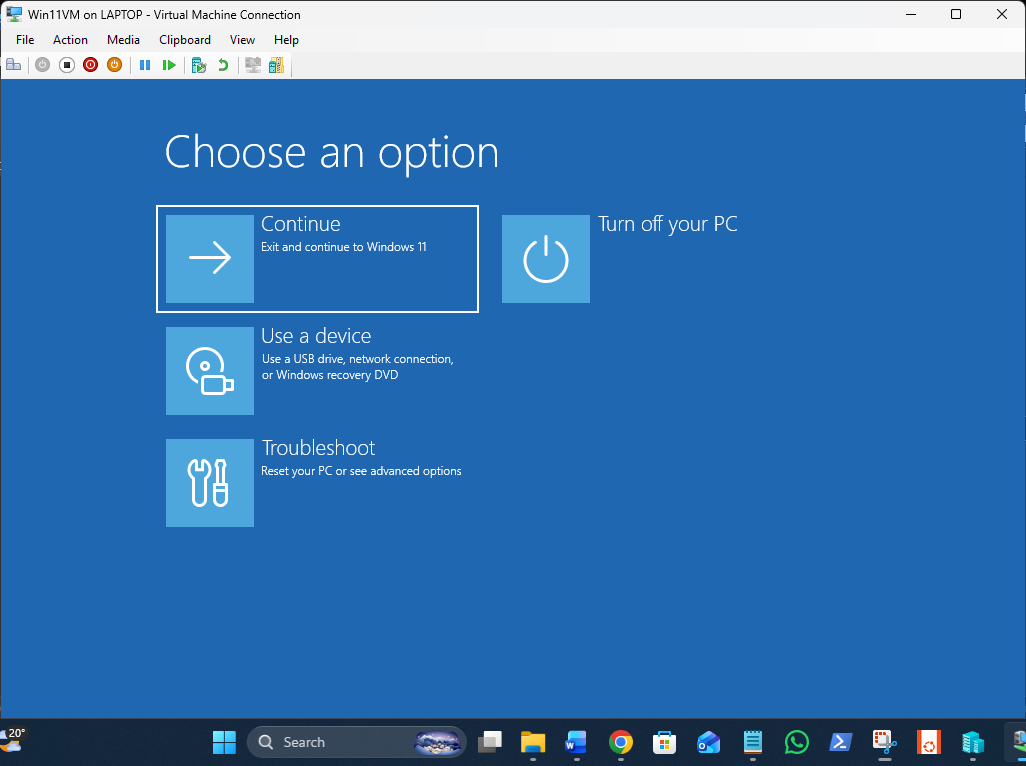
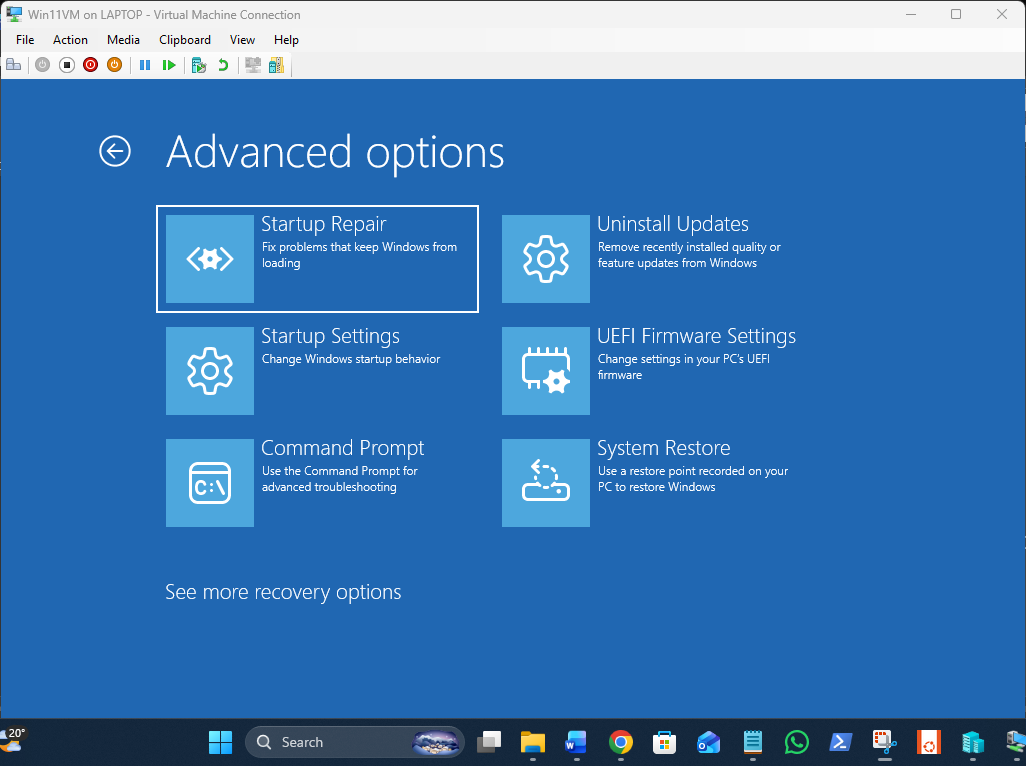
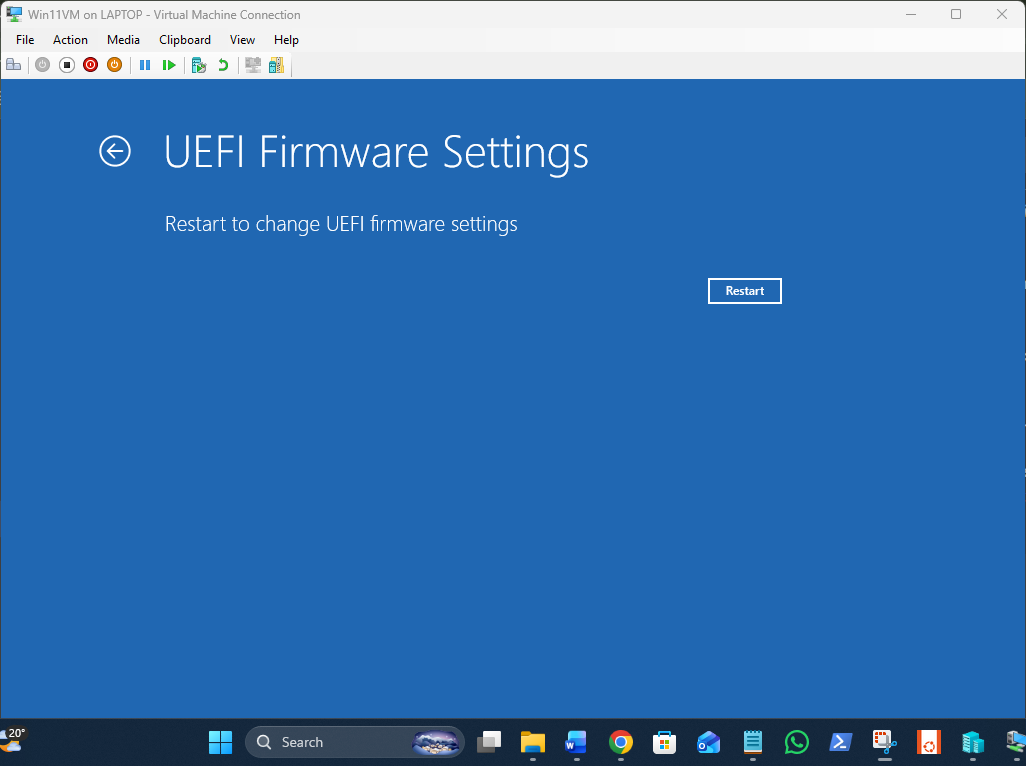
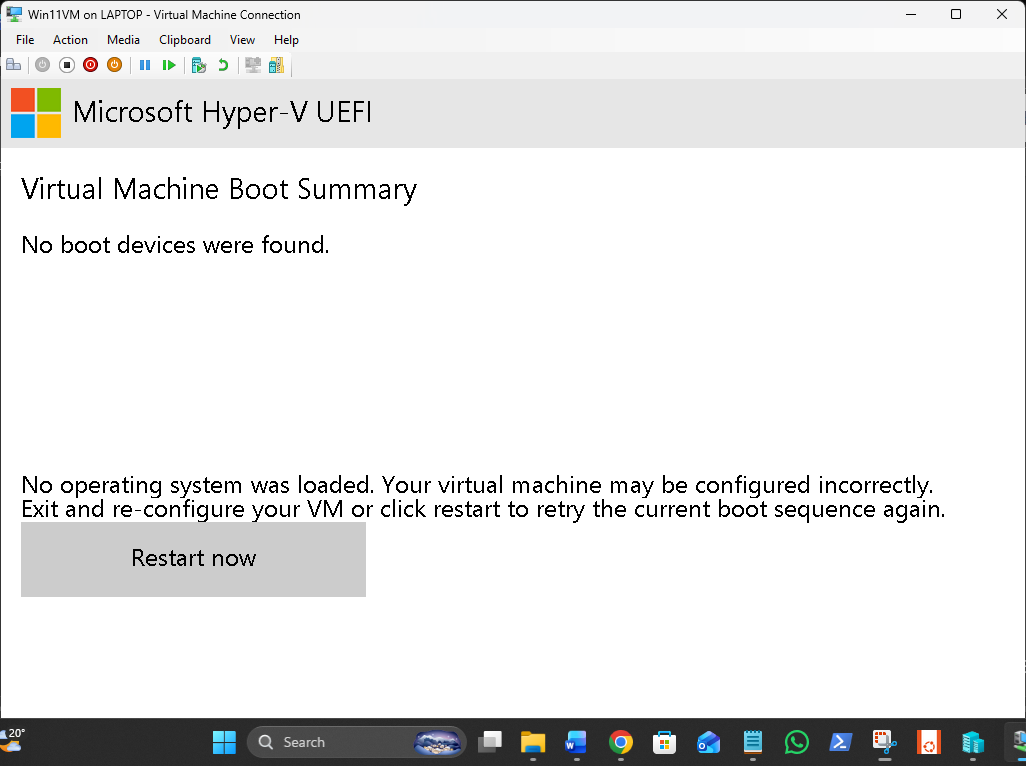
Obviously, if trying to get to a “BIOS” via UEFI settings, there is none (prevents a VM malware getting into the host BIOS). You change all you need within the HyperV manager or enabling features in the real host BIOS.
The "Ghost" Storage Scenario
The Situation: You used the Hyper-V tool to expand the disk. You can see the drive is now roughly 80 GB. But the user calls back and says, "My C: drive is still showing red in File Explorer, and I can't download this 5GB database file!"
The Problem: Look closely at your Disk Management screenshot. Even though the "Capacity" is listed as 79.06 GB, Windows is reporting that 68% of it is free.
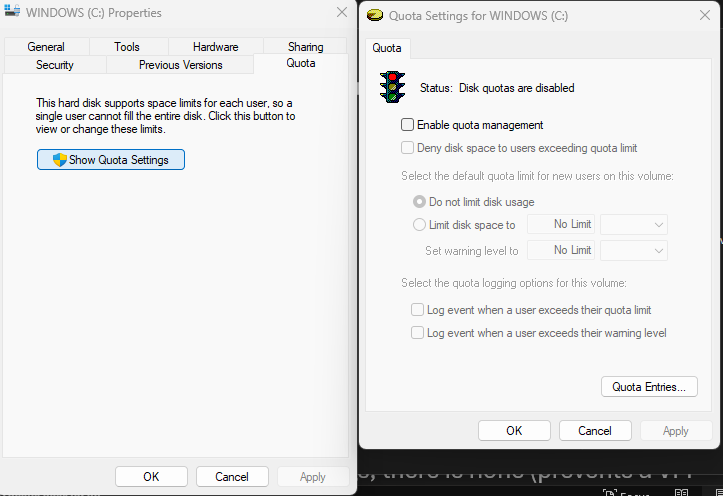
Your L1 Challenge: If the OS thinks it has 53.58 GB free, but the user receives an "Out of Disk Space" error when trying to save a file, what is the most likely culprit?
(Hint: It has nothing to do with the physical size of the .vhdx file or the partition anymore.)
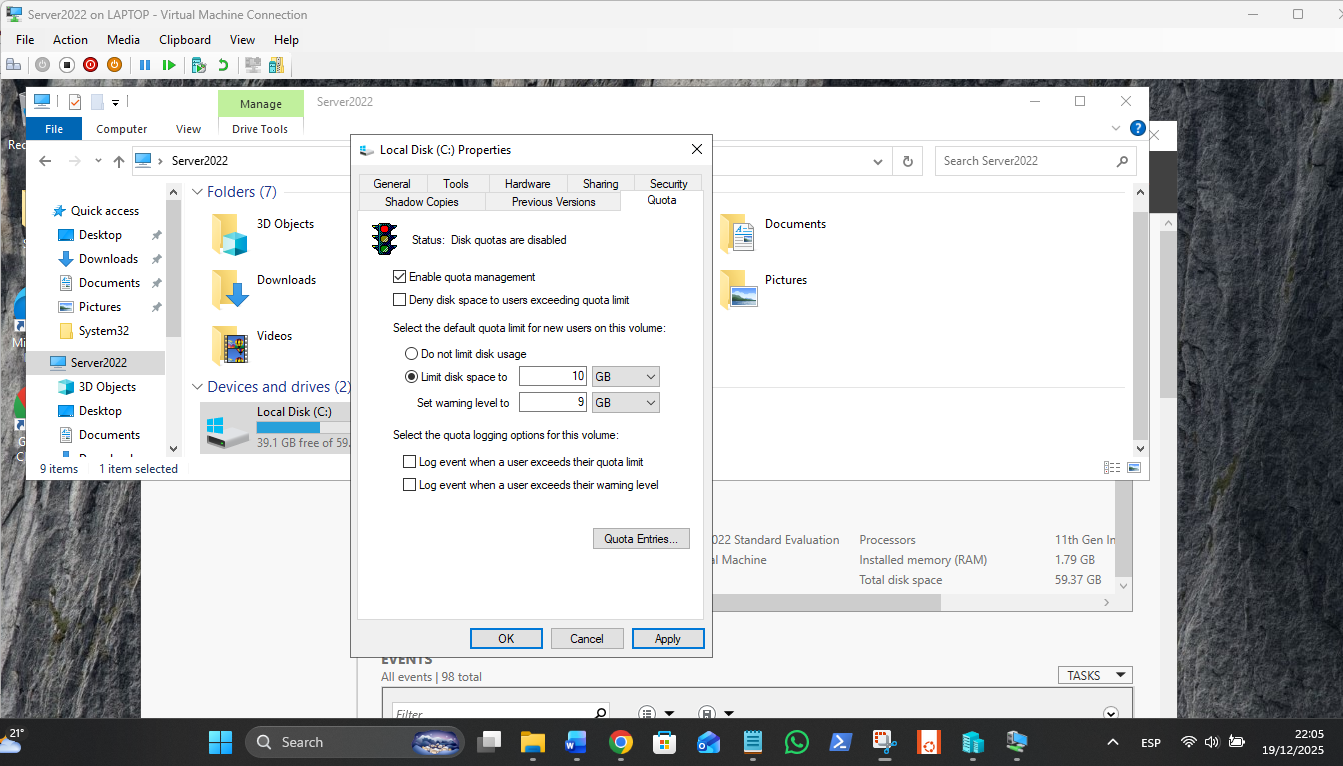
Possibility 1: Quotas. Someone (maybe a previous admin) set a "Disk Quota" on the C: drive that limits users to, say, 10GB of space, regardless of how big the actual drive is.
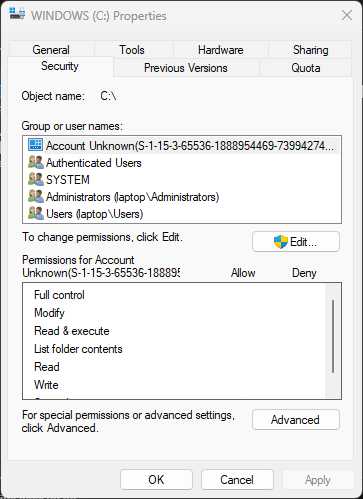
Possibility 2: Permissions. The user is trying to save to a folder where they don't have "Write" access, and Windows is giving a generic "Space" error instead of an "Access Denied" error (it happens!).
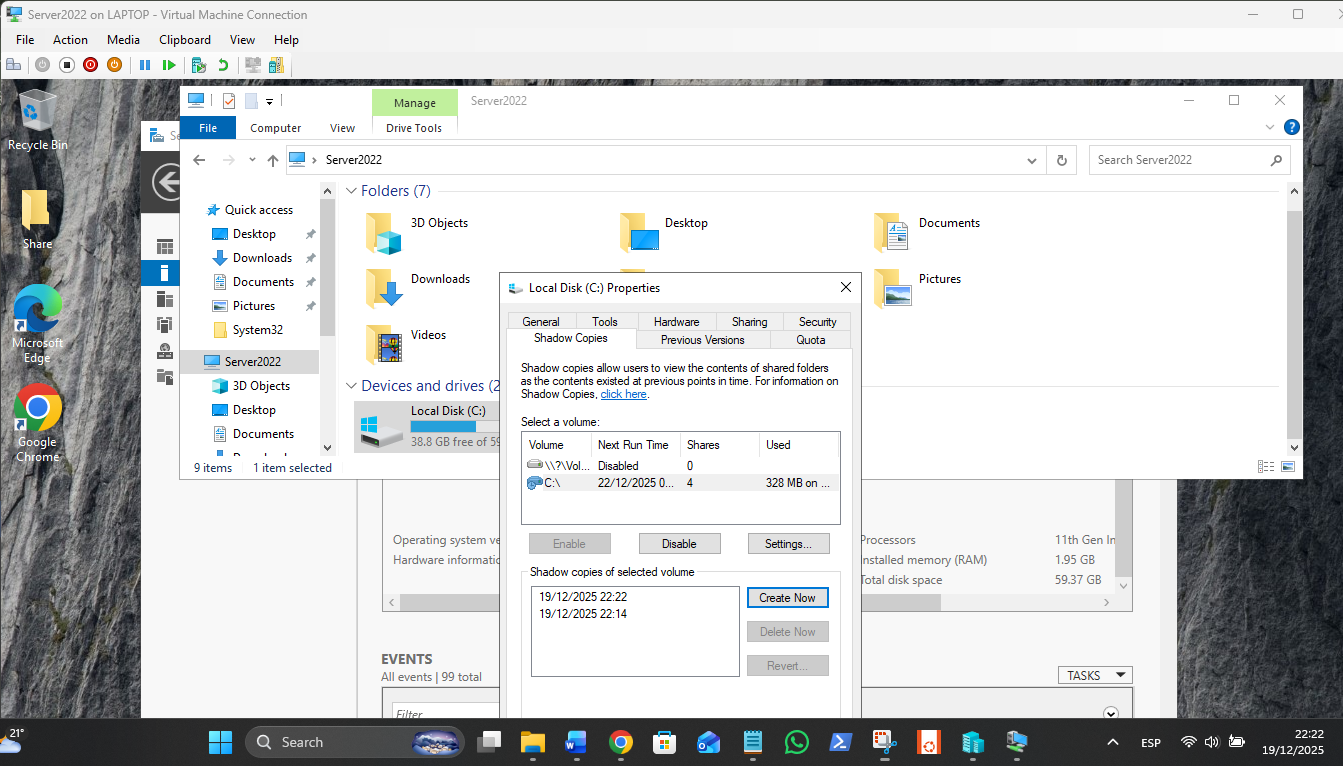
Possibility 3: Shadow Copies. Windows VSS (Volume Shadow Copy) might be eating up "unseen" space for system restores, making the "Free Space" number in Disk Management misleading.
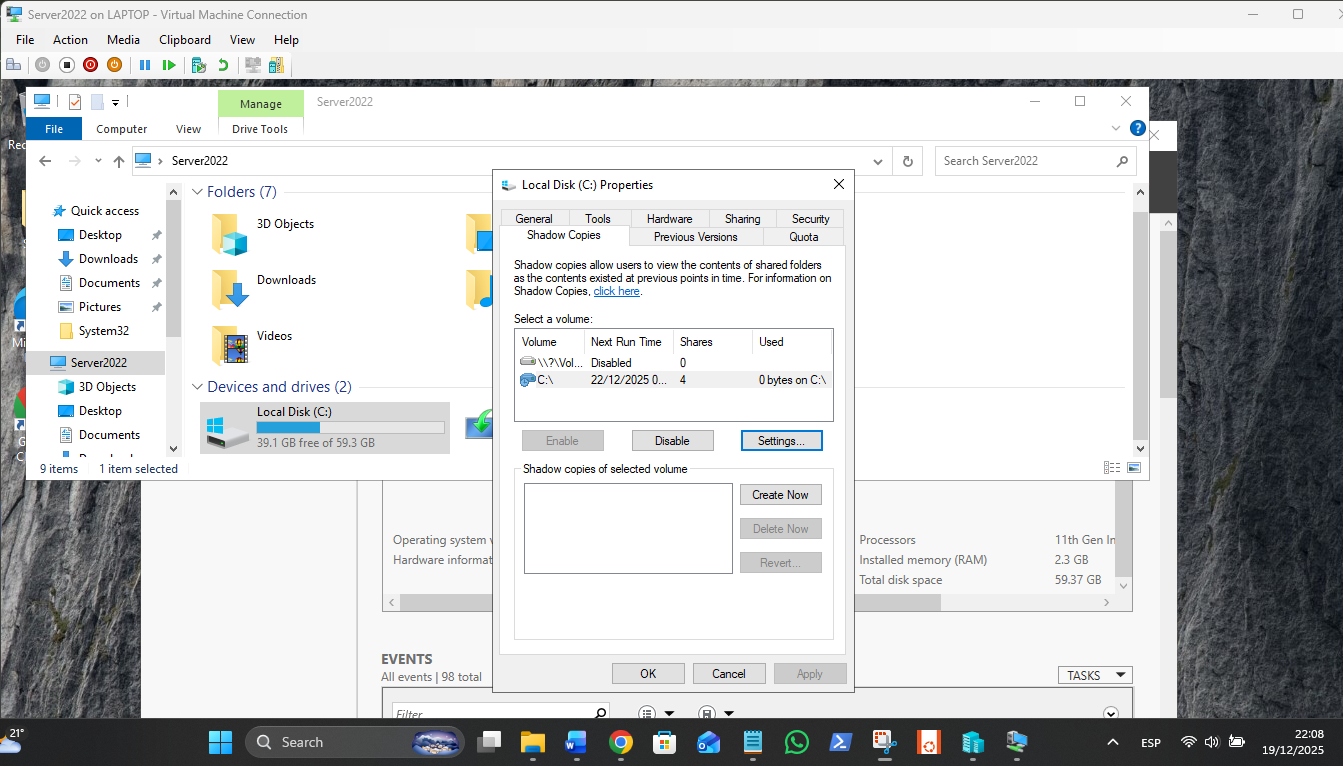
Shadow Copies, officially known as the Volume Shadow Copy Service (VSS), is a technology that allows Windows to take "snapshots" of files or entire volumes even while they are in use.
Think of it like a time machine for your folders. It doesn't make a full copy of every file; it just remembers what the blocks of data looked like at a specific moment in time.
?? How it Works: "Copy-on-Write"
Instead of duplicating your 100GB drive, VSS uses a clever trick:
- The Snapshot: When a shadow copy is created, Windows essentially "freezes" the current state in a hidden index.
- The Change: If you edit a file, Windows doesn't overwrite the old version immediately. It copies the old version of that specific data block to a "diff area" (shadow storage) first, then writes your new change to the main drive.
- The Recovery: When you click "Restore Previous Versions," Windows stitches together the current data with the old blocks stored in the diff area to show you the file exactly as it was.
?? Two Different Worlds: Server vs. Client
As an L1 tech, you'll see this in two distinct flavors depending on which VM you are looking at:
1. On your SBS Server (Shadow Copies for Shared Folders)
- Purpose: This is the most common L1/L2 use case. It allows users to recover their own deleted files from a network share without calling you to restore a backup.
- Storage: Usually defaults to 10% of the drive.
- Limit: Windows Server allows a maximum of 64 snapshots per volume. When it hits 65, it deletes the oldest one.
- Where to find it: Right-click the Drive > Properties > Shadow Copies tab.
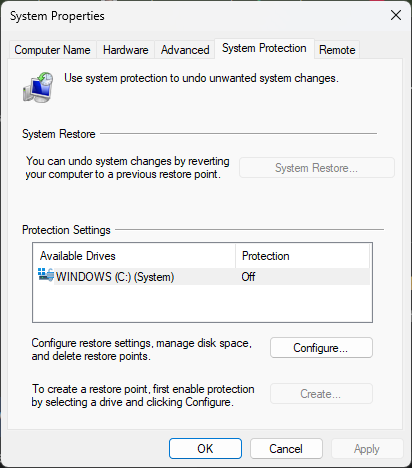
2. On your Win11 VM (System Protection)
- Purpose: On desktop OS versions, it's primarily used for System Restore Points. It focuses on system files and the registry rather than user data.
- Where to find it: Search for "Create a restore point" or run systempropertiesprotection.exe.
The L1 "Magic Trick" (Previous Versions)
If you enable this on your sbs share, here is the scenario that makes you look like a hero:
- Bill accidentally deletes a 50-page report from the \\sbs\Share.
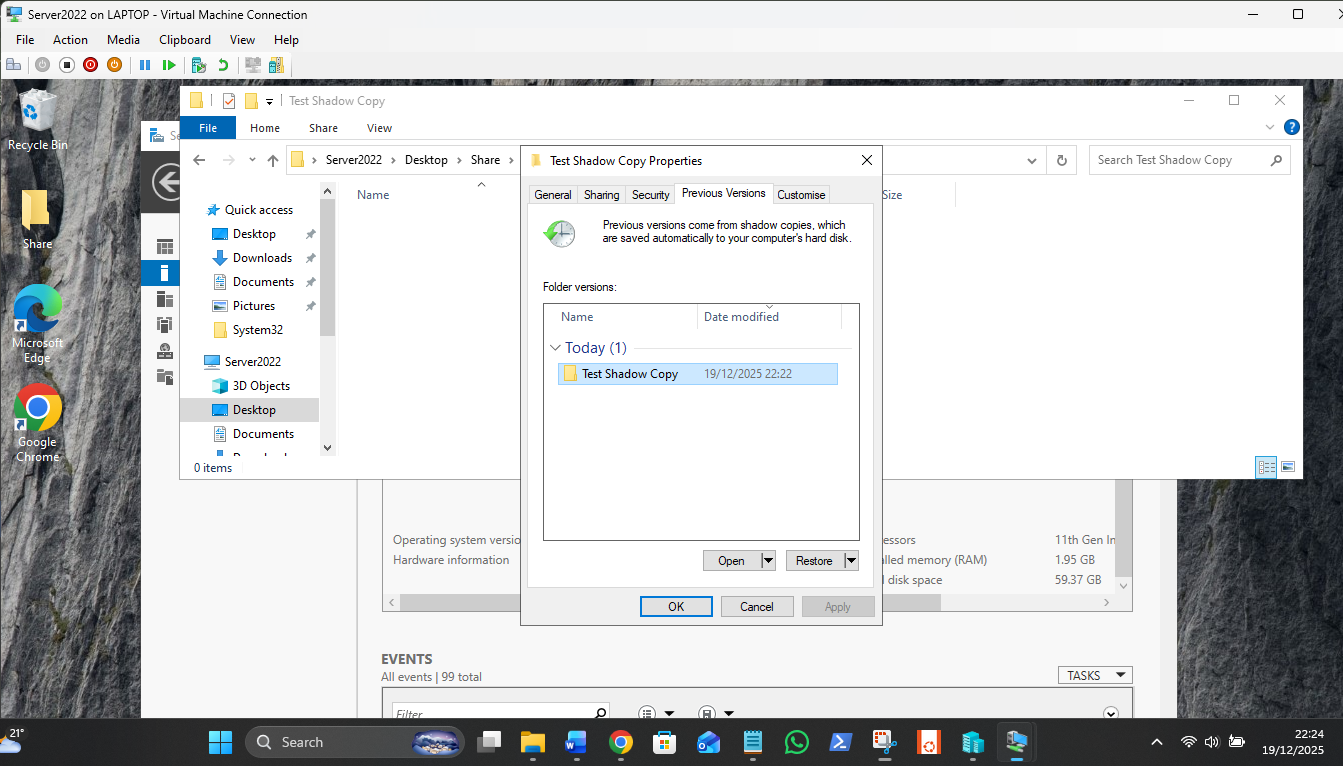
- Instead of panicking, you right-click the empty space in that folder (or the folder itself) and select Properties.
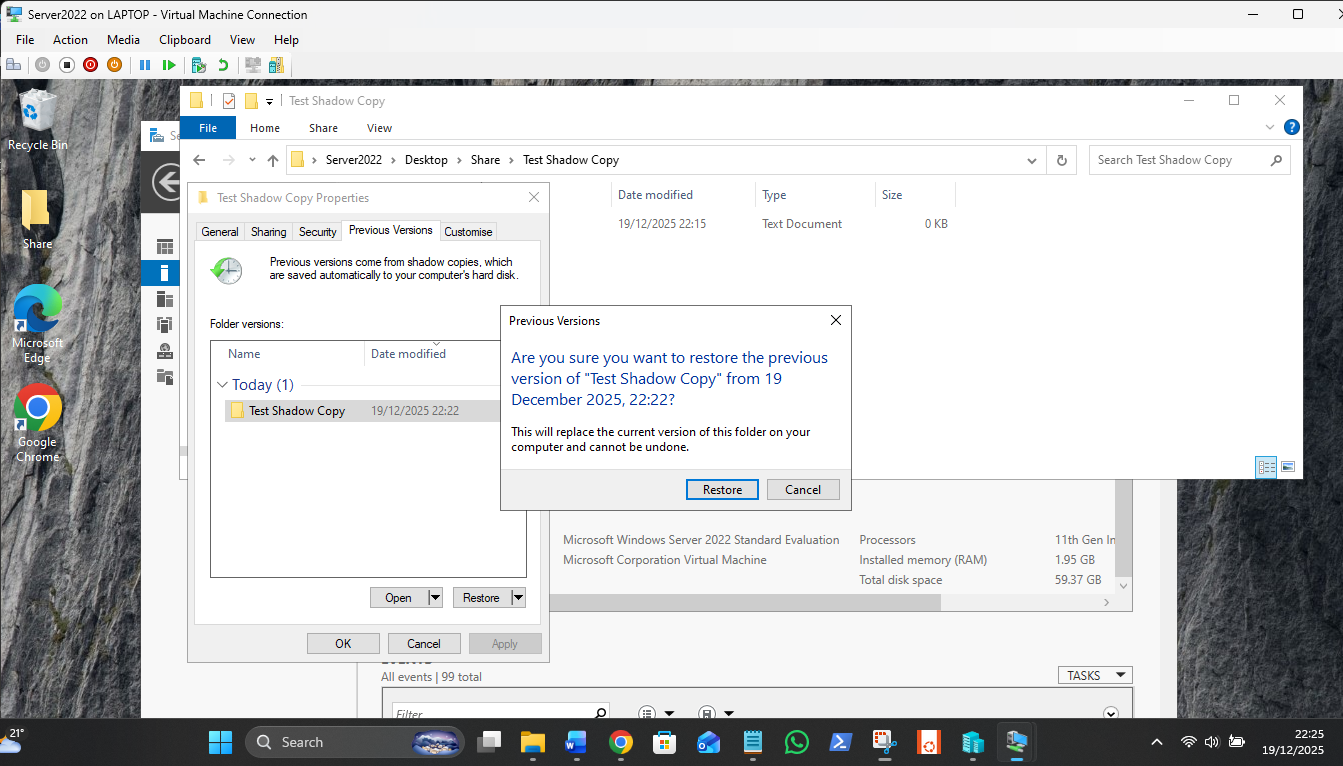
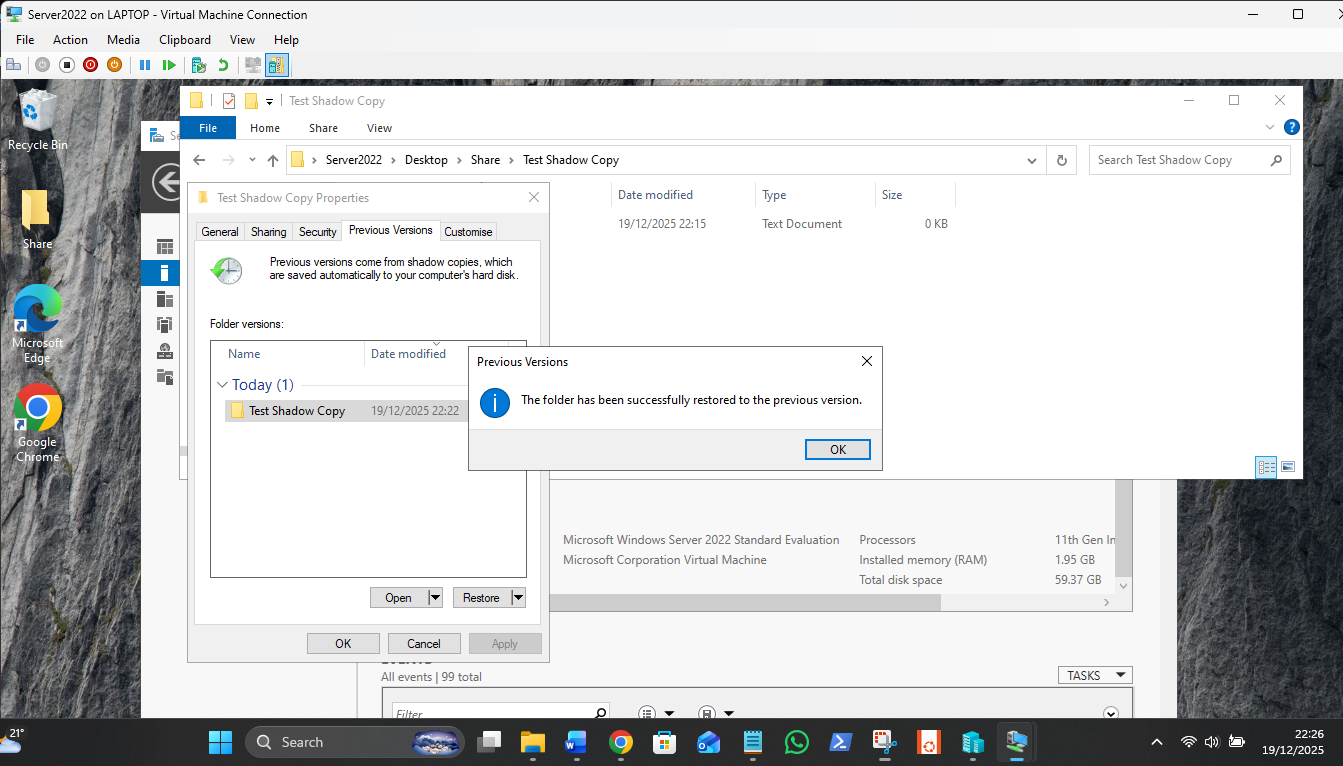
- Go to the Previous Versions tab.
- You'll see a list of timestamps (e.g., "Today, 7:00 AM").
- Click Open on the 7:00 AM version, find the file, and drag it back to the live folder.
On Win11: If you are trying this on your Win11 VM, you likely won't see a "Shadow Copies" tab at all. Windows 11 calls it System Protection.
- Type "Create a restore point" in the Start Menu.
- Click Configure and make sure "Turn on system protection" is selected.
- Click Create to make a manual snapshot.
- On Windows 11, "Previous Versions" usually only tracks changes to System Files and the Registry, not your personal test.txt on the desktop. This is why it’s a "Server" tool for data and a "Desktop" tool for OS repairs.
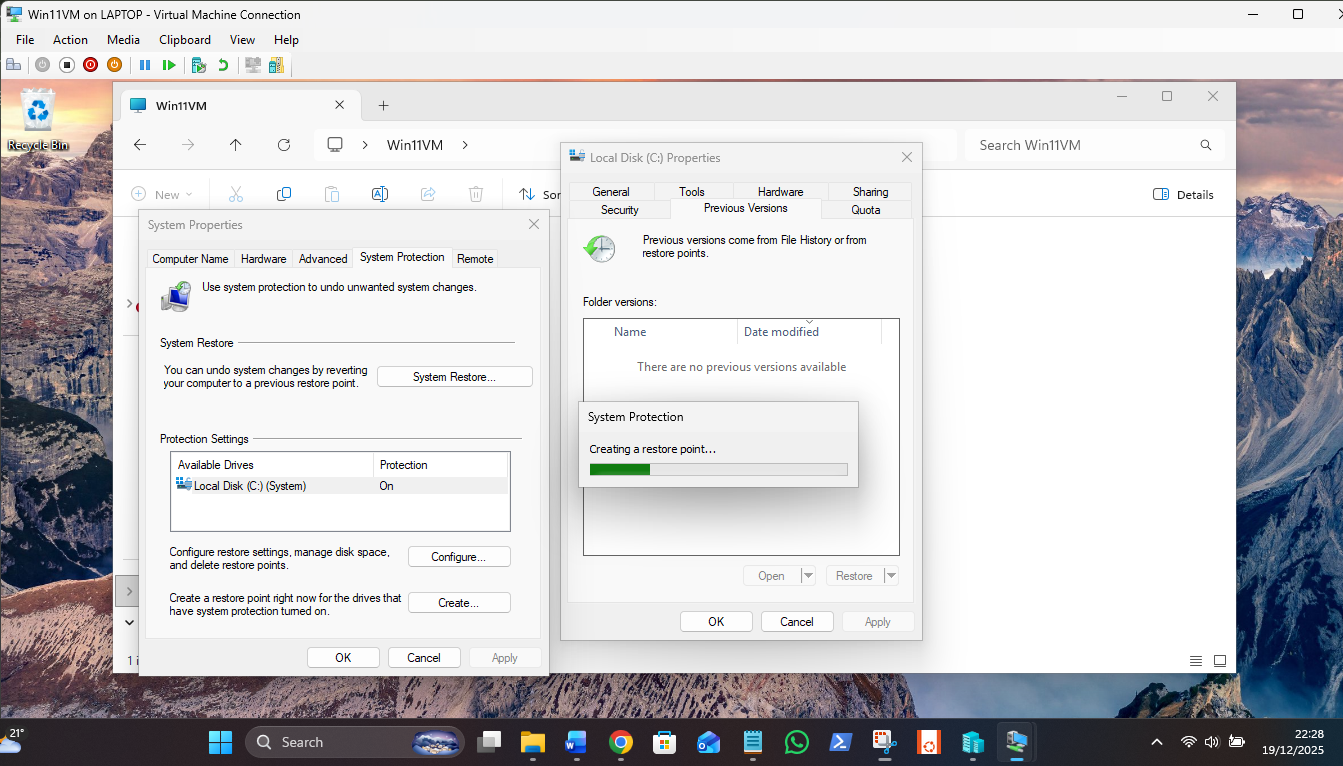
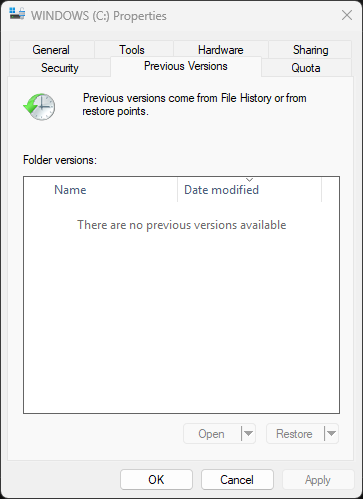
Why it’s empty right now
Even though you created a Restore Point, the tab is blank for one of these three technical reasons:
- The "Change" Rule: If you haven't actually modified or deleted a file inside that folder since you clicked "Create," Windows thinks there is nothing to show you. It only lists versions that are different from the live ones.
- System vs. Data: On Windows 11, Restore Points are primarily for System Files (DLLs, Registry). They often ignore user-created files on the desktop or in "Documents" unless you've specifically told the system to track those folders.
- The SBS Difference: On your SBS server, the "Previous Versions" tab specifically looks for Shadow Copies, not "Restore Points." They are two different branches of the same VSS tree.
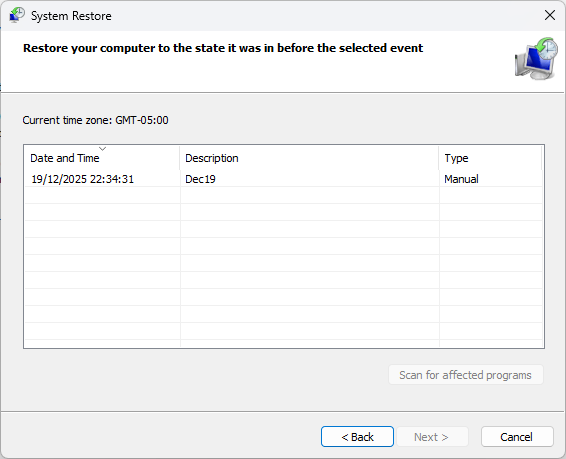
The view in old Win7 view – a system file change must have occurred since active:
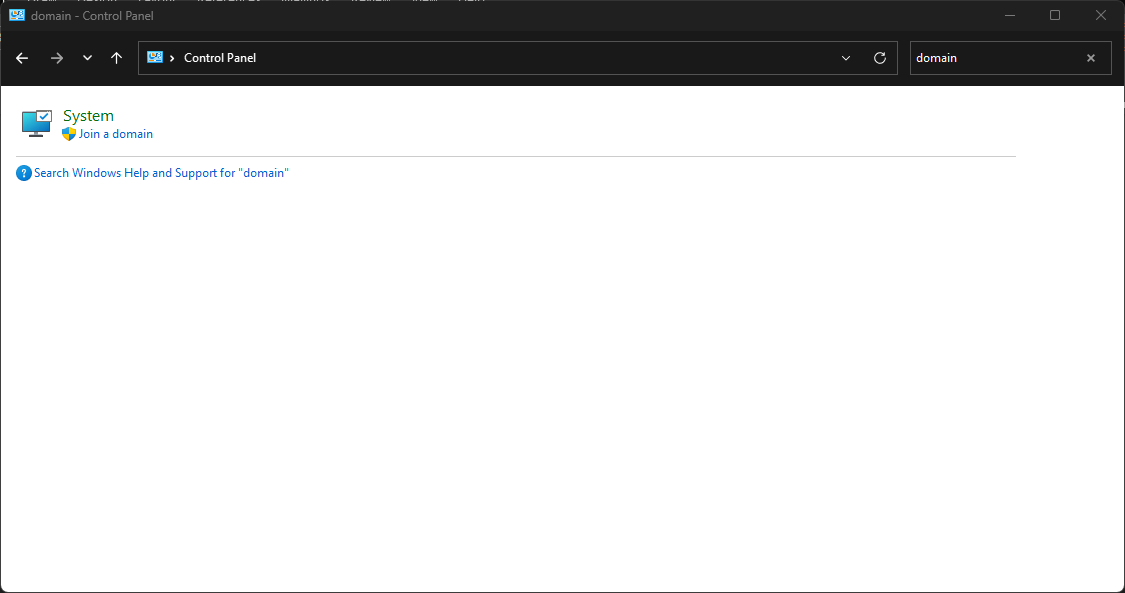
…and Join a Domain is in here to find, when new Settings doesn´t show it!
Using a login.bat script to create a P: drive for user Bill:
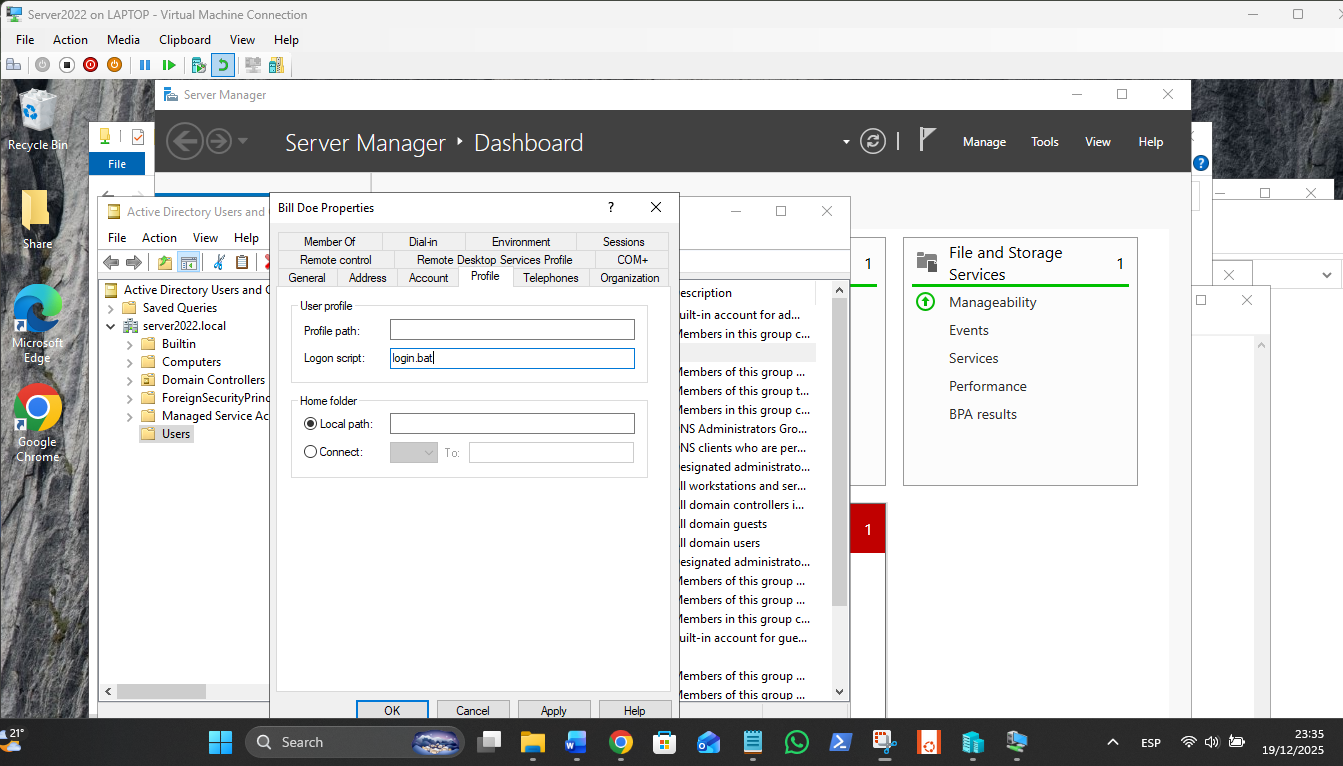
“@echo off
:: 1. Map the Public Drive
net use P: /delete /y >nul 2>&1
net use P: \\sbs\Public /persistent:no
:: 2. Create a timestamp on the desktop
echo Logged in at %time% on %date% > "%userprofile%\Desktop\Login_Audit.txt"
:: 3. Pop a visual confirmation
msg * "Welcome to the Domain, %username%! Your P: drive is ready."”
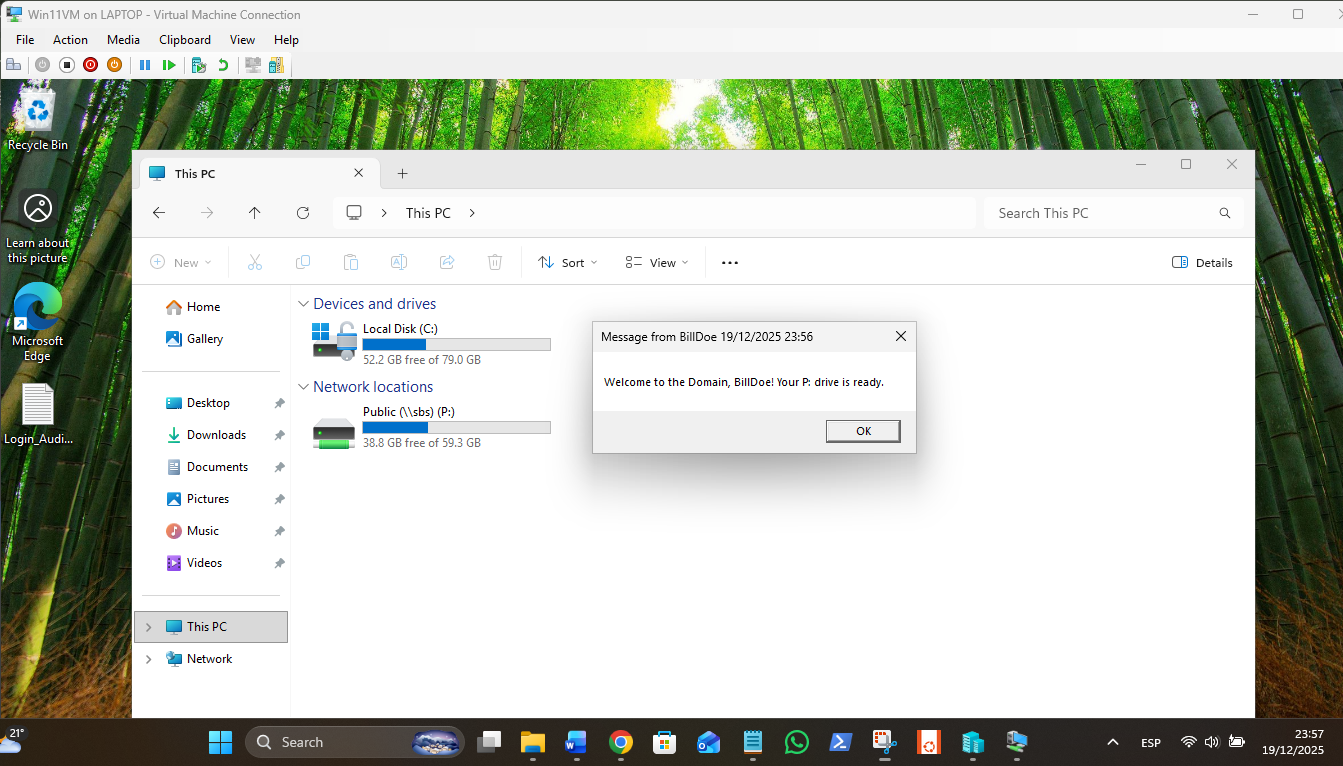
That is a massive L1 win! Seeing that Public (\sbs) (P:) drive showing up in "This PC" with 38.8 GB free is the ultimate proof that your network bridge, Active Directory, and your manual batch script are all finally singing in harmony.
You’ve successfully navigated the three most common "Helpdesk Nightmares" in one go:
- Network Isolation: You bridged two different subnets so the host and VMs could talk.
- The "Invisible" Extension: You caught the x.bat.txt trap that stops 90% of beginners.
- Permissions & Sharing: You correctly configured the server-side folder so Bill could mount it as a drive.