
This document summarizes the process and challenges involved in accessing websites hosted within WSL2 (Windows Subsystem for Linux 2) from other devices on your local network, drawing specifically from the successful troubleshooting steps and conclusions from our session.
Accessing WSL2 Websites from a Remote Client
Goal: To make a web server running in WSL2 on your Windows 11 laptop accessible from other devices (e.g., another client laptop) on the same local network.
Core Problem: WSL2 uses a virtual network adapter and Network Address Translation (NAT) by default. This means your WSL2 instance has its own private IP address, and while your Windows host can usually access it via localhost (through internal port forwarding handled by WSL), other devices on the network cannot directly "see" the WSL2 instance.
Solution: Port Forwarding (Mirroring) and Loopback Configuration
To expose a WSL2 port to your local network, you need to configure Windows to forward traffic from its own IP address and a specific port to the WSL2 instance's IP address and port. This also involves ensuring loopback is enabled for local access.
Required Configuration Steps:
- Identify WSL2 IP Address:
- On your Windows 11 host, open PowerShell and run:
- wsl hostname -I
(Note down the WSL2 IP address, e.g., 172.x.x.x).
- Configure Windows Port Proxy (Mirroring):
- On your Windows 11 host, open Command Prompt as Administrator.
- Replace [WSL2_IP] with your WSL2 IP, [HOST_PORT] with the port you want to expose on Windows (e.g., 80 or 443), and [WSL2_PORT] with the port your web server is listening on in WSL2.
- netsh interface portproxy add v4tov4 listenport=[HOST_PORT] listenaddress=0.0.0.0 connectport=[WSL2_PORT] connectaddress=[WSL2_IP]
-
- To verify the rule was added (this command should show output if rules are active):
- netsh interface portproxy show all
-
- To delete a rule (if needed):
- netsh interface portproxy delete v4tov4 listenport=[HOST_PORT] listenaddress=0.0.0.0
- Configure Windows Firewall:
- You need to allow incoming connections on [HOST_PORT] through your Windows Firewall.
- On your Windows 11 host, open Windows Defender Firewall with Advanced Security.
- Go to Inbound Rules.
- Create a New Rule... (Port -> TCP -> Specific local ports: [HOST_PORT] -> Allow the connection -> Apply to Domain/Private/Public as appropriate -> Name the rule).
- Enable Loopback for Local Access (Windows 11 Settings):
- This was a crucial step in our session to ensure local access to the forwarded ports.
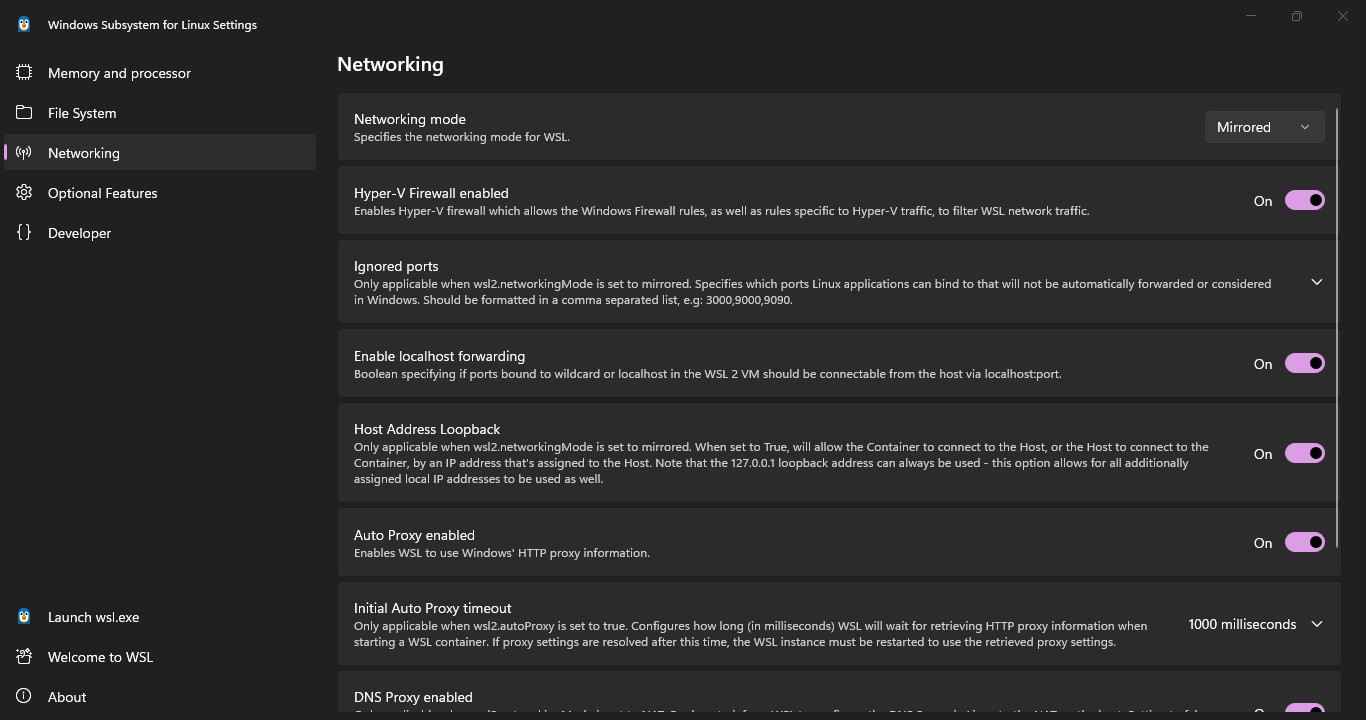
- Type WSL in Search. Open WSL Settings, Check Networking mode is Mirrored:
- Ensure "Host Address Loopback" is on.
Accessing from Remote Client:
- On the remote client, use the Windows 11 host's actual IP address (e.g., 192.168.1.50) and the configured [HOST_PORT].
- Example: https://192.168.1.50:80 or https://192.168.1.50:443
Fault Finding and Connection State Analysis
When troubleshooting network connectivity to your WSL2 web server, these commands are invaluable for understanding port states and network paths.
- Check Listening Ports on Windows Host (netstat):
- Open Command Prompt (Admin) on your Windows 11 host.
- To see all listening TCP ports and their associated processes:
- netstat -ano | findstr LISTENING
-
- To specifically check if your [HOST_PORT] is listening:
- netstat -ano | findstr :[HOST_PORT]
(Look for a LISTENING state on 0.0.0.0:[HOST_PORT] or your Windows host's IP).
- Check Listening Ports within WSL2 (netstat or ss):
-
- stevee@hplaptop:/var/www$ sudo netstat -tulnp | grep LISTEN
tcp 0 0 10.255.255.254:53 0.0.0.0:* LISTEN -
tcp 0 0 127.0.0.1:2628 0.0.0.0:* LISTEN 367/dictd 1.13.1: 0
tcp 0 0 127.0.0.53:53 0.0.0.0:* LISTEN 209/systemd-resolve
tcp 0 0 0.0.0.0:3306 0.0.0.0:* LISTEN 437/mysqld
tcp 0 0 127.0.0.1:33060 0.0.0.0:* LISTEN 437/mysqld
tcp 0 0 127.0.0.54:53 0.0.0.0:* LISTEN 209/systemd-resolve
tcp6 0 0 :::443 :::* LISTEN 415/apache2
tcp6 0 0 :::80 :::* LISTEN 415/apache2
tcp6 0 0 :::22 :::* LISTEN 1/init
- stevee@hplaptop:/var/www$ sudo netstat -tulnp | grep LISTEN
(Verify your web server is listening on [WSL2_PORT] within the WSL2 instance).
- Network Scan from Remote Client (nmap):
- If nmap is installed on your remote client (or another Linux machine on the network), you can use it to scan the Windows host's open ports.
- To scan for open ports on your Windows 11 host's IP:
- nmap [WINDOWS_HOST_IP_ADDRESS]
-
- To specifically check if [HOST_PORT] is open:
- nmap -p [HOST_PORT] [WINDOWS_HOST_IP_ADDRESS]
(Look for [HOST_PORT]/tcp open in the output).
-
- Note: nmap might not be installed by default. On Debian/Ubuntu-based systems, install with sudo apt install nmap.
- Packet Tracing (Conceptual):
- While not a simple command, understanding the packet flow helps:
- Remote Client -> Windows Host IP:[HOST_PORT]
- Windows Port Proxy Rule -> WSL2 IP:[WSL2_PORT]
- WSL2 Web Server listens on [WSL2_PORT]
- While not a simple command, understanding the packet flow helps:
curl -k Explained (Ignoring SSL Errors)
Context: During development, you often use self-signed SSL certificates for HTTPS connections, as obtaining a trusted certificate for a local development environment is impractical.
- curl -k (or --insecure): This option tells curl to proceed with an insecure connection by skipping SSL certificate validation.
- Why it was needed: When your web server uses a self-signed certificate, curl (and browsers) will normally reject the connection because the certificate is not trusted by a known Certificate Authority. curl -k bypasses this check.
- Important Note: NEVER use curl -k in a production environment or for connections where security is critical. It disables a fundamental security check, making your connection vulnerable to man-in-the-middle attacks. It's strictly for development and testing.
Modern Browser Challenges (SSL and Port 80)
Modern web browsers are increasingly prioritizing security and privacy, leading to complexities when trying to access local or development sites via non-standard or insecure methods.
- Forcing HTTPS / SSL Preference:
- Browsers actively encourage and often attempt to force HTTPS (port 443) connections.
- "Your connection is not private" Errors: When using self-signed certificates for HTTPS, browsers will throw severe security warnings because the certificate cannot be verified. While some browsers allow you to "proceed to unsafe site," this often requires multiple clicks and can be frustrating.
- HSTS (HTTP Strict Transport Security): If a website (even a local one) has ever been accessed via HTTPS and used HSTS, the browser will remember this and automatically try to upgrade future HTTP requests for that domain to HTTPS, even if you explicitly type https://. This can cause persistent "connection refused" or "not private" errors if your local server isn't serving valid HTTPS.
- Issues with HTTP (Port 80) and Non-Standard Ports:
- Mixed Content Blocking: Browsers block or warn about "mixed content" (e.g., an HTTPS page trying to load HTTP resources).
- Insecure Contexts: Browsers restrict certain modern web APIs (like Geolocation, Service Workers, WebUSB) to "secure contexts" (HTTPS or localhost).
- Automatic Upgrade: Some browsers might silently try to upgrade https://your-ip:80 to https://your-ip:80 (which will fail if no SSL is configured for port 80).
- Limited User Settings: Browser security settings often have limited impact on these fundamental security behaviors, as they are deemed critical for user protection. There are usually no simple "allow port 80 connections always" or "disable SSL validation" options in standard user settings.
Conclusions & Best Practices for Development (from our session):
- For Remote Access: Port forwarding (via netsh portproxy) is essential.
- SSL is King (and a pain for dev): For any serious web development that mimics a production environment, you should aim to use HTTPS.
- For local development, tools often provide ways to generate trusted certificates for localhost or local IPs.
- For testing from other devices, using services like mkcert can create locally trusted certificates for your specific IP/domain.
- Explicit HTTP: If you absolutely must test HTTP, always explicitly type https:// in the browser URL bar. Be aware of HSTS cache issues.
- Browser Workarounds: Some browsers have command-line flags (e.g., --ignore-certificate-errors for Chrome/Edge) or about:config settings (Firefox) for development, but these are highly discouraged for general use and should be used with extreme caution.
- Dedicated Testing Environments: For complex testing scenarios, consider using virtual machines or dedicated testing servers that more closely replicate your production environment, including proper SSL setup.