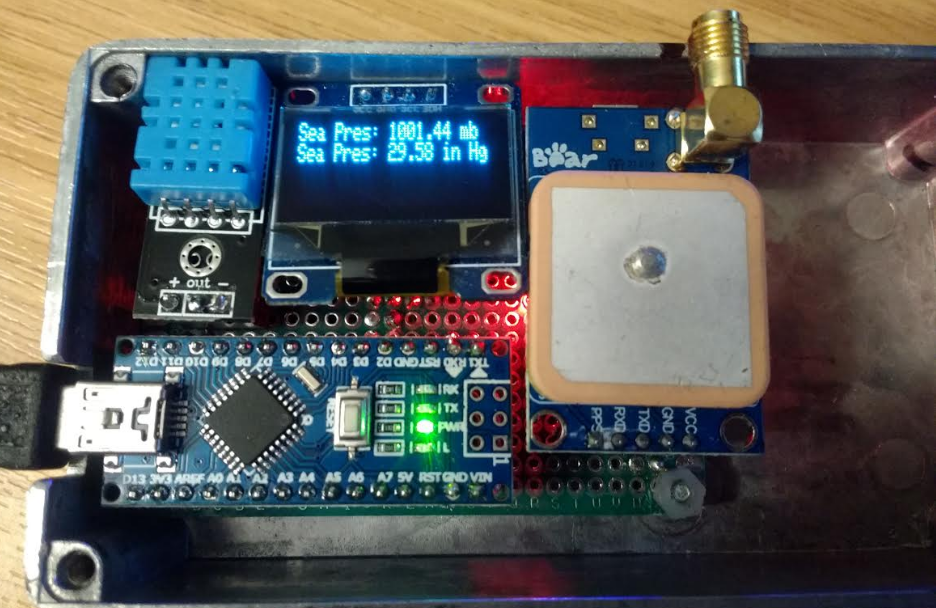
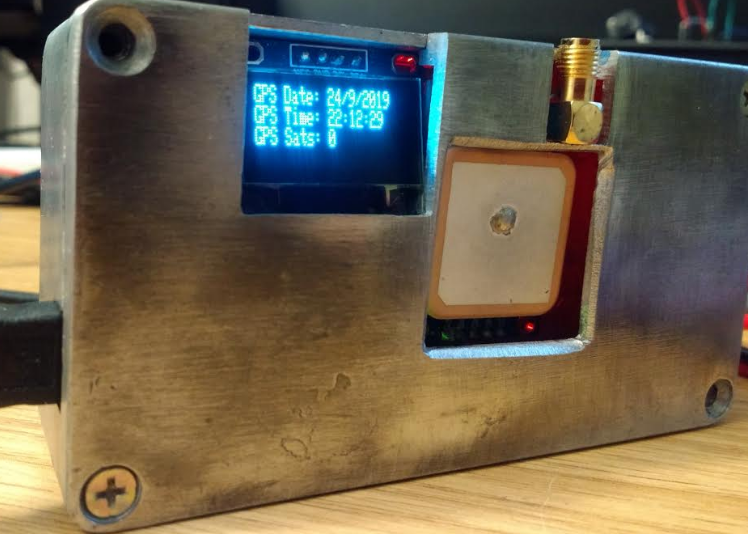
Packed in a Neo6 GPS, BMP180, DHT11 and OLED screen controlled by a Nano fixed into female headers for easy component swap out and height gain- shame about my engineering skills, but..it works, and finally used that 6 year old project box..:
Nano code:
/******************************************************************************
  Steve_GPS_DHT_BMP_OLED.ino based on:
  TinyGPSPlus_GPS_Shield.ino
  TinyGPS++ Library Example for the SparkFun GPS Logger Shield
  By Jim Lindblom @ SparkFun Electronics
  February 9, 2016
  https://stevepedwards.today/github.com/sparkfun/GPS_Shield
  This example uses SoftwareSerial to communicate with the GPS module on
  pins 8 and 9. It uses the TinyGPS++ library to parse the NMEA strings sent
  by the GPS module, and prints interesting GPS information to the serial
  monitor.
  After uploading the code, open your serial monitor, set it to 9600 baud, and
  watch for latitude, longitude, altitude, course, speed, date, time, and the
  number of visible satellites.
  Resources:
  TinyGPS++ Library  - https://stevepedwards.today/github.com/mikalhart/TinyGPSPlus/releases
  SoftwareSerial Library
  Development/hardware environment specifics:
  Arduino IDE 1.6.7
  GPS Logger Shield v2.0 - Make sure the UART switch is set to SW-UART
  Arduino Uno, RedBoard, Pro, etc.
******************************************************************************/
//steve_station.ino - uses 84m elevation and daily pressure from https://www.sueandalan.plus.com/weewx/index.html
#include <TinyGPS++.h> // Include the TinyGPS++ library
TinyGPSPlus tinyGPS; // Create a TinyGPSPlus object
#include <Adafruit_GFX.h>
#include <Adafruit_SSD1306.h>
#include <SFE_BMP180.h>
#include <Wire.h>   // I2C bus
#include "dht.h"
// If you're using an Arduino Uno, RedBoard, or any board that uses the
// 0/1 UART for programming/Serial monitor-ing, use SoftwareSerial:
#include <SoftwareSerial.h>
#define ARDUINO_GPS_RX 9 // GPS TX, Arduino RX pin
#define ARDUINO_GPS_TX 8 // GPS RX, Arduino TX pin
SoftwareSerial ssGPS(ARDUINO_GPS_TX, ARDUINO_GPS_RX); // Create a SoftwareSerial
// Set gpsPort to either ssGPS if using SoftwareSerial or Serial1 if using an
// Arduino with a dedicated hardware serial port
#define gpsPort ssGPS  // Alternatively, use Serial1 on the Leonardo
// Define the serial monitor port. On the Uno, and Leonardo this is 'Serial'
//  on other boards this may be 'SerialUSB'
#define SerialMonitor Serial
#define GPS_BAUD 9600 // GPS module baud rate. GP3906 defaults to 9600.
#define dht_apin A0 // Analog Pin sensor is connected to
dht DHT;
#define ALTITUDE 84.0 // Altitude of sensor in meters
// OLED screen type parameters
#define SCREEN_WIDTH 128 // OLED display width, in pixels
#define SCREEN_HEIGHT 32 // OLED display height, in pixels
// Declaration for an SSD1306 display connected to I2C (SDA, SCL pins)
#define OLED_RESET     4 // Reset pin # (or -1 if sharing Arduino reset pin)
// NOTE: This define has to be placed below the Adafruit library it comes from as page is read top down!
Adafruit_SSD1306 display(SCREEN_WIDTH, SCREEN_HEIGHT, &Wire, OLED_RESET);
// You will need to create an SFE_BMP180 object, here called "pressure":
SFE_BMP180 pressure;
// This custom version of delay() ensures that the tinyGPS object
// is being "fed". From the TinyGPS++ examples.
static void smartDelay(unsigned long ms)
{
  unsigned long start = millis();
  do
  {
    // If data has come in from the GPS module
    while (gpsPort.available())
      tinyGPS.encode(gpsPort.read()); // Send it to the encode function
    // tinyGPS.encode(char) continues to "load" the tinyGPS object with new
    // data coming in from the GPS module. As full NMEA strings begin to come in
    // the tinyGPS library will be able to start parsing them for pertinent info
  } while (millis() - start < ms);
}  // end static void smartDelay
void setup()  {
    // OLED SSD1306_SWITCHCAPVCC = generate display voltage from 3.3V internally
    if(!display.begin(SSD1306_SWITCHCAPVCC, 0x3C)) { // Address 0x3C for 128x32
    Serial.println(F("SSD1306 allocation failed"));
    // Address 0x3C for 128x32 OLED
    for(;;); // Don't proceed, loop forever
    }
   // Initialize the BMP180 (it is important to get calibration values stored on the device).
   if (pressure.begin())
     Serial.println("BMP180 init success");
   else
    {
     // Oops, something went wrong, this is usually a connection problem,
     // see the comments at the top of this sketch for the proper connections.
  Serial.println("BMP180 init fail\n\n");
     while(1); // Pause forever.
    }
  SerialMonitor.begin(9600);
  gpsPort.begin(GPS_BAUD);
} // end setup
void printDHT_OLED()  {
  // DHT11 temp/humidity display section
  DHT.read11(dht_apin);
  // OLED screen page 1
  display.clearDisplay();
  display.setTextSize(1);      // Normal 1:1 pixel scale
  display.setTextColor(WHITE); // Draw white text
  display.setCursor(0, 0);     // Start at top-left corner
  display.cp437(true);         // Use full 256 char 'Code Page 437' font
  display.clearDisplay();
  display.print("DHT11 humid = ");
  display.print(DHT.humidity,1);
  display.println("%  ");
  display.display();
  display.print("DHT11 temp = ");
  display.print(DHT.temperature,1);
  display.println("C  ");
  display.display();
  delay(4000);  // See the data on OLED for 3 secs
} // end printDHT_OLED()
void printGPS_OLED()  {
  // OLED screen page 1
  // Print latitude, longitude, altitude in feet, course, speed, date, time,
  // and the number of visible satellites.
  display.clearDisplay();
  display.setTextSize(1);      // Normal 1:1 pixel scale
  display.setTextColor(WHITE); // Draw white text
  display.setCursor(0, 0);     // Start at top-left corner
  display.cp437(true);         // Use full 256 char 'Code Page 437' font
  display.print("GPSLat: "); display.println(tinyGPS.location.lat(), 6);
  display.print("GPSLong: "); display.println(tinyGPS.location.lng(), 6);
  display.print("GPSAlt: "); display.print(tinyGPS.altitude.feet()); display.println(" ft");
  int m = (tinyGPS.altitude.feet()) / 3.28084;
  display.print("GPSAlt: "); display.print(m); display.println(" m");
  display.display();
  delay(4000);
  // OLED screen page 2
  display.clearDisplay();
  display.setTextSize(1);      // Normal 1:1 pixel scale
  display.setTextColor(WHITE); // Draw white text
  display.setCursor(0, 0);     // Start at top-left corner
  display.cp437(true);         // Use full 256 char 'Code Page 437' font
  display.print("GPS Date: "); display.print(tinyGPS.date.day());
  display.print("/");
  display.print(tinyGPS.date.month());
  display.print("/");
  display.println(tinyGPS.date.year());
  display.print("GPS Time: "); display.print(tinyGPS.time.hour());
  display.print(":");
  if (tinyGPS.time.minute() < 10) display.print('0');
  display.print(tinyGPS.time.minute());
  display.print(":");
  if (tinyGPS.time.second() < 10) display.print('0');
  display.println(tinyGPS.time.second());
  display.print("GPS Sats: "); display.println(tinyGPS.satellites.value());
  display.println();
  display.display();
  delay(4000);  // See the data on OLED
} // end printGPS_OLED()
void printBMP_Pressure_OLED() {
  // If you want sea-level-compensated pressure, as used in weather reports,
  // you will need to know the altitude at which your measurements are taken.
  // We're using a constant called ALTITUDE in this sketch -:
  char status;
  double T,P,p0,a;
  // OLED pressure screen 1
  display.clearDisplay();
  display.setTextSize(1);      // Normal 1:1 pixel scale
  display.setTextColor(WHITE); // Draw white text
  display.setCursor(0, 0);     // Start at top-left corner
  display.cp437(true);         // Use full 256 char 'Code Page 437' font
  display.print("LocalSetAlt: ");
  display.print(ALTITUDE,0);
  display.println(" m");
  display.print("LocalSetAlt: ");
  display.print(ALTITUDE*3.28084,0); //dec place for feet
  display.println(" ft");
  display.display();
  delay(4000);  // See the data on OLED
  // If you want to measure altitude, and not pressure, you will instead need
  // to provide a known baseline pressure. This is shown at the end of the sketch.
  // You must first get a temperature measurement to perform a pressure reading.
  // Start a temperature measurement:
  // If request is successful, the number of ms to wait is returned.
  // If request is unsuccessful, 0 is returned.
  status = pressure.startTemperature();
  if (status != 0)  {
    // Wait for the measurement to complete:
    delay(status);
    // Retrieve the completed temperature measurement:
    // Note that the measurement is stored in the variable T.
    // Function returns 1 if successful, 0 if failure.
    status = pressure.getTemperature(T);
    if (status != 0)
    {
      // OLED pressure screen 2
  display.clearDisplay();
  display.setTextSize(1);      // Normal 1:1 pixel scale
  display.setTextColor(WHITE); // Draw white text
  display.setCursor(0, 0);     // Start at top-left corner
  display.cp437(true);         // Use full 256 char 'Code Page 437' font
      // Print out the temperature measurements:
      display.print("Temp: ");
      display.print(T,2);
      display.println(" deg C");
      display.print("Temp: ");
      display.print(1.8*T+32.0,2); // from C to degrees F conv
      display.print(" deg F");
      display.display();
      delay(4000);  // See the data on OLED
      status = pressure.startPressure(3);
      if (status != 0)
      {
        // Wait for the measurement to complete:
        delay(status);
        // Retrieve the completed pressure measurement:
        // Note that the measurement is stored in the variable P.
        // Note also that the function requires the previous temperature measurement (T).
        // (If temperature is stable, you can do one temperature measurement for a number of pressure measurements.)
        // Function returns 1 if successful, 0 if failure.
        status = pressure.getPressure(P,T);
        if (status != 0)
        {
          // OLED pressure screen 3
  display.clearDisplay();
  display.setTextSize(1);      // Normal 1:1 pixel scale
  display.setTextColor(WHITE); // Draw white text
  display.setCursor(0, 0);     // Start at top-left corner
  display.cp437(true);         // Use full 256 char 'Code Page 437' font
          // Print out the measurement:
          display.print("Abs Pres: ");
          display.print(P,2);
          display.println(" mb");
          display.print("Abs Pres: ");
          display.print(P*0.0295333727,2);
          display.print(" in Hg");
          display.display();
          delay(4000);       // See the data on OLED
          // The pressure sensor returns abolute pressure, which varies with altitude.
          // To remove the effects of altitude, use the sealevel function and your current altitude.
          // This number is commonly used in weather reports.
          // Parameters: P = absolute pressure in mb, ALTITUDE = current altitude in m.
          // Result: p0 = sea-level compensated pressure in mb
        // OLED pressure screen 4
  display.clearDisplay();
  display.setTextSize(1);      // Normal 1:1 pixel scale
  display.setTextColor(WHITE); // Draw white text
  display.setCursor(0, 0);     // Start at top-left corner
  display.cp437(true);         // Use full 256 char 'Code Page 437' font
          p0 = pressure.sealevel(P,ALTITUDE); // 84m (Illogan, Cornwall)
          display.print("Sea Pres: ");
          display.print(p0,2);
          display.println(" mb");
          display.print("Sea Pres: ");
          display.print(p0*0.0295333727,2);
          display.print(" in Hg");
          display.display();
          delay(4000);  // See the data on OLED
          // On the other hand, if you want to determine your altitude from the pressure reading,
          // use the altitude function along with a baseline pressure (sea-level or other).
          // Parameters: P = absolute pressure in mb, p0 = baseline pressure in mb.
          // Result: a = altitude in m.
          // OLED pressure screen 5
  display.clearDisplay();
  display.setTextSize(1);      // Normal 1:1 pixel scale
  display.setTextColor(WHITE); // Draw white text
  display.setCursor(0, 0);     // Start at top-left corner
  display.cp437(true);         // Use full 256 char 'Code Page 437' font
          a = pressure.altitude(P,p0);
          display.print("Computed Alt: ");
          display.print(a,0);
          display.println(" m");
          display.print("Computed Alt: ");
          display.print(a*3.28084,0);
          display.print(" ft");
          display.display();
          delay(4000);  // See the data on OLED
        }
        else display.println("error pressure \n");
      }
      else display.println("error pressure \n");
    }
    else display.println("error temp \n");
  }
  else display.println("error temp \n");
}  //end void printBMP_Pressure_OLED()
void loop() {
   // "Smart delay" looks for GPS data while the Arduino's not doing anything else
  smartDelay(1000);
   // print position, altitude, speed, time/date, and satellites:
  printGPS_OLED();
  printBMP_Pressure_OLED();
  printDHT_OLED();
} // end loop
For 2X digits:
/******************************************************************************
  Steve_GPS_DHT_BMP_OLED.ino based on:
  TinyGPSPlus_GPS_Shield.ino
  TinyGPS++ Library Example for the SparkFun GPS Logger Shield
  By Jim Lindblom @ SparkFun Electronics
  February 9, 2016
  https://stevepedwards.today/github.com/sparkfun/GPS_Shield
  This example uses SoftwareSerial to communicate with the GPS module on
  pins 8 and 9. It uses the TinyGPS++ library to parse the NMEA strings sent
  by the GPS module, and prints interesting GPS information to the serial
  monitor.
  After uploading the code, open your serial monitor, set it to 9600 baud, and
  watch for latitude, longitude, altitude, course, speed, date, time, and the
  number of visible satellites.
  Resources:
  TinyGPS++ Library  - https://stevepedwards.today/github.com/mikalhart/TinyGPSPlus/releases
  SoftwareSerial Library
  Development/hardware environment specifics:
  Arduino IDE 1.6.7
  GPS Logger Shield v2.0 - Make sure the UART switch is set to SW-UART
  Arduino Uno, RedBoard, Pro, etc.
******************************************************************************/
//steve_station.ino - uses 46m elevation and daily pressure from https://www.sueandalan.plus.com/weewx/index.html
#include <TinyGPS++.h> // Include the TinyGPS++ library
TinyGPSPlus tinyGPS; // Create a TinyGPSPlus object
#include <Adafruit_GFX.h>
#include <Adafruit_SSD1306.h>
#include <SFE_BMP180.h>
#include <Wire.h>   // I2C bus
#include "dht.h"
// If you're using an Arduino Uno, RedBoard, or any board that uses the
// 0/1 UART for programming/Serial monitor-ing, use SoftwareSerial:
#include <SoftwareSerial.h>
#define ARDUINO_GPS_RX 9 // GPS TX, Arduino RX pin
#define ARDUINO_GPS_TX 8 // GPS RX, Arduino TX pin
SoftwareSerial ssGPS(ARDUINO_GPS_TX, ARDUINO_GPS_RX); // Create a SoftwareSerial
// Set gpsPort to either ssGPS if using SoftwareSerial or Serial1 if using an
// Arduino with a dedicated hardware serial port
#define gpsPort ssGPS  // Alternatively, use Serial1 on the Leonardo
// Define the serial monitor port. On the Uno, and Leonardo this is 'Serial'
//  on other boards this may be 'SerialUSB'
#define SerialMonitor Serial
#define GPS_BAUD 9600 // GPS module baud rate. GP3906 defaults to 9600.
#define dht_apin A0 // Analog Pin sensor is connected to
dht DHT;
#define ALTITUDE 46.0 // Altitude of sensor in meters
// OLED screen type parameters
#define SCREEN_WIDTH 128 // OLED display width, in pixels
#define SCREEN_HEIGHT 32 // OLED display height, in pixels
// Declaration for an SSD1306 display connected to I2C (SDA, SCL pins)
#define OLED_RESET     4 // Reset pin # (or -1 if sharing Arduino reset pin)
// NOTE: This define has to be placed below the Adafruit library it comes from as page is read top down!
Adafruit_SSD1306 display(SCREEN_WIDTH, SCREEN_HEIGHT, &Wire, OLED_RESET);
// You will need to create an SFE_BMP180 object, here called "pressure":
SFE_BMP180 pressure;
// This custom version of delay() ensures that the tinyGPS object
// is being "fed". From the TinyGPS++ examples.
static void smartDelay(unsigned long ms)
{
  unsigned long start = millis();
  do
  {
    // If data has come in from the GPS module
    while (gpsPort.available())
      tinyGPS.encode(gpsPort.read()); // Send it to the encode function
    // tinyGPS.encode(char) continues to "load" the tinyGPS object with new
    // data coming in from the GPS module. As full NMEA strings begin to come in
    // the tinyGPS library will be able to start parsing them for pertinent info
  } while (millis() - start < ms);
}  // end static void smartDelay
void setup()  {
    // OLED SSD1306_SWITCHCAPVCC = generate display voltage from 3.3V internally
    if(!display.begin(SSD1306_SWITCHCAPVCC, 0x3C)) { // Address 0x3C for 128x32
    Serial.println(F("SSD1306 allocation failed"));
    // Address 0x3C for 128x32 OLED
    for(;;); // Don't proceed, loop forever
    }
   // Initialize the BMP180 (it is important to get calibration values stored on the device).
   if (pressure.begin())
     Serial.println("BMP180 init success");
   else
    {
     // Oops, something went wrong, this is usually a connection problem,
     // see the comments at the top of this sketch for the proper connections.
  Serial.println("BMP180 init fail\n\n");
     while(1); // Pause forever.
    }
  SerialMonitor.begin(9600);
  gpsPort.begin(GPS_BAUD);
} // end setup
void printDHT_OLED()  {
  // DHT11 temp/humidity display section
  DHT.read11(dht_apin);
  // OLED screen page 1
  display.clearDisplay();
  display.setTextSize(1);      // Normal 1:1 pixel scale
  display.setTextColor(WHITE); // Draw white text
  display.setCursor(0, 0);     // Start at top-left corner
  display.cp437(true);         // Use full 256 char 'Code Page 437' font
  display.clearDisplay();
  display.print("DHT11 humid = ");
  display.print(DHT.humidity,1);
  display.println("%  ");
  display.display();
  delay(2000);  // See the data on OLED
}
  void printDHTTemp_OLED()  {
  DHT.read11(dht_apin);
  display.clearDisplay();
  display.setTextSize(2);      // Normal 1:1 pixel scale
  display.setTextColor(WHITE); // Draw white text
  display.setCursor(0, 0);     // Start at top-left corner
  display.cp437(true);         // Use full 256 char 'Code Page 437' font
  display.clearDisplay();
  display.print("DHT11 temp");
  display.print(DHT.temperature,1);
  display.println("C  ");
  display.display();
  delay(2000);  // See the data on OLED for 2 secs
} // end printDHT_OLED()
// OLED screen page 1 LatLong, Alt
void printGPS_OLED()  {
  // Print latitude, longitude, altitude in feet, speed, date, time,
  // and the number of visible satellites.
  display.clearDisplay();
  display.setTextSize(1);      // Normal 1:1 pixel scale
  display.setTextColor(WHITE); // Draw white text
  display.setCursor(0, 0);     // Start at top-left corner
  display.cp437(true);         // Use full 256 char 'Code Page 437' font
  display.print("GPSLat: "); display.println(tinyGPS.location.lat(), 6);
  display.print("GPSLong: "); display.println(tinyGPS.location.lng(), 6);
  display.print("GPSAlt: "); display.print(tinyGPS.altitude.feet()); display.println(" ft");
  int m = (tinyGPS.altitude.feet()) / 3.28046;
  display.print("GPSAlt: "); display.print(m); display.println(" m");
  display.display();
  delay(2000);
}
  // OLED screen page 2 Date
  void printDate_OLED()  {
  display.clearDisplay();
  display.setTextSize(2);      //  2:1 pixel scale
  display.setTextColor(WHITE); // Draw white text
  display.setCursor(0, 0);     // Start at top-left corner
  display.cp437(true);         // Use full 256 char 'Code Page 437' font
  display.print("GPS Date: "); display.print(tinyGPS.date.day());
  display.print("/");
  display.print(tinyGPS.date.month());
  display.print("/");
  display.println(tinyGPS.date.year());
  display.println();
  display.display();
  delay(2000);  // See the data on OLED
} // end printDate_OLED()
  // OLED screen page 3 Time
  void printTime_OLED()  {
  display.clearDisplay();
  display.setTextSize(2);      //  2:1 pixel scale
  display.setTextColor(WHITE); // Draw white text
  display.setCursor(0, 0);     // Start at top-left corner
  display.cp437(true);         // Use full 256 char 'Code Page 437' font
  display.print("GPS UK +1: "); display.print(tinyGPS.time.hour() +1);
  display.print(":");
  if (tinyGPS.time.minute() < 10) display.print('0');
  display.print(tinyGPS.time.minute());
  display.print(":");
  if (tinyGPS.time.second() < 10) display.print('0');
  display.println(tinyGPS.time.second());
  display.println();
  display.display();
  delay(3000);  // See the data on OLED
} // end printTime_OLED()
  // OLED screen page 4 Sats
  void printSats_OLED() {
  display.clearDisplay();
  display.setTextSize(2);      //  2:1 pixel scale
  display.setTextColor(WHITE); // Draw white text
  display.setCursor(0, 0);     // Start at top-left corner
  display.cp437(true);         // Use full 256 char 'Code Page 437' font
  display.print("GPS Sats: "); display.println(tinyGPS.satellites.value());
  display.println();
  display.display();
  delay(2000);  // See the data on OLED
} // end printSats_OLED()
// Pressure
  void printBMP_Pressure_OLED() {
  // If you want sea-level-compensated pressure, as used in weather reports,
  // you will need to know the altitude at which your measurements are taken.
  // We're using a constant called ALTITUDE in this sketch -:
  char status;
  double T,P,p0,a;
  // OLED pressure screen 1
  display.clearDisplay();
  display.setTextSize(1);      // Normal 1:1 pixel scale
  display.setTextColor(WHITE); // Draw white text
  display.setCursor(0, 0);     // Start at top-left corner
  display.cp437(true);         // Use full 256 char 'Code Page 437' font
  display.print("LocalSetAlt: ");
  display.print(ALTITUDE,0);
  display.println(" m");
  display.print("LocalSetAlt: ");
  display.print(ALTITUDE*3.28046,0); //dec place for feet
  display.println(" ft");
  display.display();
  delay(4000);  // See the data on OLED
  // If you want to measure altitude, and not pressure, you will instead need
  // to provide a known baseline pressure. This is shown at the end of the sketch.
  // You must first get a temperature measurement to perform a pressure reading.
  // Start a temperature measurement:
  // If request is successful, the number of ms to wait is returned.
  // If request is unsuccessful, 0 is returned.
  status = pressure.startTemperature();
  if (status != 0)  {
    // Wait for the measurement to complete:
    delay(status);
    // Retrieve the completed temperature measurement:
    // Note that the measurement is stored in the variable T.
    // Function returns 1 if successful, 0 if failure.
    status = pressure.getTemperature(T);
    if (status != 0)
    {
      // OLED pressure screen 2
  display.clearDisplay();
  display.setTextSize(1);      // Normal 1:1 pixel scale
  display.setTextColor(WHITE); // Draw white text
  display.setCursor(0, 0);     // Start at top-left corner
  display.cp437(true);         // Use full 256 char 'Code Page 437' font
      // Print out the temperature measurements:
      display.print("Temp: ");
      display.print(T,2);
      display.println(" deg C");
      display.print("Temp: ");
      display.print(1.8*T+32.0,2); // from C to degrees F conv
      display.print(" deg F");
      display.display();
      delay(4000);  // See the data on OLED
      status = pressure.startPressure(3);
      if (status != 0)
      {
        // Wait for the measurement to complete:
        delay(status);
        // Retrieve the completed pressure measurement:
        // Note that the measurement is stored in the variable P.
        // Note also that the function requires the previous temperature measurement (T).
        // (If temperature is stable, you can do one temperature measurement for a number of pressure measurements.)
        // Function returns 1 if successful, 0 if failure.
        status = pressure.getPressure(P,T);
        if (status != 0)
        {
          // OLED pressure screen 3
  display.clearDisplay();
  display.setTextSize(1);      // Normal 1:1 pixel scale
  display.setTextColor(WHITE); // Draw white text
  display.setCursor(0, 0);     // Start at top-left corner
  display.cp437(true);         // Use full 256 char 'Code Page 437' font
          // Print out the measurement:
          display.print("Abs Pres: ");
          display.print(P,2);
          display.println(" mb");
          display.print("Abs Pres: ");
          display.print(P*0.0295333727,2);
          display.print(" in Hg");
          display.display();
          delay(4000);       // See the data on OLED
          // The pressure sensor returns abolute pressure, which varies with altitude.
          // To remove the effects of altitude, use the sealevel function and your current altitude.
          // This number is commonly used in weather reports.
          // Parameters: P = absolute pressure in mb, ALTITUDE = current altitude in m.
          // Result: p0 = sea-level compensated pressure in mb
        // OLED pressure screen 4
  display.clearDisplay();
  display.setTextSize(1);      // Normal 1:1 pixel scale
  display.setTextColor(WHITE); // Draw white text
  display.setCursor(0, 0);     // Start at top-left corner
  display.cp437(true);         // Use full 256 char 'Code Page 437' font
          p0 = pressure.sealevel(P,ALTITUDE); // 46m (Illogan, Cornwall)
          display.print("Sea Pres: ");
          display.print(p0,2);
          display.println(" mb");
          display.print("Sea Pres: ");
          display.print(p0*0.0295333727,2);
          display.print(" in Hg");
          display.display();
          delay(4000);  // See the data on OLED
          // On the other hand, if you want to determine your altitude from the pressure reading,
          // use the altitude function along with a baseline pressure (sea-level or other).
          // Parameters: P = absolute pressure in mb, p0 = baseline pressure in mb.
          // Result: a = altitude in m.course
          // OLED pressure screen 5
  display.clearDisplay();
  display.setTextSize(1);      // Normal 1:1 pixel scale
  display.setTextColor(WHITE); // Draw white text
  display.setCursor(0, 0);     // Start at top-left corner
  display.cp437(true);         // Use full 256 char 'Code Page 437' font
          a = pressure.altitude(P,p0);
          display.print("Computed Alt: ");
          display.print(a,0);
          display.println(" m");
          display.print("Computed Alt: ");
          display.print(a*3.28046,0);
          display.print(" ft");
          display.display();
          delay(4000);  // See the data on OLED
        }
        else display.println("error pressure \n");
      }
      else display.println("error pressure \n");
    }
    else display.println("error temp \n");
  }
  else display.println("error temp \n");
}  //end void printBMP_Pressure_OLED()
  void printBMP_AbsPres_OLED()  {
  char status;
  display.print(ALTITUDE,0);
  double T,P,p0,a;
  status = pressure.getPressure(P,T);
  display.clearDisplay();
  display.setTextSize(2);      // Normal 1:1 pixel scale
  display.setTextColor(WHITE); // Draw white text
  display.setCursor(0, 0);     // Start at top-left corner
  display.cp437(true);         // Use full 256 char 'Code Page 437' font
          p0 = pressure.sealevel(P,ALTITUDE); // 46m Bryanstone
          display.print("Abs Pres: ");
          display.print(p0,2);
          display.println(" mb");
          display.display();
          delay(2000);  // See the data on OLED
  }
void loop() {
   // "Smart delay" looks for GPS data while the Arduino's not doing anything else
  smartDelay(3000);
   //print position, altitude, speed, time/date, and satellites.
  //printGPS_OLED();
  printDate_OLED();
  printTime_OLED();
  printSats_OLED();
  printDHTTemp_OLED();
  //printBMP_AbsPres_OLED();
  //printBMP_Pressure_OLED();
  //printDHT_OLED();
} // end loop
UMTMedia-® DHT11 Digital Module Humidity Temperature Sensor FREE CABLE Arduino Raspberry PI
Sold by: UMTMedia
-£2.25
Zerama Durable GPS Mini NEO-7M/NEO-6M Positioning Module 51 Replacement for Arduino STM32
Sold by: zerama
-£7.46
Alftek 0.96inch I2C IIC Serial 128x64 Blue OLED LCD LED Display Module for Arduino
Sold by: Alftek Inc
-£2.56
Cylewet 3Pcs USB Nano V3.0 ATMEGA328P Module CH340G 5V 16M Micro-controller Board for Arduino (Pack of 3) CLW1060
Sold by: cylewet-uk
Return window closed on 17 Sep 2019
-£9.69
AZDelivery GY-68 BMP180 Digital Barometric Pressure Temperature and Altitude Sensor Module Board for Arduino
Sold by: AZ-Delivery-Shop Product question? Ask Seller
Return window closed on 13 Sep 2019
-£3.99
Aluuminium Box -£5?
Total : -£25