
After a new Mint install! Personal Extras:
sudo apt-get install ssh nmap vim automake autoconf module-assistant nbtscan locate libnss-winbind winbind g++ gparted intel-microcode amd64-microcode linux-firmware mysql-server wordpress apache2 samba libapache2-mod-php php-mbstring php-curl php php-mysql
sudo passwd root
sudo smbpasswd -a stevee
To check FS every boot:
sudo tune2fs -c 1 /dev/sda1
sudo vim /etc/samba/smb.conf
Uncomment the [homes] section - permissions according to what read/write access you want from remote PCs:
[homes]
; comment = Home Directories
browseable = 1
read only = 0
create mask = 0775
directory mask = 0775
valid users = %S
To add extra shares, write them at the bottom of the file in the form:
[varwww]
path = /var/www/
writeable = 1
browseable = 1
Save the file in vim with
:wq
Check it for errors:
stevee@laptop:~$ testparm
Load smb config files from /etc/samba/smb.conf
Loaded services file OK.
Weak crypto is allowed
sudo service smbd restart
sudo service nmbd restart
TO see OS load operations at boot, remove text:
sudo vi /etc/default/grub
GRUB_DEFAULT=0
GRUB_TIMEOUT_STYLE=hidden
GRUB_TIMEOUT=0
GRUB_DISTRIBUTOR=`lsb_release -i -s 2> /dev/null || echo Debian`
GRUB_CMDLINE_LINUX_DEFAULT=""
GRUB_CMDLINE_LINUX=""
sudo update-grub2
sudo vi /etc/nsswitch.conf
hosts: files wins mdns4_minimal [NOTFOUND=return] dns myhostname
For WP to run, not just read the wp-*php files will require:
sudo apt install mysql-server wordpress apache2 libapache2-mod-php php-mbstring php-curl php php-mysql
sudo vi /etc/apache2/sites-enabled/000-default.conf
DocumentRoot /var/www
Alias "/DebianAdmin" "/var/www/DebianAdmin"
Alias "ElectronicsStuff" "/var/www/ElectronicsStuff"
Alias "wordpress" "/var/www/wordpress"
Alias "wp" "/var/www/wp"
sudo vi /etc/apache2/apache2.conf
# Global configuration
#
ServerName localhost
# In vim, press / then search "var/www", and change code to:
<Directory /var/www>
Options Indexes FollowSymLinks
AllowOverride All
Require all granted
</Directory>
sudo service apache2 restart
Assume all wp files are unpacked into /var/www: Set all files to correct permissions for a localPC only (755/644) or net access (775/664) install:
Import DBs! Before you import the sql file, change the hostname of the old site to new, and add the IP address of each PC into the /etc/hosts file:
sed -i 's/oldname.co.uk/localhost/g' DebianAdmin.sql
sudo vi /etc/hosts
127.0.0.1 localhost
127.0.0.1 servername
192.168.1.4 servername
192.168.1.6 servername ...etc
# The following lines are desirable for IPv6 capable hosts
::1 ip6-localhost ip6-loopback
fe00::0 ip6-localnet
ff00::0 ip6-mcastprefix
ff02::1 ip6-allnodes
ff02::2 ip6-allrouters
~
sudo cp -vr Backup/www/* /var/www/
sudo chown stevee.www-data -R /var/www
For home net access:
sudo find /var/www/ -type d -exec chmod 775 -R {} +
sudo find /var/www/ -type f -exec chmod 664 -R {} +
To be sure WP can updates plugins if 775/644 doesn't allow plugin installs...
sudo find /var/www/*/wp-* -type d -exec chmod 777 -R {} ;
including the .htaccess files:
sudo find /var/www/*/.htaccess -type f -exec chmod 664 -R {} ;
To let plugins update, you may need to open all wp-config/ wp-admin/ and wp-install folders:
sudo find /var/www/*/wp-* -type d -exec chmod 777 -R {} ;
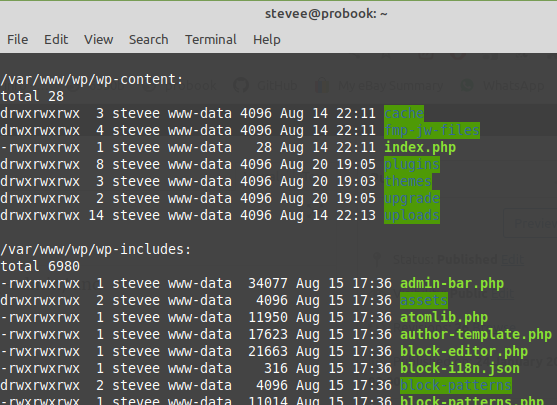
Check plugins can update after DBs imported below.
Set /www/ for apache2 access:
sudo chown stevee.www-data /var/www -R
If Search/Replace app is present from web and DB installed
https://stevepedwards.today/Search-Replace-DB-master/
or search/replace on cmd line:
stevee@localhost:/var/www/Search-Replace-DB-master $ ./srdb.cli.php -h localhost -n DebianAdmin -u root -p password -s oldPCname -r newPCname
Import DB
cp -v Backup/www/*sql /var/www/
ls -l /var/www
mysql -u root -p
show databases ;
create database DebianAdmin ;
use DebianAdmin ;
source /var/www/DebianAdmin.sql ;
create database wp ;
use wp ;
source /var/www/wp.sql ;
GRANT ALL PRIVILEGES ON *.* TO 'root'@'localhost' IDENTIFIED BY 'passwd';
(If you don't want root access after adding another user, use the REVOKE command)
GRANT ALL PRIVILEGES ON *.* TO 'stevee'@'localhost' IDENTIFIED BY 'passwd';
(that last command may not work for later mysql version so log in as root and try:)
create user stevee@localhost ;
SET PASSWORD FOR stevee@localhost = 'pword';
GRANT ALL PRIVILEGES ON *.* TO 'stevee'@'localhost' IDENTIFIED BY 'pword';
SHOW GRANTS FOR 'stevee'@'localhost';
The principle user name given access here is the name that goes into wp-config.php file for that database name.
exit
FOR net access from PCs, edit 127.0.0.1 bind addr :
sudo vi /etc/mysql/mysql.conf.d/mysqld.cnf
bind-address = 0.0.0.0
sudo service mysql restart
Export DB
stevee@localhost:/var/www$ sudo mysqldump -u root -p DebianAdmin > /var/www/localhostDA.sql
sudo apt install vsftpd
sudo vi /etc/vsftpd.conf
# When "listen" directive is enabled, vsftpd runs in standalone mode and
# listens on IPv4 sockets. This directive cannot be used in conjunction
# with the listen_ipv6 directive.
listen=YES
#
# This directive enables listening on IPv6 sockets. To listen on IPv4 and IPv6
# sockets, you must run two copies of vsftpd with two configuration files.
# Make sure, that one of the listen options is commented !!
#listen_ipv6=YES
# Uncomment this to allow local users to log in.
local_enable=YES
# Uncomment this to indicate that vsftpd use a utf8 filesystem.
utf8_filesystem=YES
sudo service vsftpd restart
for; Call to undefined function mb_regex_encoding()
Check mysql/ssh/ftp/apache2 ports are open
stevee@localhost ~ $ nmap localhost
Starting Nmap 7.01 ( https://nmap.org ) at 2018-01-31 01:47 GMT
Nmap scan report for 192.168.1.11
Host is up (0.00015s latency).
Not shown: 995 closed ports
PORT STATE SERVICE
21/tcp open ftp
22/tcp open ssh
80/tcp open http
631/tcp open ipp
3306/tcp open mysql
sudo service apache2 restart
Is php installed??
stevee@QuadMint ~ $ php -v
sudo apt install php php-mysql
Importing Posts:
sudo vi /etc/php/7.2/apache2/php.ini
; Maximum size of POST data that PHP will accept.
; Its value may be 0 to disable the limit. It is ignored if POST data reading
; is disabled through enable_post_data_reading.
; https://php.net/post-max-size
post_max_size = 0
; Maximum allowed size for uploaded files.
; https://php.net/upload-max-filesize
upload_max_filesize = 20M
sudo service apache2 restart
for Permalink postname failure:
stevee@localhost ~ $ sudo vi /var/www/DebianAdmin/.htaccess
# BEGIN WordPress
<IfModule mod_rewrite.c>
RewriteEngine On
RewriteBase /DebianAdmin/
RewriteRule ^index.php$ - [L]
RewriteCond %{REQUEST_FILENAME} !-f
RewriteCond %{REQUEST_FILENAME} !-d
RewriteRule . /DebianAdmin/index.php [L]
</IfModule>
# END WordPress
sudo a2enmod rewrite
Enabling module rewrite.
To activate the new configuration, you need to run:
systemctl restart apache2
Install chrome.deb, check bookmarks links work local and remote.
Chrome caches the old non connected pages! Use Incognito mode (Shift-N) to check site works!! Or...
rm -vr .cache/google-chrome/Default/Cache/Cache_Data/*
If you see: Update Recommended in your now (hopefully) working WP Site:
Your site is running an insecure version of PHP (7.2.34-33+ubuntu18.04.1+deb.sury.org+1), which should be updated.
Upgrade to php7.4 using:
sudo apt-add-repository ppa:ondrej/php
sudo apt update
sudo apt upgrade
sudo apt install php7.4
sudo apt update
sudo apt upgrade
sudo a2dismod php7.2
sudo a2enmod php7.4
sudo service apache2 restart
If site is https:
sudo a2enmod ssl
To disable SSL
sudo a2dismod ssl
sudo a2dissite default-ssl
sudo service apache2 restart
for no ftp:
vi /var/www/ElectronicsStuff/wp-config.php
define('FS_METHOD','direct');
-------------
-------------