Azure Serial Console and NAT GW with pip (Public IP) for VM:
Connect to VM options:
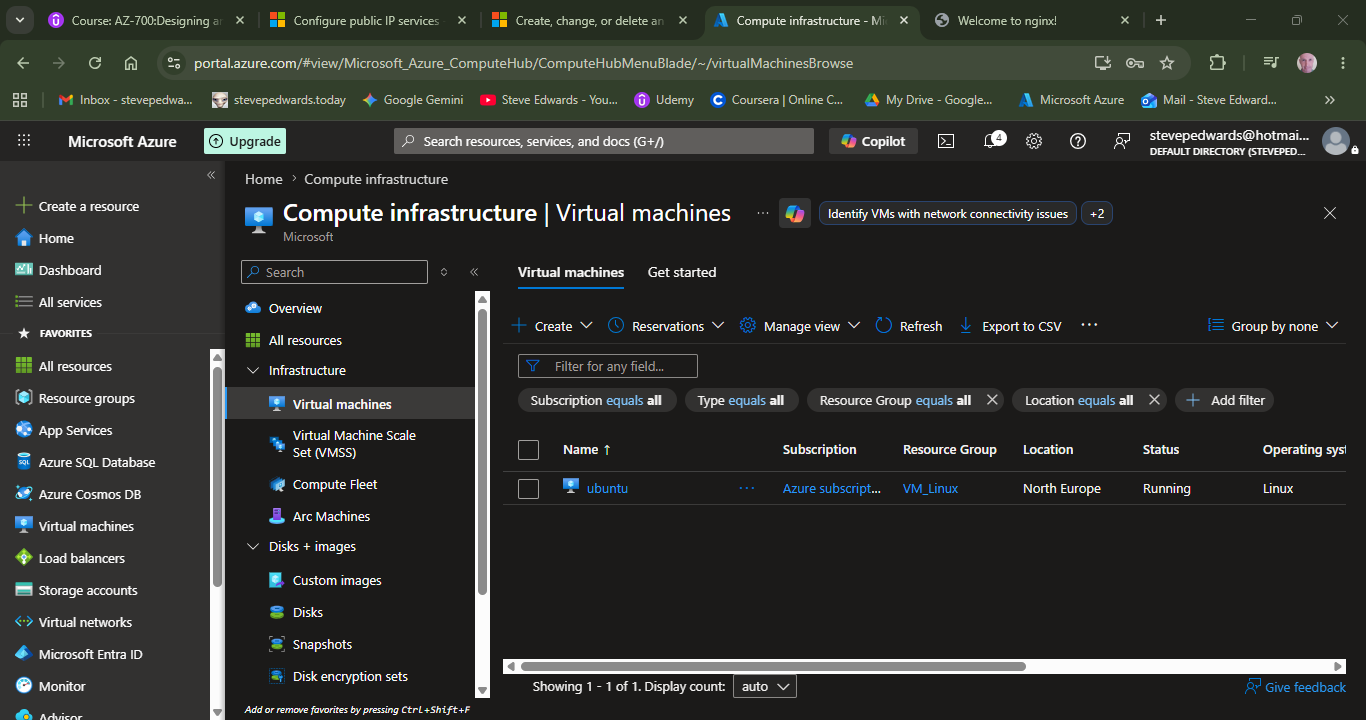
Click your VM:
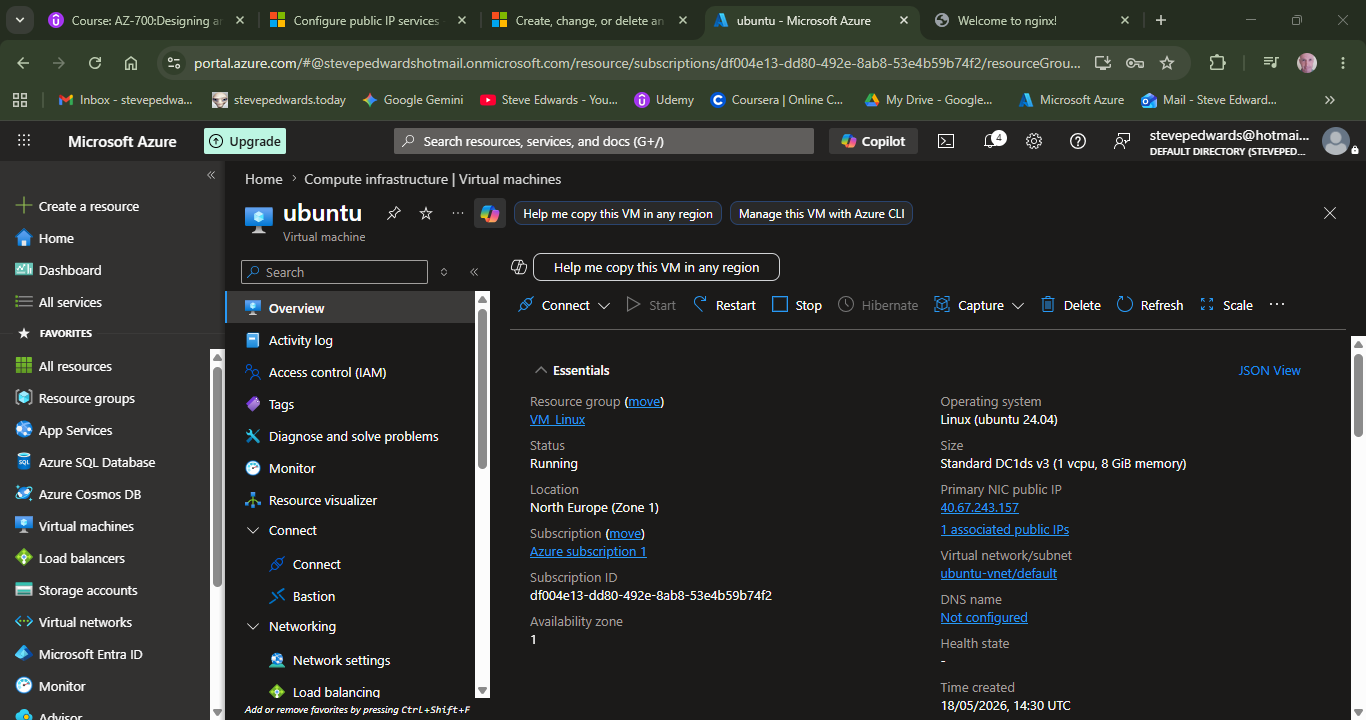
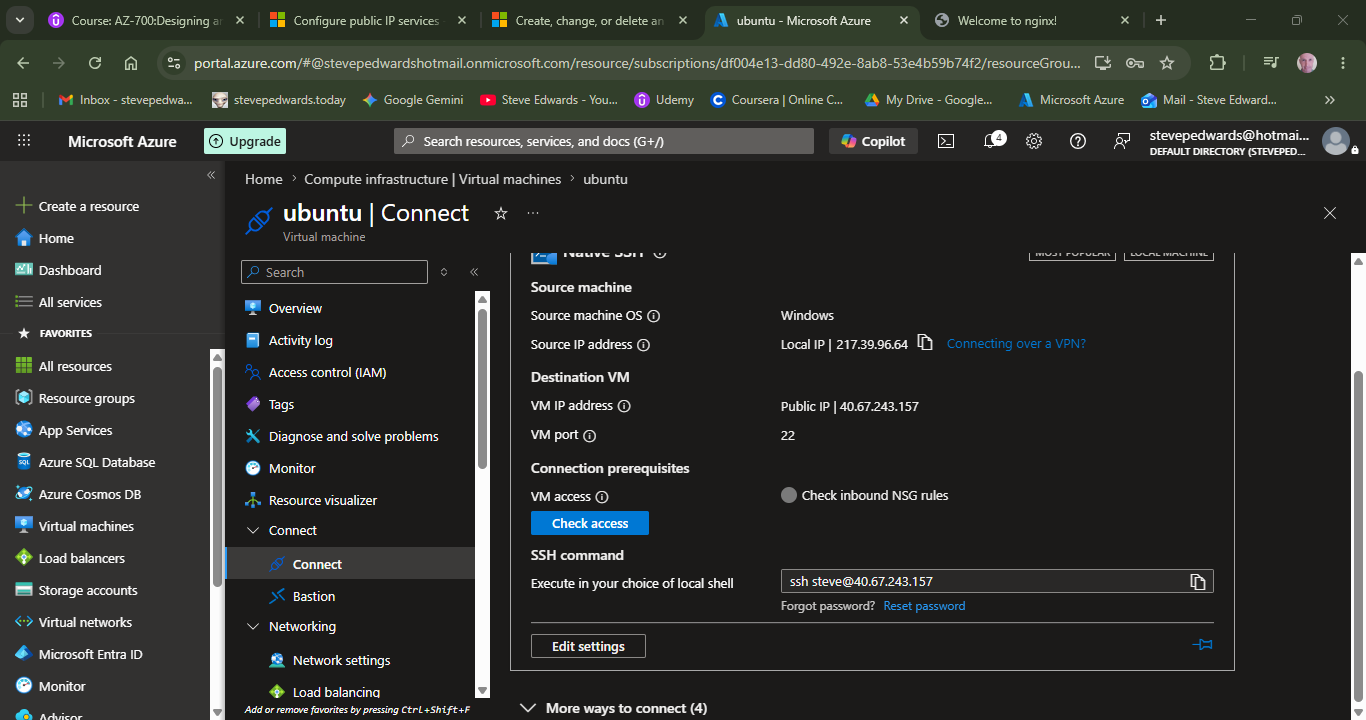
Click Connect – More Ways to connect and choose Go To Serial Console:
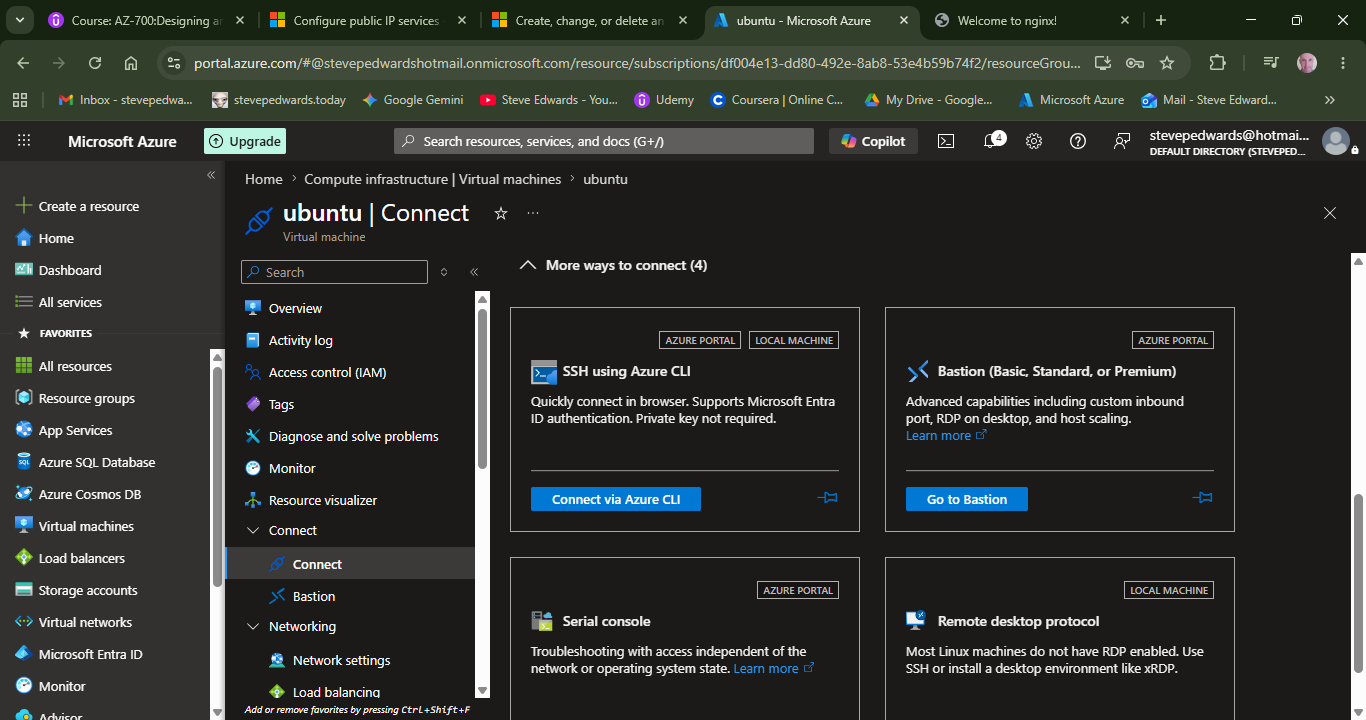
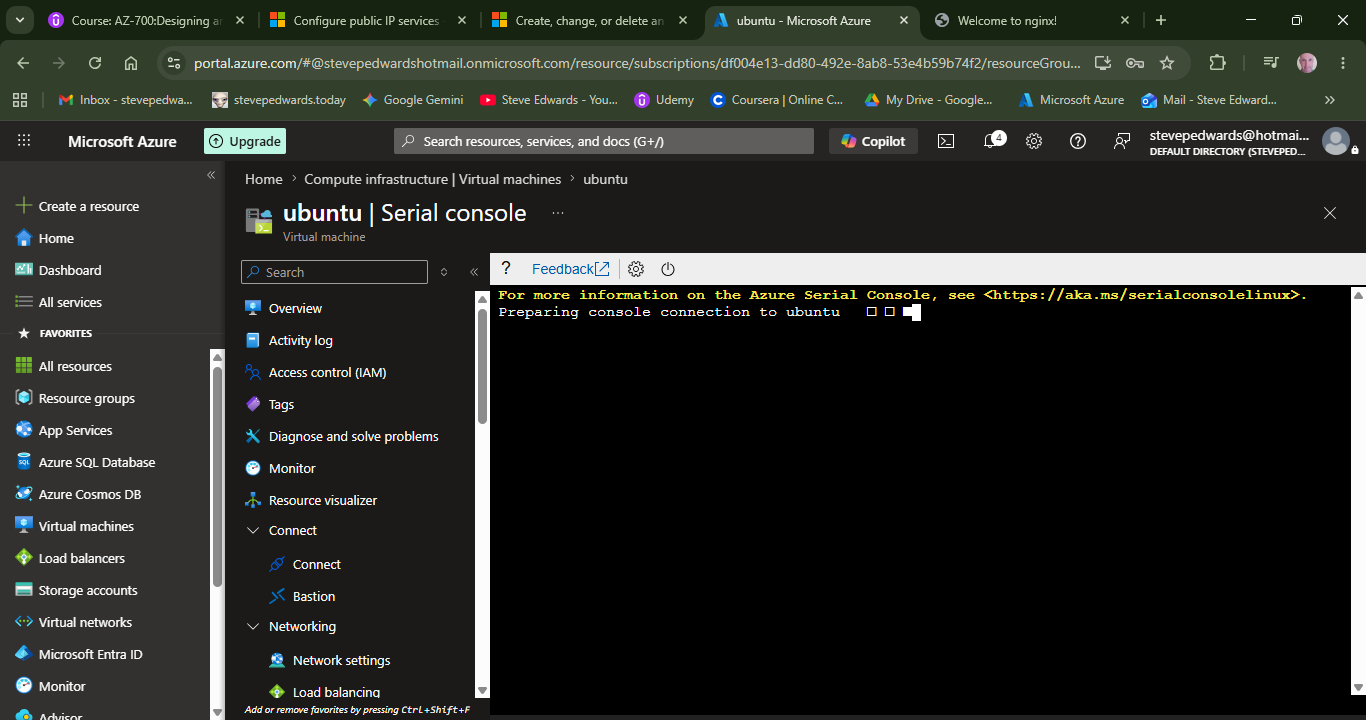
Run:
steve@ubuntu:~$ curl ifconfig.me
steve@ubuntu:~$ ls /
bin etc lib64 opt sbin sys
bin.usr-is-merged home lost+found proc sbin.usr-is-merged tmp
boot lib media root snap usr
dev lib.usr-is-merged mnt run srv var
You can now access the VM from the Serial Terminal or the IP shown can be connected to from WSL2 via SSH remotely also using:
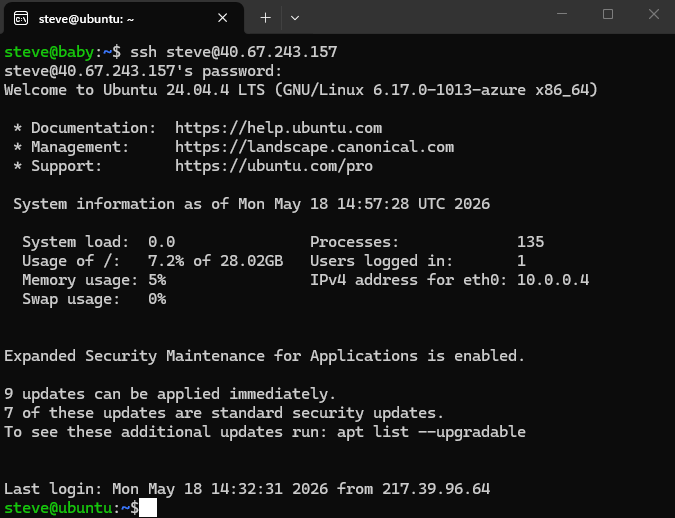
Install nginx and verify default webpage exists using curl:
steve@ubuntu:~$ curl http://localhost
<!DOCTYPE html>
<html>
<head>
<title>Welcome to nginx!</title>
<style>
html { color-scheme: light dark; }
body { width: 35em; margin: 0 auto;
font-family: Tahoma, Verdana, Arial, sans-serif; }
</style>
</head>
<body>
<h1>Welcome to nginx!</h1>
<p>If you see this page, the nginx web server is successfully installed and
working. Further configuration is required.</p>
<p>For online documentation and support please refer to
<a href="http://nginx.org/">nginx.org</a>.<br/>
Commercial support is available at
<a href="http://nginx.com/">nginx.com</a>.</p>
<p><em>Thank you for using nginx.</em></p>
</body>
</html>
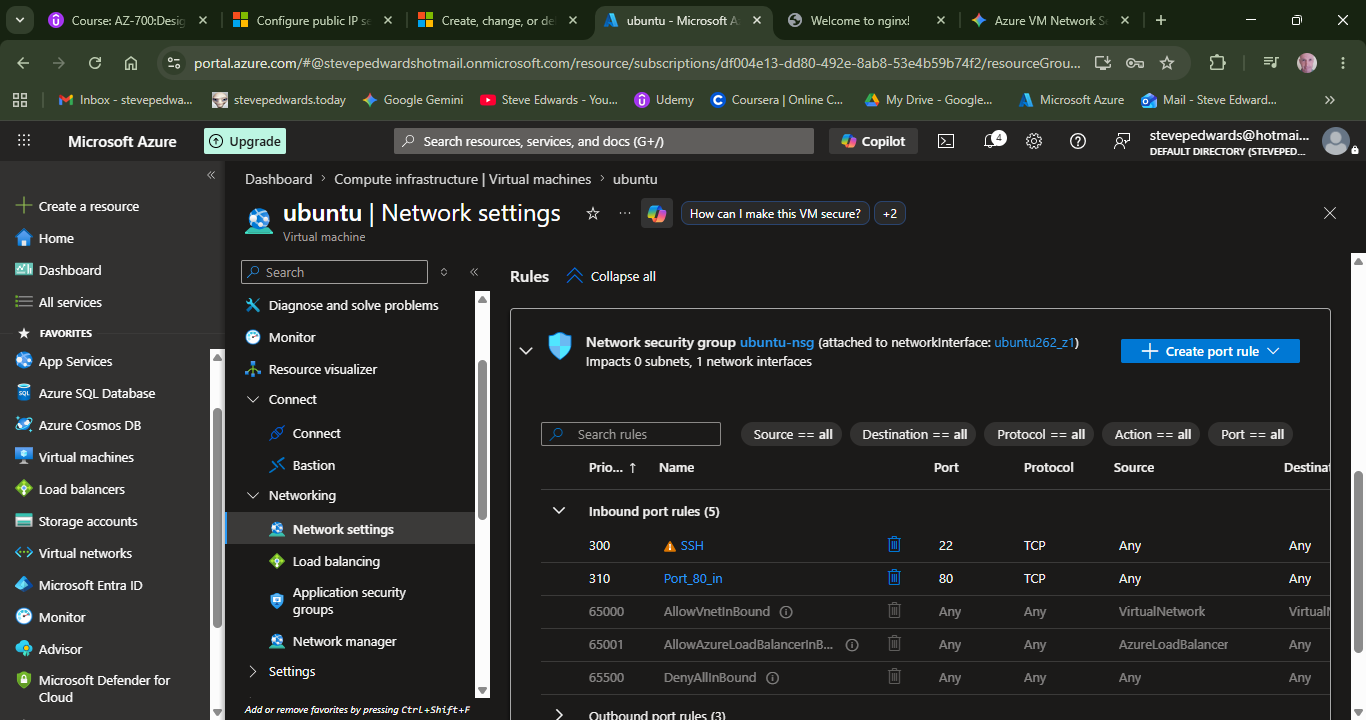
You can access this page via a browser if you allow http from the Inbound Rules in the Network Settings of the VM:
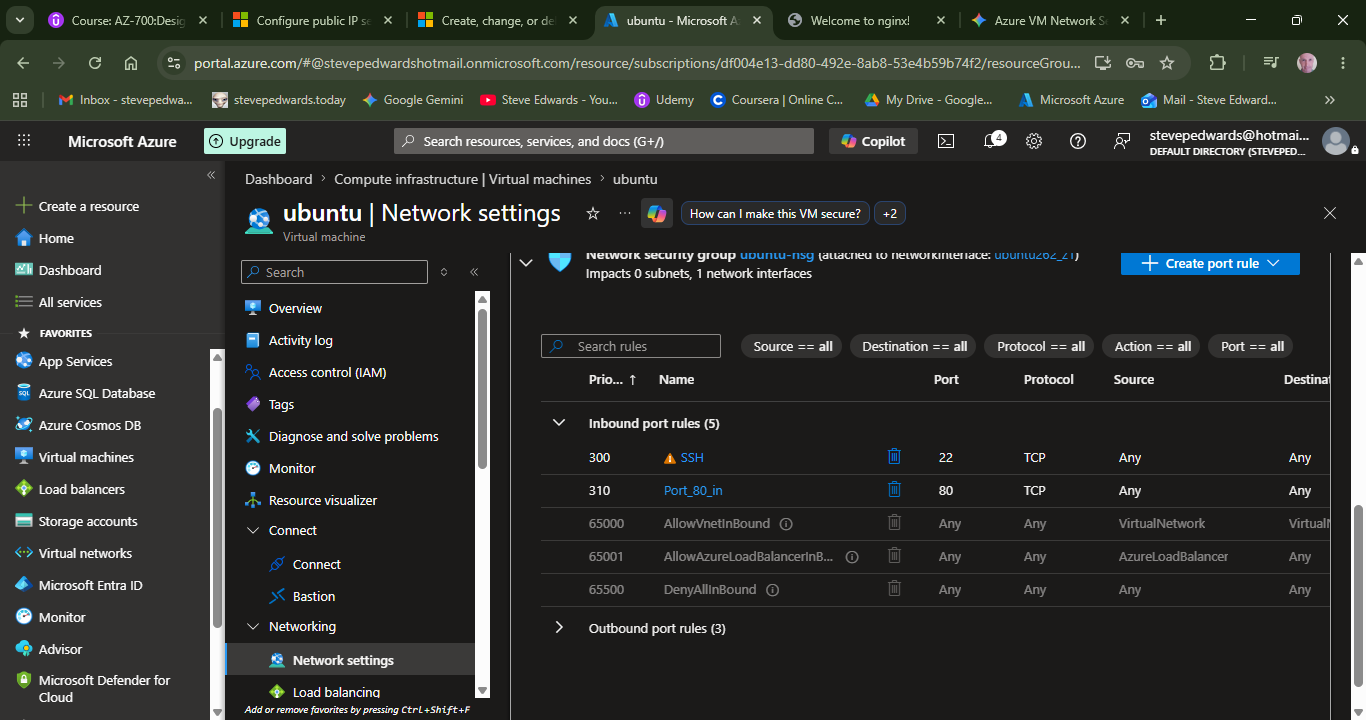
To add another Inbound Rule:
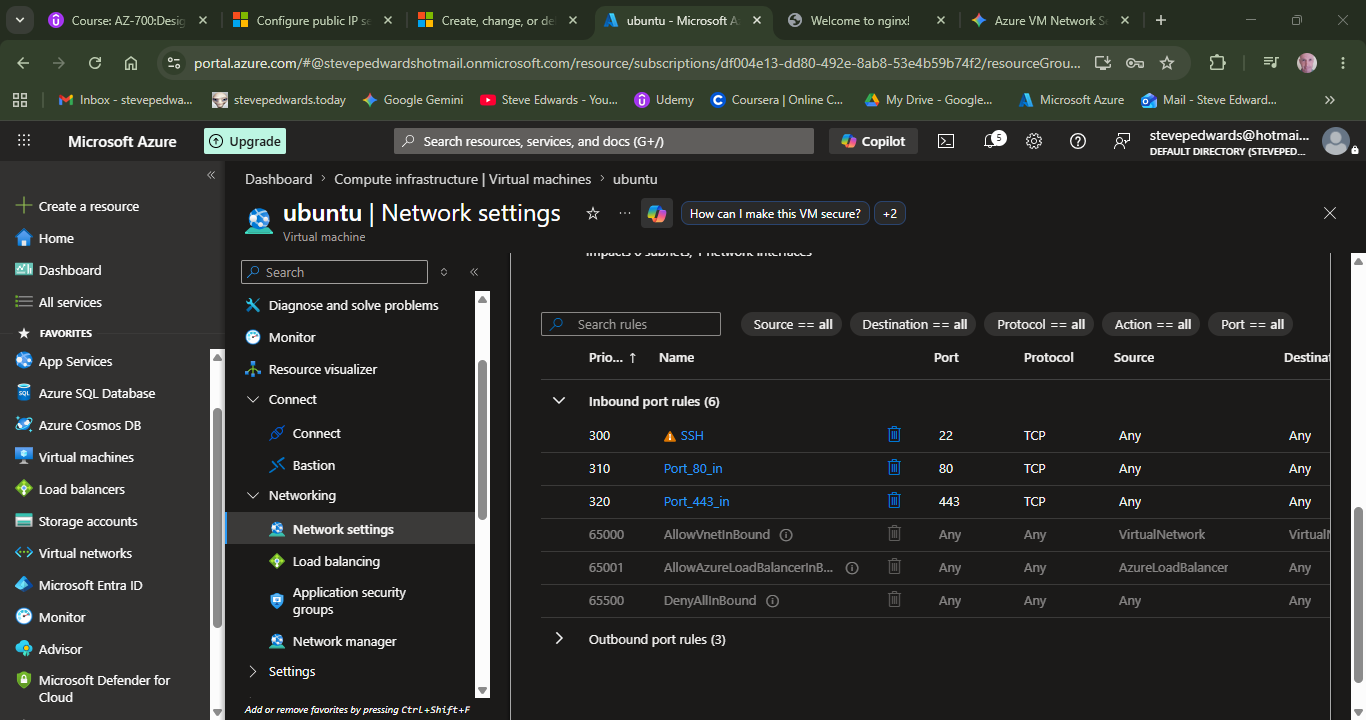
Adding the HTTPS Rule
- Navigate back to your VM's Networking (or Network settings) page in the Azure Portal.
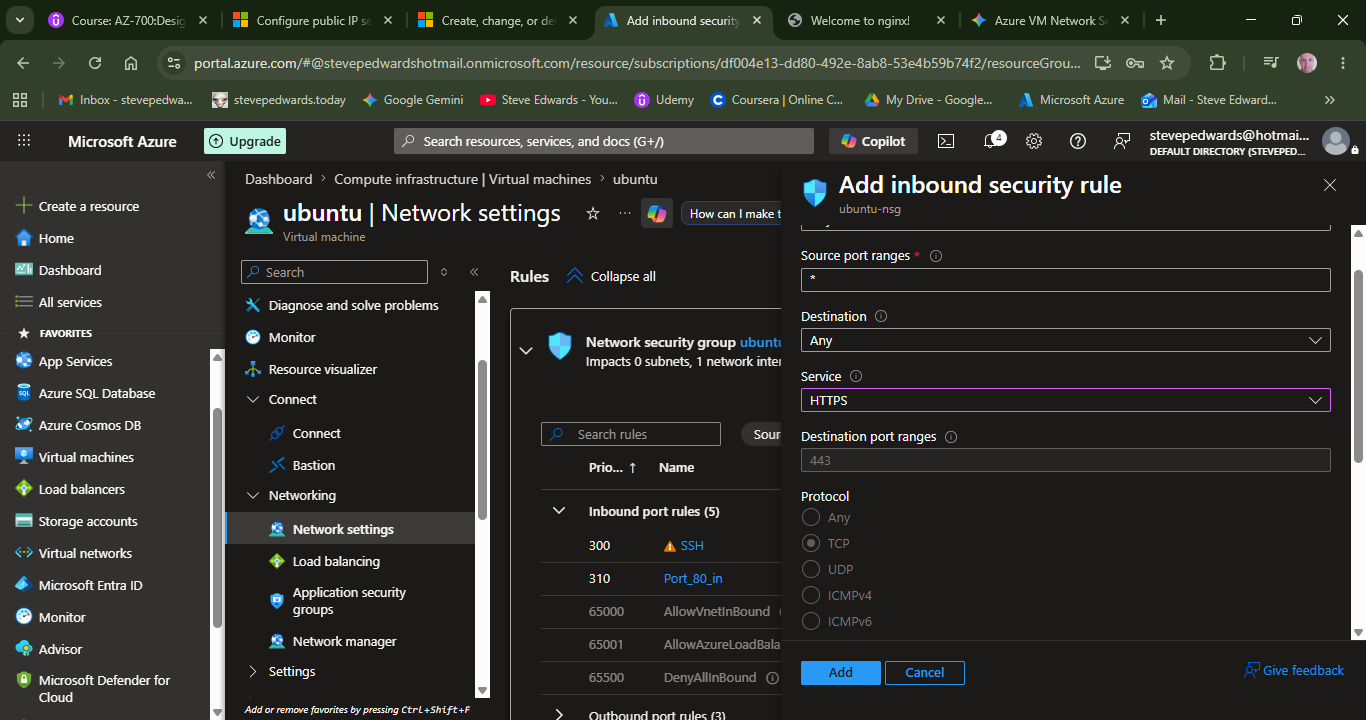
- Click the Create port rule button on the right side of the screen. A blade (sidebar) will slide out from the right. Use the drop menu to choose the service, say https, and click ADD:
steve@baby:~$ nmap -Pn 40.67.243.157
Starting Nmap 7.94SVN ( https://nmap.org ) at 2026-05-18 16:22 BST
Nmap scan report for 40.67.243.157
Host is up (0.068s latency).
Not shown: 997 filtered tcp ports (no-response)
PORT STATE SERVICE
22/tcp open ssh
80/tcp open http
443/tcp closed https
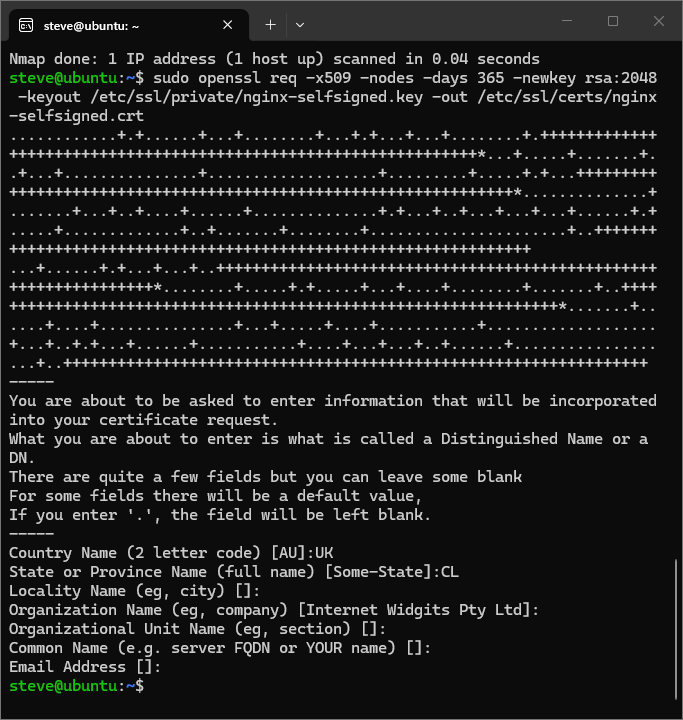
To see the nginx webpage with port 443 SSL, nginx needs a temp cert:
sudo openssl req -x509 -nodes -days 365 -newkey rsa:2048 -keyout /etc/ssl/private/nginx-selfsigned.key -out /etc/ssl/certs/nginx-selfsigned.crt
Update Your Nginx Configuration
Open your default Nginx site configuration file:
Bash
sudo vi /etc/nginx/sites-available/default
Scroll down and add a new server block specifically for port 443 right below your existing port 80 block:
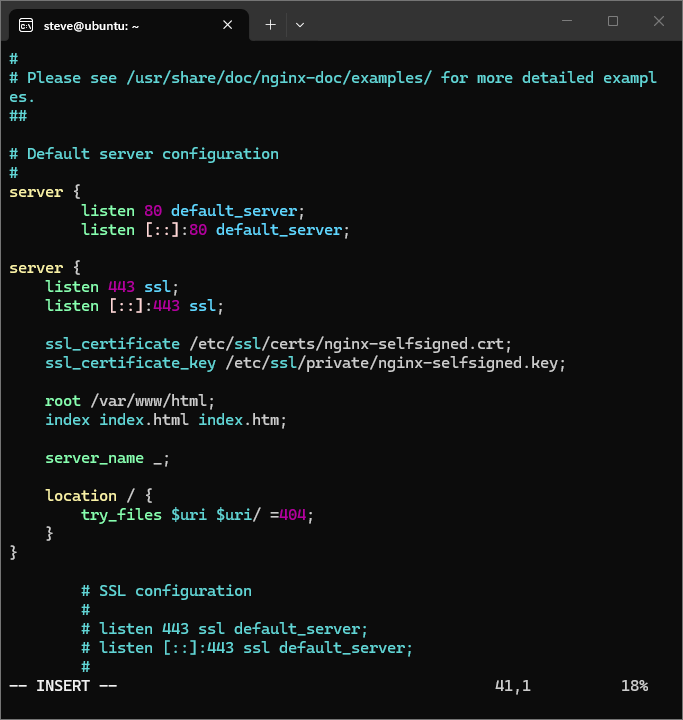
:wq
Test and Restart Nginx
Test your configuration for syntax errors:
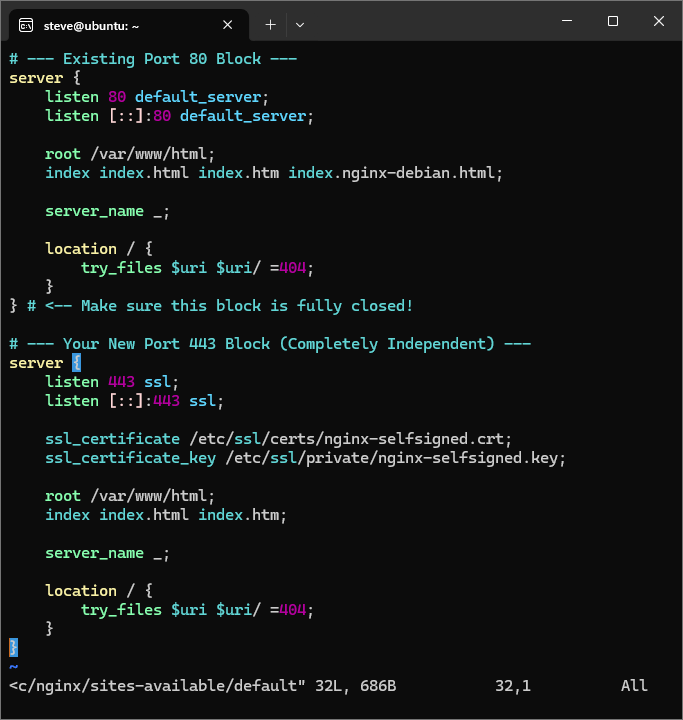
steve@ubuntu:~$ sudo nginx -t
nginx: the configuration file /etc/nginx/nginx.conf syntax is ok
nginx: configuration file /etc/nginx/nginx.conf test is successful
Restart nginx:
sudo systemctl restart nginx
steve@baby:~$ nmap -Pn 40.67.243.157
Starting Nmap 7.94SVN ( https://nmap.org ) at 2026-05-18 16:35 BST
Nmap scan report for 40.67.243.157
Host is up (0.071s latency).
Not shown: 997 filtered tcp ports (no-response)
PORT STATE SERVICE
22/tcp open ssh
80/tcp open http
443/tcp open https
HTTPS Port is open. Test the connection from the terminal:
steve@ubuntu:~$ curl https://localhost
curl: (60) SSL certificate problem: self-signed certificate
More details here: https://curl.se/docs/sslcerts.html
curl failed to verify the legitimacy of the server and therefore could not
establish a secure connection to it. To learn more about this situation and
how to fix it, please visit the web page mentioned above.
To tell curl that you acknowledge the risk and want to proceed anyway, add the -k (or --insecure) flag:
Bash
curl -k https://localhost
steve@ubuntu:~$ curl -k https://localhost
<html>
<head><title>403 Forbidden</title></head>
<body>
<center><h1>403 Forbidden</h1></center>
<hr><center>nginx/1.24.0 (Ubuntu)</center>
</body>
</html>
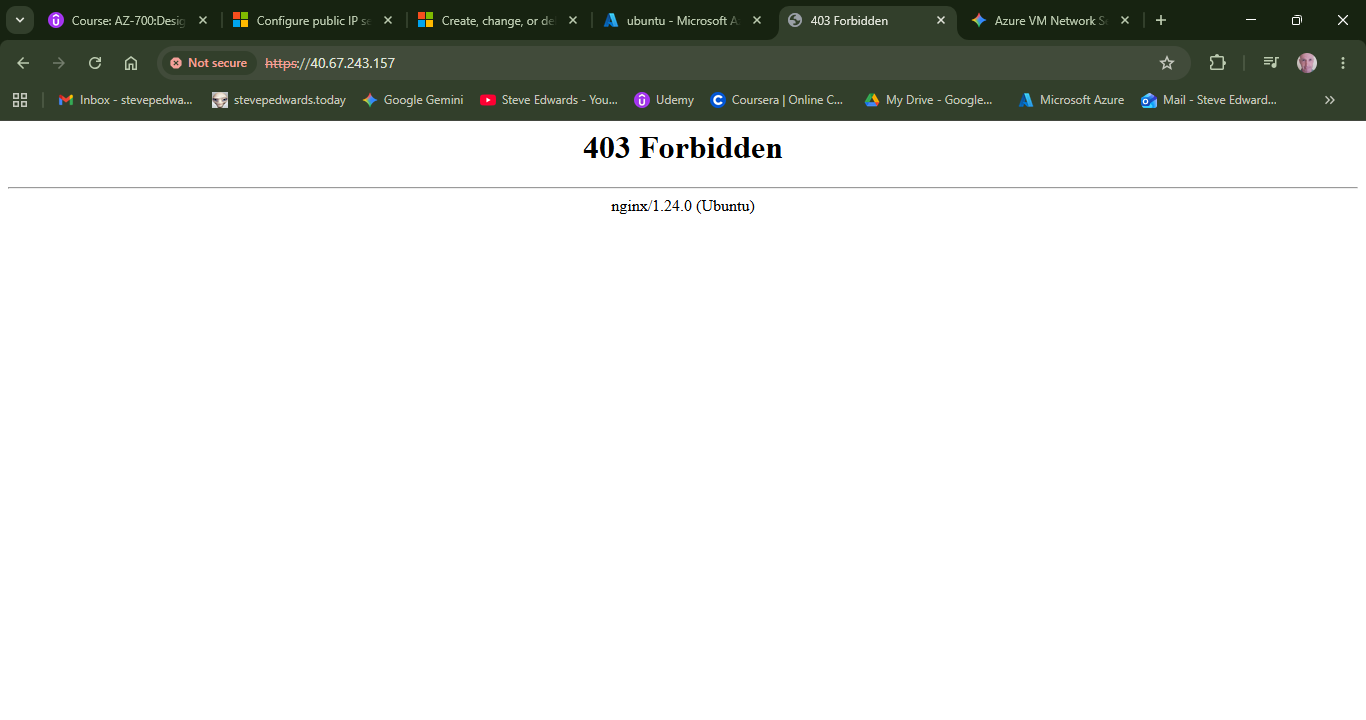
The browser confirms the same text, connection works:
Tear down the session from your WSL2 terminal that has az cli installed e.g.:
az group delete --name NetworkWatcherRG --no-wait --yes
az group delete --name VM_Linux --no-wait --yes
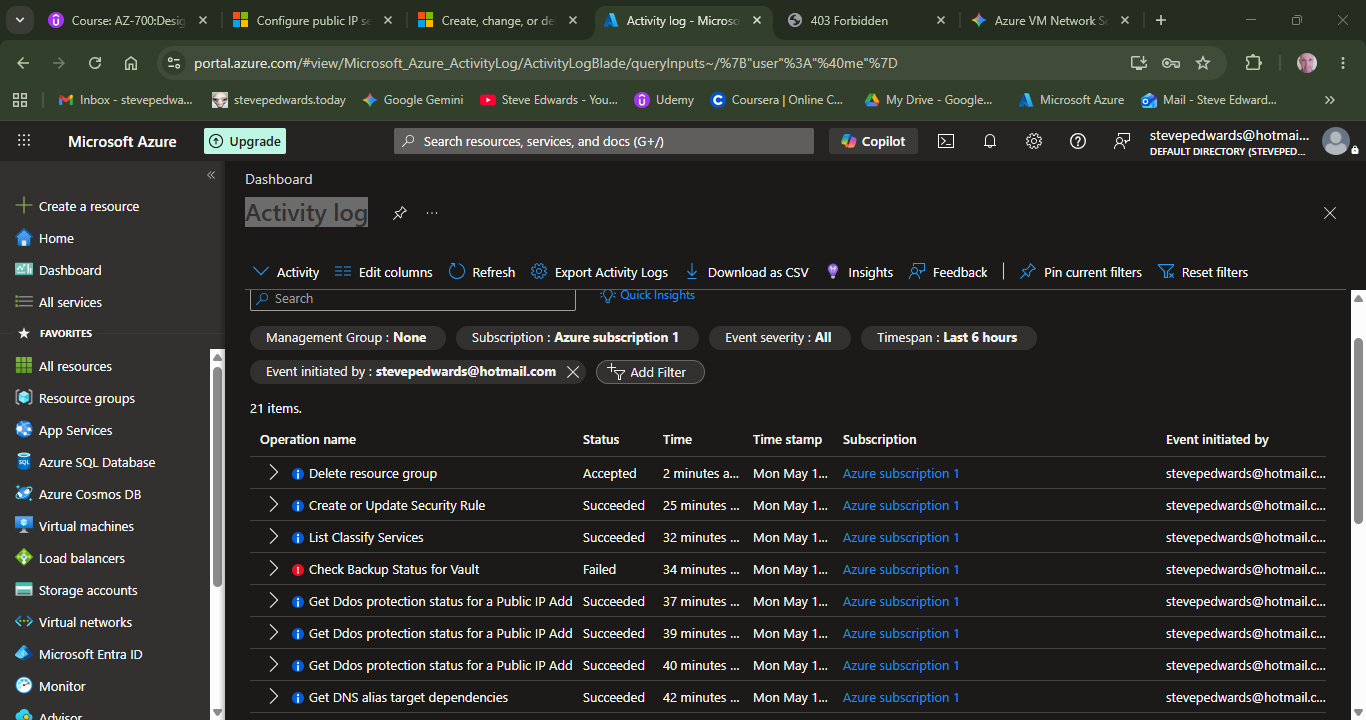
Check the groups are deleting in the Activity log:
Remove IP addresses separately to be sure – they cost if left running!
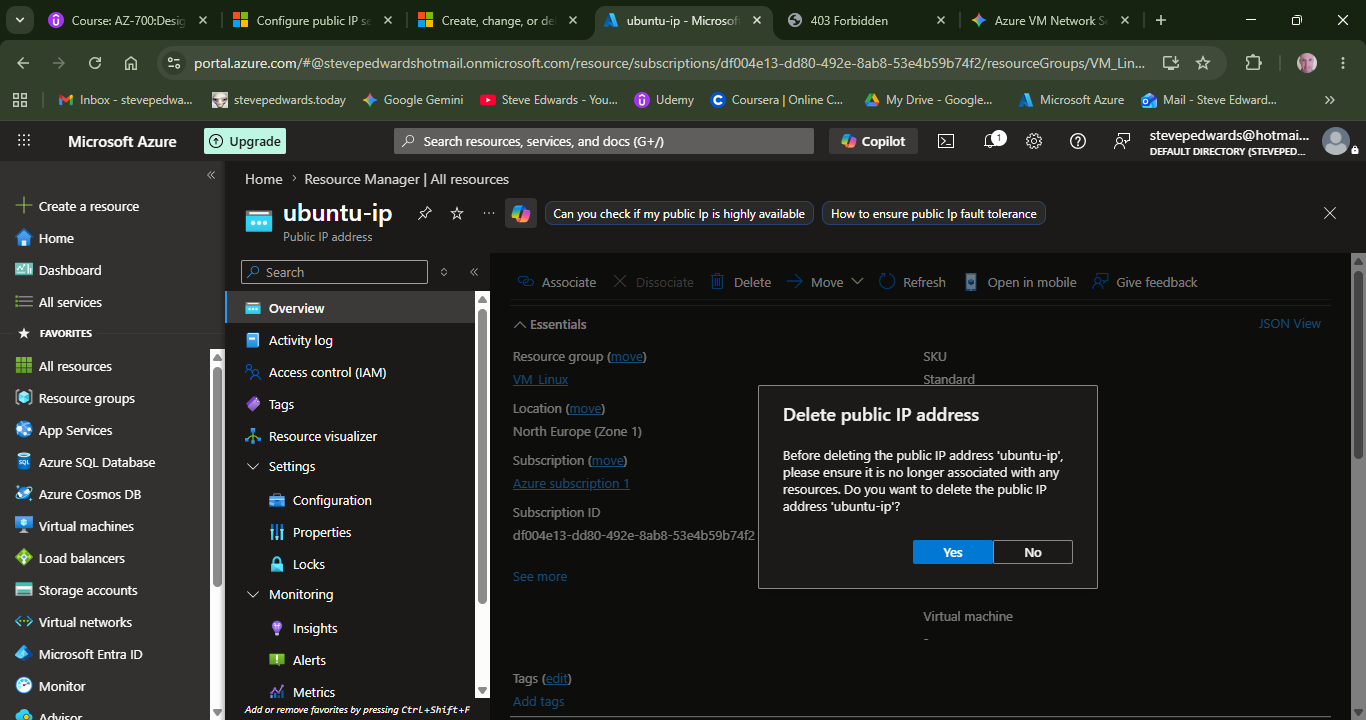
Use Shift F5 to clear cache and check Resources are gone: