 Admin 2008 -->
Admin 2008 -->
Admin 2008 -->
First - a piece of advice...learn a Command Line text editor like VIM - without this, you are living in a foreign country without learning the language.
You may as well stay home in Windowsland...
Some useful keybd shortcuts:
The MOST useful and speedy thing on a Linux desktop is the ability to highlight text with the Left mouse button then immediately paste it elsewhere with the middle mouse button/wheel press!! Fantastic!
Ctrl-C - stops nearly all running command line progs
CTl-Alt-BackSpace - kills and respawns X window
Ctrl-F1 - App help?
CtrlZ - undo
CtrlX - cut
CtrlC - copy text etc (GUI/App/R click)
CtrlV - paste
Ctrl-S - stops fast scroll in tty
Ctrl-T for new tab in browser
Ctrl + or - to magnify/shrink text
Ctrl A/E (move cursor to start/end of cmd line - cisco IOS also)
Ctrl U (deletes cmd line)
Esc - close last open box etc.
Alt-F1 - Start button
Alt-F2 - GUI run cmd box eg Kmix
Alt-F3 - Top left Window config button
Alt F4 - closes active window/app
Alt-F5 - lists open apps in current TTY
Ctrl-Alt-(F1-F6 + F8) - default TTYs
Ctrl-Alt-F7 - X-window
Print Screen - opens Ksnapshot to save screen image
Alt-PrntScr - (puts current window view in memory for pasting to App etc.)
Ctrl-Esc - running processes table (#ps aux)
F3 - find text in some apps like webrowsers
F5 - browser and Konqueror based apps refresh
Tab Key - completes available command line options in consoles (and in Cisco and now Win7)
Basic Users. Groups, and Permissions Info
There are 2 formats to change perms using # chmod - text and numeric - eg: # chmod g+r,o-rx /file.name which adds a read permission for Groups, and removes read and execute perms for Others. To change all categories in one go, use a (All) eg # chmod a+w /file = chmod ugo+w /file
First, view a files current attribs: # ls -ld /file.txt
-rw-r--r-- 1 root root 417416 2008-12-21 00:06 /file.txt
This shows a normal file, not a folder (no d at start), with rw- attribs for users; r-- read only for Groups; r-- read only for Others; Number of links a file has (1); owner (root); group (root); actual filesize in bytes B (417kB) [sector = 1kB = 2 x blocks of 512B]); date then time of creation
The numerical permissions work in 3 blocks of 3 in order of User, Group, Others in order resp. to a maximum sum of 7 per category (ie max attribute of 777 per file/dir = drwxrwxrwx for all Users, Groups and Others and the d refers to a directory) where 7 = rwx and is the sum of write(2) and execute(1) added to read (4) , so an attrib of 3 (=2+1) gives an attrib of write and execute permissions to a category eg chmod 733 /file gives Users drwx------ (1+2+4) privelege, Groups d----wx--- (ie 3=2+1), and Others d-------wx (ie 3=2+1 also) for a complete file perm of drwx-wx-wx to /file. So the numbers 0 - 7 give the 8 possible permissions: r,w,x,rw,rx,wx,rwx and null (0) = ----------
Try chmod 000 /testfile then look with # ls -ld to see, going through all numbers 100,200,300..700 to see the changes on the User attribs
FILES
/etc/group
Group account information.
/etc/passwd
User account information.
/etc/shadow
Secure user account information.
SEE ALSO
chfn(1), chsh(1), passwd(1), crypt(3), gpasswd(8), groupadd(8),
groupdel(8), groupmod(8), login.defs(5), useradd(8), userdel(8), USERMOD(8).
kuser is a usermgr GUI — Configures users on the system.
# man kuser
# man adduser - read info re cmd line usage
# adduser username - creates a user in its own name group by default
Add an existing user to an existing group
If called with two non-option arguments, adduser will add an existing user to an existing group.
eg:
white:/# adduser stevee disk
Adding user `stevee' to group `disk' ...
Adding user stevee to group disk
Done.
white:/# adduser newuser --ingroup disk
Adding user `newuser' ...
Adding new user `newuser' (1001) with group `disk' ...
Creating home directory `/home/newuser' ...
Copying files from `/etc/skel' ...
Enter new UNIX password:
Retype new UNIX password:
No password supplied
Enter new UNIX password:
Retype new UNIX password:
passwd: password updated successfully
Changing the user information for newuser
Enter the new value, or press ENTER for the default
Full Name []:
Room Number []:
Work Phone []:
Home Phone []:
Other []:
Is the information correct? [Y/n]
Remove a user from a specific group
If called with two non-option arguments, deluser will remove a user
from a specific group.
eg
white:/# deluser newuser disk
/usr/sbin/deluser: You may not remove the user from their primary group.
So:white:/# addgroup newuser
Adding group `newuser' (GID 1001) ...
Done.
After changing the primary group to newuser for newuser, using kuser, he can be deleted:
white:/# deluser newuser
Removing user `newuser' ...
Done.
white:~# addgroup test
Adding group `test' (GID 1001) ...
Done.
white:~# adduser bill --ingroup test
Adding user `bill' ...
Adding new user `bill' (1001) with group `test' ...
Creating home directory `/home/bill' ...
Copying files from `/etc/skel' ...
Enter new UNIX password:
Retype new UNIX password:
passwd: password updated successfully
Changing the user information for bill
Enter the new value, or press ENTER for the default
Full Name []:
Room Number []:
Work Phone []:
Home Phone []:
Other []:
Is the information correct? [Y/n]
What is there so far:
#vi /etc/group
root:x:0:
daemon:x:1:
bin:x:2:
sys:x:3:
adm:x:4:
tty:x:5:
disk:x:6:stevee
lp:x:7:
mail:x:8:
news:x:9:
uucp:x:10:
man:x:12:
proxy:x:13:
kmem:x:15:
dialout:x:20:stevee
fax:x:21:
voice:x:22:
cdrom:x:24:stevee
floppy:x:25:stevee
tape:x:26:
sudo:x:27:
audio:x:29:stevee
dip:x:30:
www-data:x:33:stevee
backup:x:34:
operator:x:37:
list:x:38:
irc:x:39:
src:x:40:
gnats:x:41:
shadow:x:42:
utmp:x:43:
video:x:44:stevee
sasl:x:45:
plugdev:x:46:stevee
staff:x:50:
games:x:60:
users:x:100:
nogroup:x:65534:
libuuid:x:101:
crontab:x:102:
Debian-exim:x:103:
mlocate:x:104:
ssh:x:105:
stevee:x:1000:
messagebus:x:106:
avahi:x:107:
netdev:x:108:
dirmngr:x:109:
haldaemon:x:110:
powerdev:x:111:
scanner:x:112:saned
saned:x:113:
sambashare:x:114:stevee
test:x:1001:
Or in Webmin – which is easy to use and totally amazing!!
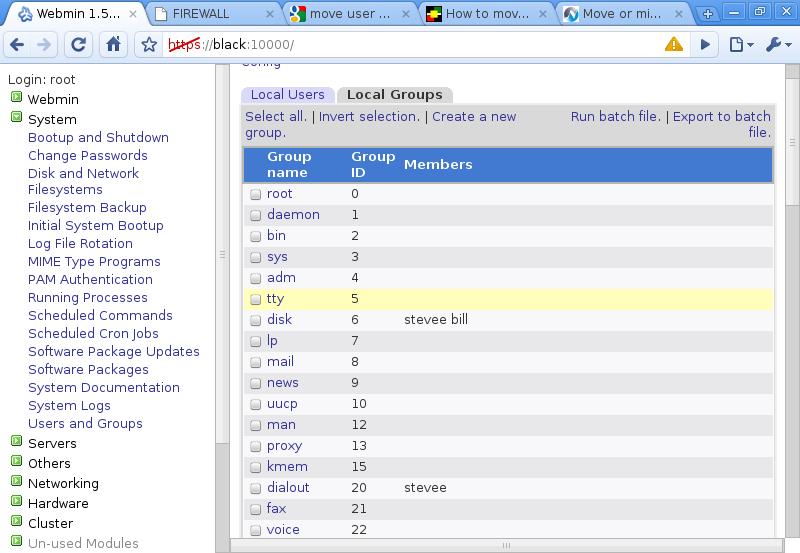
Note there is no group called "bill", as he was added to group "test" on creation, and that a "user" is not added to their initial, and so Primary, group.
To put bill in his own group, as default would be, group bill has to exist:
white:~# addgroup bill
Adding group `bill' (GID 1002) ...
Done.
Now, bill can be moved to his group:
-g, --gid GROUP
The group name or number of the user´s new initial login group.
The group name must exist. A group number must refer to an
already existing group. The default group number is 1.
white:~# usermod -g 1002 bill
We can now see bill in new group bill, GID 1002 in kuser, Webmin and in /etc/group:
white:~# cat /etc/group | grep bill
bill:x:1002:
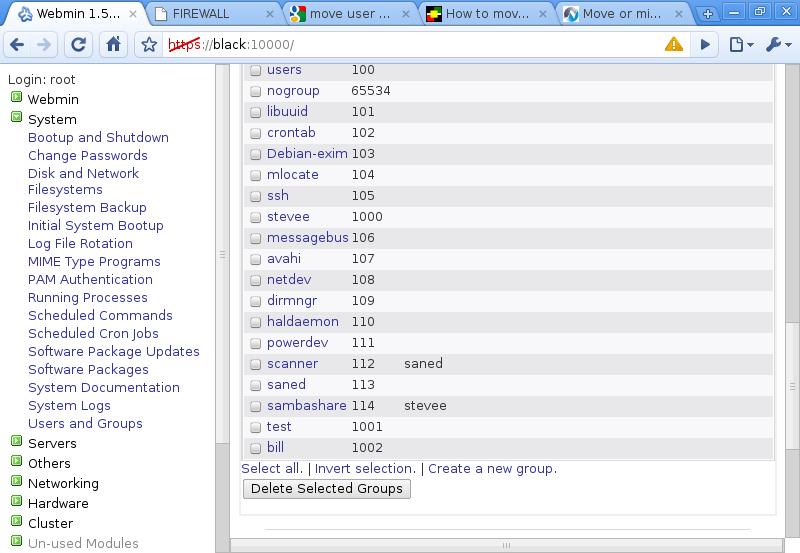
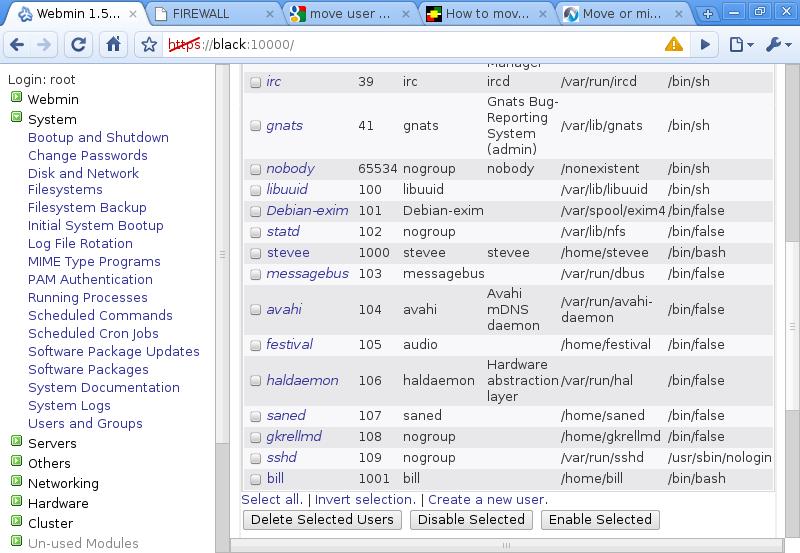
To add a user to multiple groups, use append (-a and -G) together to keep curremt group membership.
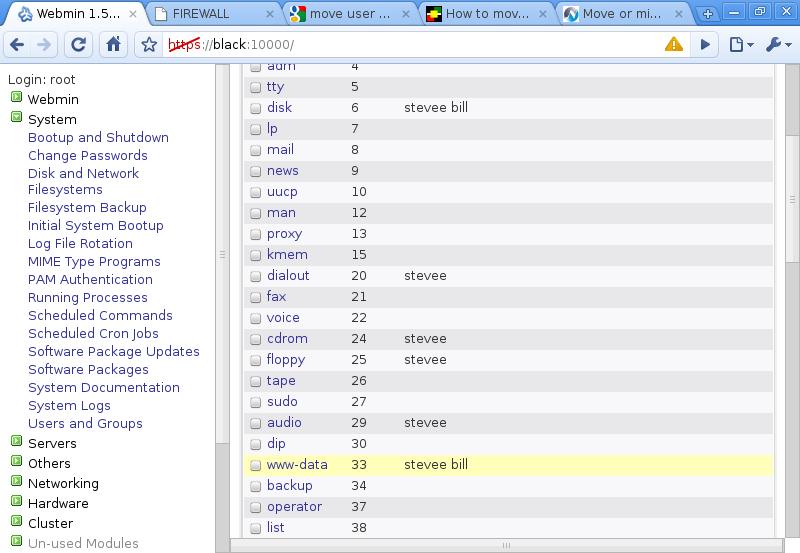
white:~# usermod -aG disk,www-data bill
Bill is now also in groups disk and www-data.
Looking at file permissions for a users home directory:
white:~# ls -alsh /home/stevee/
total 388K
4.0K drwxr-xr-x 25 stevee stevee 4.0K 2010-07-22 16:42 .
4.0K drwxr-xr-x 5 root root 4.0K 2010-07-22 15:53 ..
4.0K drwx------ 3 stevee stevee 4.0K 2010-07-13 16:37 .adobe
4.0K drwx------ 4 stevee stevee 4.0K 2010-07-20 21:41 .appdata
And a key point:
Apache2 Permissions
In the case where file system permissions are at fault, remember that
> not only must the directory and files in question be readable, but
> also all parent directories must be at least searchable (i.e., chmod
> +x /directory/path) by the web server in order for the content to be
> accessible.
For example, an Apache2 server needs is Document Root directory permissions to be set correctly so users can traverse the directory:
firewall:~# ls -alsh /LVM120G/www
total 23M
4 drwxr-xr-x 10 www-data www-data 4096 2010-07-21 21:16 www
The owner and all files are the www-data group by default.
The Famous Sticky Bit - the t Attribute (file security)
COURTESY WIKIPEDIA:
The sticky bit is an access-right flag that can be assigned to files and directories on Unix systems.
History
The sticky bit was introduced in the Fifth Edition of Unix in 1974 for use with pure executable files. When set, it instructed the operating system to retain the text segment of the program in swap space after the process exited. This sped up subsequent executions by allowing the kernel to make a single operation of moving the program from swap to real memory. Thus, frequently-used programs like editors would load noticeably faster. One notable problem with "stickied" programs was replacing the executable (for instance, during patching); to do so required removing the sticky bit from the executable, executing the program and exiting to flush the cache, replacing the binary executable, and then restoring the sticky bit.
Currently, this behavior is only operative in HP-UX, NetBSD, UnixWare, and Mac OS X. Solaris appears to have abandoned this in 2005.[citation needed] The 4.4-Lite release of BSD retained the old sticky bit behavior but it has been subsequently dropped from OpenBSD (as of release 3.7) and FreeBSD (as of release 2.2.1); it remains in NetBSD.
No version of Linux has ever supported the traditional behavior.*
*Of what?? Keeping the text part in swap? Linux uses the t bit somehow, as seen from the /tmp dir listings below..(Me)
Usage
The most common use of the sticky bit today is on directories, where, when set, items inside the directory can be renamed or deleted only by the item's owner, the directory's owner, or the superuser; without the sticky bit set, any user with write and execute permissions for the directory can rename or delete contained files, regardless of owner. Typically this is set on the /tmp directory to prevent ordinary users from deleting or moving other users' files. This feature was introduced in 4.3BSD in 1986 and today it is found in most modern Unix systems.
In addition, Solaris (as of Solaris 2.5) defines special behavior when the sticky bit is set on non-executable files: those files, when accessed, will not be cached by the kernel. This is usually set on swap files to prevent access on the file from flushing more important data from the system cache. It is also used occasionally for benchmarking tests.
The sticky bit is also set by the automounter to indicate that a file has not been mounted yet. This allows programs like ls to ignore unmounted remote files.
The s and t Attributes
There are two special bits in the permissions field of directories. They are:
* s - Set group ID
* t - Save text attribute (sticky bit) - The user may delete or modify only those files in the directory that they own or have write permission for.
# ls -al /usr/bin/v4l-conf
-rwsr-xr-x 1 root root 15272 2007-12-18 20:43 v4l-conf
The /tmp directory is typically world-writable and looks like this in a listing:
drwxrwxrwt 13 root root 4096 Apr 15 08:05 tmp
We can find files that have the t attrib set using the "special" start of line character "^" and the "." to match any individual char. We know that /tmp has some files/directories with the t bit set and the t is the 10th char from the start of file in an # ls -al listing, so using that, then filtering with grep for just the 10th char we get:
compaqdeb:~# ls -al /tmp/ | grep "^.........t"
drwxrwxrwt 9 root root 4096 2009-08-09 23:02 .
drwxrwxrwt 2 root root 4096 2009-08-09 17:51 .font-unix
drwxrwxrwt 2 root root 4096 2009-08-09 17:54 .ICE-unix
drwxrwxrwt 2 root root 4096 2009-08-09 17:54 .X11-unix
Similarly, to find files only using a particular last character in the listing, use the special char "$". eg all files, as above, ending in "x":
compaqdeb:~# ls -al /tmp/ | grep "x$"
drwxrwxrwt 2 root root 4096 2009-08-09 17:51 .font-unix
drwxrwxrwt 2 root root 4096 2009-08-09 17:54 .ICE-unix
drwxrwxrwt 2 root root 4096 2009-08-09 17:54 .X11-unix
We can extend this principle in many ways, eg use diff listing parameters of # ls to give different starting characters ot a file/dir, and filter accordingly. Showing the -sh = fileSize in Human readable format of / gives (truncated):
It shows that softlinks like /cdrom occupies only 11 bits disk space, and have an l for link as an attrib; or you could filter for large files in the GB range grepping the G as 4th char, or ending in iso etc..
compaqdeb:~# ls -alsh /
total 16G
4.0K drwxr-xr-x 37 root root 4.0K 2009-08-09 18:03 .
4.0K drwxr-xr-x 37 root root 4.0K 2009-08-09 18:03 ..
4.0K drwxr-xr-x 2 root root 4.0K 2008-12-16 23:43 amd64d
4.0K drwxr-xr-x 2 root root 4.0K 2009-02-18 14:29 bin
4.0K drwxr-xr-x 3 root root 4.0K 2009-05-28 17:35 boot
108K -rw-r--r-- 1 root root 102K 2009-08-08 19:41 Brittany.htm
12K drwx------ 1 root root 12K 2009-08-07 15:24 bup
0 lrwxrwxrwx 1 root root 11 2008-12-05 18:16 cdrom -> media/cdrom
4.0K drwxr-xr-x 2 root root 4.0K 2009-08-05 21:05 cpaqD
0 drwxr-xr-x 13 root root 3.8K 2009-08-10 10:37 dev
32K drwxr-xr-x 15 root root 32K 1970-01-01 01:00 Efat32
4.0K drwxr-xr-x 3 root root 4.0K 2008-12-05 19:06 emul
12K drwxr-xr-x 107 root root 12K 2009-08-10 10:37 etc
4.2G -rw-r--r-- 1 root root 4.1G 2009-08-08 21:34 gil.iso
4.0K drwxr-xr-x 3 root root 4.0K 2008-12-05 19:09 home
0 lrwxrwxrwx 1 root root 30 2008-12-08 17:14 initrd.img -> boot/initrd.img-2.6.26-1-amd64
See how mounting the /gil.iso file on /mnt using # mount -o loop /gil.iso /mnt shows the strange User and Group attribs to just a large filesize number and not root:
compaqdeb:~# ls -alsh /mnt/
total 12K
2.0K dr-xr-xr-x 5 4294967295 4294967295 184 2006-05-14 11:14 .
4.0K drwxr-xr-x 37 root root 4.0K 2009-08-09 18:03 ..
2.0K dr-xr-xr-x 2 4294967295 4294967295 40 2006-05-14 14:06 AUDIO_TS
2.0K dr-xr-xr-x 2 4294967295 4294967295 196 2006-05-14 14:14 JACKET_P
2.0K dr-xr-xr-x 2 4294967295 4294967295 1.2K 2006-05-14 14:14 VIDEO_TS
Other attribs worth noting are b for Block devices, which are the actual physical device (eg floppy drive) representation when mounted in the filesystem tree, (highlighting that Unix systems treat everything as a "virtual" file of some sort within the tree); and "special" devices. attrib c eg other non block devices like memory etc. Note the dvd and dvdrw names linked to the same actual block device hdc.
crw-rw---- 1 root root 10, 63 2009-08-10 10:36 cpu_dma_latency
drwxr-xr-x 5 root root 100 2009-08-10 10:36 disk
crw-rw---- 1 root audio 14, 9 2009-08-10 10:37 dmmidi
crw-rw---- 1 root audio 14, 3 2009-08-10 10:37 dsp
lrwxrwxrwx 1 root root 3 2009-08-10 10:36 dvd -> hdc
lrwxrwxrwx 1 root root 3 2009-08-10 10:36 dvdrw -> hdc
lrwxrwxrwx 1 root root 13 2009-08-10 10:37 fd -> /proc/self/fd
brw-rw---- 1 root floppy 2, 0 2009-08-10 10:36 fd0
crw-rw-rw- 1 root root 1, 7 2009-08-10 10:36 full
brw-rw---- 1 root disk 3, 0 2009-08-10 10:36 hda
Users Home Directories
The /home/”username” directory contains hidden files that start with a dot (.) and can be seen in “all” view with ls -a. These are mainly conf. type files for Apps, Desktop, X window settings etc. eg:
white:~# ls -a /home/stevee/
. .DCOPserver_white__0 .kderc .pulse
.. .DCOPserver_white_:0 .kpackage .pulse-cookie
.adobe Desktop .local .qt
.appdata Downloads .macromedia .thumbnails
.bash_history .fonts.conf .mcop Videos
.bash_logout .gconf .mcoprc .Xauthority
.bashrc .gconfd .openoffice.org2 .xine
.cache .ICEauthority .opera .xsession-errors
.config .kde .pki
.dbus .kde4 .profile